1. Product Overview
The SONOFF TX WiFi Smart Wall Switch is designed to provide intelligent control over your home lighting. It allows for remote operation via smartphone, voice commands, and scheduled automation, enhancing convenience and energy efficiency.
Key Features:
- Smart Remote Control: Turn electronics on or off from anywhere using the eWeLink App (Android & iOS).
- Touch Control Design: Features a glass panel for easy touch control, low power loss, and long service life.
- Hands-Free Voice Control: Compatible with Amazon Alexa, Google Assistant, and IFTTT for convenient voice operation.
- Timer & Schedule: Set automated schedules for lights to turn on and off.
- Device Sharing: Share control of your smart switch with family members.
- LAN Control: Operate appliances without Wi-Fi connection (for TX series switches).

Image 1.1: The SONOFF TX WiFi Smart Wall Switch (3-Gang White) alongside its product packaging.
Video 1.1: An overview of the SONOFF TX Smart Light Switch, highlighting its features and design.
2. What's in the Box
Upon opening the package, you will find the following components:
- 1 x SONOFF TX WiFi Smart Wall Switch (T2-3 Gang, White)
- 1 x User Manual
- Mounting Screws
3. Setup and Installation
Important Safety Note: Installation should be performed by a qualified electrician or a person with sufficient electrical knowledge. Ensure power is turned off at the circuit breaker before beginning any wiring work.
Wiring Diagram:
The SONOFF TX switch requires a neutral wire for proper operation. Below is a typical wiring diagram for the 3-gang model.

Image 3.1: Detailed wiring diagram for the 3-gang smart switch, showing connections for Neutral In (N in), Live In (L in), and Live Out (L1, L2, L3 out) for each gang. A neutral wire is required.

Image 3.2: Rear view of the SONOFF TX 3-gang smart switch (Model T2US3C), displaying the screw terminals for electrical connections and product information.
Ensure all connections are secure and follow local electrical codes. The switch is designed to fit standard US wall boxes.

Image 3.3: Diagram illustrating the dimensions of the smart switch, confirming its compatibility with existing wall boxes (120mm x 74mm with 85±2mm mounting holes).
App Pairing Instruction:
To control your smart switch via the eWeLink app, you need to pair it with your Wi-Fi network. The switch only supports 2.4 GHz Wi-Fi networks.
- Install and Login: Download and install the eWeLink Smart Home APP from your device's app store (compatible with Android & iOS). Log in or create a new account.
- Enter Pairing Mode: Long press any configuration button on the smart switch for approximately 5 seconds until the Wi-Fi LED indicator changes in a cycle of two short flashes and one long flash. This indicates the device is in pairing mode.
- Add Device in App: In the eWeLink app, tap the "+" icon and select "Quick Pairing".
- Connect to Wi-Fi: Enter your 2.4GHz Wi-Fi password and follow the on-screen prompts. Ensure your smartphone is close to the Wi-Fi router.
- Discover and Add: The app will discover and add your Wi-Fi device. Once successfully added, you can name your device and assign it to a room.
Video 3.1: A step-by-step guide on how to pair your SONOFF TX Series WiFi Wall Switch with the eWeLink application.

Image 3.4: Visual representation of the four-step process for installing the eWeLink app, adding a device, entering Wi-Fi credentials, and discovering/adding the smart switch.
4. Operation
Manual Touch Control:
The glass panel allows for direct touch control. A slight tap on the designated touch areas will toggle the connected lights on or off.

Image 4.1: The smart switch installed on a wall, demonstrating its ability to control multiple home devices independently.
APP Remote Control:
Once paired with the eWeLink app, you can control your lights from anywhere with an internet connection.

Image 4.2: A user remotely controlling lights in their home using the eWeLink app on their smartphone.

Image 4.3: A woman using her smartphone to remotely control the smart switch, illustrating the convenience of app-based control.
Voice Control:
Integrate your SONOFF TX switch with Amazon Alexa or Google Assistant for hands-free voice control.

Image 4.4: A woman interacting with a voice assistant (Alexa) to control her dining room lights through the smart switch.

Image 4.5: A woman in a kitchen setting using a voice command to activate lighting, demonstrating seamless integration with smart home ecosystems.
Scheduling and Timers:
Set up custom schedules and timers within the eWeLink app to automate your lighting based on your daily routine.
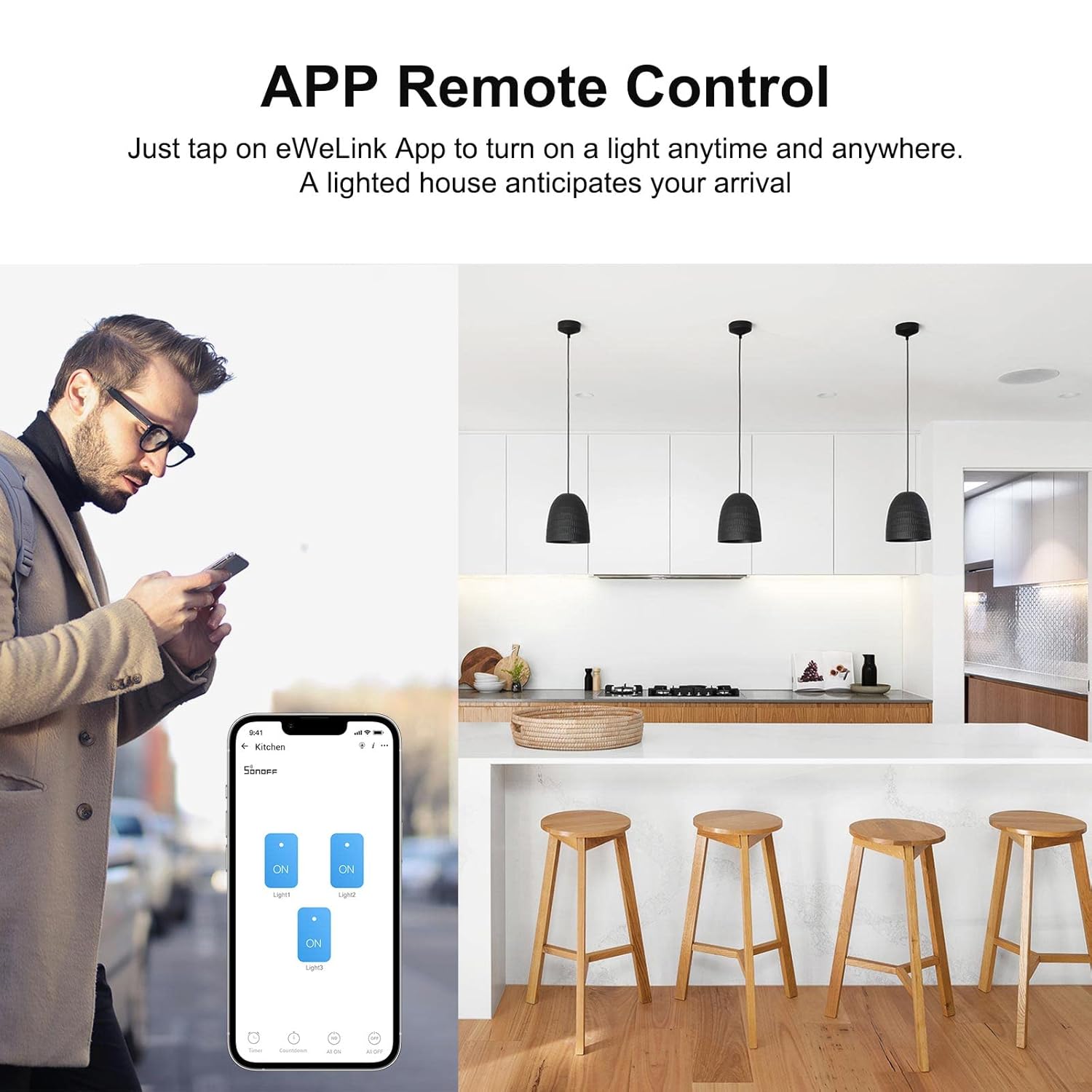
Image 4.6: Examples of scheduled lighting: turning on at 06:30, turning on at 18:00, and turning off at 23:00.

Image 4.7: Illustration of a smart switch automating lights based on a schedule, such as turning on at 7:00 AM and off at 10:30 PM, even while sleeping.
Device Sharing:
Share control of your smart switch with family members or trusted individuals through the eWeLink app, allowing multiple users to manage the devices.

Image 4.8: A family interacting with a smartphone, demonstrating the device sharing feature that allows multiple users to control smart home appliances.

Image 4.9: Two women engaging with their smartphones, illustrating the ease of sharing control over smart devices among users.
RF Control (Optional):
For situations where a network connection is unavailable, the switch supports 433MHz RF remote control (remote sold separately).

Image 4.10: The smart switch being operated by a dedicated RF remote control, providing an alternative control method when Wi-Fi is not available.
5. Maintenance
To ensure the longevity and optimal performance of your SONOFF TX Smart Wall Switch, follow these maintenance guidelines:
- Cleaning: The toughened glass panel is easy to clean. Use a soft, damp cloth to wipe the surface. Avoid abrasive cleaners or harsh chemicals that could damage the finish.
- Firmware Updates: Periodically check the eWeLink app for available firmware updates. Keeping your device's firmware up-to-date ensures you have the latest features and security enhancements.
- Environmental Conditions: Ensure the switch is installed in an environment within its specified operating temperature and humidity ranges to prevent damage.

Image 5.1: A hand wiping the surface of the smart switch, highlighting its easy-to-clean toughened glass panel.
6. Troubleshooting
If you encounter issues with your SONOFF TX Smart Wall Switch, refer to the following common problems and solutions:
| Problem | Possible Cause / Solution |
|---|---|
| Device not pairing with app. |
|
| Switch is offline in the app. |
|
| Lights do not respond to touch/app. |
|
| Voice control not working. |
|
For further assistance, please contact SONOFF customer support.
7. Technical Specifications
| Specification | Detail |
|---|---|
| Model Number | T2US3C |
| Product Dimensions | 4.72 x 2.91 x 1.5 inches; 7.05 ounces |
| Operation Mode | Automatically, Off, Smart Switch |
| Current Rating | 6 Amps |
| Operating Voltage | 120 Volts |
| Contact Type | Normally Open |
| Connector Type | Crimp |
| Terminal | Screw |
| Circuit Type | 1-way |
| Actuator Type | smart touch |
| Manufacturer | SONOFF |
| First Available Date | May 21, 2019 |
8. Warranty and Support
SONOFF products are designed and manufactured to the highest quality standards. For information regarding warranty coverage and terms, please refer to the warranty card included with your product or visit the official SONOFF website.
For technical support, troubleshooting assistance, or to explore other SONOFF products, please visit the SONOFF Store on Amazon or their official support channels.