
Wacom CTL472K1A
One by Wacom Small Graphics Drawing Tablet Instruction Manual
Model: CTL472K1A
Introduction
The One by Wacom Small Graphics Drawing Tablet is a versatile and portable tool designed to enhance digital creativity, learning, and productivity. It offers a natural pen-on-paper feel, making it ideal for students, educators, and creators. This manual provides essential information for setting up, operating, and maintaining your tablet.

Image: The One by Wacom Small Graphics Drawing Tablet with its accompanying pen.
What's in the Box
Upon unboxing your One by Wacom tablet, you should find the following components:
- Digital Pen
- USB Cable

Image: The One by Wacom tablet, pen, USB cable, and replacement pen nibs as packaged.
Setup Instructions
Setting up your One by Wacom tablet is straightforward:
- Connect the Tablet: Use the provided USB-A cable to connect your One by Wacom tablet to your computer. If your computer only has USB-C ports, a compatible USB-C adapter will be required (not included).
- Driver Installation:
- For Windows and Mac: For full functionality and customization, it is recommended to download and install the latest drivers from the official Wacom website. An internet connection is required for this step.
- For Chromebook: The One by Wacom tablet is plug-and-play compatible with Chromebooks and typically does not require driver installation.
- Pen Setup: The included pen is battery-free and does not require charging. It is ready for use as soon as the tablet is connected and recognized by your system.

Image: A user interacting with the One by Wacom tablet, demonstrating its ease of use for creative tasks.
Operating Instructions
Once set up, your One by Wacom tablet is ready for use. The pen offers 2048 levels of pressure sensitivity, allowing for precise control over your digital strokes, mimicking the feel of traditional art tools.
- Drawing and Writing: Simply place the pen tip on the tablet surface to begin drawing, writing, or annotating. The cursor on your screen will follow the pen's movement on the tablet.
- Pressure Sensitivity: Apply varying pressure with the pen to control line thickness, opacity, or other brush properties in compatible software.
- Pen Buttons: The pen features customizable buttons that can be programmed for various shortcuts, such as right-click, undo, or erase, depending on your software and preferences.
- Software Compatibility: The tablet works seamlessly with a wide range of creative and educational software, including Adobe products, Microsoft Office, and various drawing applications.
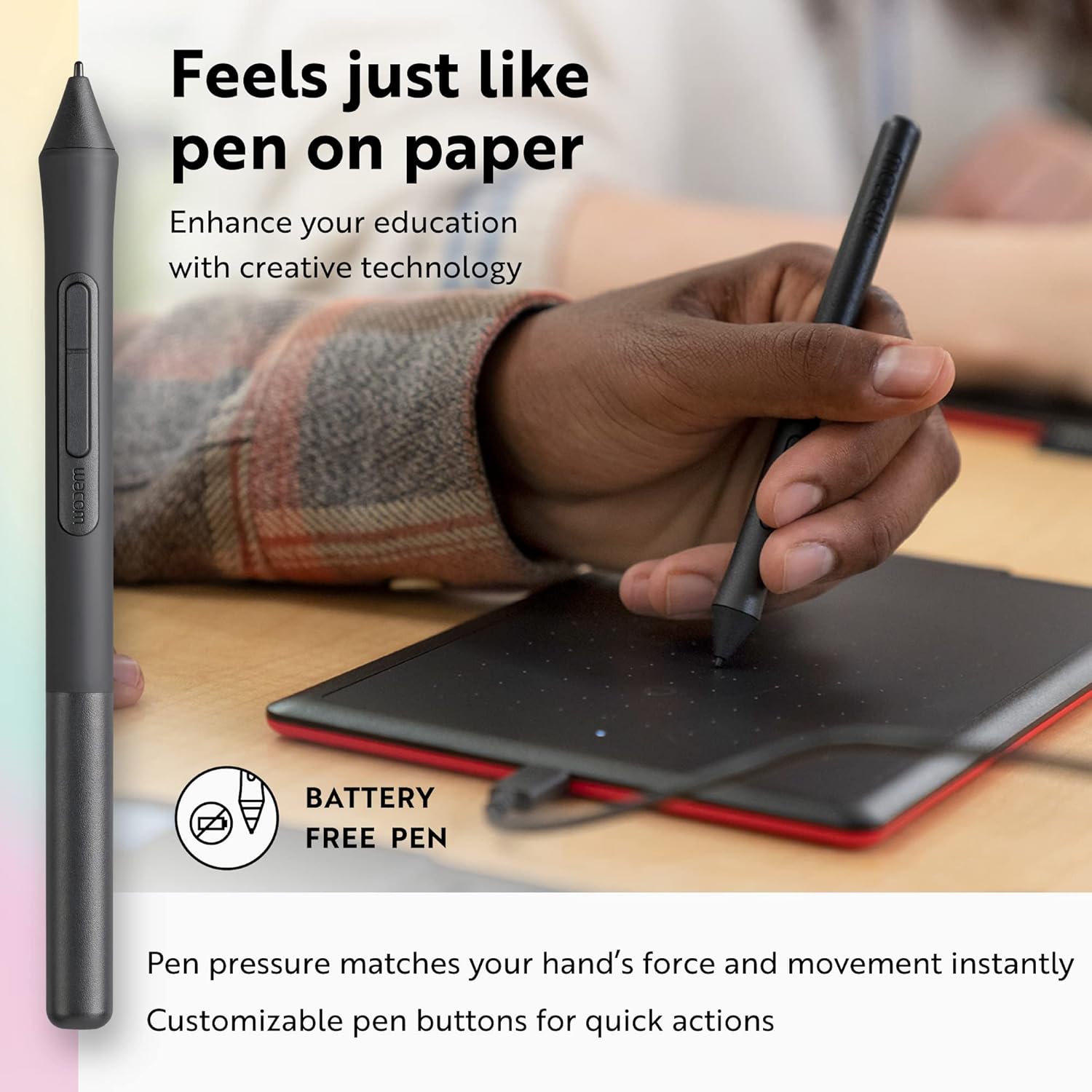
Image: A detailed view of the Wacom pen in use on the tablet, emphasizing its ergonomic design and battery-free operation.
Features
The One by Wacom tablet is packed with features designed to enhance your digital experience:
- Portable and Versatile: Its compact size makes it easy to carry, perfect for on-the-go learning or creative work.
- Industry-Leading Pen Technology: Wacom's extensive experience ensures a high-quality, reliable pen experience with natural precision.
- Battery-Free Pen: The pen operates without batteries, eliminating the need for charging and ensuring it's always ready when you are.
- Broad Software Compatibility: Works with virtually all software for education, gaming, and creative applications.
- Included Software and Training: Access a bundle of creative software and training resources to maximize your productivity and creativity.

Image: Visual representation of the diverse software applications and learning styles supported by the tablet.
Maintenance
To ensure the longevity and optimal performance of your One by Wacom tablet:
- Cleaning: Gently wipe the tablet surface and pen with a soft, dry, lint-free cloth. Avoid using harsh chemicals or abrasive materials.
- Pen Nibs: The pen nibs will wear down over time with use. Replace them when they become too short or sharp to maintain the optimal drawing experience. Your tablet comes with replacement nibs, and more can be purchased if needed.
- Storage: Store the tablet and pen in a safe place to prevent scratches or damage. The pen can be stored in the fabric loop on the side of the tablet.
Troubleshooting
If you encounter issues with your One by Wacom tablet, consider the following common solutions:
- No Pen Input: Ensure the USB cable is securely connected to both the tablet and your computer. For Windows/Mac, verify that the Wacom drivers are correctly installed and updated.
- Inaccurate Cursor: Recalibrate the tablet settings through the Wacom Desktop Center application (if drivers are installed). Ensure no other input devices are interfering.
- No Pressure Sensitivity: Check your software settings to ensure pressure sensitivity is enabled. If drivers are installed, verify pen pressure settings in the Wacom Desktop Center.
- Tablet Not Recognized: Try connecting the tablet to a different USB port or a different computer to rule out port or system-specific issues. Restart your computer.
Specifications
| Feature | Detail |
|---|---|
| Brand | Wacom |
| Model Number | CTL472K1A |
| Product Dimensions | 5.7 x 8.3 x 0.1 inches |
| Item Weight | 15.2 ounces |
| Color | Black & Red |
| Pressure Sensitivity | 2048 Levels |
| Connectivity Technology | USB-A |
| Operating System Compatibility | Windows 8.1, OS X 10.10 Yosemite, Windows 7, Windows 10, ChromeOS |
| Power Source | No Batteries Required (for pen) |

Image: Dimensions of the One by Wacom Small Graphics Drawing Tablet.
Warranty & Support
Wacom has over 40 years of experience in digital pen development, ensuring high-quality and reliable products. For specific warranty information and technical support, please refer to the official Wacom website or contact their customer service directly. Keep your purchase receipt for warranty claims.
For more information, visit the official Wacom Store.
Related Documents - CTL472K1A
 |
Wacom Intuos Pro Pen Tablet (PTH-660/PTH-860) Specifications and Features Detailed specifications and features for the Wacom Intuos Pro Pen Tablet, including model numbers PTH-660 and PTH-860, dimensions, pen technology, system requirements, and included accessories. |
 |
One by Wacom CTL-472/CTL-672: Product Information, Specifications, and Warranty Comprehensive guide to the One by Wacom CTL-472 and CTL-672 drawing tablets, covering product information, technical specifications, user license, and regional warranty details. |
 |
Wacom MovinkPad 11: Your All-in-One Creative Android Tablet Explore the Wacom MovinkPad 11, a compact, portable Android tablet designed for artists. Discover its natural pen feel, optimized display, and professional features for digital creation. |
 |
Wacom DTK168 Pen Display: Important Product Information, Warranty, and Safety Essential product information, warranty terms, and safety guidelines for the Wacom DTK168 Pen Display. Learn about product care, potential hazards, and regulatory compliance. |
 |
와콤 Bamboo 타블렛 사용 설명서 (CTH-470, CTH-670, CTL-470) 이 설명서는 Wacom Bamboo 타블렛 (CTH-470, CTH-670) 및 Bamboo Pen (CTL-470)의 설정, 사용법, 사용자 정의, 문제 해결 등 상세 정보를 제공합니다. 디지털 창작 및 생산성을 위한 필수 가이드입니다. |
 |
Wacom Cintiq Pro Quick Start Guide - Setup and Connection A quick start guide for the Wacom Cintiq Pro creative pen display, covering essential setup steps, cable connections, pen customization, and stand requirements. Learn how to connect and begin using your Wacom Cintiq Pro. |