
KONFTEL KON-C20EGO-C
KONFTEL C20Ego Huddle Room Solution User Manual
Model: KON-C20EGO-C
Introduction
The Konftel C20Ego is a comprehensive video collaboration solution designed for small huddle rooms. This kit integrates a 4K conference camera, a high-quality speakerphone with OmniSound audio, and a central hub for simplified connectivity. It provides an efficient and high-performance setup for video meetings, ensuring clear audio and sharp video.
This manual provides detailed instructions for setting up, operating, and maintaining your Konftel C20Ego system. Please read it thoroughly before use to ensure optimal performance and longevity of your device.
What's in the Box
Carefully unpack all components and verify that all items listed below are present and undamaged.

Image: Konftel C20Ego Huddle Room Solution components. This image displays the Konftel Cam20 4K camera, the Konftel Ego speakerphone, and the Konftel OCC Hub, along with the necessary USB cables for connection.
- Konftel Ego Speakerphone (Part No. 910101081)
- USB cable for Konftel Ego (Part No. 900103388)
- Soft case for Konftel Ego
- Konftel Cam20 4K Conference Camera (Part No. 931201001)
- 5m USB cable (Type A/Type B) for Konftel Cam20
- Remote control with two AAA batteries for Konftel Cam20
- Konftel OCC Hub (Part No. 900102149)
- 3m USB cable for Konftel OCC Hub
- 5m USB cable (Type A/mini B) for Konftel 55/55Wx/300IPx/300Wx/300Mx (Note: This cable is included but may not be used with the Konftel Ego)
- 5m USB cable (Type A/micro B) for Konftel Ego
- AC adapter (EU, US, AU, UK plugs included)
- Velcro tape
- Microfiber Cleaning Cloth
- Quick guides and safety declarations for each component
- Installation guide
Setup
Follow these steps to set up your Konftel C20Ego Huddle Room Solution. The Konftel OCC Hub simplifies connectivity, requiring only a single USB cable to your laptop.
- Position the Konftel Cam20: Place the Konftel Cam20 camera on top of your display screen or on a flat surface in the meeting room. Ensure it has a clear view of all participants.
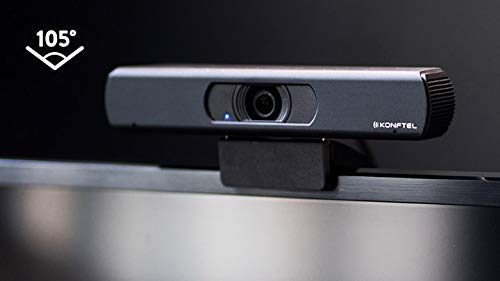
Image: Konftel Cam20 camera with a 105-degree field of view. This image highlights the wide-angle lens of the camera, suitable for capturing all participants in a huddle room.
- Connect the Konftel Cam20 to the OCC Hub: Use the provided 5m USB cable (Type A/Type B) to connect the Konftel Cam20 to one of the USB ports on the Konftel OCC Hub.
- Position the Konftel Ego Speakerphone: Place the Konftel Ego speakerphone in the center of your meeting table for optimal audio pickup and distribution.
- Connect the Konftel Ego to the OCC Hub: Use the provided 5m USB cable (Type A/micro B) to connect the Konftel Ego speakerphone to another USB port on the Konftel OCC Hub.
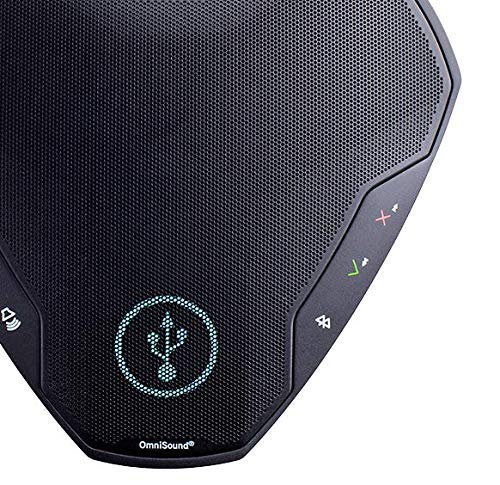
Image: Close-up of Konftel Ego speakerphone controls. This image shows the illuminated touch controls on the speakerphone, including volume, mute, and call handling buttons.
- Power the OCC Hub: Connect the AC adapter to the Konftel OCC Hub and plug it into a power outlet.
- Connect the OCC Hub to your Laptop: Use the provided 3m USB cable to connect the Konftel OCC Hub to a USB port on your laptop. This single connection will provide video, audio, and control signals.
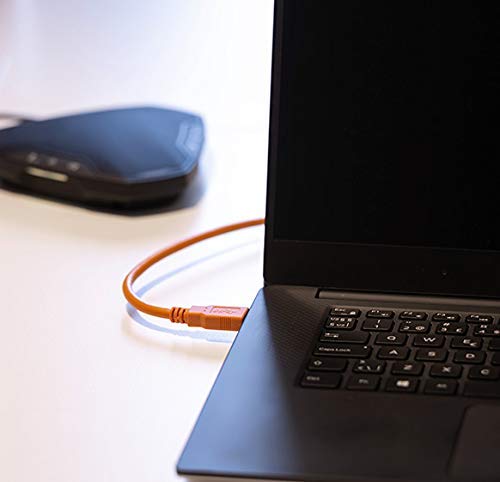
Image: Laptop connected via USB cable to the Konftel OCC Hub. This image illustrates the simplicity of connecting the entire system to a laptop using a single USB cable.
- Connect Display (Optional): If you wish to use an external display, connect it to your laptop as usual. The Konftel C20Ego system integrates with your laptop's video output.
- Software Recognition: Your operating system should automatically recognize the Konftel Cam20 and Konftel Ego as a camera and audio device, respectively. No special drivers are typically required.
Operating Instructions
The Konftel C20Ego system is designed for intuitive operation with your preferred collaboration software.
Using with Collaboration Software
The system is compatible with various collaboration platforms.
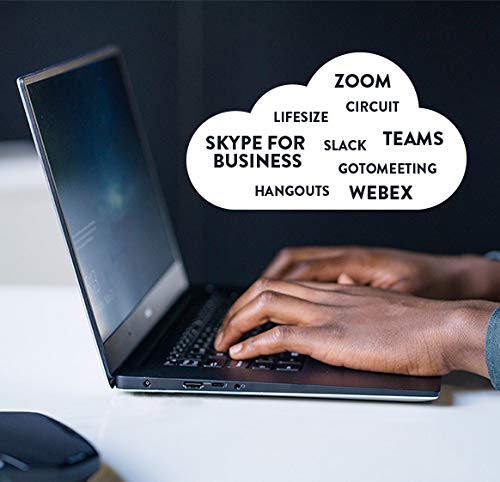
Image: Laptop screen displaying compatibility with various collaboration software. This image illustrates the broad compatibility of the Konftel C20Ego with popular platforms such as Zoom, Skype for Business, Microsoft Teams, and Webex.
- Launch your Collaboration Application: Open your preferred video conferencing application (e.g., Zoom, Microsoft Teams, Google Meet, Skype for Business, Webex).
- Select Devices: In the application's settings (usually under Audio/Video or Devices), select "Konftel Cam20" as your camera and "Konftel Ego" as your microphone and speaker.
- Start/Join Meeting: Initiate or join your video conference.
Konftel Ego Speakerphone Controls
The Konftel Ego speakerphone features intuitive touch controls:
- Volume Up/Down: Adjust the speaker volume.
- Mute Microphone: Mute or unmute the microphone. An indicator light will show the microphone status.
- Answer/End Call: Manage calls directly from the speakerphone.
- Bluetooth Pairing: The Konftel Ego also supports Bluetooth for connecting to mobile devices. Refer to the Konftel Ego quick guide for detailed Bluetooth pairing instructions.
Konftel Cam20 Camera Operation
The Konftel Cam20 offers high-quality video and digital zoom capabilities.

Image: Konftel Cam20 camera and its accessories. This image shows the Konftel Cam20 camera, its USB cable, the remote control, and two AAA batteries for the remote.
- Remote Control: Use the included remote control to adjust camera settings such as zoom (up to 8x digital zoom), pan, and tilt.
- 4K Resolution: The camera provides 4K Ultra HD video quality, ensuring sharp and clear images even when digitally zoomed.
- Wide Field of View: The 105-degree field of view captures all participants in a small huddle room.
Maintenance
Proper maintenance ensures the longevity and optimal performance of your Konftel C20Ego system.
- Cleaning: Use the provided microfiber cleaning cloth to gently wipe the camera lens and speakerphone surfaces. Do not use abrasive cleaners or solvents.
- Cable Management: Ensure cables are not kinked or strained. Proper cable routing prevents damage and ensures reliable connections.
- Storage: When not in use for extended periods, store the components in a cool, dry place, ideally in their original packaging or a protective case.
- Software Updates: Periodically check the Konftel official website for any firmware or software updates for the Konftel Cam20, Konftel Ego, or Konftel OCC Hub. Keeping software updated can improve performance and add new features.
Troubleshooting
If you encounter issues with your Konftel C20Ego system, refer to the common problems and solutions below.
| Problem | Possible Cause | Solution |
|---|---|---|
| No video from camera |
|
|
| No audio from speakerphone or microphone not working |
|
|
| System not recognized by laptop |
|
|
Specifications
| Feature | Detail |
|---|---|
| Product Model | KON-C20EGO-C |
| Brand | Konftel (Global Teck Worldwide) |
| Video Resolution | 4K Ultra HD |
| Digital Zoom | 8x |
| Image Stabilization | Digital |
| Field of View | 105 degrees (Konftel Cam20) |
| Audio Technology | OmniSound (Konftel Ego) |
| Connectivity | USB (single cable connection via OCC Hub) |
| Compatible Devices | Personal Computer |
| Product Dimensions | 15.24 x 15.88 x 17.78 cm (approximate, for entire kit) |
| Item Weight | 2.35 kg (approximate, for entire kit) |
Warranty and Support
Your Konftel C20Ego Huddle Room Solution is covered by a manufacturer's warranty. Please refer to the warranty information provided in the original packaging for specific terms and conditions.
For technical support, troubleshooting assistance, or warranty claims, please contact Konftel support or your authorized reseller.
- Konftel Official Website: www.konftel.com (for product information, downloads, and support contacts)
- Reseller Support: Contact Global Teck Worldwide or your point of purchase for direct support.
Please have your product model number (KON-C20EGO-C) and serial number ready when contacting support.
Ask a question about this manual
Ask about setup, troubleshooting, compatibility, parts, safety, or missing instructions. Manuals+ will review the question and use this page’s manual context to help answer it.