
2BOOM BX390
2BOOM BX390 Bass King Wireless Bluetooth Boombox Stereo Speaker User Manual
Model: BX390
1. Introduction
Thank you for purchasing the 2BOOM BX390 Bass King Wireless Bluetooth Boombox Stereo Speaker. This manual provides essential information for setting up, operating, and maintaining your speaker to ensure optimal performance and longevity. Please read this manual thoroughly before using the product.

Image 1.1: The 2BOOM BX390 Bass King Wireless Bluetooth Boombox Stereo Speaker.
This image shows the 2BOOM BX390 Bass King speaker in blue, featuring a cylindrical design with a handle/strap attached. The front panel displays the control interface and speaker grille.
2. Package Contents
Please check the package for the following items:
- 1 x 2BOOM BX390 Bass King Speaker
- 1 x 3.5mm Aux Cable
- 1 x USB Charging Cable
- 1 x User Manual (this document)
- 1 x Attachable Shoulder Strap

Image 2.1: The 2BOOM BX390 speaker shown with its detachable shoulder strap, 3.5mm Aux cable, and USB charging cable.
This image displays the blue 2BOOM BX390 speaker from an angled perspective, highlighting the included shoulder strap attached to its side rings. The USB charging cable and 3.5mm Aux cable are visible in the foreground.
3. Product Features
- Powerful Bass Sound: Equipped with 4-inch subwoofers and vibrating disks for crisp, clear, loud sound, booming low tones, and dynamic sound effects.
- Bluetooth Connectivity: Connects wirelessly to smartphones, tablets, and other Bluetooth-enabled devices up to 33 ft.
- Built-in Microphone: Supports hands-free calls.
- Durable and Portable Design: Features a rugged, rubberized exterior and an attachable strap for easy carrying.
- Multiple Input Options: Includes FM Radio, Aux-in Line, USB port, and SD Card slot.
- Integrated Control Panel: Direct control over volume, bass, and sound equalizer.

Image 3.1: The 2BOOM BX390 speaker with visual callouts for Deep Digital Bass, FM Radio, Long-Lasting Battery, and Straps Included.
This image shows the blue 2BOOM BX390 speaker from the front, with graphic overlays pointing out its key features: deep digital bass, FM radio capability, long-lasting battery, and the inclusion of straps for portability.
4. Controls and Ports
Familiarize yourself with the control panel and input ports of your BX390 speaker:

Image 4.1: Detailed diagram of the 2BOOM BX390 control panel and input ports.
This image provides a close-up view of the speaker's front panel, clearly labeling each button, port, and indicator. Labels include USB, DC 5V (charging), AUX, Previous, Play/Pause, Next, Mode, EQ, SD card slot, LED display, Power ON/OFF switch, Volume controls, and Bass controls.
- USB Port: For USB drive playback.
- DC 5V (Charging Port): Connect the USB charging cable here to charge the speaker.
- AUX Input: 3.5mm jack for connecting external audio devices via an Aux cable.
- Previous / Volume -: Short press for previous track; long press to decrease volume.
- Play/Pause: Press to play or pause audio. In FM mode, short press to auto-scan.
- Next / Volume +: Short press for next track; long press to increase volume.
- Mode: Press to switch between Bluetooth, FM Radio, USB, SD Card, and AUX modes.
- EQ (Equalizer): Press to cycle through different equalizer presets.
- SD Card Slot: Insert an SD card for audio playback.
- LED Display: Shows current mode, track number, or FM frequency.
- Power ON/OFF Switch: Slide to turn the speaker on or off.
- Volume +/-: Buttons to increase or decrease the overall volume.
- Bass +/-: Buttons to increase or decrease the bass level.
5. Setup
5.1 Charging the Speaker
Before first use, fully charge the speaker. Connect the supplied USB charging cable to the DC 5V port on the speaker and the other end to a USB power adapter (not included) or a computer's USB port. The LED display may indicate charging status.
- Charging time may vary.
- Disconnect the charger once fully charged to preserve battery life.
5.2 Powering On/Off
To turn the speaker ON, slide the Power ON/OFF switch to the 'ON' position. You will hear an audible prompt, and the LED display will light up.
To turn the speaker OFF, slide the Power ON/OFF switch to the 'OFF' position.
6. Operating Instructions
6.1 Bluetooth Mode
The speaker automatically enters Bluetooth pairing mode when powered on if no other input source is connected, or after pressing the MODE button until "Bluetooth" is indicated.
- Ensure the speaker is powered on.
- On your Bluetooth-enabled device (smartphone, tablet, etc.), enable Bluetooth and search for available devices.
- Select "2BOOM BX390" or similar from the list.
- Once paired, the speaker will confirm with an audible prompt.
- You can now play audio from your device through the speaker.
Note: The speaker will automatically reconnect to the last paired device if it's within range and Bluetooth is enabled.

Image 6.1: The 2BOOM BX390 speaker highlighting its Bluetooth connectivity.
This image shows the blue 2BOOM BX390 speaker with a prominent "Bluetooth" logo and "PORTABLE WIRELESS BASS KING SPEAKER" text, emphasizing its wireless audio capabilities.
6.2 FM Radio Mode
To switch to FM Radio mode, press the MODE button until "FM" or the radio frequency is displayed.
- In FM mode, short press the Play/Pause button to automatically scan and save available FM stations. The speaker will cycle through frequencies and store them.
- Use the Previous and Next buttons to navigate between saved stations.
- For better reception, extend the antenna (if applicable, or reposition the speaker).
6.3 USB / SD Card Mode
The speaker supports audio playback from USB flash drives and SD cards.
- Insert a USB flash drive into the USB Port or an SD card into the SD Card Slot.
- The speaker will automatically switch to the corresponding mode (USB or SD) and begin playing audio files. If not, press the MODE button to select.
- Use the Previous, Play/Pause, and Next buttons to control playback.
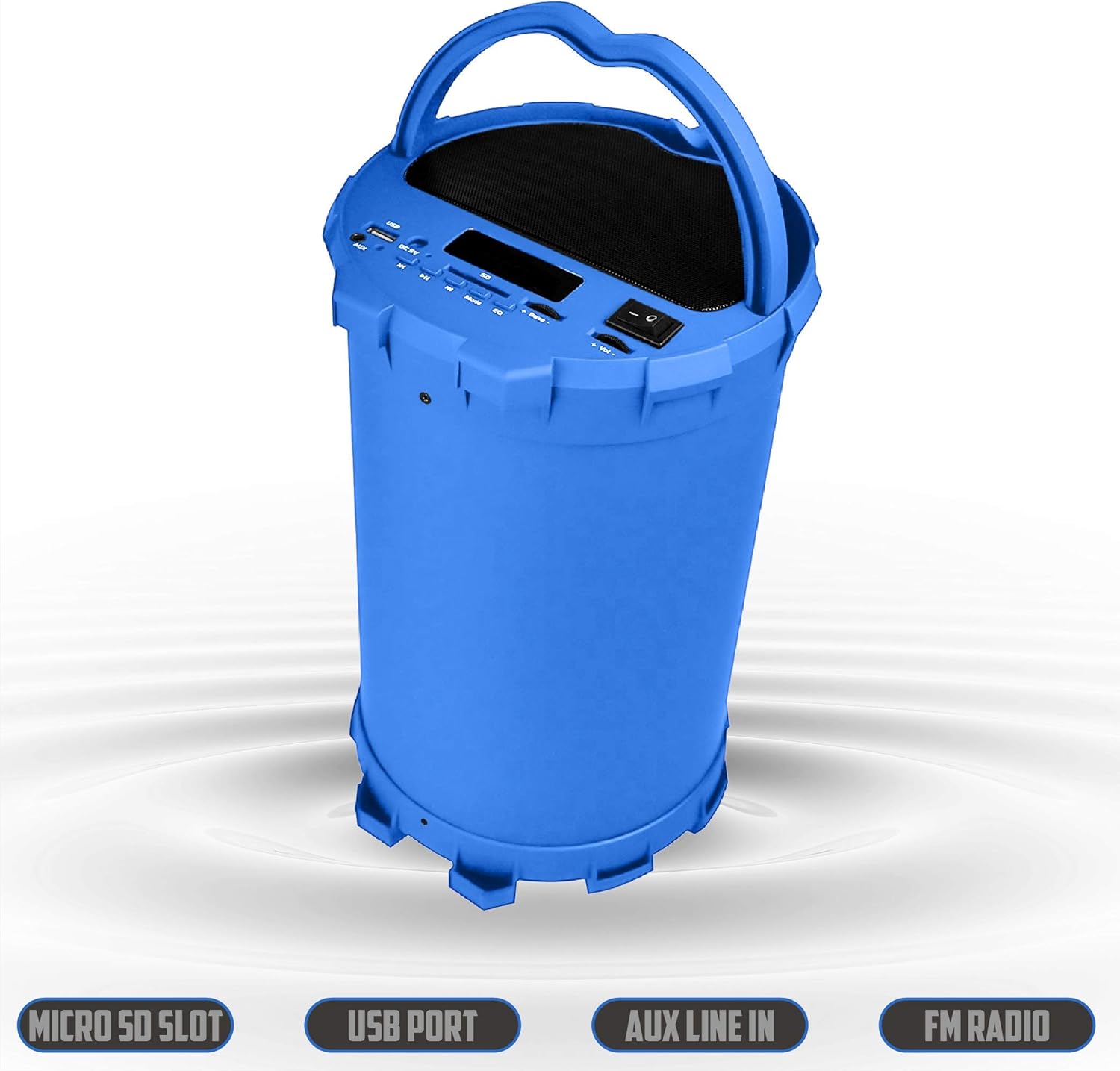
Image 6.2: The 2BOOM BX390 speaker shown upright, emphasizing the Micro SD Slot, USB Port, Aux Line In, and FM Radio capabilities.
This image displays the blue 2BOOM BX390 speaker in an upright position, with graphic overlays highlighting the Micro SD Slot, USB Port, Aux Line In, and FM Radio features on its control panel.
6.4 AUX Input Mode
Connect external audio devices (e.g., MP3 players, computers) using the supplied 3.5mm Aux cable.
- Connect one end of the 3.5mm Aux cable to the AUX Input port on the speaker.
- Connect the other end to the audio output jack of your external device.
- The speaker will automatically switch to AUX mode. If not, press the MODE button to select.
- Control playback from your external device.
6.5 Adjusting Volume, Bass, and Equalizer
- Volume: Use the Volume +/- buttons (long press Previous/Next) to increase or decrease the overall volume.
- Bass: Use the Bass +/- buttons to adjust the bass level to your preference.
- Equalizer (EQ): Press the EQ button to cycle through various preset equalizer modes (e.g., Pop, Rock, Jazz, Classical, Normal) to optimize sound for different music genres.
7. Maintenance
- Cleaning: Use a soft, dry cloth to clean the speaker's exterior. Do not use abrasive cleaners or solvents.
- Storage: Store the speaker in a cool, dry place away from direct sunlight and extreme temperatures when not in use for extended periods.
- Battery Care: To prolong battery life, avoid fully discharging the battery frequently. Charge the speaker regularly, even if not in use.
- Water Resistance: This speaker is not waterproof. Avoid exposure to water or excessive moisture.
8. Troubleshooting
| Problem | Possible Cause | Solution |
|---|---|---|
| No power | Battery is low or dead. | Charge the speaker fully using the supplied USB cable. |
| No sound | Volume is too low; incorrect mode selected; device not connected properly. | Increase volume on speaker and connected device. Press MODE to select correct input. Reconnect Bluetooth or Aux cable. |
| Bluetooth pairing failed | Speaker not in pairing mode; device too far; interference. | Ensure speaker is in Bluetooth mode. Move device closer to speaker. Turn off other Bluetooth devices. Forget "2BOOM BX390" on your device and re-pair. |
| Poor FM reception | Weak signal; speaker position. | Reposition the speaker. Try auto-scanning again. |
| USB/SD card not playing | Unsupported file format; card/drive not inserted correctly; corrupted files. | Ensure files are in a supported format (e.g., MP3). Reinsert the USB drive/SD card. Try a different drive/card. |
9. Specifications
| Feature | Detail |
|---|---|
| Brand | 2BOOM |
| Model | BX390 Bass King |
| Connectivity Technology | Auxiliary, Bluetooth, USB |
| Speaker Type | Stereo |
| Compatible Devices | Laptop, Smartphone, Tablet |
| Subwoofers | 4-inch (Quantity not specified, but implied by "subwoofers" and "dual subwoofers" in image) |
| Bluetooth Range | Up to 33 ft (10 meters) |
| Input Ports | USB, SD Card, 3.5mm AUX |
| Radio | FM Radio |
10. Warranty and Support
The 2BOOM BX390 Bass King speaker comes with an UNLIMITED 2BOOM WARRANTY.
For warranty claims or technical support, please contact 2BOOM customer service. Refer to the product packaging or 2BOOM's official website for contact information.
Please retain your proof of purchase for warranty purposes.
Ask a question about this manual
Ask about setup, troubleshooting, compatibility, parts, safety, or missing instructions. Manuals+ will review the question and use this page’s manual context to help answer it.