
Introduction
The Rii MX6 is a versatile 5-in-1 multifunction remote control designed to enhance your interaction with various smart devices. It integrates an air mouse, a mini wireless keyboard, voice control with a built-in microphone, a 6-axis gyroscope for Android remote functions, and an infrared (IR) learning remote. This device offers a seamless plug-and-play experience with 2.4GHz wireless technology, making it suitable for a wide range of applications from home entertainment to professional presentations.

Image: Front, back, and side views of the Rii MX6 remote, illustrating its compact dimensions (186mm x 56mm x 22.3mm).
Features
- 5-in-1 Multifunctionality: Combines an air mouse, 2.4GHz mini wireless keyboard, Android remote control (with 6-axis sensor), voice control with microphone, and IR learning remote.
- 2.4GHz Wireless Technology: Provides a stable and powerful connection with a range of up to 10 meters. Simply plug in the USB receiver for instant use.
- Backlit Keys: Features illuminated buttons for convenient operation in low-light conditions.
- Adjustable Cursor Speed: Allows users to customize the air mouse cursor speed (slow, medium, fast) for optimal control.
- IR Learning Function: Enables programming of common TV functions, reducing the need for multiple remote controls.
- Voice Control: Integrated microphone for voice input and commands.
- Wide Compatibility: Supports Android TV Box, Smart TV, Game Players, PC, and Tablets.
Package Contents
Upon opening the package, please ensure all the following items are present:
- 1 x Rii MX6 Air Mouse Keyboard
- 1 x USB Receiver
- 1 x User Manual (English language not guaranteed, please refer to this digital manual)
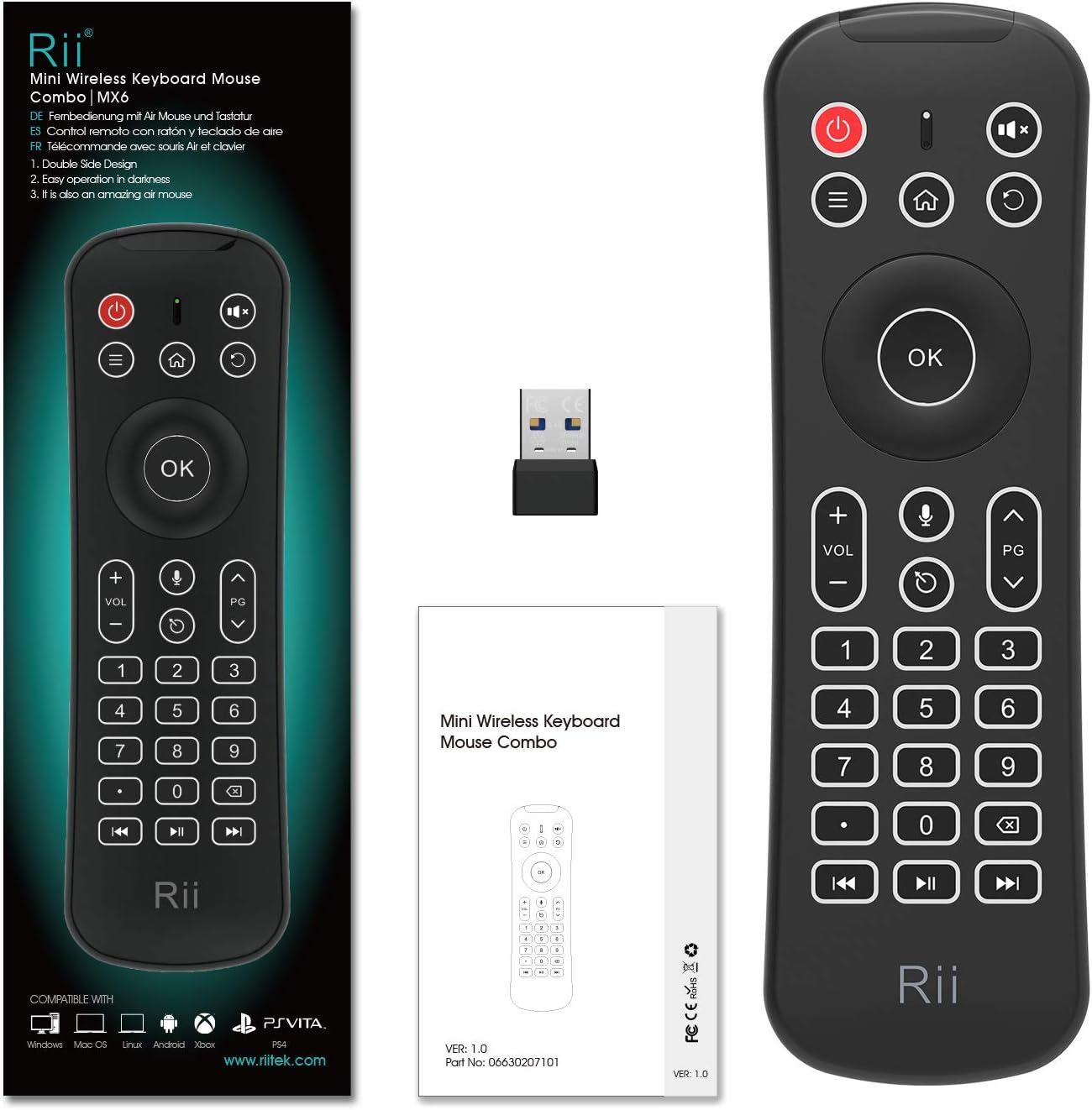
Image: The Rii MX6 remote control, its USB receiver, and the printed user manual.
Setup
- Insert Batteries: Open the battery compartment on the back of the Rii MX6. Insert 2 AAA batteries, ensuring correct polarity.
- Connect USB Receiver: Locate the USB receiver stored within the battery compartment. Plug this USB receiver into an available USB port on your target device (e.g., Smart TV, Android TV Box, PC).
- Power On: The device is typically plug-and-play. Once the USB receiver is connected and batteries are inserted, the remote should be ready for use.

Image: The Rii MX6 remote with its battery cover open, showing the placement for two AAA batteries and the storage slot for the USB receiver.
Operating Instructions
General Operation
The Rii MX6 functions as both an air mouse and a mini keyboard. The front side features standard remote control buttons, while the back side houses a full QWERTY keyboard.

Image: Detailed view of the Rii MX6 front panel, highlighting buttons for Mute, Menu, Home, Confirm (OK), Volume +/-, Page Up/Down, Voice Input, Cursor On/Off, Number Pad, Backspace, Last Track, Next Track, and Play/Pause.
- Air Mouse: Hold the remote and move your wrist to control the on-screen cursor. Press the 'Cursor On/Off' key to activate or deactivate the air mouse function.
- Keyboard: Flip the remote to access the QWERTY keyboard for text input. The keyboard is backlit for ease of use in dark environments.
- Voice Input: Press the dedicated microphone button to activate voice control (requires compatible software/device).
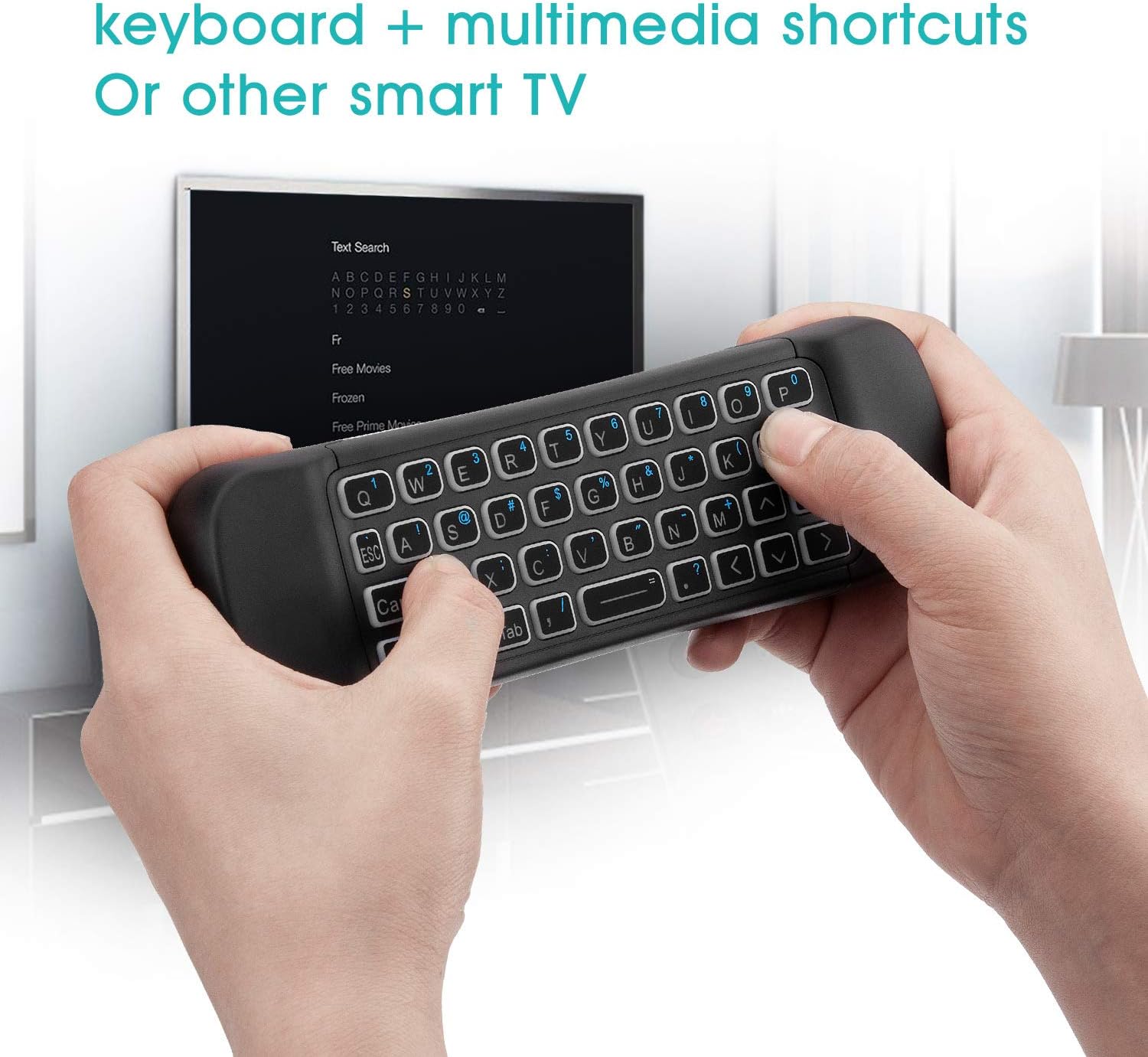
Image: A user holding the Rii MX6 remote, utilizing the QWERTY keyboard on the back to type on a smart TV screen.
IR Learning Function
The Rii MX6 allows you to program certain infrared functions from your original TV remote onto its programmable buttons.
- Enter Learning Mode: Press and hold the Power/Off button on the Rii MX6 for 3 seconds. The LED indicator will light up, signaling that the device is in learning mode.
- Align Remotes: Point your original IR remote control directly at the Rii MX6's IR sensor. Maintain a distance of 1 to 3 cm between the two remotes.
- Initiate Learning: On your original remote, press the button whose function you wish to learn. Then, on the Rii MX6, press the specific programmable button you want to assign this function to.
- Confirmation: If the learning is successful, the Rii MX6's LED light will flash for two seconds and then exit learning mode.
- Failure: If the learning is unsuccessful, the LED light will not flash, and the device will exit learning mode automatically after 10 seconds. Repeat the steps if necessary.
Note: Only one set of original remote control functions can be programmed and saved at a time.

Image: The Rii MX6 remote being used to learn an infrared command from a traditional TV remote control.
Adjusting Cursor Speed
You can adjust the sensitivity of the air mouse cursor to suit your preference:
- Press and hold the OK button.
- While holding OK, press VOL + to increase the cursor speed or VOL - to decrease it.
- There are three available speeds: Slow, Medium, and Fast. The default speed is Medium.
Maintenance
- Keep the device dry. Avoid exposure to moisture or liquids.
- Clean the device with a soft, dry cloth. Do not use abrasive cleaners or solvents.
- Store the device in a cool, dry place when not in use for extended periods.
- Remove batteries if the device will not be used for a long time to prevent leakage.
Troubleshooting
- Device not responding: Ensure batteries are correctly inserted and charged. Check that the USB receiver is securely plugged into the device. Try plugging the receiver into a different USB port.
- Air mouse not working: Ensure the 'Cursor On/Off' key has been pressed to activate the air mouse.
- IR learning failed: Ensure the remotes are properly aligned (1-3 cm distance) and the Rii MX6 is in learning mode (LED indicator lit). Try again with fresh batteries in both remotes.
- Limited functionality with Smart TV: Some Smart TVs (e.g., certain Samsung models) may not fully support external input devices like the Rii MX6. Verify your TV's compatibility with external keyboards/mice.
- Device lacks USB port: For devices without a direct USB port (e.g., some Amazon Fire TV Sticks), a USB OTG (On-The-Go) cable may be required as an intermediary.
Specifications
- Receiver (Dongle): Nano Style
- Compatibility: USB 2.0 or higher
- Transmission Mode: GFSK 2.4GHz
- Wireless Range: Up to 10 meters
- Transmission Power: Less than +4dB
- Power Supply: 2 x AAA batteries
- Sleep Current: 45uA
- Operating Voltage: 3V
- Operating Current: <20mA
- Product Weight: 128g (without battery)
- Product Dimensions: 186 x 56 x 22.3 mm
- Number of Keys: 80
- Keyboard Layout: QWERTY
- Motion Detection Technology: Optical
- Compatible Operating Systems: Android, Windows, Mac OS, Linux
Compatibility
The Rii MX6 is designed for broad compatibility with various devices and operating systems:
- Android TV Box
- Smart TV (Note: Not all Smart TVs, especially some older models or specific brands like Samsung, may fully support external input devices. Please check your TV's specifications.)
- Game Players
- Personal Computers (PC) running Windows, Mac OS, or Linux
- Tablets
- Raspberry Pi

Image: Icons representing compatibility with Windows, Mac OS, Linux, Android, Xbox, and Fire TV devices.
Warranty and Support
Specific warranty information is not provided in the product details. For any issues or support inquiries, please refer to the retailer's return policy or contact the manufacturer directly through their official website or customer service channels.


