
1. Product Overview
The Beelink X55 Mini PC is a compact and powerful computing solution designed for various applications, from office tasks to 4K media playback. It features a Gemini Lake Pentium Silver J5005 processor, 8GB LPDDR4 RAM, and a 128GB mSATA SSD, offering stable and reliable performance.
Key Features:
- Processor: Gemini Lake Pentium Silver J5005 (4 Cores, 4 Threads, 1.5GHz up to 2.8GHz, 4M Cache)
- Graphics: HD Graphics 605 with 4K support
- Memory: 8GB LPDDR4 RAM
- Storage: 128GB mSATA SSD (expandable with 2.5-inch SATA HDD/TF card)
- Connectivity: Dual-band WiFi (2.4G + 5.8G), 1000Mbps LAN, Bluetooth 4.0
- Display: Dual HDMI 2.0 ports for dual screen display, supporting 4K@60Hz

Image: Front view of the Beelink X55 Mini PC.
2. Setup Guide
2.1 Package Contents
Please check the package for the following items:
- 1 x Beelink X55 Mini PC
- 1 x Power Adapter
- 2 x HDMI Cables
- 1 x VESA Mount and Screws
- 1 x English User Manual

Image: Included accessories for the Beelink X55 Mini PC.
2.2 Connecting Peripherals
- Connect Display: Use one or both HDMI cables to connect your monitor(s) to the HDMI ports on the back of the Mini PC.
- Connect USB Devices: Plug in your keyboard, mouse, and any other USB devices into the available USB 3.0 ports.
- Connect Power: Connect the power adapter to the DC IN port on the Mini PC, then plug the adapter into a power outlet.
- Optional LAN Connection: For a wired network connection, connect an Ethernet cable to the RJ45 LAN port.

Image: Diagram showing the front, back, and side ports of the Beelink X55 Mini PC.
2.3 First Boot Instructions
For the initial startup, press the power button. The Mini PC will take approximately 30 seconds to initialize. It is crucial to not connect to any network (wired or wireless) until the system has successfully completed its first activation. This ensures proper setup of the pre-installed operating system.
3. Operating Instructions
3.1 Power On/Off
- Power On: Press the power button located on the front of the Mini PC.
- Power Off: Use the operating system's shutdown function. Alternatively, press and hold the power button for a few seconds to force a shutdown. Ensure the power light is off before disconnecting the power adapter.
3.2 Network Connection
The Beelink X55 supports both wired and wireless network connections.
- Wi-Fi: The device supports dual-band Wi-Fi (2.4GHz and 5.8GHz). After the first activation, navigate to your operating system's network settings to connect to your preferred wireless network.
- LAN: For a stable and high-speed connection, plug an Ethernet cable into the RJ45 LAN port. The Mini PC supports 1000Mbps Ethernet.

Image: Illustrates the dual WiFi antenna design and 1000Mbps LAN capability.
3.3 Dual Display Setup
The Mini PC is equipped with two HDMI 2.0 ports, allowing for a dual-screen display setup. This can significantly enhance productivity.
- Connect two monitors to the HDMI ports on the back of the Mini PC using HDMI cables.
- Once connected, the operating system should automatically detect both displays. You can configure display settings (e.g., extend, duplicate) through your OS display settings.
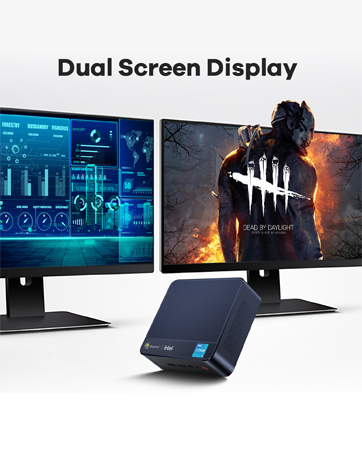
Image: Depicts the dual screen display capability of the Mini PC.
3.4 Storage Expansion
The Beelink X55 comes with a built-in 128GB mSATA SSD. For additional storage, you can expand it with a 2.5-inch SATA HDD or a TF card.
- 2.5-inch SATA HDD: The Mini PC includes a bracket for installing a 2.5-inch SATA hard drive. Follow the instructions in the included manual for physical installation.
- TF Card: Insert a TF card into the dedicated TF card slot on the side of the Mini PC.

Image: Shows the internal layout for mSATA SSD and the option to add a 2.5-inch HDD or TF card.
4. Maintenance
4.1 Cooling System
The Mini PC incorporates a built-in fan and an optimized cooling design to ensure high performance even under heavy loads. When CPU usage reaches 100%, the fan operates at approximately 3800 RPM, providing effective heat dissipation with minimal noise.
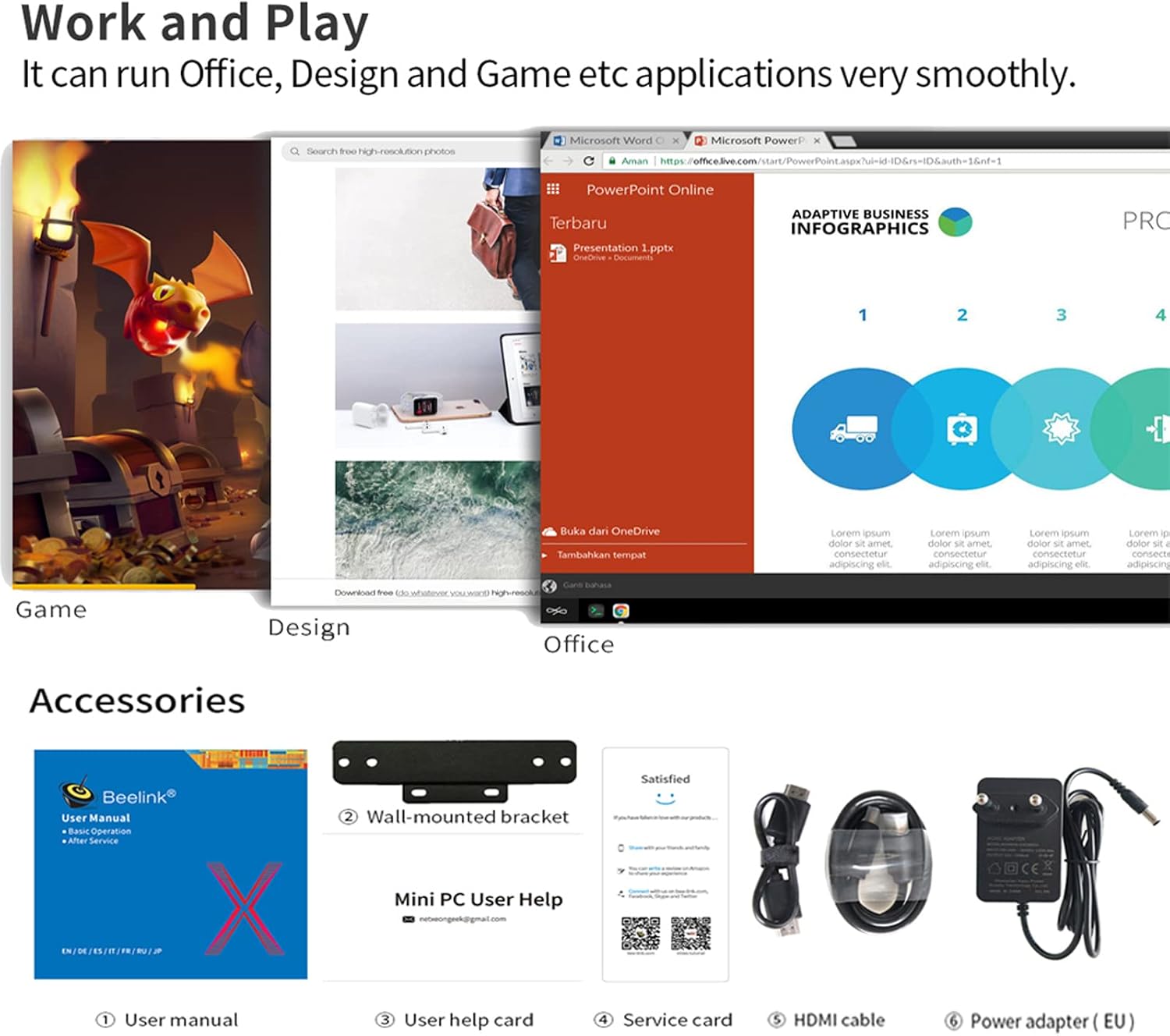
Image: Diagram illustrating the internal cooling mechanism and airflow.
4.2 General Care
- Keep the Mini PC in a well-ventilated area to prevent overheating.
- Avoid blocking the ventilation holes on the device.
- Clean the exterior with a soft, dry cloth. Do not use liquid cleaners.
- Protect the device from dust, moisture, and extreme temperatures.
5. Troubleshooting
- System Loss: If you encounter issues leading to system loss, please contact Beelink support for assistance in obtaining the necessary system files and guidance for reinstallation.
- Wake-on-LAN (WOL) / Auto Power On: For instructions on how to configure WOL or Auto Power On functions, contact Beelink support for a detailed guide.
- First Activation Network Issue: If you experience problems during the initial setup, remember to keep the Mini PC offline. Do not connect to any network until the system has successfully completed its first activation.
- No Display Output: Ensure all HDMI cables are securely connected to both the Mini PC and the monitor(s). Test with different HDMI cables or monitors if the issue persists.
- Slow Performance: Check for background applications consuming resources. Ensure adequate ventilation. Consider upgrading storage to a faster SSD if not already using one (though this model comes with an SSD).
6. Specifications
| Feature | Specification |
|---|---|
| Processor | Intel Gemini Lake Pentium Silver J5005 (Quad Core, 1.5GHz - 2.8GHz) |
| Graphics | Intel HD Graphics 605 (up to 800MHz), 4K support |
| RAM | 8GB LPDDR4 |
| Internal Storage | 128GB mSATA SSD |
| Expandable Storage | 2.5-inch SATA HDD, TF Card |
| Operating System | Pre-installed 64-bit System (e.g., Windows 10) |
| Wi-Fi | 802.11 b/g/n/ac (2.4G + 5.8G) |
| LAN | 1000Mbps Ethernet |
| Bluetooth | Bluetooth 4.0 |
| Ports | 2x HDMI 2.0, 4x USB 3.0, 1x RJ45, 1x TF Card Slot, 1x Headphone/Microphone Jack, 1x DC IN |
| Dimensions | 12.4 x 13 x 4.1 cm (4.88 x 5.12 x 1.61 inches) |
| Weight | 0.31 kg (0.68 lbs) |
| Power Input | 12V / 2A DC |

Image: Summary of Beelink X55 Mini PC specifications.
7. Warranty and Support
For any technical assistance, product inquiries, or support needs, please contact Beelink customer service. They can provide:
- System files and reinstallation guides if you lose your operating system.
- Detailed guides for configuring advanced features like Wake-on-LAN (WOL) and Auto Power On.
- Assistance regarding price differences if a lower value is found within 30 days of purchase.
Please refer to the official Beelink website or your purchase platform for specific warranty terms and contact information.


