
1. Introduction
This manual provides essential instructions for setting up, operating, and maintaining your PRITOM K7 7-inch Kids Tablet. Please read this guide thoroughly to ensure proper use and to maximize your child's learning and entertainment experience.
2. What's in the Box
- 1 x PRITOM 7-inch Tablet PC
- 1 x Charger
- 1 x User Manual
- 1 x USB Cable
- 1 x OTG Cable
- 1 x Screen Film
- 1 x Silicone Kid-Proof Case
3. Device Overview
The PRITOM K7 tablet is designed with a durable, kid-friendly silicone case that includes a built-in stand and handles for easy carrying and viewing. It features a 7-inch IPS HD display and dual cameras.
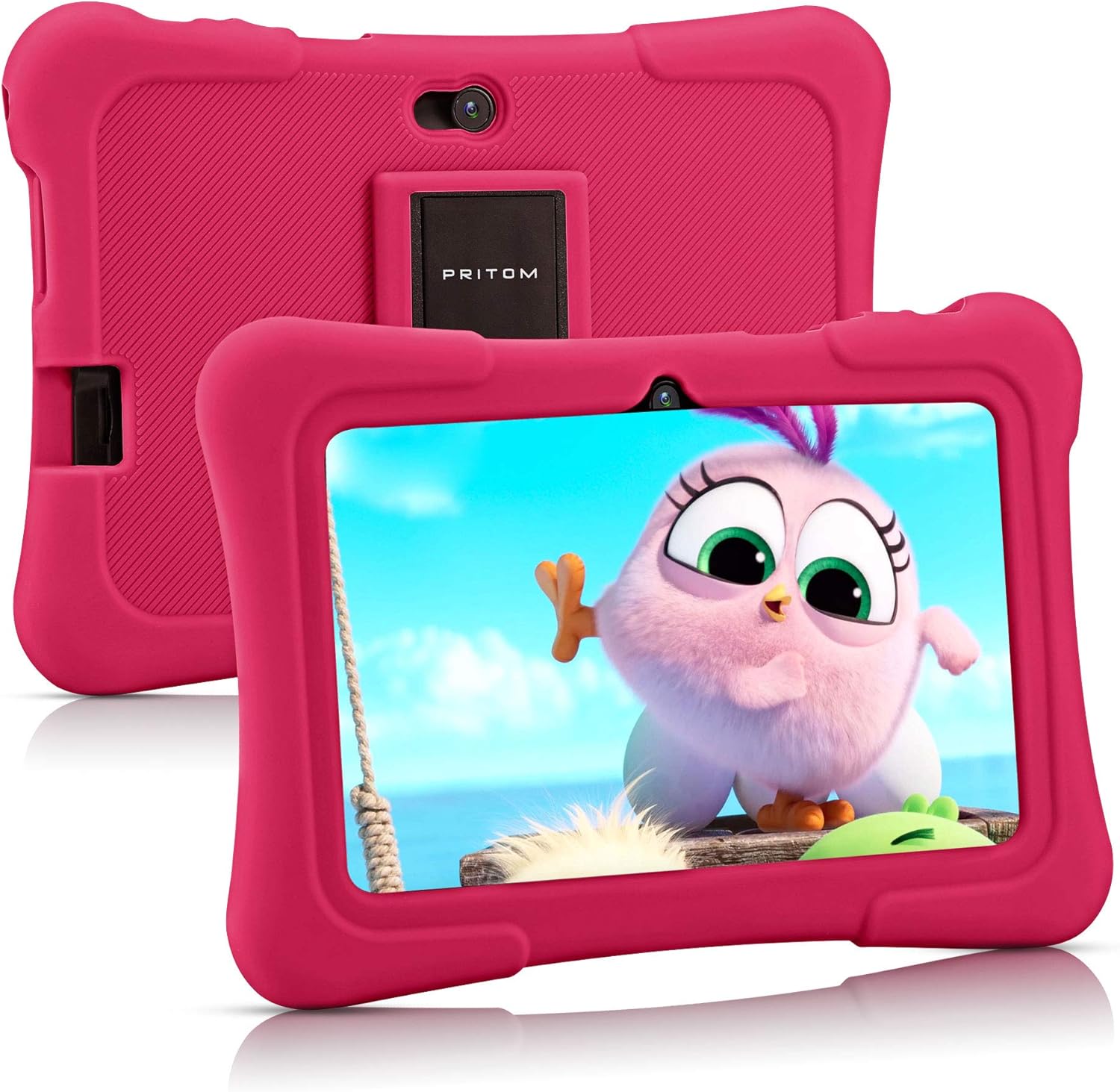
Image: PRITOM K7 7-inch Kids Tablet in its protective pink silicone case.

Image: Diagram illustrating the location of the power button, DC jack, Micro USB port, mic, 3.5mm earphone jack, volume buttons, Micro SD card slot, front camera, rear camera, and speaker.
4. Setup
4.1 Initial Power On
- Press and hold the Power Button (located on the top edge) for a few seconds until the screen lights up.
- Follow the on-screen prompts to select your language and region.
4.2 Connecting to Wi-Fi
- From the home screen, tap the Settings icon.
- Select Network & Internet, then Wi-Fi.
- Toggle Wi-Fi On.
- Select your desired Wi-Fi network from the list.
- Enter the password if prompted and tap Connect.
4.3 Setting Up Parental Controls (iWawa Kids Software)
The PRITOM K7 comes with pre-installed iWawa Kid's software, offering a safe and controlled environment for children.
- Locate and tap the iWawa app icon on the home screen.
- Follow the on-screen instructions to create a child profile. This typically involves setting up a password for parental access, defining screen time limits, and selecting age-appropriate content.
- Within the iWawa app, you can manage applications, set content filters, and monitor usage.

Image: The iWawa Kids Software interface, showing pre-installed educational and game applications.
5. Operating the Tablet
5.1 Navigation
- Touchscreen: Navigate by tapping, swiping, and pinching on the screen.
- Home Button: Returns to the main home screen.
- Back Button: Returns to the previous screen.
- Recent Apps Button: Displays recently used applications.
5.2 Downloading Apps
Beyond the pre-installed iWawa apps, you can download additional applications from the Google Play Store.
- Exit the iWawa app (if active) by entering the parental password.
- Locate and tap the Google Play Store icon on the main Android home screen.
- Search for desired apps and follow the on-screen instructions to download and install them.
5.3 Camera Functionality
The tablet features a front-facing and rear-facing camera for photos and videos.
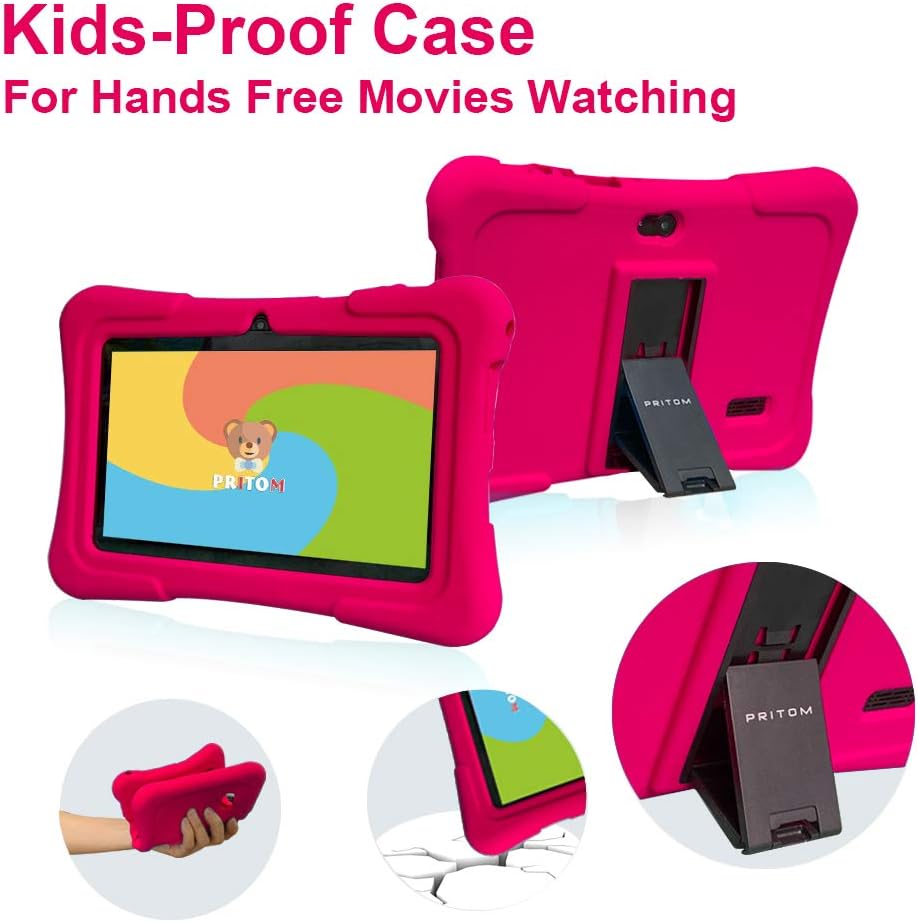
Image: The PRITOM K7 tablet displaying a family photo, highlighting its 7-inch IPS screen and camera capabilities.
- Tap the Camera app icon.
- Select between the front and rear camera using the toggle icon.
- Tap the shutter button to take a photo or start/stop video recording.
5.4 Media Playback
The tablet supports various media formats for videos, music, and photos.
- Video: Use the pre-installed video player or download a third-party app from the Google Play Store.
- Music: Use the Music app to play audio files.
- Photos: View images in the Gallery app.
Video: An overview of the PRITOM 7-inch Kids Tablet, demonstrating its features and functionality, including the user interface and protective case.
Video: A short demonstration of the kids tablet, showcasing its design and some interactive elements.
Video: A brief look at the PRITOM Kids Tablet, highlighting its 7-inch screen and 32GB storage capacity.
6. Maintenance
6.1 Charging the Battery
Connect the provided charger to the tablet's DC jack or Micro USB port and plug it into a power outlet. The battery indicator on the screen will show charging status.
6.2 Storage Management
The tablet has 32 GB of internal storage, expandable up to 512 GB using a Micro SD card.
- Locate the Micro SD card slot (refer to Device Overview diagram).
- Gently insert a compatible Micro SD card until it clicks into place.
- To manage storage, go to Settings > Storage.
6.3 Cleaning
Use a soft, dry, lint-free cloth to clean the screen and exterior of the tablet. Avoid using harsh chemicals or abrasive materials.

Image: The PRITOM K7 tablet secured in its pink kid-proof silicone case, featuring a functional kickstand for hands-free viewing.
7. Troubleshooting
- Tablet not turning on: Ensure the battery is charged. Connect the charger and try again.
- Screen is unresponsive: Perform a soft reset by holding the power button for 10-15 seconds.
- Wi-Fi connection issues: Check if Wi-Fi is enabled in settings. Restart your router and the tablet.
- Apps crashing: Clear the app's cache (Settings > Apps > [App Name] > Storage > Clear Cache) or reinstall the app.
- Parental control issues: Verify the parental password and check settings within the iWawa app.
8. Specifications
| Feature | Detail |
|---|---|
| Screen Size | 7 Inches |
| Screen Resolution | 1024x600 Pixels (IPS HD) |
| Operating System | Android 13 |
| Processor | Quad-Core (1.5 GHz Unisoc) |
| RAM | 2 GB SDRAM DDR3 |
| Internal Storage | 32 GB (expandable up to 512 GB via Micro SD) |
| Cameras | Front 2MP, Rear 0.3MP |
| Connectivity | WiFi (802.11bgn), Bluetooth |
| Battery Life | Average 3 years (device lifespan) |
| Item Weight | 1.15 pounds |
| Product Dimensions | 8.3 x 5.9 x 0.7 inches |
9. Warranty and Support
For warranty information and customer support, please refer to the documentation included with your purchase or visit the official PRITOM website. Keep your proof of purchase for any warranty claims.

