
1. Introduction
This manual provides detailed instructions for the installation, setup, and operation of your GONLEN WiFi Electric Garage Door Opener Controller. This device allows you to remotely control your garage door or gate using a smartphone application, voice commands via Amazon Alexa or Google Home, and integrate with IFTTT.
2. Safety Information
- Ensure all power is disconnected from the garage door opener before beginning installation.
- This device is designed for use with garage door openers that have a low-voltage control input. Consult your garage door opener's manual for compatibility.
- The device requires a 2.4GHz Wi-Fi network. It is not compatible with 5GHz Wi-Fi networks.
- Keep the device and its components away from water and extreme temperatures.
- Installation should be performed by individuals familiar with basic electrical wiring and safety procedures.
3. Package Contents
Verify that all items are present in your package:
- GONLEN WiFi Electric Garage Door Opener Controller
- Door Sensor (Magnetic Contact Sensor)
- Connection Wires (5 meters)
- Mounting Accessories (screws, adhesive pads)
- Power Adapter

Image 3.1: Contents of the GONLEN WiFi Electric Garage Door Opener Controller package, including the main controller unit, a magnetic door sensor, wiring, and a power adapter.
4. Product Overview
The GONLEN WiFi Electric Garage Door Opener Controller is a compact device designed to integrate with your existing garage door system. It features a main control unit and a magnetic sensor to detect the door's open/closed status.
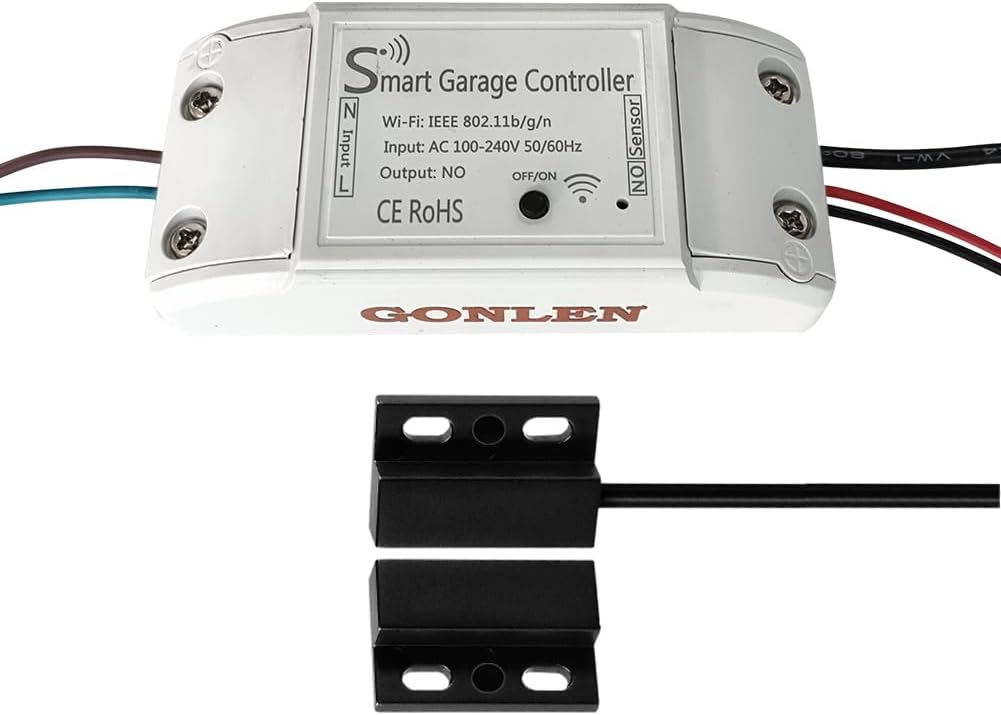
Image 4.1: The GONLEN WiFi Electric Garage Door Opener Controller unit and its accompanying magnetic sensor. The controller has input/output ports and Wi-Fi indicator.
5. Setup and Installation
5.1 Pre-installation Checks
- Ensure your Wi-Fi network is 2.4GHz. The device does not support 5GHz Wi-Fi.
- Confirm your garage door opener has a low-voltage input for a wall button or similar control.
- Have your Wi-Fi network name and password ready.
5.2 Wiring the Controller
- Disconnect Power: Turn off the power to your garage door opener at the circuit breaker.
- Connect to Opener: Connect the two output wires from the GONLEN controller to the terminals on your garage door opener that are typically used for the wall button. These are usually labeled 'Push Button', 'PB', 'Wall Control', or similar. The polarity typically does not matter for these terminals.
- Connect Sensor: Plug the magnetic door sensor cable into the 'NO Sensor' port on the GONLEN controller.
- Connect Power: Plug the power adapter into the controller and then into a power outlet.
5.3 Installing the Door Sensor
The magnetic sensor consists of two parts: a main sensor unit and a magnet. These parts must be installed in close proximity to each other when the garage door is closed, and separate when the door is open.
- Mount the main sensor unit securely to the garage door frame or wall.
- Mount the magnet to the top panel of the garage door, directly adjacent to the main sensor unit when the door is closed. Ensure the gap between the sensor and magnet is minimal (typically less than 1 inch) when the door is closed.
- Use the provided screws or adhesive pads for secure mounting.

Image 5.1: A detailed wiring diagram showing how to connect the GONLEN controller to a garage door opener motor and how to install the magnetic sensor on the garage door and frame.
5.4 App Download and Device Pairing
- Download App: Download the 'Smart Life' or 'Tuya Smart' app from the Apple App Store (iOS) or Google Play Store (Android).
- Register/Login: Open the app and register for a new account or log in if you already have one.
- Add Device: Tap the '+' icon in the top right corner of the app to add a new device.
- Select Device Type: Select 'Electrician' > 'Garage Door Opener' or 'Sensor' > 'Door Sensor (Wi-Fi)'.
- Enter Wi-Fi Details: Follow the on-screen instructions to connect the device to your 2.4GHz Wi-Fi network. You may need to put the device into pairing mode (refer to the device's LED indicator for status).
- Rename Device: Once paired, you can rename the device for easier identification (e.g., 'My Garage Door').
6. Operation
6.1 Smartphone App Control
The Smart Life or Tuya Smart app provides comprehensive control over your garage door.
- Open/Close: Tap the main button in the app to open or close your garage door. The app will display the current status (open or closed) based on the magnetic sensor.
- Schedule/Timer: Set schedules for automatic opening or closing at specific times (e.g., close at night).
- Countdown: Use the countdown feature to automatically close the door after a set period.
- Operation Record: View a history of when the garage door was opened or closed.
- Notifications: Receive real-time notifications when the garage door opens or closes.
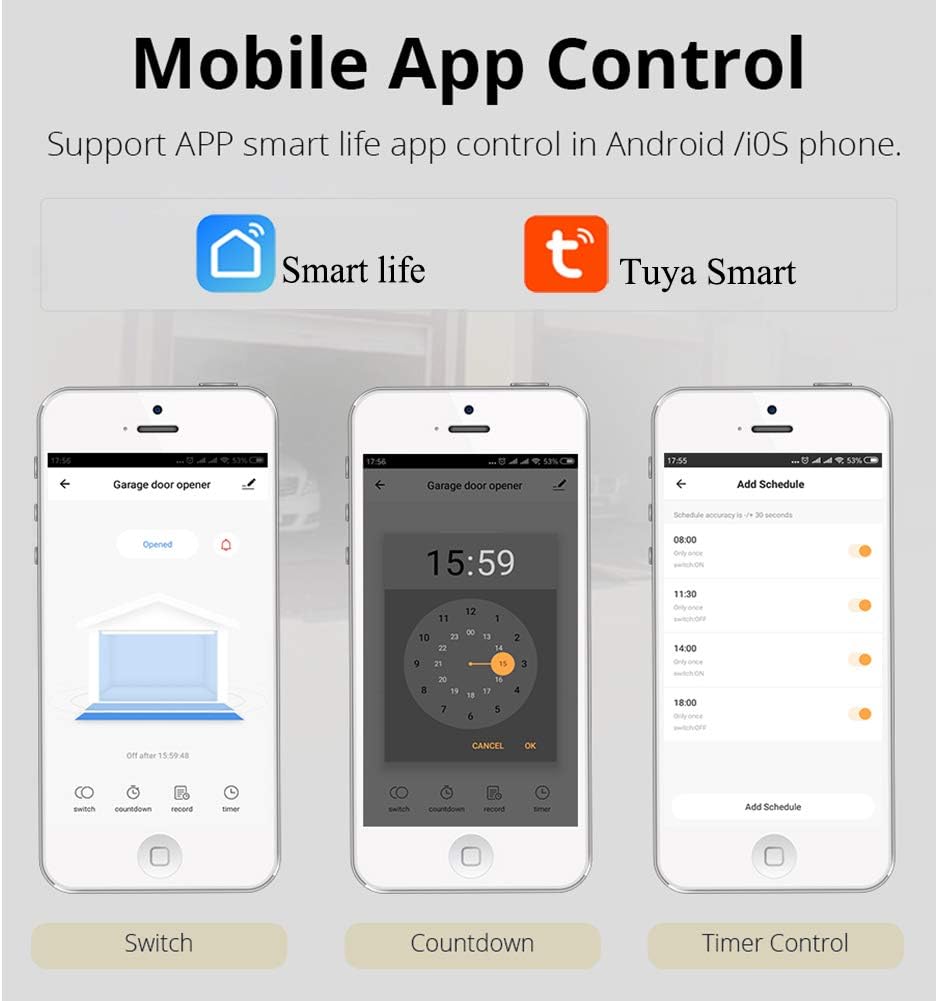
Image 6.1: Screenshots of the mobile application interface, demonstrating options for switching the garage door status, setting a countdown timer, and configuring scheduled operations.

Image 6.2: A detailed view of the app's main control screen, highlighting buttons for ON/OFF switching, fast countdown, operation records, and single/repeat timers. It also shows options for renaming, sharing, and managing device settings.
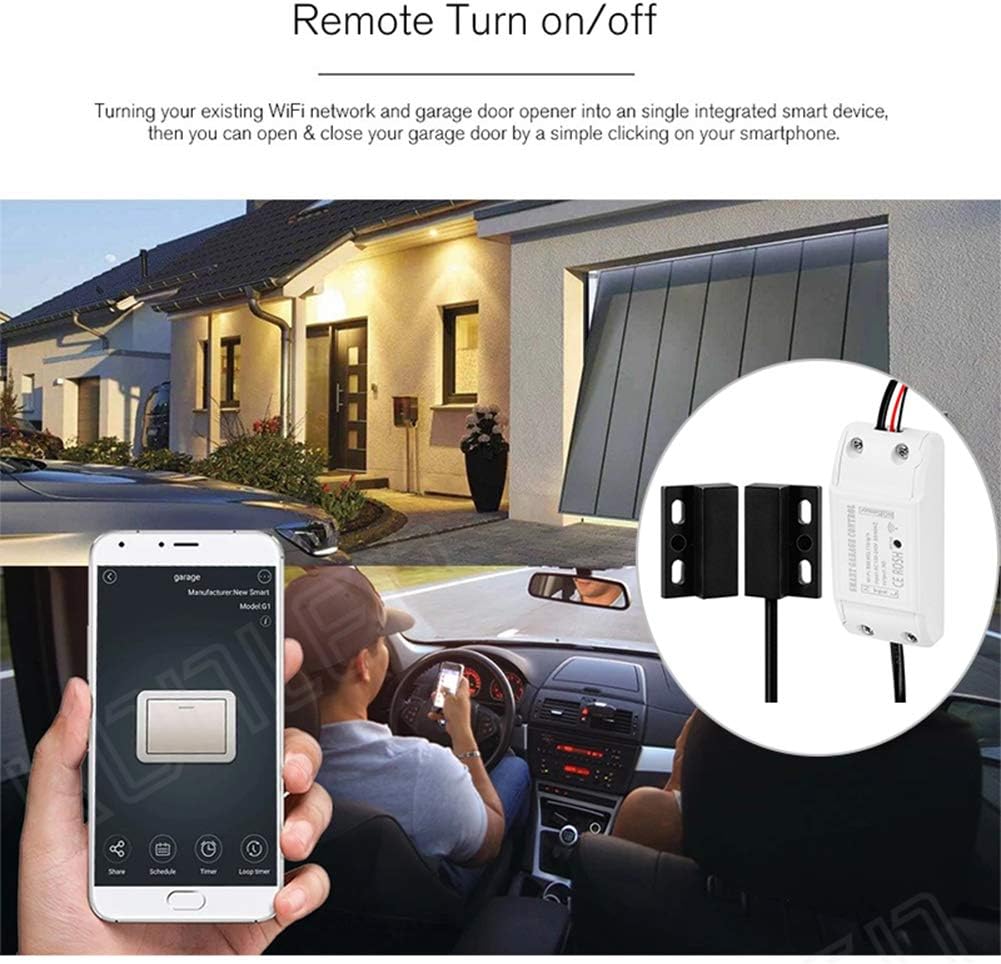
Image 6.3: An illustration depicting a user remotely opening or closing their garage door using a smartphone application, emphasizing the convenience of smart control.
6.2 Voice Control
The GONLEN controller is compatible with Amazon Alexa and Google Home for hands-free operation.
- Link Account: In your Alexa or Google Home app, enable the 'Smart Life' or 'Tuya Smart' skill/service and link your account.
- Discover Devices: Ask Alexa or Google Home to discover new devices.
- Voice Commands: Use commands such as:
"Alexa, open the garage door."
"Hey Google, close the garage door."

Image 6.4: Visual representation of voice commands for opening and closing a garage door using Amazon Alexa and Google Home devices.
6.3 Family Sharing
You can share control of your garage door with family members or trusted individuals through the Smart Life/Tuya Smart app. This allows multiple users to operate the device from their own smartphones.
6.4 Real-time Monitoring
The app provides real-time status updates of your garage door (open or closed) and sends notifications for any changes, ensuring you are always aware of its status.
Video 6.1: A demonstration of the GONLEN WiFi Electric Garage Door Opener Controller in action, showing how the magnetic sensor detects the door's status and how the smartphone app reflects these changes and allows for remote control.
7. Troubleshooting
- Device not connecting to Wi-Fi: Ensure your Wi-Fi is 2.4GHz. Check Wi-Fi signal strength at the installation location. Restart your router and the device, then try pairing again.
- Garage door not responding: Verify that the controller's output wires are correctly connected to the garage door opener's wall button terminals. Ensure the garage door opener has power.
- Incorrect door status in app: Check the installation of the magnetic sensor. Ensure the two parts are aligned and close enough when the door is closed, and sufficiently separated when open.
- Voice control not working: Confirm that your Smart Life/Tuya Smart account is correctly linked to Alexa or Google Home. Ensure the device name used in voice commands matches the name in the app.
8. Specifications
| Parameter | Value |
|---|---|
| Wireless Standard | IEEE802.11b/g/n |
| Wireless Type | 2.4GHz (not compatible with 5GHz) |
| Input Voltage | AC 100-240V 50/60Hz |
| Output | Normally Open (NO) contact |
| Compatible App | Tuya Smart or Smart Life (Android & iOS) |
| Voice Control | Amazon Alexa, Google Home |
| Connection Wire Length | 5 meters |
| Working Temperature | -10℃ ~ 50℃ |
9. Warranty and Support
For warranty information and technical support, please refer to the manufacturer's official website or contact your retailer. Keep your purchase receipt for warranty claims.