
Important Safety Instructions
Please read these instructions carefully before using your Coredy R650 Ultra Robot Vacuum and retain them for future reference. Failure to follow these instructions may result in electric shock, fire, or serious injury.
- This appliance can be used by children aged 8 years and above and persons with reduced physical, sensory or mental capabilities or lack of experience and knowledge if they have been given supervision or instruction concerning use of the appliance in a safe way and understand the hazards involved.
- Children should be supervised to ensure that they do not play with the appliance.
- Cleaning and user maintenance shall not be made by children without supervision.
- Only use the original power adapter provided by the manufacturer.
- Do not use the robot vacuum in wet environments or near water.
- Remove all loose cables, small objects, and fragile items from the floor before operation to prevent entanglement or damage.
- Do not operate the robot vacuum in areas with open flames or flammable materials.
- Ensure the charging base is placed on a level surface against a wall, with adequate clear space around it.
- Do not carry the robot vacuum by its handle when it is powered on.
- Turn off the robot vacuum and unplug the charging base before performing any maintenance or cleaning.
Package Contents
Verify that all components are present and in good condition upon unpacking.
- 1x Coredy R650 Ultra Robotic Vacuum Cleaner
- 1x Charging Dock
- 1x 500ml Dust Bin (pre-installed)
- 2x Side Brushes (one pair)
- 1x Filter (pre-installed)
- 1x Remote Control
- 1x Power Adapter
- 1x Cleaning Tool
- 1x User Manual

Image: The Coredy R650 Ultra Robot Vacuum, its remote control, and a smartphone displaying the Coredy app interface.
Product Overview
Robot Vacuum Components
- Top Cover: Houses the power button and Wi-Fi indicator.
- Power Button: Initiates or pauses cleaning, powers on/off.
- Dustbin: Collects debris, located at the rear of the robot.
- Side Brushes: Two rotating brushes on the front sides for edge and corner cleaning.
- Main Brush: V-shaped roller brush located underneath for deep cleaning.
- Driving Wheels: Two large wheels for movement across various surfaces.
- Universal Wheel: Front wheel for navigation.
- Charging Contacts: Two metal strips on the bottom for connecting to the charging base.
- Drop Sensors: Located on the bottom to prevent falls.
- Infrared Sensors: Front-facing sensors for obstacle detection.
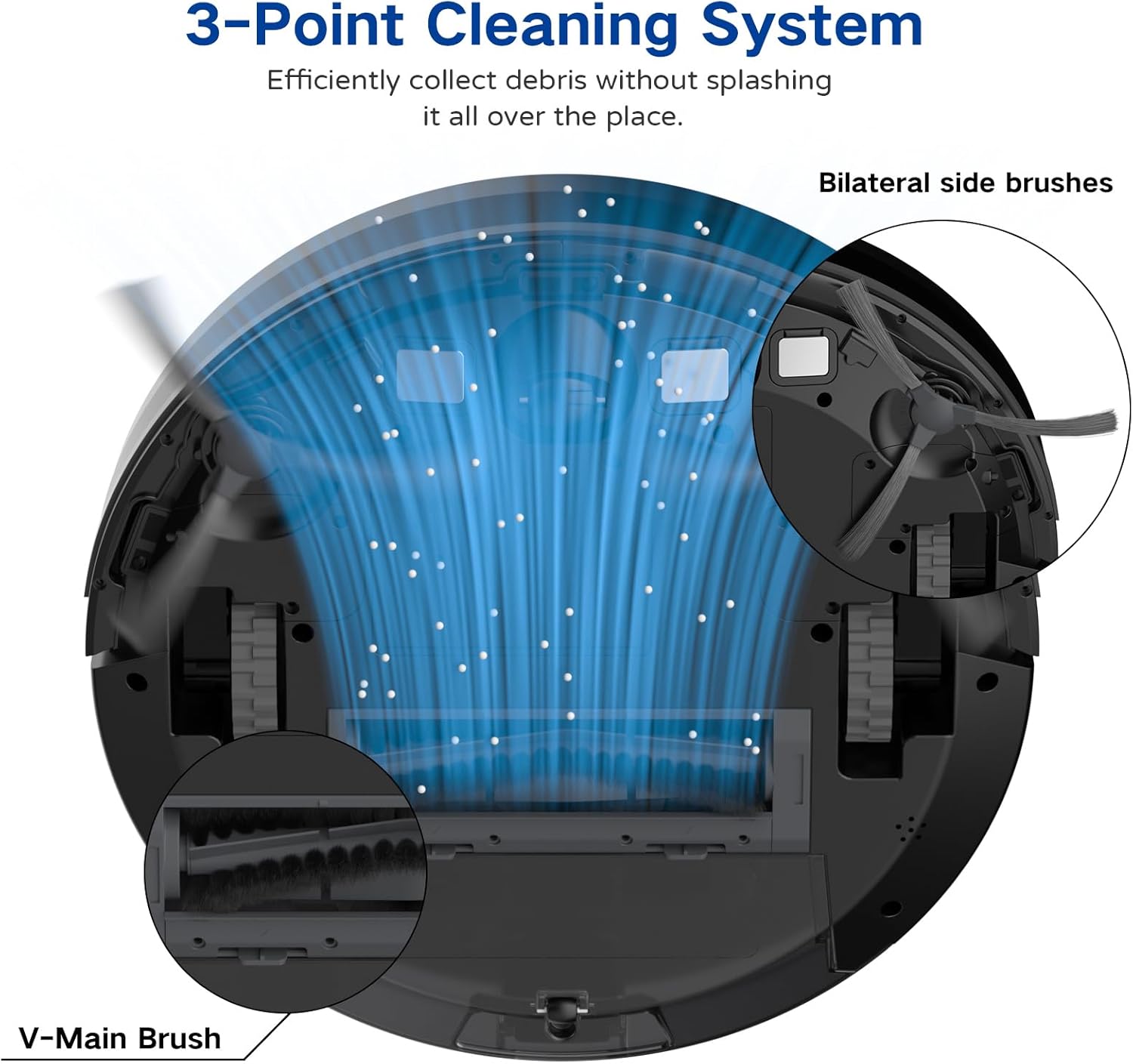
Image: A diagram illustrating the robot vacuum's 3-Point Cleaning System, showing bilateral side brushes and the V-main brush efficiently collecting debris.
Charging Base Components
- Charging Pins: Connect with the robot's charging contacts.
- Power Indicator: Shows charging status.
- Power Port: Connects to the power adapter.
Setup
1. Positioning the Charging Base
Place the charging base on a hard, level surface against a wall. Ensure there is at least 3 feet (1 meter) of clear space to the front and 1.5 feet (0.5 meters) to each side of the charging base to allow the robot to dock properly. Plug the power adapter into the charging base and then into a wall outlet.
2. Initial Charging
Place the robot vacuum onto the charging base, ensuring the charging contacts align. The robot will begin charging automatically. For first-time use, charge the robot for at least 5-6 hours until the indicator light turns solid green, indicating a full charge.
3. Installing Side Brushes
Attach the two side brushes to the posts on the bottom of the robot by pressing them down until they click into place. Ensure they are securely fastened.
4. Connecting to the Coredy App
- Download the 'Coredy' app from the App Store (iOS) or Google Play Store (Android).
- Register an account and log in.
- Follow the in-app instructions to add your R650 Ultra robot vacuum to your account. This typically involves connecting your phone to a 2.4GHz Wi-Fi network and then connecting the robot to the same network.

Image: A hand interacting with a smartphone showing the Coredy app, which displays a real-time map of the robot's cleaning path and offers control options.
5. Voice Assistant Integration (Alexa/Google Assistant)
Once connected to the Coredy app, you can link your robot vacuum to Amazon Alexa or Google Assistant for voice control.
- Open the Alexa or Google Home app.
- Navigate to the 'Skills & Games' (Alexa) or 'Works with Google' (Google Home) section.
- Search for the 'Coredy' skill/service and enable it.
- Log in with your Coredy app account credentials when prompted.
- Discover devices. You can now use voice commands like "Alexa, turn on Coredy R650 Ultra" or "Hey Google, start cleaning with Coredy R650 Ultra."

Image: The Coredy R650 Ultra Robot Vacuum positioned near its charging dock, with an Amazon Echo Dot in the background, illustrating voice control capabilities.
Operating the Robot Vacuum
Starting/Stopping Cleaning
- Manual Start: Press the power button on the robot or the 'Clean' button on the remote control.
- App Control: Use the Coredy app to start or stop cleaning.
- Voice Control: Use compatible voice assistants (e.g., "Alexa, start Coredy R650 Ultra").
- Pause: Press the power button on the robot or the 'Clean' button on the remote during operation to pause. Press again to resume.
Cleaning Modes
The R650 Ultra offers various cleaning modes to suit different needs:
- Auto Cleaning: The robot automatically cleans in a Z-shaped path, adjusting to different floor types.
- Spot Cleaning: The robot intensely cleans a specific small area in a spiral pattern.
- Edge Cleaning: The robot cleans along walls and furniture edges.
- Manual Control: Use the remote control or app to direct the robot manually.

Image: The Coredy R650 Ultra Robot Vacuum cleaning a hard floor, illustrating its Gyroscopic Dynamic Navigation and Z-shaped cleaning path for thorough coverage.
Scheduling Cleaning
You can schedule cleaning times using the Coredy app or the remote control. Refer to the app's interface or the remote control section of this manual for detailed instructions on setting schedules.
Suction Power Adjustment
The R650 Ultra features adjustable suction power, with a maximum of 2200 Pa. It also includes an Auto Carpet Boost feature that automatically increases suction when carpet is detected.
Automatic Recharging
When the battery level is low or a cleaning cycle is complete, the robot will automatically return to its charging base to recharge.
Maintenance
Regular maintenance ensures optimal performance and extends the lifespan of your robot vacuum.
1. Emptying the Dustbin
It is recommended to empty the dustbin after each use.
- Press the dustbin release button and pull out the dustbin.
- Open the dustbin cover and empty the contents into a trash bin.

Image: The Coredy R650 Ultra Robot Vacuum on a wooden floor, with its 500ml dustbin detached and placed beside it, highlighting its capacity.
2. Cleaning the Filter
Clean the filter weekly, or more frequently if you have pets or high usage.
- Remove the filter from the dustbin.
- Tap the filter gently to remove loose dirt.
- Rinse the filter under running water. Ensure it is completely dry before reinstalling.
3. Cleaning the Main Brush
Clean the main brush weekly.
- Turn the robot over and remove the main brush cover.
- Lift out the main brush.
- Use the provided cleaning tool to remove hair and debris wrapped around the brush.
- Reinstall the main brush and cover.
4. Cleaning the Side Brushes
Check side brushes regularly for tangled hair or debris.
- Gently pull the side brushes upwards to remove them.
- Remove any hair or debris.
- Reattach the side brushes, ensuring they click into place.
5. Cleaning Sensors and Charging Contacts
Wipe the drop sensors, infrared sensors, and charging contacts on both the robot and the charging base with a clean, dry cloth monthly.
Troubleshooting
If you encounter issues with your Coredy R650 Ultra, refer to the table below for common problems and solutions.
| Problem | Possible Cause | Solution |
|---|---|---|
| Robot does not turn on | Low battery; Power switch off | Charge the robot; Ensure power switch is on. |
| Robot does not charge | Charging contacts dirty; Charging base unplugged | Clean charging contacts; Ensure charging base is plugged in. |
| Robot gets stuck frequently | Obstacles on floor; Robot stuck under furniture | Clear floor of cables/small items; Use boundary strips or block off low-clearance areas. |
| Poor cleaning performance | Dustbin full; Brushes tangled; Filter clogged | Empty dustbin; Clean main and side brushes; Clean or replace filter. |
| Cannot connect to Wi-Fi/App | Incorrect Wi-Fi password; 5GHz Wi-Fi network; Robot too far from router | Verify password; Ensure 2.4GHz Wi-Fi; Move robot closer to router. |
Specifications
Technical specifications for the Coredy R650 Ultra Robot Vacuum.
| Feature | Detail |
|---|---|
| Brand | Coredy |
| Model Name | Coredy R650 Ultra Robotic Vacuum Cleaner |
| Suction Power | Up to 2200 Pa |
| Battery Life | Up to 120 minutes |
| Dustbin Capacity | 500 Milliliters |
| Product Dimensions | 12.7"L x 12.7"W x 2.76"H |
| Control Method | App, Remote Control, Voice Control |
| Compatible Devices | Amazon Echo, Google Home, Smartphones |
| Filter Type | Cartridge (HEPA) |
| Navigation Type | Gyroscopic Dynamic Navigation |

Image: A technical drawing illustrating the top and side dimensions of the Coredy R650 Ultra Robot Vacuum, showing its 12.7-inch diameter and 2.72-inch height.
Warranty and Support
For warranty information, please refer to the warranty card included in your product packaging or visit the official Coredy website. If you require technical support or have questions not covered in this manual, please contact Coredy customer service through the contact information provided on their website or in your purchase documentation.


