Introduction
This manual provides detailed instructions for the setup, operation, and maintenance of your E-YOOSO K600 Wireless Keyboard. Please read this manual thoroughly before using the product to ensure proper function and longevity.
Setup
1. Battery Installation
The keyboard and mouse each require one AA battery (not included). Locate the battery compartment on the underside of both the keyboard and the mouse. Insert the batteries, ensuring correct polarity (+/-). Close the battery compartments securely.
2. 2.4G Wireless Connection
The E-YOOSO K600 wireless keyboard and mouse combo utilizes a single 2.4 GHz USB receiver for connectivity. This receiver is typically stored within the mouse's battery compartment for convenience.
- Remove the USB receiver from its storage slot in the mouse.
- Plug the USB receiver into an available USB port on your computer (desktop, PC, laptop, or tablet).
- The keyboard and mouse are designed for plug-and-play functionality and should connect automatically without requiring driver installation or additional software.
- The 2.4 GHz wireless technology provides a stable connection up to 33 feet (10 meters) with minimal latency.
The keyboard and mouse can also be used separately if desired.
Operating Instructions
1. Mouse DPI Adjustment
The optical mouse features 3 adjustable DPI levels (1000/1600/2400) for precise cursor control. To change the DPI setting, press the DPI button located on the mouse. Each press will cycle through the available DPI levels, allowing you to select your preferred cursor speed.
2. Keyboard Backlight Modes
The keyboard features a 6-color LED backlight with multiple dynamic lighting effects and preset gaming modes.

Image: E-YOOSO K600 keyboard showcasing its 6-color LED backlighting.
To adjust the backlight settings:
- FN + INS: Cycle through 9 dynamic lighting effects.
- The keyboard also includes 8 preset gaming modes and 2 customizable slots. Refer to the keyboard's specific key combinations for detailed customization options.

Image: Keyboard layout highlighting FN key combinations for various lighting effects.
3. Multimedia Hotkeys and Combine Keys
The keyboard is equipped with 10 multimedia hotkeys and 12 combine keys for quick access to various functions. These keys allow for efficient control over music playback, volume, email, and other common tasks.
- FN + F1-F12: Access various multimedia and system functions.
- Specific functions are typically indicated by icons on the F-keys.
4. Ergonomic Design and Wrist Rest
The keyboard features a finely textured wrist rest designed to provide comfort and reduce strain during extended typing sessions. Additionally, it includes a foldable stand that allows you to tilt the keyboard at a 7° angle for an optimized typing position.
5. Full 104-Key Rollover
The keyboard supports full 104-key rollover, ensuring that every keystroke is registered accurately, even when multiple keys are pressed simultaneously. This feature is particularly beneficial for fast typing and gaming.

Image: Close-up of the keyboard keys illustrating the full 104-key rollover capability.
Maintenance
1. Cleaning
The E-YOOSO K600 keyboard is designed with spill resistance. In case of accidental spills, promptly disconnect the keyboard from your computer and gently wipe away any liquid with a clean, dry cloth. Allow the keyboard to air dry completely before reconnecting.
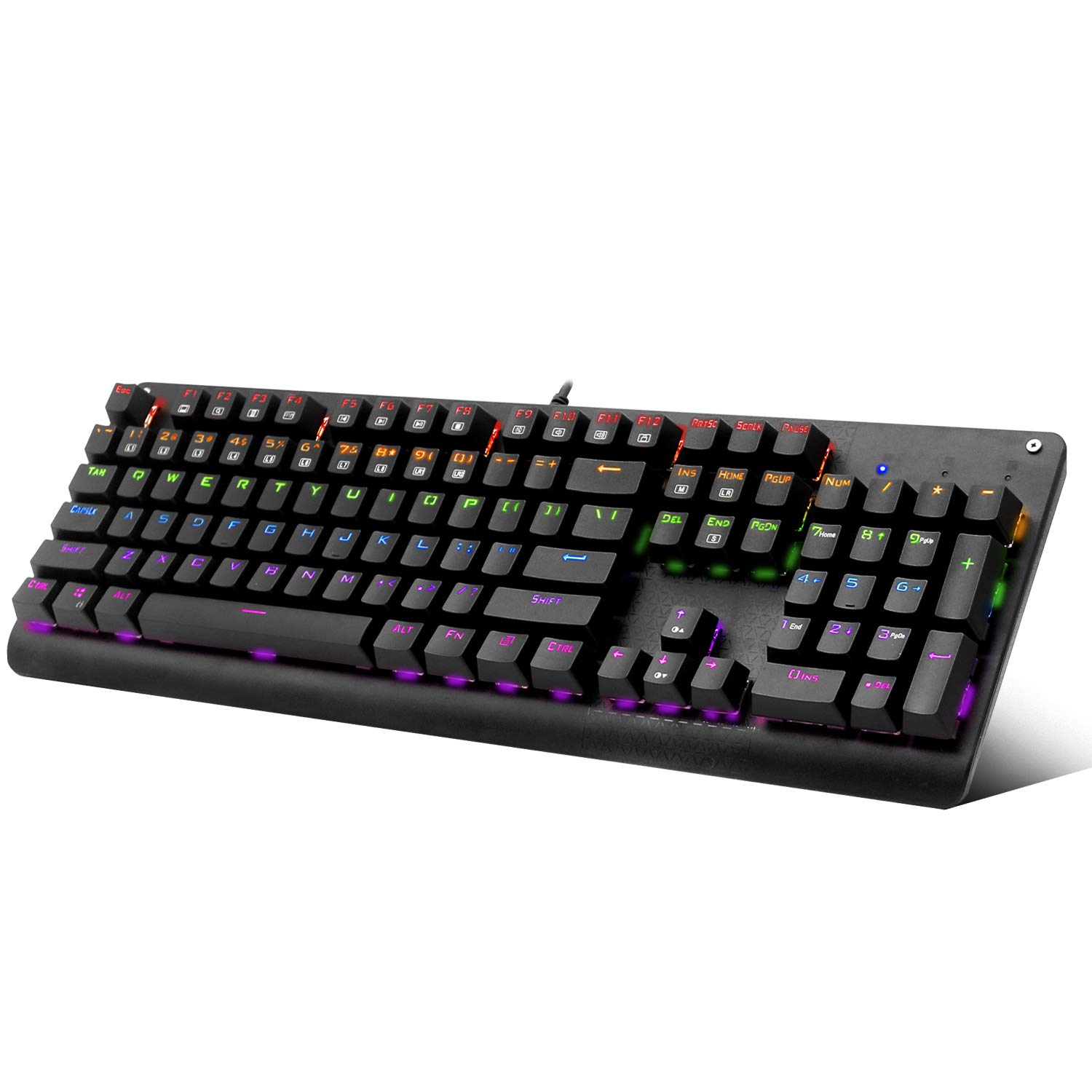
Image: Keyboard surface with water droplets, demonstrating its spill-resistant design.
For general cleaning, use a soft, lint-free cloth. Avoid using harsh chemicals or abrasive materials that could damage the keyboard's surface or keycaps.
2. Switch Maintenance (Outemu Blue Switches)
The keyboard features Outemu Blue mechanical switches, known for their tactile feedback and audible click. These switches are designed for durability. If a keycap needs to be removed for cleaning or replacement, use a keycap puller to gently lift the keycap straight up to avoid damaging the switch stem.

Image: Detailed view of the Outemu Blue mechanical switches with keycaps removed.
Troubleshooting
1. No Response from Keyboard/Mouse
- Check Batteries: Ensure fresh AA batteries are correctly installed in both the keyboard and mouse.
- USB Receiver: Verify that the 2.4G USB receiver is securely plugged into a working USB port on your computer. Try a different USB port.
- Distance: Ensure the keyboard and mouse are within the 33-foot (10-meter) operating range of the USB receiver and that there are no significant obstructions.
- Interference: Move away from other wireless devices that might cause interference.
2. Auto Power Saving Function
The keyboard and mouse feature an intelligent power-saving chip. If inactive for 15 minutes, they will automatically enter standby mode to conserve battery life. To wake the devices, simply press any key on the keyboard or click the mouse. No manual switch is required for this function.
3. Cursor Movement Issues (Mouse)
- DPI Setting: Adjust the DPI setting using the DPI button on the mouse to find a comfortable cursor speed.
- Surface: Ensure the mouse is used on a suitable surface. While optically designed for precision, extreme or uneven surfaces may affect performance.
Specifications
| Brand | E-YOOSO |
| Model Number | K600 |
| Connectivity Technology | 2.4G Wireless |
| Keyboard Description | Multi Functional, Mechanical |
| Special Features | Backlit, Ergonomic, Spill-Resistant, Full 104-Key Rollover |
| Compatible Devices | Laptop, PC, Tablet (Windows XP/Vista/7/8/10) |
| Item Weight | 1.76 pounds (0.8 kg) |
| Package Dimensions | 17.44 x 6.77 x 1.89 inches (44.3 x 17.2 x 4.8 cm) |
| Material | Steel (base), Plastic (keycaps) |
| Included Components | USB Cable (for charging/wired mode if applicable, or general accessory) |
| Battery Requirement | 1 x AA battery for keyboard, 1 x AA battery for mouse (not included) |
Warranty and Support
For warranty information and technical support, please refer to the official E-YOOSO website or contact their customer service directly. Keep your purchase receipt as proof of purchase for any warranty claims.


