
1. Introduction
The VStarcam C29S is a 1080P WiFi IP camera designed for indoor security, baby monitoring, pet observation, and elderly care. This manual provides essential information for setting up, operating, and maintaining your camera to ensure optimal performance and security.
2. Product Features
- Full Wireless Connectivity: Supports 2.4GHz WiFi for stable and quick setup.
- Wide-Angle Surveillance: Offers 355° horizontal and 110° vertical lens rotation for a 360° omnidirectional field of view.
- High-Definition Video: Captures clear 1080P Full HD video.
- Enhanced Night Vision: Equipped with 10 850nm infrared LEDs for clear viewing up to 30 feet in low light conditions.
- Motion Detection: Provides instant app notifications and automatically saves images of detected movement.
- Two-Way Audio: Built-in microphone and speaker allow for remote communication.
- Secure Storage: Utilizes unique encryption technology for video files stored on an SD card (up to 128GB supported), ensuring privacy.
- Remote Access: Monitor and control the camera from your smartphone via the dedicated app.
3. Setup Guide
3.1. Unboxing and Initial Inspection
Carefully remove all components from the packaging. Verify that all items listed in the package contents are present and undamaged. These typically include the camera unit, power adapter, mounting bracket, and screws.
3.2. Powering On the Camera
Connect the power adapter to the camera's power input port and then plug it into a power outlet. The camera will initiate its startup sequence, which may include a self-test rotation and indicator light changes.
3.3. App Installation and Account Registration
Download the official VStarcam app from your smartphone's app store (available on Google Play and Apple App Store). Install the app and follow the on-screen instructions to create a new user account or log in if you already have one.

Figure 1: Mobile phone remote viewing via the VStarcam app.
3.4. Connecting to Wi-Fi
Within the app, select the option to add a new camera. Follow the guided steps to connect your camera to your 2.4GHz Wi-Fi network. Ensure your smartphone is connected to the same 2.4GHz Wi-Fi network during the setup process. The camera does not support 5GHz Wi-Fi.
3.5. Camera Placement and Mounting
Choose a suitable location for your camera. It can be placed flat on a surface, mounted on a ceiling, or mounted on a wall. Use the provided mounting bracket and screws for secure installation if not placing on a flat surface. Ensure the camera has a clear line of sight to the area you wish to monitor and is within range of your Wi-Fi signal.
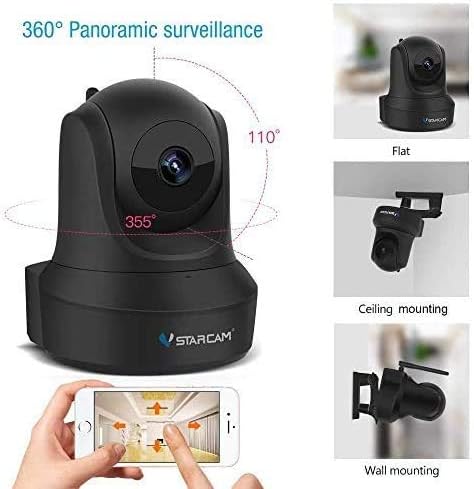
Figure 2: Camera rotation capabilities and various mounting options.
4. Operating Instructions
4.1. Live View and Remote Control
Open the VStarcam app on your smartphone. Select your camera from the device list to access the live video feed. You can pan (horizontal) and tilt (vertical) the camera lens by swiping on the screen within the app to adjust the viewing angle. The app also allows you to zoom in and out of the live feed.

Figure 3: Remote care and monitoring of children.
4.2. Two-Way Audio Communication
The camera features a built-in microphone and speaker, enabling two-way audio communication. To use this function, tap the microphone icon in the app to speak, and release it to listen. This allows you to communicate with individuals near the camera, such as family members or pets, from a remote location.

Figure 4: Two-way audio for communication with family.
4.3. Motion Detection and Alerts
The camera is equipped with motion detection capabilities. When movement is detected within the camera's field of view, you will receive instant notifications on your smartphone via the app. The camera can also be configured to automatically record and save images or video clips of these events. Adjust motion detection sensitivity in the app settings.

Figure 5: Motion detection for security and alarm notifications.
4.4. Night Vision Functionality
The VStarcam C29S automatically switches to night vision mode in low-light conditions. Its 10 infrared LEDs provide clear black-and-white video up to 30 feet (approximately 9 meters), ensuring continuous surveillance even in complete darkness.

Figure 6: Automatic day/night vision switching.
4.5. Video Recording and Storage
The camera supports local video recording to a microSD card (not included, up to 128GB). Insert the microSD card into the designated slot on the camera. Video files stored on the SD card are encrypted with unique technology, ensuring that only you can access them through the app, even if the camera or card is physically removed.
5. Maintenance
To ensure the longevity and optimal performance of your VStarcam C29S camera, follow these maintenance guidelines:
- Cleaning: Gently wipe the camera lens and body with a soft, dry cloth. Avoid using harsh chemicals or abrasive cleaners, which can damage the lens or surface.
- Firmware Updates: Regularly check the VStarcam app for available firmware updates. Keeping your camera's firmware up-to-date ensures you have the latest features, security patches, and performance improvements.
- Power Supply: Use only the original power adapter provided with the camera. Ensure the power cable is not pinched or damaged.
- Environmental Conditions: Operate the camera within its specified temperature and humidity ranges. Avoid exposing it to extreme temperatures, direct sunlight for prolonged periods, or high moisture environments.
- SD Card Management: If using a microSD card for local storage, periodically check its status through the app. Consider formatting the card occasionally to maintain performance, backing up any important recordings first.
6. Troubleshooting
If you encounter issues with your VStarcam C29S camera, refer to the following common troubleshooting steps:
- Camera Not Connecting to Wi-Fi:
- Ensure your Wi-Fi network is 2.4GHz. The camera does not support 5GHz networks.
- Verify that the Wi-Fi password entered in the app is correct.
- Move the camera closer to your Wi-Fi router to improve signal strength.
- Restart both the camera and your Wi-Fi router.
- No Live Video Feed:
- Check if the camera is powered on and its indicator light is behaving as expected (refer to the camera's LED status guide in the app).
- Ensure your smartphone has a stable internet connection.
- Restart the camera and the app.
- Motion Detection Not Working:
- Verify that motion detection is enabled in the app settings for your camera.
- Adjust the sensitivity level of the motion detection.
- Ensure there are no obstructions blocking the camera's view.
- Two-Way Audio Issues:
- Check the volume settings on your smartphone and within the app.
- Ensure the microphone and speaker permissions are granted to the VStarcam app on your phone.
- Reduce background noise near the camera or your phone.
- SD Card Recording Problems:
- Ensure the microSD card is inserted correctly and is not full.
- Check if the SD card is formatted correctly (usually FAT32). You can format it via the app.
- Verify that recording settings are enabled in the app.
- If the issue persists, try using a different, high-quality microSD card.
If these steps do not resolve your issue, please contact VStarcam customer support for further assistance.
7. Specifications
The following table outlines the key specifications for the VStarcam C29S IP Camera:
| Feature | Specification |
|---|---|
| Brand | VSTARCAM |
| Model | C29S |
| Recommended Use | Security, Baby Monitor, Surveillance |
| Connectivity Technology | Wireless (Wi-Fi) |
| Special Features | Motion Sensor, Night Vision |
| Indoor/Outdoor Use | Indoor |
| Compatible Devices | Smartphone |
| Connection Protocol | Wi-Fi (2.4GHz) |
| Video Capture Resolution | 1080p |
| Color | Black |
| Wireless Communication Technology | Wi-Fi |
| Alert Type | Motion Only |
| Room Type | Living Room, Kids Room, Bedroom |
| Night Vision Range | 30 feet (approx. 9 meters) |
| Video Capture Format | AVI |
| Product Weight | 0.55 kg |
| Number of Units | 1.0 Unit |
8. Warranty and Support
VStarcam provides an 18-month quality warranty from the date of purchase for the C29S IP Camera. This warranty covers initial defects and natural failures. All VStarcam IP cameras are designed with encrypted data for recordings and account information to ensure user privacy and security.
The product has obtained Japanese Radio Law certification (TELEC) and PSE certification, ensuring compliance with safety standards. The TELEC certification number is [R] 204-780029.

Figure 7: Product conformity and certification details.
Should you encounter any issues or have questions regarding the use of your camera, please do not hesitate to contact VStarcam customer support via email. We are committed to providing prompt assistance and, if necessary, arranging for a replacement product.


