
Introduction
The Honeywell Home RCHT9510WF T9 Wi-Fi Smart Thermostat, bundled with two RCHTSENSOR Smart Room Sensors, is designed to provide precise temperature control and enhanced comfort throughout your home. This system allows you to manage your home's climate from anywhere using the Resideo app, ensuring optimal temperatures in the rooms that matter most. The Smart Room Sensors detect temperature and humidity, enabling the thermostat to balance comfort across multiple areas based on occupancy or a set schedule.

Image: Honeywell Home T9 Smart Thermostat displaying the current temperature.
Setup
1. Compatibility Check
Before installation, verify your home's HVAC system compatibility. This thermostat is designed for low-voltage systems. It is compatible with forced air (gas, oil, or electric), hot water and steam, and heat pumps with electric backup. It is not compatible with electric baseboard heat (120-240V).
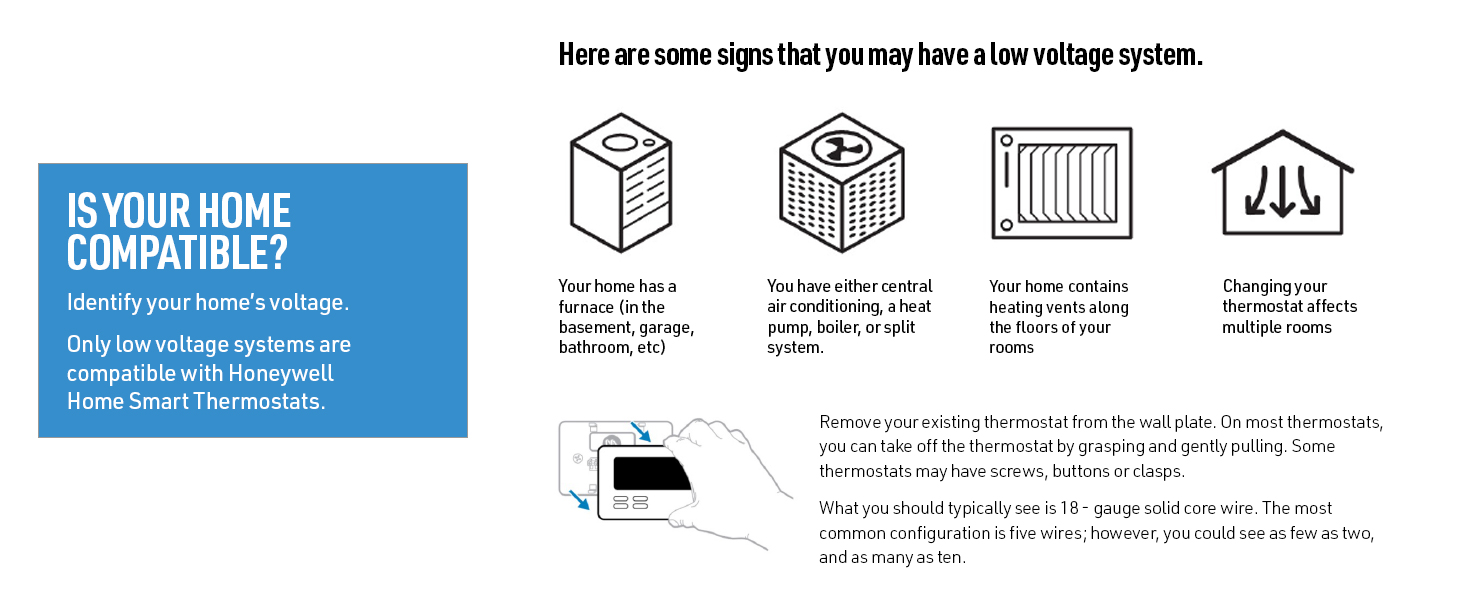
Image: Visual guide for identifying a low voltage system.
A C-Wire is required for continuous power. If your existing thermostat wiring does not include a C-Wire, an included power adapter can be used as an easy-to-install, low-voltage alternative.
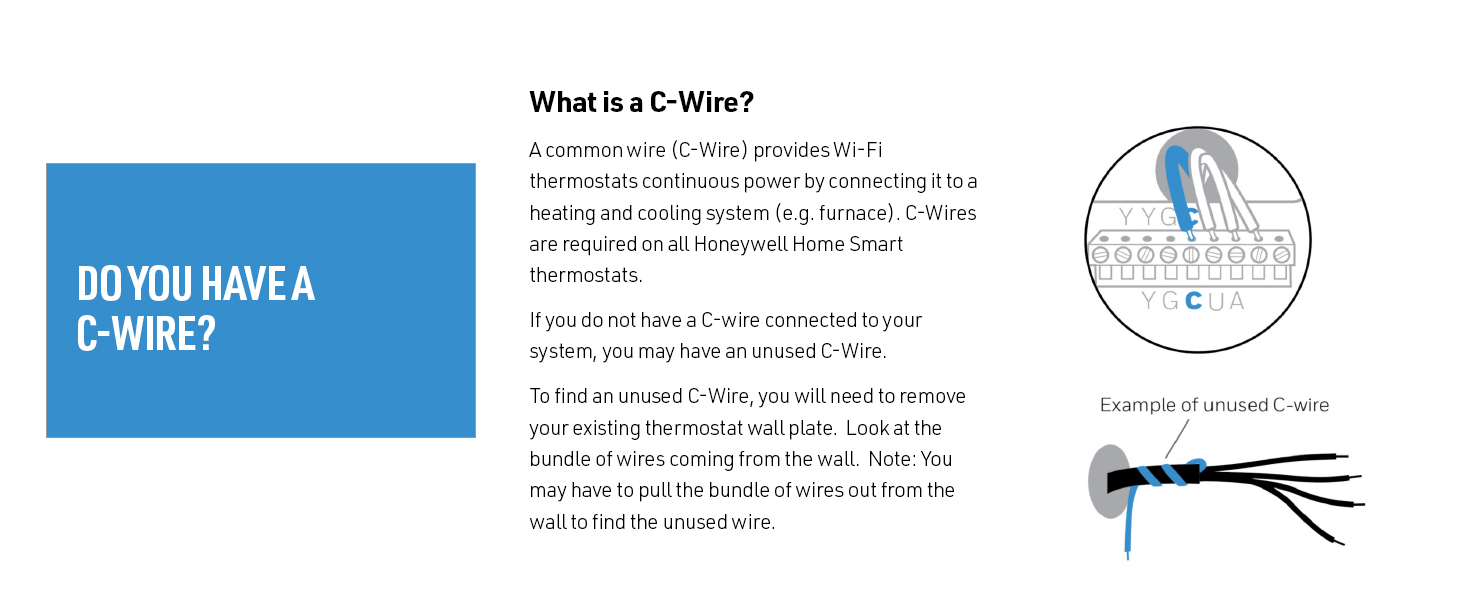
Image: Explanation of C-Wire and how to check for it.
2. Thermostat Installation
The T9 Smart Thermostat offers a guided installation process. Follow the instructions provided in the packaging for wiring and mounting. The system can help configure itself with your existing wiring.
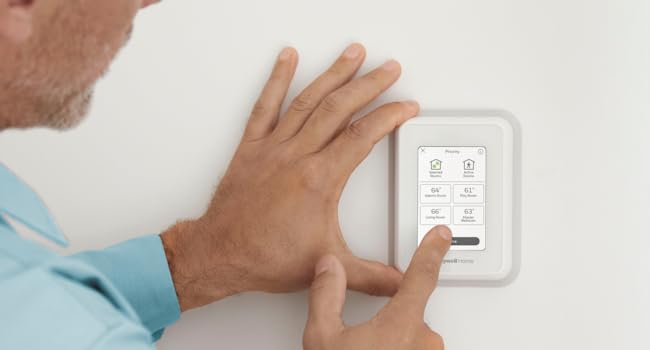
Image: A person installing the T9 Smart Thermostat.
3. Smart Room Sensor Setup
The Smart Room Sensors utilize Honeywell Home technology for an efficient signal range of up to 200 feet (actual range may vary based on home construction). Place sensors in rooms where you want to monitor temperature and humidity, or where you desire focused comfort.

Image: Illustration of a home with a thermostat and smart sensors in various rooms.

Image: Two Smart Room Sensors.
4. App Integration
Download the Resideo app to control your T9 Smart Thermostat and Smart Room Sensors. The app allows for remote temperature adjustments, scheduling, and monitoring of energy reports.

Image: Controlling the thermostat via the Resideo app.
Operating Instructions
1. Basic Thermostat Operation
The T9 Smart Thermostat features a touchscreen display for direct control. You can adjust the target temperature, switch between heating and cooling modes, and manage fan settings directly from the unit.
Video: Demonstrates the touchscreen interface and basic temperature adjustments on the Honeywell Home T9 Smart Thermostat.
2. Multi-Room Focus and Priority
Utilize the Smart Room Sensors to prioritize comfort in specific rooms. The thermostat can focus on individual rooms or average temperatures across multiple selected rooms, ensuring balanced comfort where it's needed most. This feature can be managed via the thermostat's touchscreen or the Resideo app.
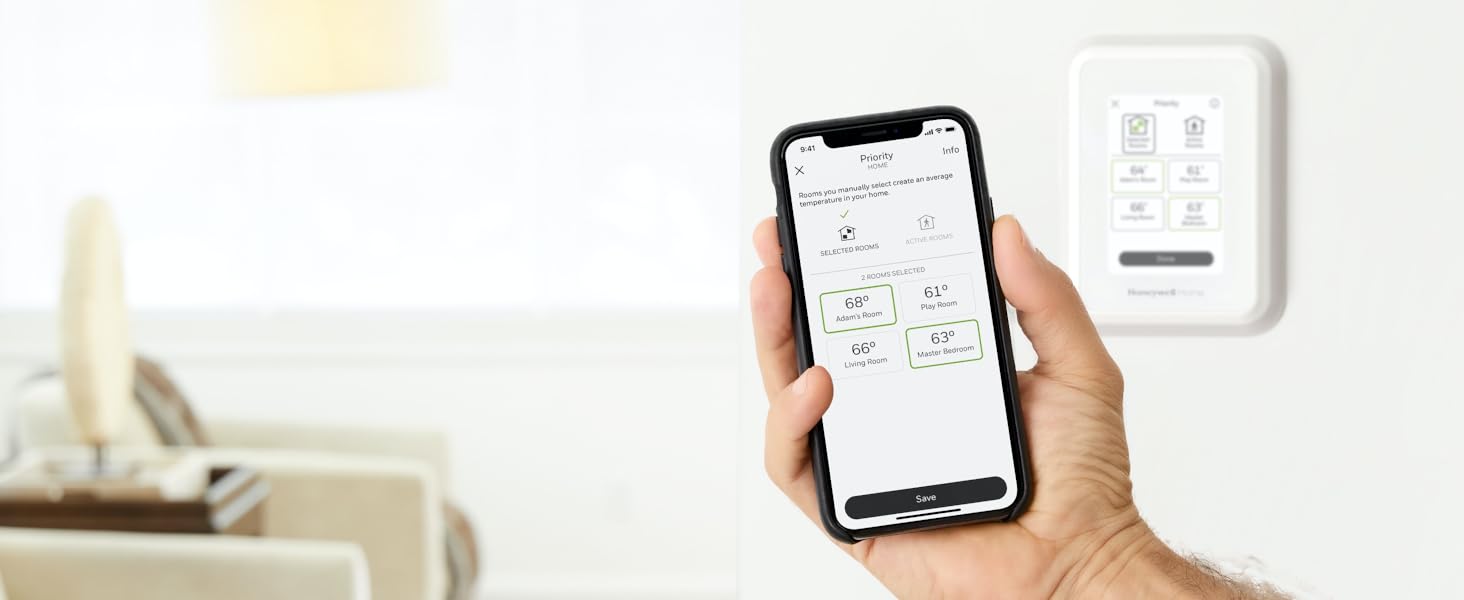
Image: Setting room priority using the Honeywell Home app.
3. Auto Home/Away Scheduling
The T9 Smart Thermostat can automatically adjust settings based on whether you are home or away, helping to save energy. This feature learns your schedule and can react to your presence, ensuring comfort upon arrival and efficiency when you're out.

Image: Family arriving home, demonstrating Auto Home/Away scheduling.
4. Voice Control and Smart Home Integration
Control your T9 Smart Thermostat using voice commands through Amazon Alexa, Apple HomeKit, or Google Assistant. The thermostat integrates with many leading smart home brands for convenient management of your home environment.
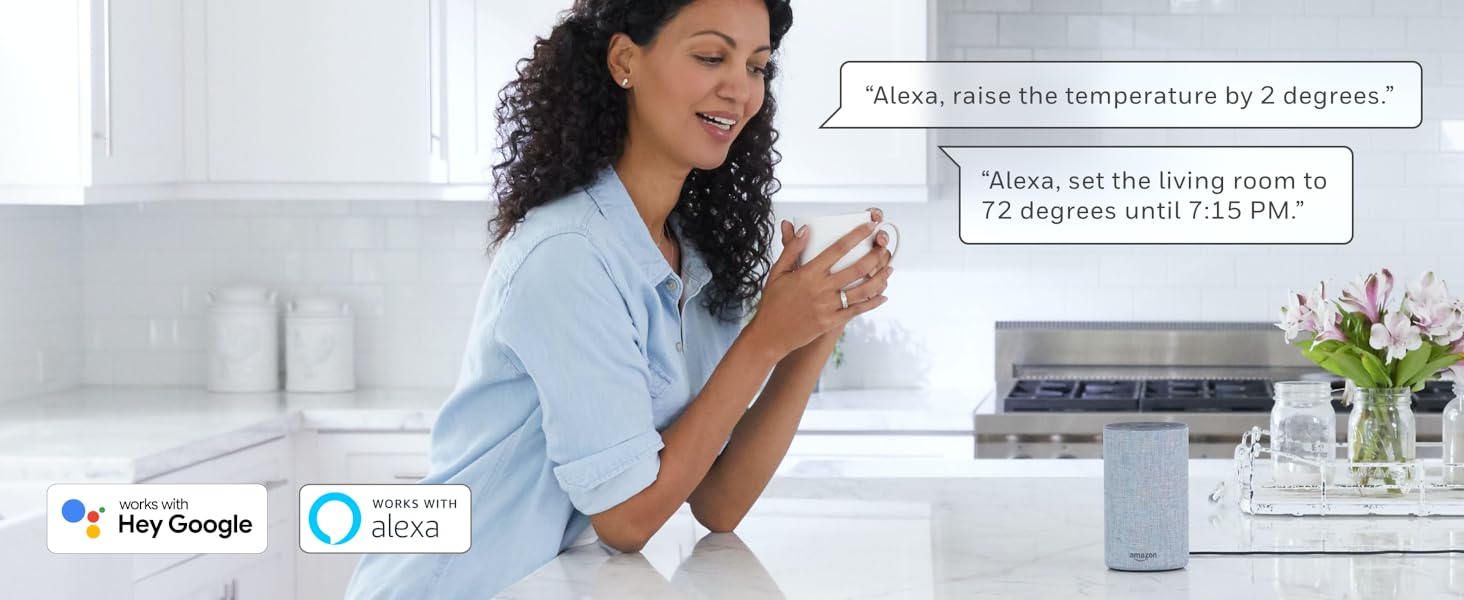
Image: Voice control integration with smart assistants.
Maintenance
Regular maintenance for the Honeywell Home T9 Smart Thermostat and Smart Room Sensors typically involves ensuring the devices are clean and free from dust. Periodically check the battery levels of the Smart Room Sensors and replace them as needed to maintain optimal performance. No other routine user maintenance is generally required.
Troubleshooting
If you encounter issues with your Honeywell Home T9 Smart Thermostat or Smart Room Sensors, consider the following:
- No Power/Display Off: Ensure the C-Wire connection is secure or the power adapter is correctly installed.
- Incorrect Temperature Readings: Verify that Smart Room Sensors are placed in appropriate locations, away from direct sunlight, drafts, or heat sources. Check sensor battery levels.
- Connectivity Issues: Confirm your home Wi-Fi network is active and the thermostat is connected. Restart your router if necessary. Ensure the Resideo app is updated to the latest version.
- Scheduling Problems: Review your schedule settings in the Resideo app to ensure they align with your preferences.
- Sensor Not Connecting: Re-pair the sensor with the thermostat following the instructions in the Resideo app or the thermostat's menu.
For persistent issues, refer to the detailed troubleshooting guide available in the Resideo app or contact Honeywell Home customer support.
Specifications
| Feature | Detail |
|---|---|
| Brand | Honeywell Home |
| Model Name | RCHT9510WF T9 |
| Controller Type | Amazon Alexa, Apple HomeKit, Google Assistant |
| Special Feature | Auto-Away Mode, Auto-Scheduling, Temperature Display |
| Color | White |
| Temperature Control Type | Heating, Cooling |
| Connectivity Technology | Wi-Fi |
| Power Source | Battery Powered (for sensors), C-Wire Required (for thermostat) |
| Voltage | 240 Volts (Note: Compatible with low-voltage systems, 240V refers to system compatibility, not direct thermostat power) |
| Display Type | Touchscreen |
| Control Type | Touch |
| Control Method | App |
| Connectivity Protocol | Wi-Fi |
| Mounting Type | Wall Mount |
| Backlight | Yes |
| Specification Met | Energy Star |
| Included Components | 1 x Smart Thermostat, 2 x Smart Room Sensors |
| Shape | Rectangular |
| Product Style | Wi-Fi Thermostat + 2 Sensors |
Warranty and Support
Specific warranty details for the Honeywell Home RCHT9510WF T9 Wi-Fi Smart Thermostat and RCHTSENSOR Smart Room Sensors are typically provided with the product packaging or can be found on the official Honeywell Home website. For technical support, product registration, or warranty claims, please visit the Honeywell Home support portal or contact their customer service directly. Keep your purchase receipt and product model number handy for faster service.


