
zemismart ZM-CSW002-D
Zemismart Tuya ZigBee 2-Speed Roller Blind Switch User Manual
Model: ZM-CSW002-D
1. Introduction
This manual provides comprehensive instructions for the installation, operation, and maintenance of your Zemismart Tuya ZigBee 2-Speed Roller Blind Switch (Model ZM-CSW002-D). This smart switch allows for convenient control of electric roller blinds or curtains with 4-wire mechanical limit motors, offering touch, app, and voice control capabilities. A Tuya ZigBee gateway (hub) and a neutral wire are required for proper functionality.

Image 1.1: Front view of the Zemismart Tuya ZigBee 2-Speed Roller Blind Switch. The switch features a clean white tempered glass panel with four touch icons for blind control.
2. Product Features
- Multi-Control Options: Supports touch control, smartphone app control (Tuya Smart app), and voice control via Alexa Echo Smart Speaker or Siri (after iOS12 update).
- Scheduled Operation: Set work schedules for automatic opening and closing of your blinds.
- ZigBee Connectivity: Works with a Tuya ZigBee gateway for smart home integration.
- Compatibility: Designed for electric curtain motors with 4 wires (Brown - Open, Blue - Common, Black - Close, Yellow & Green - Ground).
- Durable Design: Features a tempered glass panel and fire-resistant ABS plastic box for safety and longevity.
- LED Display: Integrated LED indicators for status.

Image 2.1: Diagram illustrating ZigBee control. The switch communicates wirelessly with a Tuya ZigBee gateway, which then connects to smart speakers like Amazon Echo for voice control and a smartphone for app control.
3. Safety Information
Please read this section carefully before installation and use. Failure to follow these instructions may result in electric shock, fire, or other hazards.
- Professional Installation: Installation should be performed by a qualified electrician.
- Power Disconnection: Always disconnect power at the circuit breaker before installing or servicing the switch.
- Neutral Wire Required: This switch requires a neutral wire for operation. Ensure your electrical box has a neutral wire available.
- Compatibility: Only use with compatible 4-wire electric curtain/blind motors.
- Indoor Use Only: This device is intended for indoor use in dry locations.
- Avoid Metal Faceplates: Do not use with metal faceplates, as this may interfere with wireless signals.
4. Setup and Installation
4.1 Wiring Method
Ensure power is disconnected before proceeding. This switch requires a Live (L) wire and a Neutral (N) wire. The motor connections are typically Brown (Open), Blue (Common), Black (Close), and Yellow & Green (Ground).

Image 4.1: Detailed wiring diagram for the Zemismart roller blind switch. Connections include Neutral (N), Live (L), and motor wires (M11, M12, M21, M22) for two channels, along with ground (GND) connections for the motor and switch.
- Turn off the main power at your circuit breaker.
- Remove your existing switch (if any).
- Connect the wires to the Zemismart switch according to the diagram:
- Connect the Live (L) wire to the 'L' terminal on the switch.
- Connect the Neutral (N) wire to the 'N' terminal on the switch.
- Connect the motor's 'Open' wire (e.g., Brown) to the 'M11' or 'M21' terminal.
- Connect the motor's 'Close' wire (e.g., Black) to the 'M12' or 'M22' terminal.
- Connect the motor's 'Common' wire (e.g., Blue) to the appropriate common terminal if available, or ensure it's correctly wired to the motor.
- Connect the motor's 'Ground' wire (e.g., Yellow & Green) to the ground terminal.
- Mount the switch into the wall box.
- Restore power at the circuit breaker.
4.2 Pairing with Tuya ZigBee Gateway
This switch requires a Tuya ZigBee gateway (hub) to connect to your smart home network and enable app/voice control.
- Ensure your Tuya ZigBee gateway is powered on and connected to your home Wi-Fi network.
- Open the Tuya Smart app on your smartphone and add a new device (usually found under 'Gateway' or 'ZigBee Device').
- Reset the Switch: Press and hold any button on the switch for approximately 15 seconds until the blue backlight flashes. This indicates the switch is in pairing mode.
- Follow the on-screen instructions in the Tuya Smart app to complete the pairing process.
- Once successfully paired, the blue backlight will stop flashing, and the switch will appear in your app.
5. Operating Instructions
5.1 Manual Control
The switch features touch-sensitive buttons for direct control of your blinds.

Image 5.1: A hand demonstrating manual control by pressing a touch button on the switch to operate the blinds.
- Press the 'Up' arrow icon to open the blinds.
- Press the 'Down' arrow icon to close the blinds.
- To stop the blinds at any desired position, press the 'Up' or 'Down' arrow icon again while the blinds are in motion.
5.2 App Control (Tuya Smart App)
Control your blinds remotely and set schedules using the Tuya Smart app on your smartphone.

Image 5.2: Screenshot of the Tuya Smart app interface showing controls for two curtain devices, including open/close buttons and percentage sliders, as well as a scheduling interface.
- Open the Tuya Smart app and select your roller blind switch.
- Use the 'Open', 'Close', or 'Stop' buttons within the app to control your blinds.
- Adjust the blind position using the percentage slider (if supported by your motor and app version).
- Scheduling: Navigate to the scheduling section within the app to set daily or weekly routines for your blinds to open and close automatically.
5.3 Voice Control (Alexa Echo / Siri)
Integrate your switch with Amazon Alexa or Apple Siri for convenient voice commands.
- For Alexa:
- Ensure your Tuya Smart account is linked to your Alexa app (enable the 'Tuya Smart' skill).
- Discover new devices in the Alexa app.
- Use commands like: "Alexa, open [Blind Name]", "Alexa, close [Blind Name]".
- Note: Alexa typically supports open/close commands but may not support pause functionality directly.
- For Siri:
- Ensure your iOS device is updated to iOS 12 or later.
- Set up Siri Shortcuts within the Tuya Smart app for specific actions (e.g., "Hey Siri, open the living room blinds").
6. Maintenance
- Cleaning: Wipe the switch surface with a soft, dry cloth. Do not use abrasive cleaners or solvents.
- Firmware Updates: Periodically check the Tuya Smart app for available firmware updates for your switch to ensure optimal performance and security.
- Environmental Conditions: Ensure the operating environment remains within specified limits (-20 ~ 50 °C, < 95% RH).
7. Troubleshooting
| Problem | Possible Cause | Solution |
|---|---|---|
| Switch does not power on. | No power, incorrect wiring, or missing neutral wire. | Check circuit breaker. Verify Live (L) and Neutral (N) wire connections. Ensure a neutral wire is present and connected. |
| Blinds do not respond to touch or app control. | Incorrect motor wiring, switch not paired, or motor issue. | Verify motor wiring (Open, Close, Common). Ensure the switch is successfully paired with the Tuya ZigBee gateway. Check if the motor itself is functioning. |
| Cannot pair the switch with the Tuya app. | Switch not in pairing mode, gateway not connected, or Wi-Fi interference. | Press and hold any button for 15 seconds until the blue backlight flashes to enter pairing mode. Ensure your Tuya ZigBee gateway is online. Try moving closer to the gateway. |
| Voice control not working. | Incorrect skill linking, device not discovered, or incorrect commands. | Ensure the 'Tuya Smart' skill is enabled and linked in your Alexa/Siri app. Discover devices again. Use correct voice commands. |
| Blinds move in the wrong direction (e.g., 'Open' closes them). | Motor 'Open' and 'Close' wires are swapped. | (Power off first!) Reverse the connections for the 'Open' and 'Close' motor wires on the switch terminals. |
8. Specifications
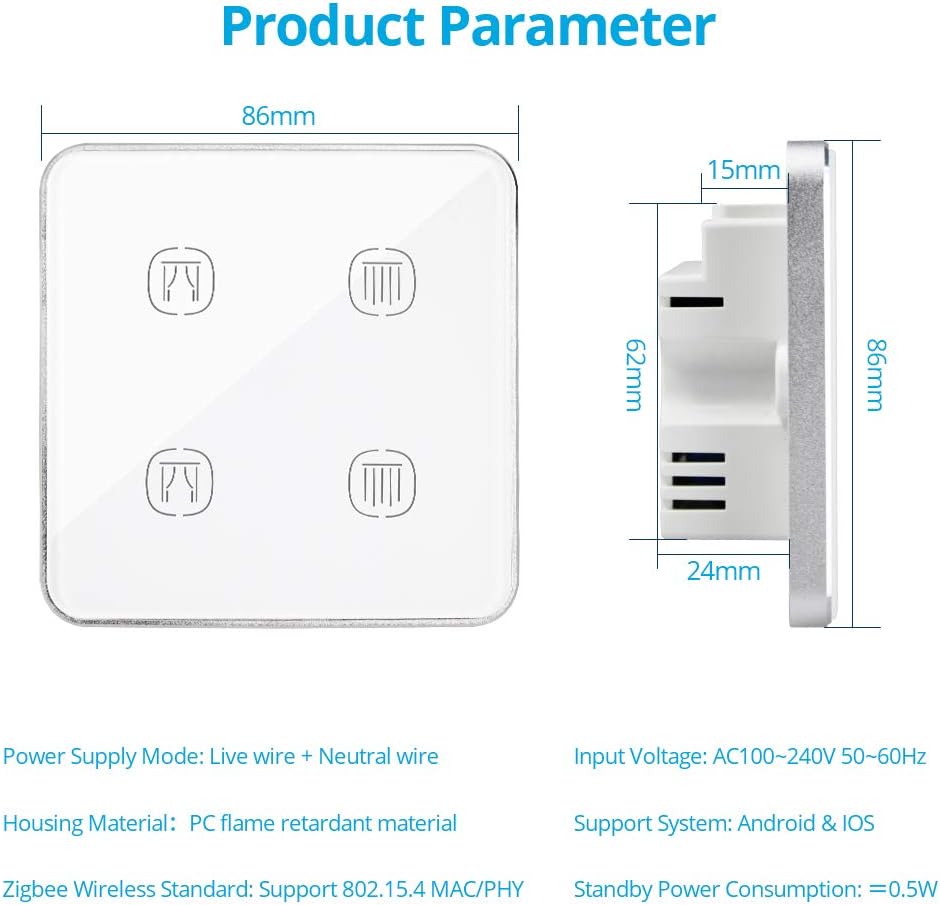
Image 8.1: Diagram showing the dimensions of the Zemismart roller blind switch and key product parameters.
| Parameter | Value |
|---|---|
| Brand | zemismart |
| Model Number | ZM-CSW002-D |
| Product Dimensions (L x W x H) | 8.6 x 8.6 x 2.4 cm |
| Housing Material | ABS, Metal, Tempered Glass Panel |
| Power Supply | AC 110V-240V / 50Hz-60Hz |
| Wiring Connection | Live (L) and Neutral (N) wires required |
| Load Limit | ≤ 300 W per gear (motor channel) |
| Wireless Technology | ZigBee (IEEE 802.15.4 MAC/PHY) |
| Wireless Range | Within 30 meters (indoors) |
| Operating Environment | -20 ~ 50 °C, < 95% RH |
| Button Type | Touch |
| Switch Type | 2-way, Roller Blind Switch |
| Installation Type | Wall Mount |
| Certifications | CE, RoHS |
| Supported Systems | Android & iOS (via Tuya Smart app) |
| Standby Power Consumption | ≤ 0.5W |
9. Warranty and Support
Specific warranty information is typically provided with your purchase documentation or on the manufacturer's official website. For technical support, troubleshooting assistance, or warranty claims, please refer to the contact information provided by your retailer or the Zemismart official support channels.
Manufacturer: zemismart
Certifications: CE, RoHS
Ask a question about this manual
Ask about setup, troubleshooting, compatibility, parts, safety, or missing instructions. Manuals+ will review the question and use this page’s manual context to help answer it.