1. Introduction
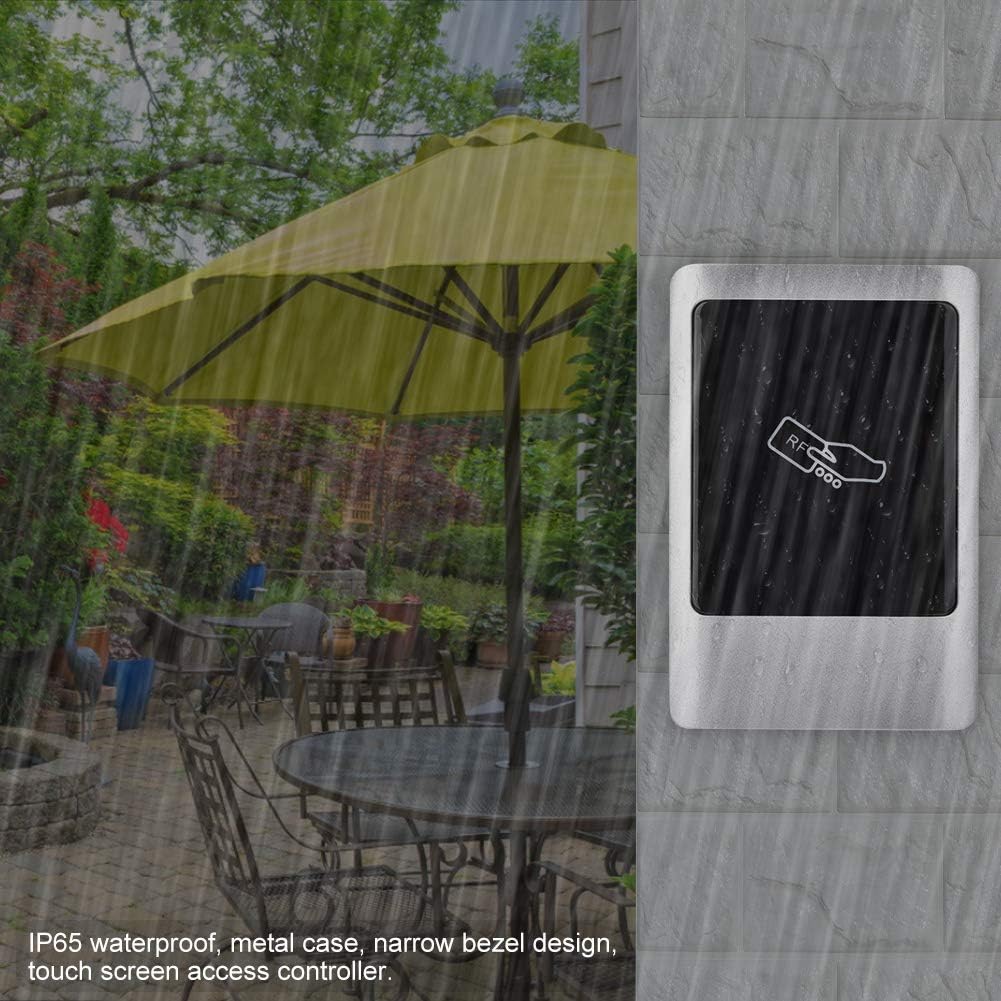
This manual provides detailed instructions for the installation, operation, and maintenance of the Sonew IP65 RFID Reader Outdoor Wiegand Door Access Control Panel. This device is designed for non-contact induction card access management, offering high user capacity, ease of operation, and stable performance, making it suitable for various access control applications in intelligent communities, offices, and industrial settings.
2. Safety Information
- Ensure all wiring is performed by qualified personnel and complies with local electrical codes.
- Disconnect power before performing any installation, wiring, or maintenance procedures.
- Do not expose the device to extreme temperatures or corrosive environments beyond its specified operating range.
- Use only the specified power supply (DC 12V).
- Keep the device away from strong electromagnetic interference.
3. Package Contents
Verify that all items are present in the package:
- 1 x Sonew IP65 Access Control Panel
- 10 x Access Cards (Blue Key Fobs)
- 1 x Access Management Card (Orange Key Fob)
- 1 x User Manual

4. Specifications
| Item | Specification |
|---|---|
| Model | IP65 metal access controller |
| Verification Method | RFID card / Password / RFID card + Password |
| User Capacity | 1000 users |
| Card Type | Mifare one or EM card |
| Working Voltage | DC 12V |
| Working Current | <100mA (Access Control Unit Only) |
| Environmental Temperature | -20°C to 60°C |
| Card Reading Distance | 3-15 CM |
| Door Opening Time | 0-99 seconds (Adjustable) |
| Wiegand Interface | Wiegand 26 output/input |
| Access Control Interfaces | Electronic Lock, Door Sensor, Exit Button, Alarm, Doorbell |
| Material | Metal shell, Zinc alloy |
| Dimensions (L x W x H) | Approximately 0.39 x 0.39 x 0.39 inches |
| Weight | Approximately 13.4 ounces (0.84 lbs) |
5. Setup and Installation
5.1. Mounting the Device
- Securely fix the mounting bracket to the desired installation surface.
- Hang the access control unit onto the fixed bracket.
5.2. Wiring Diagram
The access control machine's output signal is a relay signal, capable of driving electric locks, automatic doors, turnstiles, and other equipment. Refer to the diagram below for typical wiring connections. For specific wiring methods or complex setups, please consult a qualified technician or supplier.


5.3. Setting Unlock Time
The unlock time can be adjusted using the S2 jumper cap on the circuit board:
- Insert the S2 jumper cap into the '1S' terminal for a 1-second relay activation (factory default).
- Insert the S2 jumper cap into the '5S' terminal for a 5-second relay activation.
6. Operating Instructions
6.1. Audio-Visual Indicators
| Operation Status | Indicator Light | Buzzer |
|---|---|---|
| Standby | Red light slow flash | None |
| Add Card Mode | Green light fast flash | None |
| Read Invalid Card | Red light slow flash | Beep-beep-beep |
| Delete Card Mode | Red light fast flash | None |
6.2. User Management with Management Card
Each machine is pre-configured with a unique management card at the factory. This card is specific to its machine and not interchangeable.

6.2.1. Adding User Cards
- Ensure the device is in standby mode.
- Swipe the Management Card. The green indicator light will flash rapidly.
- Swipe the User Card(s) you wish to add. The device will emit a 'beep' sound after each successful card addition. You can swipe multiple user cards consecutively.
- Swipe the Management Card again to exit the add card mode.
6.2.2. Deleting User Cards
- Ensure the device is in standby mode.
- Swipe the Management Card. The red indicator light will flash rapidly.
- Swipe the User Card(s) you wish to delete. The device will emit a 'beep' sound after each successful card deletion. You can swipe multiple user cards consecutively.
- Swipe the Management Card again to exit the delete card mode.
6.2.3. Deleting All Users
- Power off the device.
- Remove the metal back cover. Locate the DEL jumper cap on the circuit board and set it to the '2S' terminal.
- Power on the machine again. It will continuously beep.
- Place the Management Card on the card reading area for approximately 5 seconds. After a long beep, the machine will continuously beep again, indicating that all user data has been cleared.
- Power off the device. Reset the DEL jumper cap back to the '1S' terminal.
- Power on the device. The operation to delete all users is complete.
6.3. Setting/Resetting Management Card
If the management card is lost or needs to be reset, follow these steps:
- Power off the device.
- Short-circuit the OPEN wire (brown) of the 8P terminal block with the GND wire (black).
- Power on the device. After three long beeps, the green light will flash rapidly.
- Swipe any blank card. This blank card will now be set as the new Management Card. The machine's red light will flash and the buzzer will continuously beep.
- Power off the device. Disconnect the OPEN and GND wires.
- Power on the device again. The machine will enter normal working state, and the management card setup is complete.
7. Advanced Functions
7.1. MOD Function
- MOD Status '1' (Factory Default): If no operation is performed within 3 minutes while in card adding state, the system automatically exits this state.
- MOD Status '2': The system will not automatically exit the card adding state. It must be exited by swiping the Management Card or by powering off and restarting the device.
- When in card adding state (MOD Status '2'), swiping any card (except the management card) will output an unlock signal, and the card will be automatically saved. This function is useful for temporary machine replacements or other special scenarios.
7.2. Data Copy Function
This function allows user data to be exported from one access control machine (Machine A) to another (Machine B) using the PROG pin (4P). Data on Machine A will not be deleted.
- Connect the PROG pins of Machine A and Machine B using a data cable.
- Short-circuit the D0 (green) and GND (black) wires of Machine B.
- Power on Machine B (Machine A does not need to be powered on). At this point, the red lights of both A and B will flash slowly.
- Place Machine B's Management Card on Machine B's card reading area for approximately 5 seconds. Both A and B will emit three long beeps, A's red light will flash rapidly, and B's green light will flash rapidly.
- After approximately 30 seconds, A will emit one long beep, and B will continuously beep, indicating successful data copy.
- Disconnect the data cable and the D0 and GND wires from Machine B. The data copy operation is complete.
8. Maintenance
- Regularly clean the surface of the access control panel with a soft, dry cloth. Avoid abrasive cleaners or solvents.
- Inspect wiring connections periodically to ensure they are secure and free from corrosion.
- Ensure the device is protected from direct impact or physical damage.
9. Troubleshooting
- Device not powering on: Check the DC 12V power supply connection and ensure it is providing adequate power.
- Cards not being read: Ensure the card type (Mifare one or EM) is compatible. Verify the card reading distance. Clean the card reading area.
- Door not unlocking: Check the electric lock wiring. Verify the unlock time setting. Ensure the correct user card or password is being used.
- Management card lost/not working: Follow the steps in Section 6.3 to reset or set a new management card.
- All users deleted accidentally: User data cannot be recovered once deleted. Re-add users as necessary.
10. Warranty and Support
For warranty information, technical support, or service inquiries, please refer to the product's purchase documentation or contact your vendor. Keep your purchase receipt for warranty claims.


