
1. Introduction
The Dupad story G20S Voice Remote Control is a versatile 2.4G wireless air mouse designed to enhance your control over various smart devices. Featuring voice input, IR learning, and 6-axis gyroscope sensing, it offers a convenient and intuitive user experience for Smart TVs, Android TV boxes, Mini PCs, HTPCs, and more.
2. Package Contents
- 1 x G20S Voice Remote Control (batteries not included)
- 1 x USB Receiver
- 1 x User Manual
3. Product Overview
Familiarize yourself with the components and features of your G20S Voice Remote Control.

Figure 3.1: G20S Voice Remote Control and USB Receiver. This image shows the front and side view of the remote control along with its compact USB receiver.

Figure 3.2: Detailed button layout of the G20S Air Mouse. Labels indicate functions such as Power, Mute, Menu, Mouse on/off, Volume, Voice, Return, Home, Rewind, Pause, and Speed.

Figure 3.3: Illustration of the voice search function. Press the microphone button to activate voice input, allowing you to search or command your device using spoken words.

Figure 3.4: The remote's 360° motion sensing capability. This feature allows you to control the cursor on screen by moving the remote in the air, similar to a mouse.
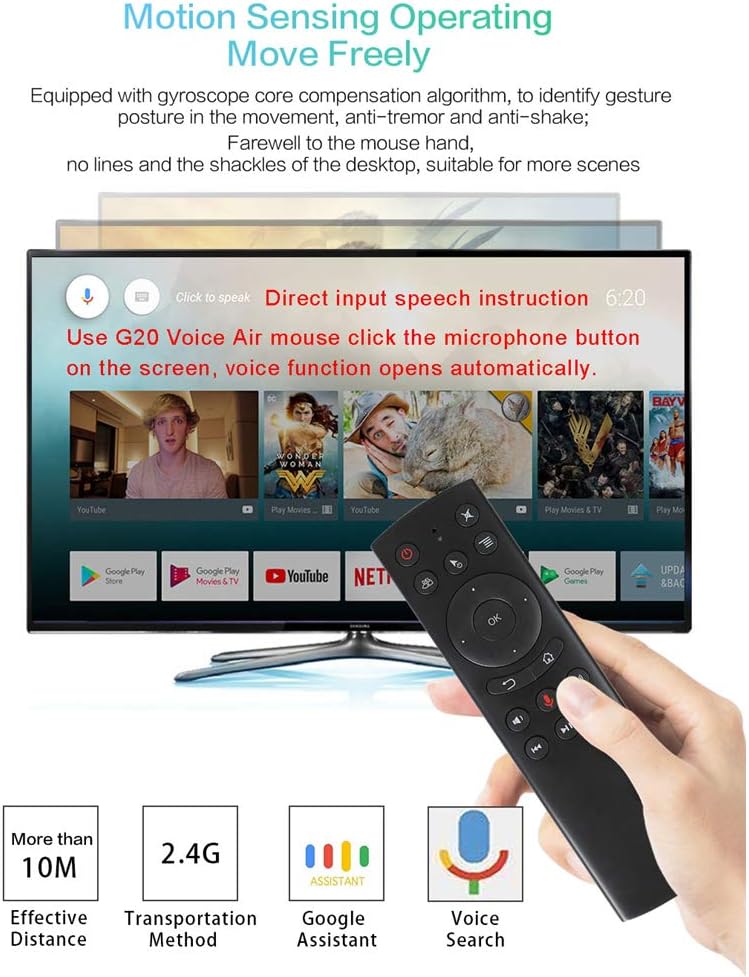
Figure 3.5: Diagram explaining the IR learning function. This allows the remote to learn infrared codes from other remote controls, enabling it to control additional devices like your TV.

Figure 3.6: The compact USB Nano Receiver. This receiver provides the 2.4GHz wireless connection between the remote and your device, offering plug-and-play functionality.
4. Setup
4.1 Inserting Batteries
The G20S remote control requires two AAA batteries (not included). To insert them:
- Remove the battery cover from the back of the remote.
- Insert two AAA batteries, ensuring correct polarity (+/-).
- Replace the battery cover securely.
4.2 Connecting the USB Receiver
The remote connects wirelessly via a USB receiver. To establish a connection:
- Locate an available USB port on your device (Smart TV, Android TV Box, PC, etc.).
- Plug the USB receiver firmly into the USB port.
- The remote control should automatically connect. No additional drivers are typically required.

Video 4.1: Setup and Demonstration of the G20S Voice Remote Control. This video illustrates the unboxing, battery installation, USB receiver connection, and basic operation of the remote control with an Android TV device.
5. Operating Instructions
5.1 Voice Input Function
The G20S features a built-in high-fidelity microphone for voice commands.
- Press the Voice button (microphone icon) on the remote control.
- Speak clearly into the remote. The voice input function works with the built-in voice input search box or compatible applications on your device.
- Note: This function does not work across all applications and is not comparable to smart assistant voice remotes like Alexa Voice Remote.
5.2 IR Learning Function
The remote can learn infrared codes from other remote controls, allowing you to consolidate control of multiple devices.
- Only the "Power" button on the G20S remote supports IR learning.
- Press and hold the "Power" button on the G20S remote until the LED indicator changes its flashing frequency from fast to slow. This indicates the remote is in IR learning mode.
- Align the infrared receiving parts of the G20S remote and your original remote control (e.g., TV remote) directly opposite each other, within 1-3 cm.
- Press the button on your original remote that you wish the G20S to learn (e.g., the Power button of your TV remote).
- The LED indicator on the G20S will turn on, then begin flashing, indicating successful learning.
- After successful learning, the product will automatically store the code and exit learning mode.
- To clear the learned infrared code value, press "OK" + "DEL" simultaneously.
5.3 Air Mouse Function
The built-in 6-axis gyroscope allows for intuitive air mouse control.
- Press the Mouse on/off button (cursor icon) to activate or deactivate the air mouse function.
- When activated, move the remote in the air to control the cursor on your screen.
5.4 Wireless Connection
The remote uses a 2.4GHz wireless connection for reliable control.
- The USB receiver provides a stable connection up to 10 meters (32.8 feet).
- Ensure the USB receiver is securely plugged into your device for optimal performance.
6. Compatibility
The G20S Voice Remote Control is widely compatible with various operating systems and devices:
- Supported Systems: Linux, Android, MAC OS, IOS.
- Compatible Devices: Smart TV, Android TV Box, Mini PC, HTPC, PC, Projector.
- Note: The Voice remote control is not compatible with Amazon Fire TV and Fire TV Stick, or some Samsung, LG, Sony smart TVs, and Mi TV Box. Some factory encrypted versions of Nvidia Shield may not connect.

Figure 6.1: Visual representation of compatible devices including TV Box, Raspberry Pi, Android Projector, Smart TV, Phone (OTG), PAD (OTG), Computer, All-in-one PC, and HTPC.
7. Maintenance
7.1 Battery Replacement
When the battery is low, the low battery indicator will flash slowly as a reminder. Replace the two AAA batteries as described in Section 4.1.

Figure 7.1: Illustration of the low battery indicator, which flashes slowly when battery power is at approximately 10%.
7.2 Cleaning
To clean the remote control, use a soft, dry cloth. Avoid using abrasive cleaners or solvents.
8. Troubleshooting
- Remote not responding:
- Ensure batteries are correctly inserted and not depleted.
- Verify the USB receiver is securely plugged into the device.
- Try plugging the USB receiver into a different USB port.
- Voice function not working:
- Ensure you are pressing the Voice button while speaking.
- Confirm your device supports voice input and the application you are using is compatible.
- Check device settings for microphone permissions.
- Air mouse cursor erratic:
- Ensure the remote is held steady and not subject to excessive movement.
- Recalibrate the air mouse if necessary (refer to device-specific instructions if available).
- IR learning failure:
- Ensure the G20S remote is in IR learning mode (slow flashing LED).
- Verify the original remote's battery is not low.
- Ensure proper alignment and close proximity (1-3 cm) between the two remotes during learning.
- Only the Power button supports IR learning.
9. Specifications
| Feature | Specification |
|---|---|
| Transmission Method | 2.4G RF wireless |
| Sensors | 6-axis Gyroscope |
| Number of Keys | 18 |
| Range | >4m / 13.2ft |
| Battery Type | AAA*2 (not included) |
| Material | ABS Plastic and silicone |
| Dimensions | 160*43*1.5mm / 6.3 x 1.77 x 0.79 inches |
| Weight | 47.5g / 2.12 ounces |
| Special Feature | Voice Search, IR Learning |
10. Warranty and Support
Dupad story offers an unconditional 30-day money-back guarantee and lifetime after-sales service for the G20S Voice Remote Control. If you encounter any issues or are not satisfied with your purchase, please do not hesitate to contact Dupad story customer support for assistance. Your satisfaction is our priority.