
Introduction
The Satechi Type-C Dual Multimedia Adapter is designed to expand the connectivity of your compatible MacBook, providing a comprehensive solution for connecting multiple peripherals. This adapter utilizes two USB-C ports on your host device to offer dual 4K HDMI outputs, USB-C Power Delivery, Gigabit Ethernet, Micro/SD card readers, and additional USB 3.0 ports. This manual provides essential information for setup, operation, and maintenance of your adapter.
Product Features
- Dual 4K HDMI Display: Supports extended display across up to two HDMI-enabled monitors at 4K 60Hz. Note: Dual display is only supported on M1 and M2 Pro/Max models.
- USB-C Power Delivery (PD): Provides pass-through charging for your host device up to 60W.
- Gigabit Ethernet: Offers a stable and high-speed wired network connection.
- Micro/SD Card Readers: Features UHS-I card readers for fast data transfer, up to 104 Mbps.
- USB 3.0 Ports: Includes two USB 3.0 ports for connecting peripherals and data transfer, up to 5Gbps.
- Plug and Play Design: Requires no drivers or complex installation for immediate use.
Compatibility
This adapter is compatible with the following models:
- 2023 MacBook Pro 14-inch, 16-inch (M2 Pro & Max)
- 2021 MacBook Pro 14-inch, 16-inch (M1 Pro & Max)
- 2020 MacBook Pro/Air
- 2019/2018/2017 MacBook Pro
- 2018/2019 MacBook Air
- 2020/2018 Mac Mini
Important Compatibility Notes:
- Dual display functionality is exclusively supported on M1 and M2 Pro/Max models.
- This adapter does not support MacBook models with a single USB-C port.
- The adapter is not compatible with Thunderbolt or DVI displays.
- For the MacBook Pro (16-inch, M1 Pro/Max, 2021), the MagSafe 3 port charges up to 140W, while the USB-C port on the adapter supports a maximum of 60W. For faster charging, connect your power adapter directly to the MagSafe 3 port.
Setup Instructions
Follow these steps to set up your Satechi Type-C Dual Multimedia Adapter:
- Connect the Adapter: Insert both USB-C connectors from the adapter into the two adjacent USB-C ports on your compatible MacBook. Ensure they are fully seated for a stable connection.
- Connect Power (Optional): If you wish to charge your MacBook while using the adapter, connect your USB-C power adapter to the USB-C PD port on the Satechi adapter.
- Connect External Monitors: Use HDMI cables to connect your external monitors to the two HDMI ports on the adapter.
- Connect Ethernet (Optional): For a wired network connection, plug an Ethernet cable into the Gigabit Ethernet port on the adapter.
- Connect USB Devices (Optional): Plug any USB-A peripherals (e.g., keyboard, mouse, flash drive) into the USB 3.0 ports.
- Insert Memory Cards (Optional): Insert MicroSD or SD cards into their respective slots for data access.
Your MacBook should automatically detect the connected devices. You may need to adjust display settings in your operating system preferences for optimal dual monitor setup.

Figure 1: Overview of Satechi Dual Multimedia Adapter Ports

Figure 2: Adapter connected to MacBook Pro with power and dual monitors
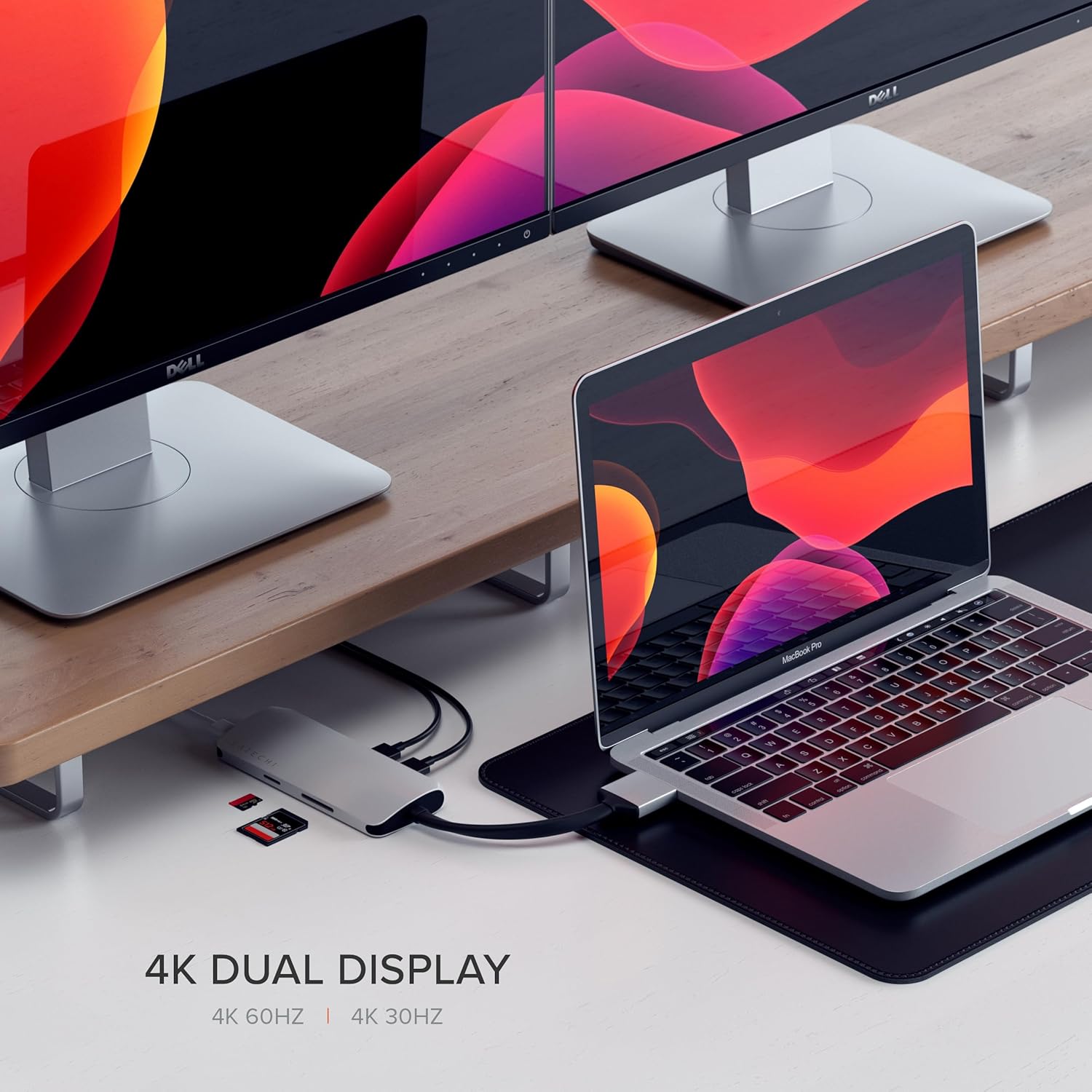
Figure 3: Dual 4K display setup with the adapter
Operating Instructions
Once the adapter is connected, you can utilize its various functions:
- Dual HDMI Output: Your MacBook's display settings will allow you to configure the two external monitors. You can choose to extend your desktop across all three screens (MacBook + two external) or mirror your MacBook's display to one or both external monitors. Access these settings via System Settings > Displays on macOS.
- USB-C Power Delivery: The adapter will automatically pass through power from your connected USB-C power adapter to your MacBook. The charging status will be indicated on your MacBook's battery icon.
- Gigabit Ethernet: The wired network connection will typically be recognized automatically. You can verify its status and configure network settings in System Settings > Network.
- USB 3.0 Ports: Connected USB-A devices will function as standard. For data transfer, ensure the device is properly formatted and recognized by your operating system.
- Micro/SD Card Readers: Insert your memory cards into the appropriate slots. The card contents will appear as a mounted drive on your desktop or in Finder.
Video 1: Official Satechi Type-C Dual Multimedia Adapter demonstration, showcasing its features and connectivity options.
Maintenance
To ensure the longevity and optimal performance of your Satechi Type-C Dual Multimedia Adapter, follow these maintenance guidelines:
- Cleaning: Use a soft, dry, lint-free cloth to clean the adapter's surface. Avoid using harsh chemicals, cleaning solvents, or strong detergents.
- Storage: Store the adapter in a cool, dry place away from direct sunlight and extreme temperatures.
- Handling: Handle the adapter and its cables gently. Avoid bending the cables sharply or forcing connectors into ports.
- Environmental Conditions: Do not expose the adapter to water, moisture, or high humidity.
Troubleshooting
If you encounter issues with your adapter, refer to the following common problems and solutions:
| Problem | Possible Solution |
|---|---|
| No display or intermittent display on external monitors. |
|
| MacBook is not charging or charging slowly. |
|
| Gigabit Ethernet connection is not working. |
|
| Adapter feels warm during use. |
|
| USB 3.0 ports or card readers are not recognized. |
|
Specifications
| Feature | Detail |
|---|---|
| Brand | Satechi |
| Model Number | ST-TCDMMAS |
| Operating System | macOS |
| Item Weight | 3.42 ounces |
| Product Dimensions | 4.92 x 1.97 x 0.59 inches |
| Color | Silver |
| Hardware Interface | USB |
| Special Feature | Fast Data Transfer |
| Ports | 2x 4K HDMI, 1x USB-C PD (up to 60W), 1x Gigabit Ethernet, 1x Micro/SD Card Reader (UHS-I, up to 104 Mbps), 2x USB 3.0 (up to 5Gbps) |

Figure 4: Satechi Dual Multimedia Adapter dimensions
Warranty and Support
Satechi products are backed by a manufacturer's warranty. For specific warranty details, registration, or technical support, please visit the official Satechi website or contact their customer service directly. Keep your purchase receipt for warranty claims.
Satechi Official Website: https://satechi.net