
Introduction
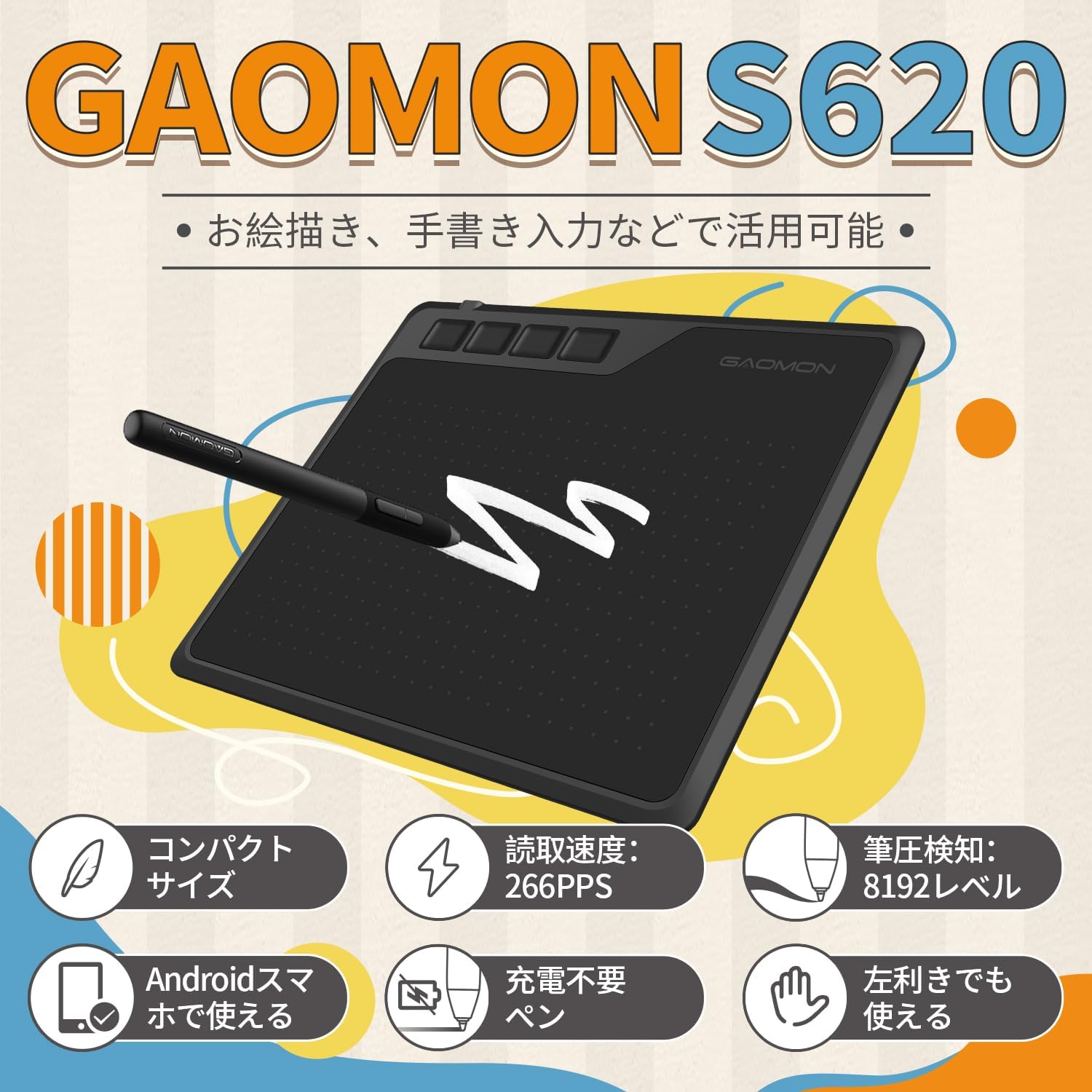
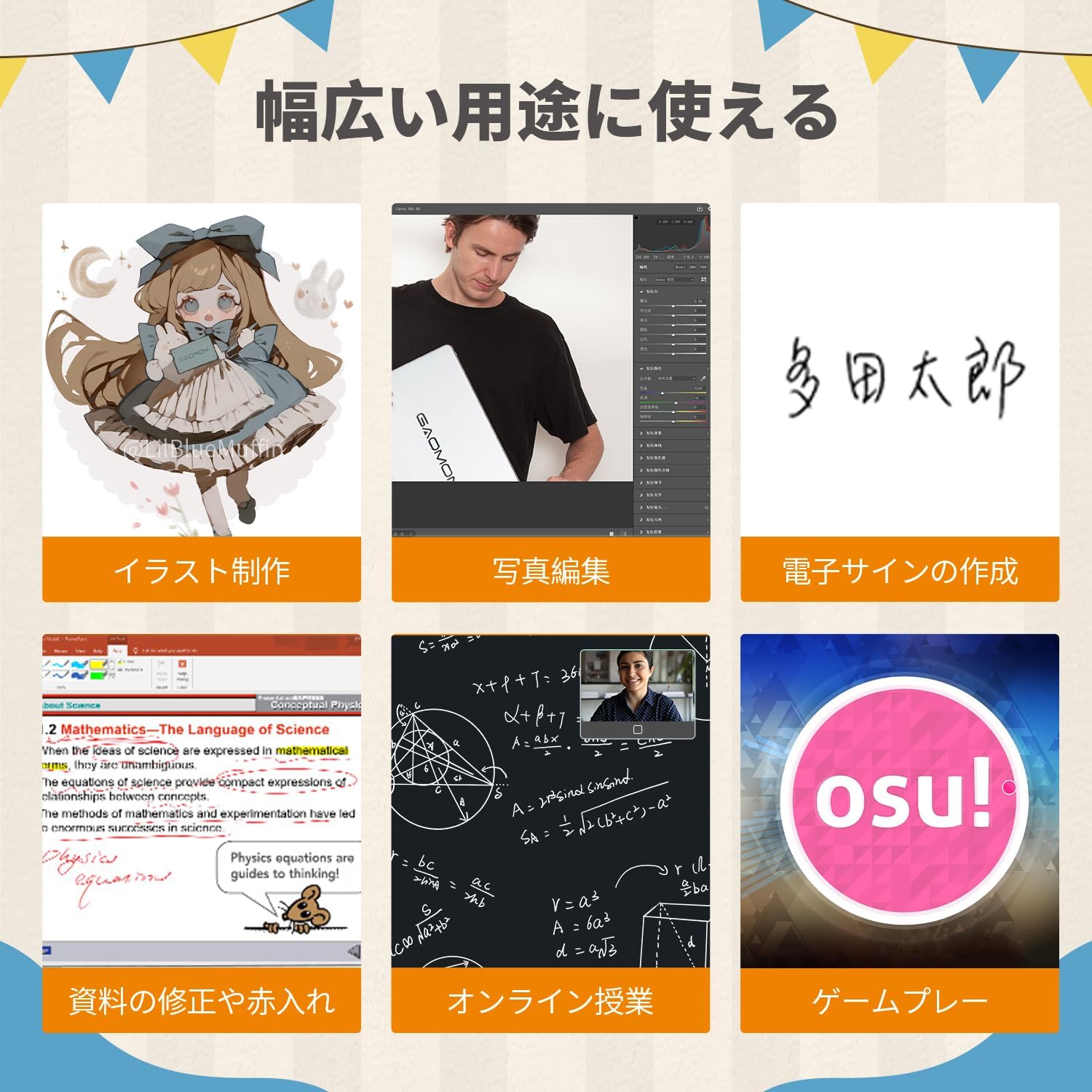
This manual provides detailed instructions for the GAOMON S620 Pen Tablet. The S620 is a versatile graphics tablet designed for digital drawing, design, online education, and gaming. It features a battery-free pen with 8192 pressure levels and customizable shortcut keys, offering a smooth and efficient creative experience across various platforms.
1. What's in the Box
Upon opening your GAOMON S620 Pen Tablet package, you should find the following items:
- GAOMON S620 Pen Tablet
- Battery-Free Pen AP32
- Micro USB Cable
- USB Type-C OTG Adapter
- Quick Start Guide
- Replacement Pen Nibs & Nib Remover
This image displays the GAOMON S620 Pen Tablet along with its essential accessories, including the battery-free pen, USB cable, replacement nibs, and a quick start guide, as they appear when unboxed.
Video demonstrating the unboxing and basic usage of the GAOMON S620 Pen Tablet, including connecting to a computer and drawing.
2. Setup and Driver Installation
2.1 Connecting to a Computer
To connect your GAOMON S620 Pen Tablet to a computer:
- Locate the Micro USB port on your S620 tablet.
- Connect one end of the provided Micro USB cable to the tablet.
- Connect the other end of the USB cable to an available USB port on your computer (Windows or macOS).
A user connects the GAOMON S620 Pen Tablet to a laptop using the provided USB cable, illustrating the simple connection process for computer use.
2.2 Driver Installation
For optimal performance and full functionality, driver installation is required for Windows and macOS systems.
- Visit the official GAOMON website: www.gaomon.net/download.
- Navigate to the 'Support' section and select 'Driver Download'.
- Choose your specific model (S620) and operating system (Windows or macOS).
- Download and run the latest driver installer. Follow the on-screen prompts to complete the installation.
- Restart your computer after installation if prompted.

This screenshot shows the GAOMON official website's support page, highlighting where users can download the necessary drivers for the S620 Pen Tablet, with options for different operating systems.
2.3 Connecting to an Android Device
The GAOMON S620 supports connection to Android devices (Android 6.0 or later with OTG function).
- Ensure your Android device supports OTG (On-The-Go) functionality.
- Use the provided USB Type-C OTG adapter to connect the Micro USB cable from the tablet to your Android smartphone or tablet.
- The tablet should be recognized automatically. No driver installation is typically required for Android.
Note: For Android devices, it is recommended to use devices with a screen ratio other than 16:10 for optimal display.
The image demonstrates how to connect the GAOMON S620 Pen Tablet to an Android smartphone using an OTG adapter, enabling drawing functionality on mobile devices.
3. Operating Your GAOMON S620
3.1 Battery-Free Pen (AP32)
The GAOMON S620 comes with a battery-free pen (AP32), eliminating the need for charging. This allows for uninterrupted creative work.
- 8192 Pressure Levels: The pen supports 8192 levels of pressure sensitivity, allowing for precise control over line thickness and opacity, mimicking traditional drawing tools.
- 266 PPS Report Rate: A high report rate of 266 PPS ensures smooth and natural drawing, with minimal lag between pen movement and on-screen response.

A detailed view of the GAOMON battery-free pen, emphasizing its 8192 levels of pressure sensitivity for precise and natural drawing.
3.2 Customizable Shortcut Keys
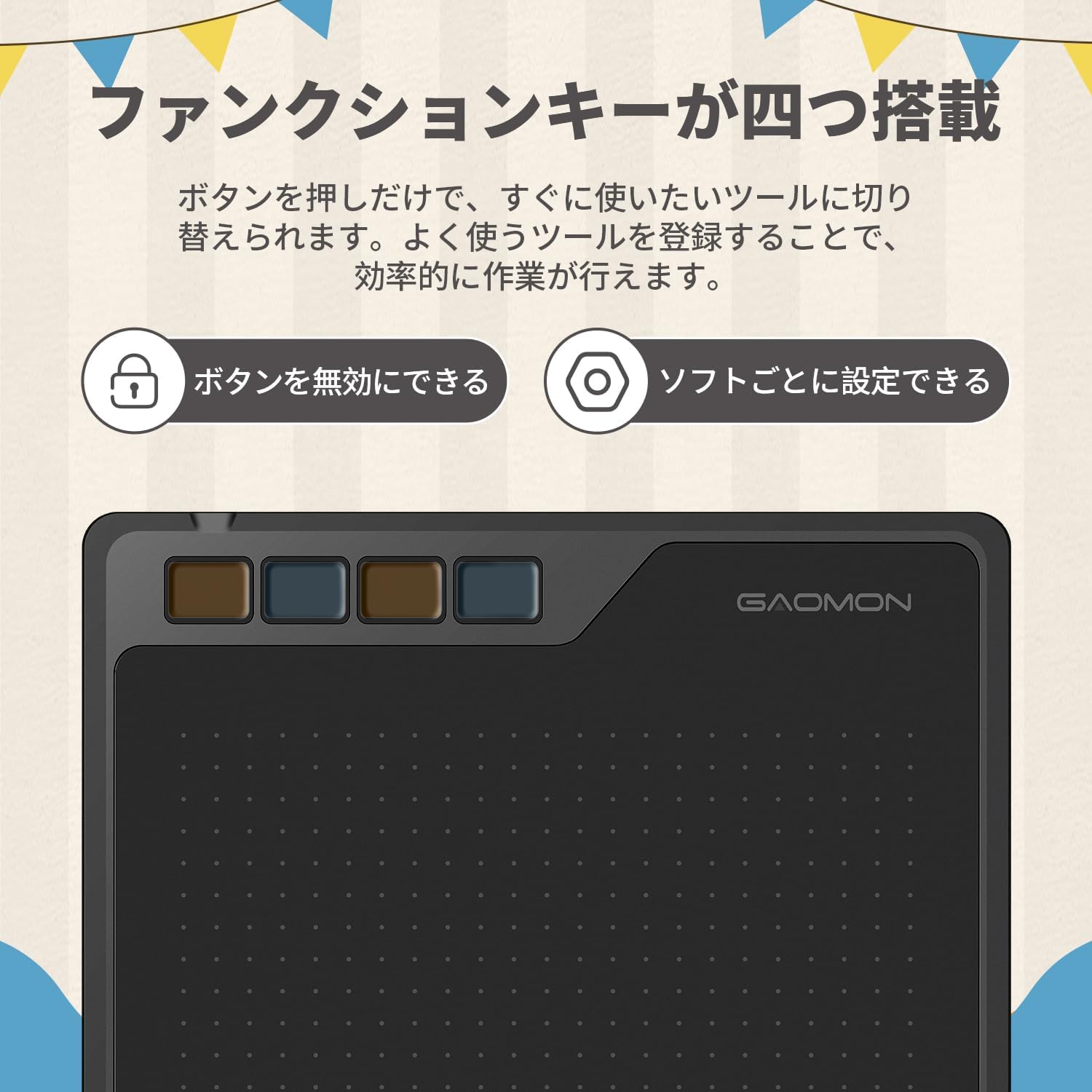
The S620 tablet features four customizable shortcut keys located on the top left. These keys can be programmed to perform frequently used functions, significantly improving workflow efficiency.
- Customization: Use the GAOMON driver software to assign specific functions (e.g., undo, zoom, brush size) to each key according to your preferences.
- Efficiency: By customizing these keys, you can reduce reliance on keyboard shortcuts and streamline your creative process.

This image focuses on the four customizable shortcut keys located on the GAOMON S620 Pen Tablet, designed to enhance workflow efficiency.
3.3 Active Area and Portability
The S620 offers a compact design with an active area suitable for various tasks, while maintaining excellent portability.
- Dimensions: The tablet measures 211 x 174 x 8mm, making it slim and easy to handle.
- Weight: Weighing approximately 249g, it is lightweight and convenient for carrying in a bag, allowing you to work on the go.

The GAOMON S620 Pen Tablet is shown being easily slipped into a bag, illustrating its compact size and lightweight design for convenient portability.
4. System and Software Compatibility
The GAOMON S620 Pen Tablet is compatible with a wide range of operating systems and creative software applications.
4.1 Supported Operating Systems
- Windows 7 or later
- macOS 10.12 or later
- Android 6.0 or later (with OTG support)
4.2 Compatible Software
The S620 works seamlessly with most major drawing, design, and office software, including but not limited to:
- Adobe Photoshop
- Adobe Illustrator
- Clip Studio Paint
- Adobe Lightroom
- Sketchbook Pro
- Manga Studio
- Corel Painter
- FireAlpaca
- OpenCanvas
- Paint Tool Sai2
- Krita
- Microsoft Office Suite (Word, PowerPoint, Excel)
- Zoom, DingTalk, OpenBoard (for online education)

An image showcasing a range of compatible software applications, including popular creative suites, that work seamlessly with the GAOMON S620 Pen Tablet.
5. Technical Specifications
| Feature | Specification |
|---|---|
| Brand | GAOMON |
| Model Number | S620 |
| Connectivity Technology | USB |
| Pressure Sensitivity | 8192 Levels |
| Operating System Compatibility | Windows/macOS/Android |
| Special Feature | Shortcut Keys |
| Included Components | USB Type-C Conversion Adapter, USB Cable, Quick Start Guide, Pen, Pen Tablet, Replacement Nibs |
| Manufacturer | GAOMON TECHNOLOGY CORPORATION |
| Origin | China |
| Color | Black |
| Compatible Devices | Windows, macOS, Android 6.0+ |
| Display Type | LCD (referring to the display technology for the pen tablet's internal components, not a screen on the tablet itself) |
| Native Resolution | 5080 LPI (Lines Per Inch) |
| Active Surface Area | 6.5 x 4 inches (PC Mode: 165.1 x 101.6 mm; Android Mode: 101.6 x 63.5 mm) |
| Product Dimensions (L x W x H) | 21.1 x 17.4 x 0.8 cm |
| Report Rate | 266 PPS |
| Reading Height | 10mm |
| Pen Weight | 12g |
6. Maintenance and Care
Proper maintenance ensures the longevity and optimal performance of your GAOMON S620 Pen Tablet.
- Cleaning: Use a soft, dry cloth to gently wipe the tablet surface and pen. Avoid using harsh chemicals or abrasive materials that could damage the surface.
- Storage: Store the tablet and pen in a cool, dry place away from direct sunlight, extreme temperatures, and excessive humidity.
- Pen Nibs: Replace pen nibs when they show signs of wear to maintain drawing precision. Use the included nib remover tool for easy replacement.
- Cable Care: Avoid bending or twisting the USB cable excessively to prevent internal damage.
7. Troubleshooting Common Issues
If you encounter issues with your GAOMON S620 Pen Tablet, try the following solutions:
- Pen Not Responding:
- Ensure the tablet is correctly connected to your device.
- Verify that the drivers are installed correctly and are up-to-date.
- Check if the pen nib is securely inserted or needs replacement.
- Test the pen on a different drawing application or computer to isolate the issue.
- Driver Issues:
- Uninstall any existing tablet drivers (especially from other brands) before installing GAOMON drivers.
- Download the latest drivers from the official GAOMON website.
- Run the driver installer as an administrator.
- Temporarily disable antivirus software during installation if issues persist.
- Pressure Sensitivity Not Working:
- Ensure the GAOMON driver is running in the background.
- Check the pressure settings in the GAOMON driver interface.
- Verify that the drawing software supports pressure sensitivity and that it is enabled in the software's settings.
- Android Connection Problems:
- Confirm your Android device supports OTG functionality.
- Ensure the OTG adapter and USB cable are functioning correctly.
- Check if your Android OS is version 6.0 or later.
8. Warranty and Support
GAOMON provides a manufacturer's warranty for the S620 Pen Tablet.
- Warranty Period: The product comes with a 1-year manufacturer's warranty from the date of arrival.
- Extended Warranty: An additional 1-year free extended warranty may be available. Please check the official GAOMON website or your purchase details for eligibility and registration.
- Support: For any issues or inquiries not covered in this manual, please contact GAOMON customer support. You can find contact information on the official GAOMON website (www.gaomon.net) or through your retailer.