1. Introduction
This manual provides detailed instructions for the installation, operation, and maintenance of your Hizpo 7-inch Double Din Car Radio. This unit features an Android 12 operating system, an 8-core CPU, and a 7-inch HD capacitive touchscreen, offering advanced multimedia and navigation capabilities for your vehicle. Please read this manual thoroughly before using the product to ensure proper operation and to maximize your user experience.

Image 1.1: Front view of the Hizpo 7-inch Double Din Car Radio unit.
2. Compatibility
This car radio is designed to be compatible with various Opel, Vauxhall, and Holden models. It is crucial to verify the shape and size of your vehicle's center console before installation to ensure a proper fit.
Compatible Car Models:
- Opel / Vauxhall / Holden Antara (from 2005)
- Opel / Vauxhall / Holden Astra H (from 2004)
- Opel / Vauxhall / Holden Combo (from 2004)
- Opel / Vauxhall / Holden Corsa C (2004-2006)
- Opel / Vauxhall / Holden Corsa D (from 2006)
- Opel / Vauxhall / Holden Meriva (from 2004)
- Opel / Vauxhall / Holden Signum (from 2003)
- Opel / Vauxhall / Holden Zafira (from 2005)
- Opel / Vauxhall / Holden Vivaro (from 2006)
- Opel / Vauxhall / Holden Tigra Twintop (from 2004)
- Opel / Vauxhall / Holden Vectra C (from 2004)
Note: The years listed are for reference only. Always confirm the dimensions and configuration of your vehicle's center console.

Image 2.1: Visual representation of compatible car models and years.
3. Key Features
The Hizpo car radio offers a comprehensive set of features designed to enhance your driving experience:
- Operating System: Android 12
- Processor: 8-Core CPU (2*A75, 6*A5) at 2.0 GHz
- Memory: 4GB RAM, 32GB Internal Storage
- Display: 7-inch 1280*720 QLED FHD Capacitive Touchscreen
- Connectivity: Built-in WiFi, Bluetooth (Hands-free calls, music streaming), USB
- Smartphone Integration: Wireless Apple Carplay, Wired Android Auto, Mirror Link (AirPin Pro for iPhone, Easy Connect for Android)
- Navigation: Offline map support, compatible with online Android navigation apps (e.g., Waze)
- Audio: FM/AM Radio with RDS, integrated BD37534FV DSP for sound effects and noise reduction, Stereo and 7.0 Surround Sound output
- Multimedia: 1080p Video Decoder, supports various video and audio formats (MPEG-1/2/4, H264, H263, VC1, RV, RMVB, Divx, Sorenson Spark, VP8, AVS Stream, MP3, FLAC), Photo Viewer
- Additional Functions: Steering Wheel Control support, Dual Zone operation (navigation while playing music), Split Screen, Multiple Desktop Window Function, APK Installer, Customizable Wallpapers, support for external 4G modem, OBD2 (optional), and DVR camera (optional).
4. Setup and Installation
4.1 Pre-Installation Checks
- Ensure your vehicle's battery is disconnected before starting installation.
- Confirm the car radio's compatibility with your vehicle's center console dimensions.
- Gather all necessary tools for removing the old unit and installing the new one.
4.2 Wiring and Connection
Connect the provided wiring harnesses to the corresponding ports on the car radio and your vehicle's wiring system. Pay close attention to the power, speaker, antenna, and accessory connections. If your vehicle has steering wheel controls, connect the appropriate wires to enable this functionality.

Image 4.1: Comparison showing a vehicle's dashboard before and after the Hizpo car radio installation.
4.3 Initial Power-On
After installation, reconnect the vehicle's battery. Turn on the ignition. The unit should power on automatically. Follow any on-screen prompts for initial setup, such as language selection and time zone.
5. Operating Instructions
5.1 Basic Interface Navigation
The unit features a touchscreen interface. Swipe left or right to navigate between home screens. Tap icons to open applications. Use the physical buttons on the unit (if present) for quick access to functions like volume, radio, and navigation.
5.2 Radio Operation (FM/AM, RDS)
Tap the 'Radio' icon to access the radio tuner. You can manually tune frequencies or use the auto-scan function to find available stations. RDS (Radio Data System) provides station information where available.
5.3 Bluetooth Connectivity
To pair your phone:
- Go to the Bluetooth settings on the car radio.
- Enable Bluetooth on your mobile phone and search for available devices.
- Select the car radio's name (e.g., 'Hizpo Car BT') from your phone's list and confirm pairing.
Once paired, you can make/receive hands-free calls, access your phonebook, and stream audio from your device.
5.4 GPS Navigation
The unit comes with pre-installed offline maps. You can also download and use other Android navigation applications like Waze from the Google Play Store (requires internet connection via WiFi or 4G dongle).
5.5 Apple Carplay & Android Auto
This unit supports wireless Apple Carplay and wired Android Auto.
- Apple Carplay (Wireless): Ensure Bluetooth and Wi-Fi are enabled on your iPhone. Follow the on-screen prompts to connect wirelessly.
- Android Auto (Wired): Connect your Android phone to the car radio using an original USB data cable. The Android Auto application will launch automatically.
These features allow you to access compatible phone applications (navigation, music, messages) directly on the car radio's screen.

Image 5.1: Display showing the interface for Apple Carplay and Android Auto, integrating smartphone apps.
5.6 Steering Wheel Control
If properly wired, you can configure the steering wheel controls to operate the car radio's functions (e.g., volume, track change, mode). Access the 'Steering Wheel Control' settings in the system menu to map your vehicle's buttons.
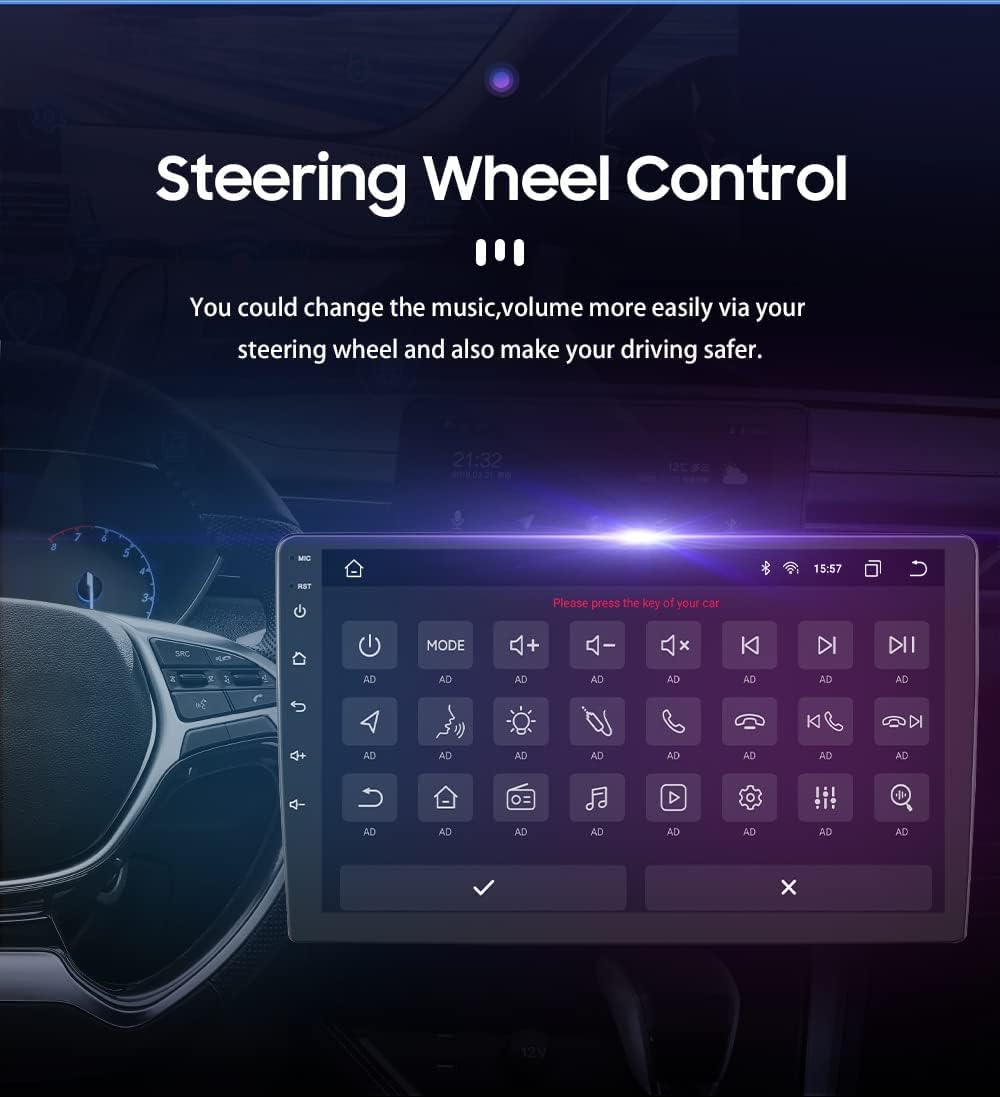
Image 5.2: Screen displaying the steering wheel control configuration menu, allowing users to assign functions to vehicle buttons.
5.7 Multimedia Playback
Connect a USB drive to play audio and video files. The unit supports a wide range of formats including MP3, FLAC, MPEG-1/2/4, H264, and more. Use the 'Music' or 'Video' applications to browse and play your media.
5.8 Split Screen Function
The split-screen feature allows you to run two applications simultaneously, such as navigation and music playback. To activate, long-press the recent apps button or drag an app to one side of the screen.

Image 5.3: The car radio display demonstrating the split-screen feature, running navigation on one side and a music player on the other.
5.9 DSP Audio Settings
The integrated Digital Sound Processor (DSP) allows for advanced audio customization. Access the 'Sound Settings' or 'DSP' application to adjust equalizer settings, surround sound, bass enhancement, and sound field positioning to optimize your listening experience.
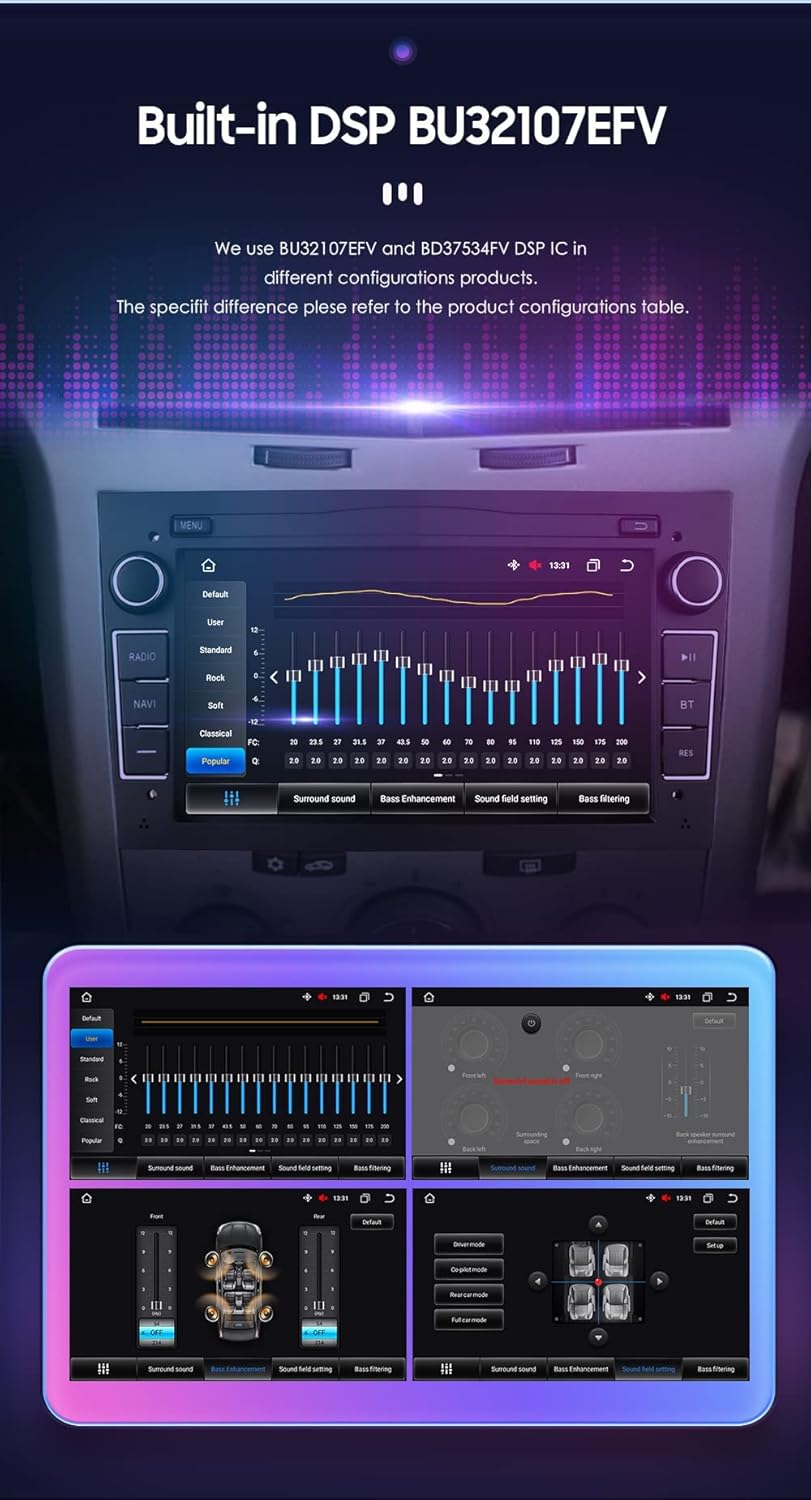
Image 5.4: Screenshots of the DSP interface, showing various audio adjustment options like equalizer, surround sound, and bass settings.
5.10 Multiple Desktop Window Function
The unit supports multiple desktop windows, allowing you to quickly switch between different applications or view multiple widgets on your home screen. This enhances multitasking and accessibility to frequently used functions like GPS, OBD, DVR, and TPMS.
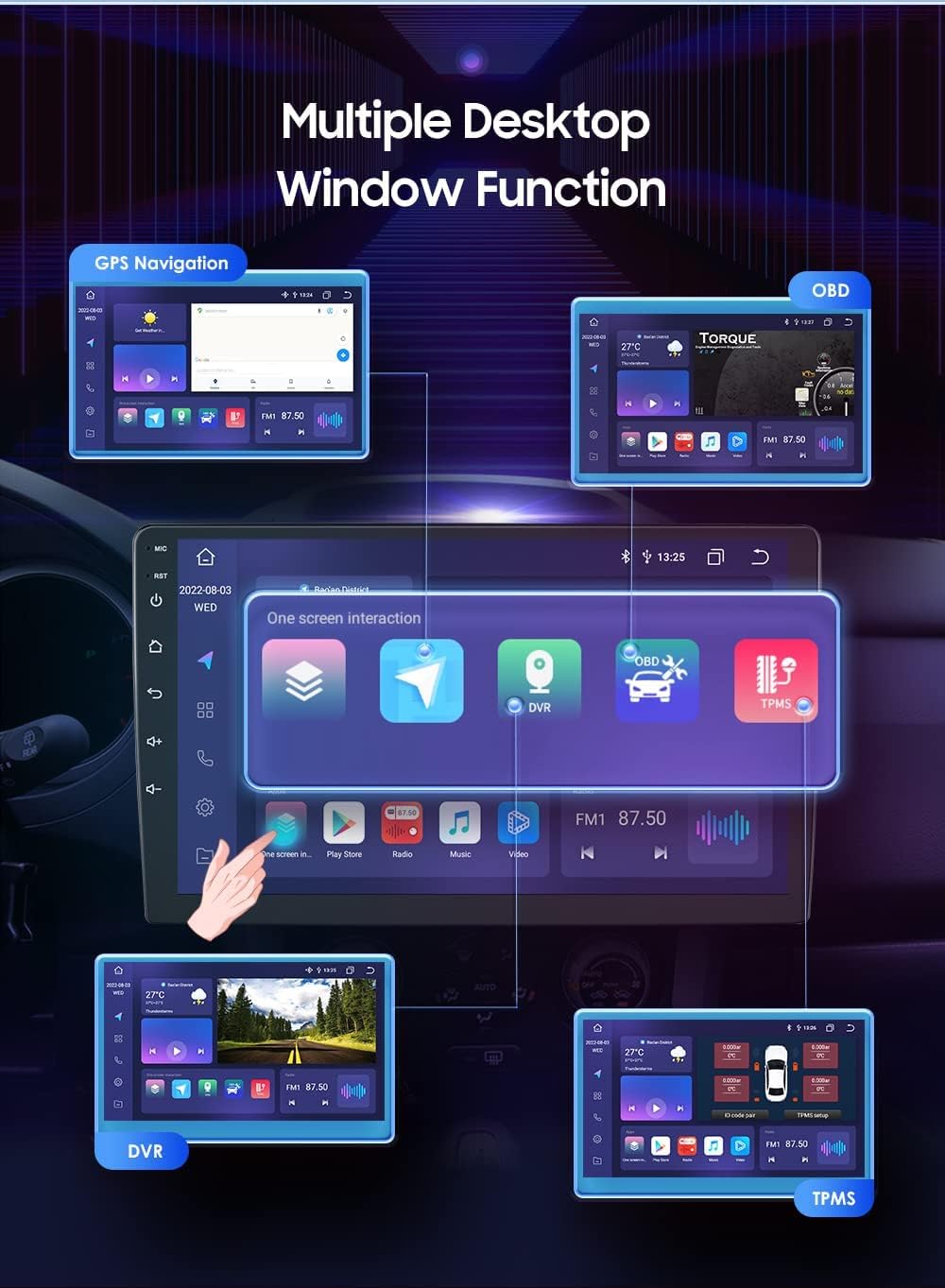
Image 5.5: The car radio's home screen displaying multiple application widgets and quick access icons for functions like GPS, OBD, DVR, and TPMS.
5.11 Other Features
- WiFi: Connect to a Wi-Fi hotspot for internet access, app downloads, and online navigation.
- 4G Connectivity: Supports external USB 4G dongles for mobile data access (dongle not included).
- OBD2: Compatible with external OBD2 devices (sold separately) for vehicle diagnostics via the Torque Pro app.
- DVR: Supports USB cameras (sold separately) for dashcam functionality.
6. Maintenance
To ensure the longevity and optimal performance of your car radio, follow these maintenance guidelines:
- Cleaning: Use a soft, dry cloth to clean the screen and unit exterior. For stubborn smudges, slightly dampen the cloth with water or a screen-safe cleaner. Avoid abrasive materials or harsh chemicals.
- Software Updates: Periodically check for software updates to ensure you have the latest features and bug fixes. Updates can typically be found in the system settings or on the manufacturer's website.
- Temperature: Avoid exposing the unit to extreme temperatures, which can affect its performance and lifespan.
- Power: Ensure stable power supply to prevent damage. If you experience frequent power fluctuations in your vehicle, consult a professional.
7. Troubleshooting
If you encounter issues with your Hizpo car radio, refer to the following common problems and solutions:
| Problem | Possible Cause | Solution |
|---|---|---|
| Unit does not power on. | Incorrect wiring; Blown fuse; Vehicle battery issue. | Check power connections and fuses. Ensure vehicle battery is charged. |
| No sound. | Speaker wires disconnected; Volume too low; Mute activated. | Check speaker connections. Increase volume. Disable mute function. |
| Bluetooth not connecting. | Bluetooth off on phone/unit; Incorrect pairing. | Ensure Bluetooth is enabled on both devices. Delete previous pairings and re-pair. |
| GPS signal weak/lost. | GPS antenna obstructed or disconnected. | Ensure GPS antenna is properly installed and has a clear view of the sky. |
| Touchscreen unresponsive. | System freeze; Dirt on screen. | Restart the unit. Clean the screen. If issue persists, perform a factory reset (data will be lost). |
| Apple Carplay/Android Auto not launching. | Incorrect USB cable; Phone software issue; App not installed. | Use original USB cable. Ensure phone OS and apps are updated. Check Carplay/Android Auto settings on phone. |
If the problem persists after attempting these solutions, please contact Hizpo customer support for further assistance.
8. Specifications
| Feature | Detail |
|---|---|
| Brand | Hizpo |
| Model Number | OPEL7007B |
| Operating System | Android 12 |
| CPU | 8-Core (2*A75, 6*A5) 2.0 GHz |
| RAM | 4GB |
| Internal Storage | 32GB |
| Screen Size | 7 inches |
| Screen Resolution | 1280*720 QLED FHD |
| Controller Type | Touchscreen |
| Connectivity Technology | Bluetooth, USB, Wi-Fi |
| Connector Type | USB, RCA, Bluetooth |
| Radio Tuner | FM/AM, RDS (DAB/DAB+ optional) |
| FM Frequency Range | 87.5-108 MHz |
| AM Frequency Range | 522-1620 kHz |
| Video Decoder | 1080p |
| Video Encoding Support | MPEG-1, MPEG-2, MPEG-4, H.263, H.264, VC1, RV, RMVB, DivX, Sorenson Spark, VP8, AVS |
| Audio Output Mode | Stereo, Surround |
| Surround Sound Channels | 7.0 |
| Compatible Devices | Mobile phone, Bluetooth speaker |
| Special Features | Apple Carplay, Android Auto, Waze, GPS Navigation |
9. Accessories
The following accessories are typically included with your Hizpo 7-inch Double Din Car Radio:
- Power Cable 1
- Power Cable 2
- Rear Camera Input RCA Cable
- Canbus Decoder Box
- RCA Harness (4G version only)
- RCA Harness (WiFi version only)
- 4G LTE Antenna (4G version only)
- 4 PIN USB Cable
- GPS Antenna
- External Microphone
- Radio Antenna Adapter Cable
- 6 PIN USB Cable
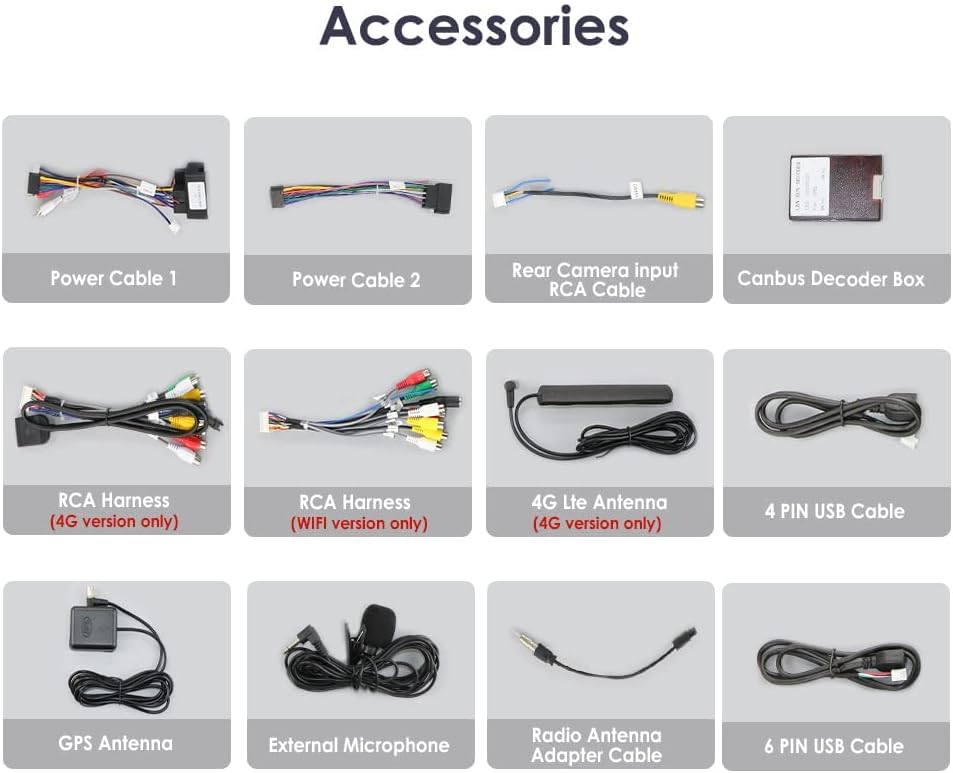
Image 9.1: A visual display of the various cables, antennas, and other accessories included with the car radio.
10. Warranty and Support
Hizpo provides a 1-year manufacturer's warranty for this product, covering defects in materials and workmanship. This warranty does not cover damage caused by artificial means or improper installation.
For any questions, technical assistance, or warranty claims, please contact Hizpo customer support. Free returns and exchanges are offered for unsatisfied purchases within 30 days of receipt (excluding artificial damage). Technical support is available both before and after sale.