
1. Introduction
This manual provides detailed instructions for the setup, operation, and maintenance of your CACACOL P20 Pro Smart Projector. Please read this manual thoroughly before using the projector to ensure optimal performance and safety.

Figure 1.1: CACACOL P20 Pro Smart Projector
2. What's in the Box
Verify that all items are included in your package:
- CACACOL P20 Pro Smart Projector
- Remote Control
- Power Adapter
- User Manual (this document)
3. Product Overview
The CACACOL P20 Pro is a smart projector featuring native 1080p Full HD resolution with 4K support, 700 ANSI lumens brightness, WiFi 6, Bluetooth, and an Android TV 13.0 operating system. It is powered by an Amlogic T950S Quad-Core CPU with 2GB RAM and 16GB eMMC storage.

Figure 3.1: CACACOL P20 Pro Smart Projector with highlighted features.
Key Features:
- Native 1080p Full HD & 4K Support: Delivers clear, bright, and vivid HD images.
- 700 ANSI Lumens: Ensures bright projection even in moderately lit environments.
- Electric Focus & 4P Auto Keystone Correction: Automatically adjusts image shape and focus for a clear picture from various angles.
- Android TV 13.0 OS: Built-in smart TV system for direct access to streaming apps.
- WiFi 6 & Bluetooth: High-speed wireless connectivity for streaming and audio devices.
- Built-in Stereo Speakers: Provides 360° stereo surround sound.
- Amlogic T950S CPU: Ensures smooth system performance.
- Multi-Compatibility: HDMI, USB, and audio interfaces for connecting various devices.

Figure 3.2: Amlogic T950S Processor for smooth operation.
4. Setup
4.1 Initial Power On
1. Place the projector on a stable, flat surface or mount it using a compatible tripod. The projector features a 360-degree rotatable stand for flexible projection angles, including ceiling projection.
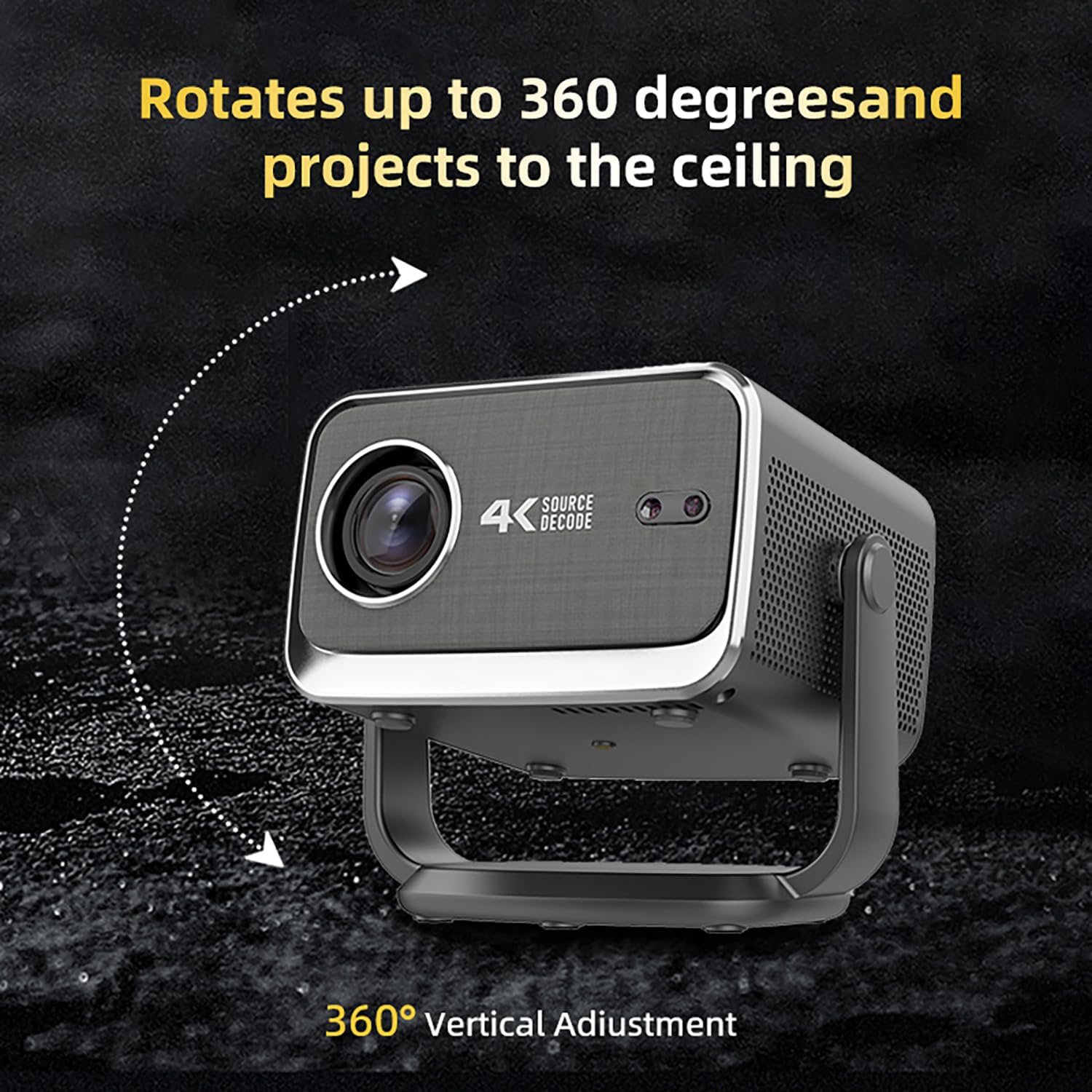
Figure 4.1: Projector's 360-degree vertical adjustment capability.
2. Connect the power adapter to the projector's power input port and then plug it into a power outlet.
3. Press the power button on the projector or remote control to turn it on.
4.2 Focus and Keystone Correction
The P20 Pro features electric focus and 4P auto keystone correction. The projector will automatically adjust the image for optimal clarity and shape upon startup or when moved.
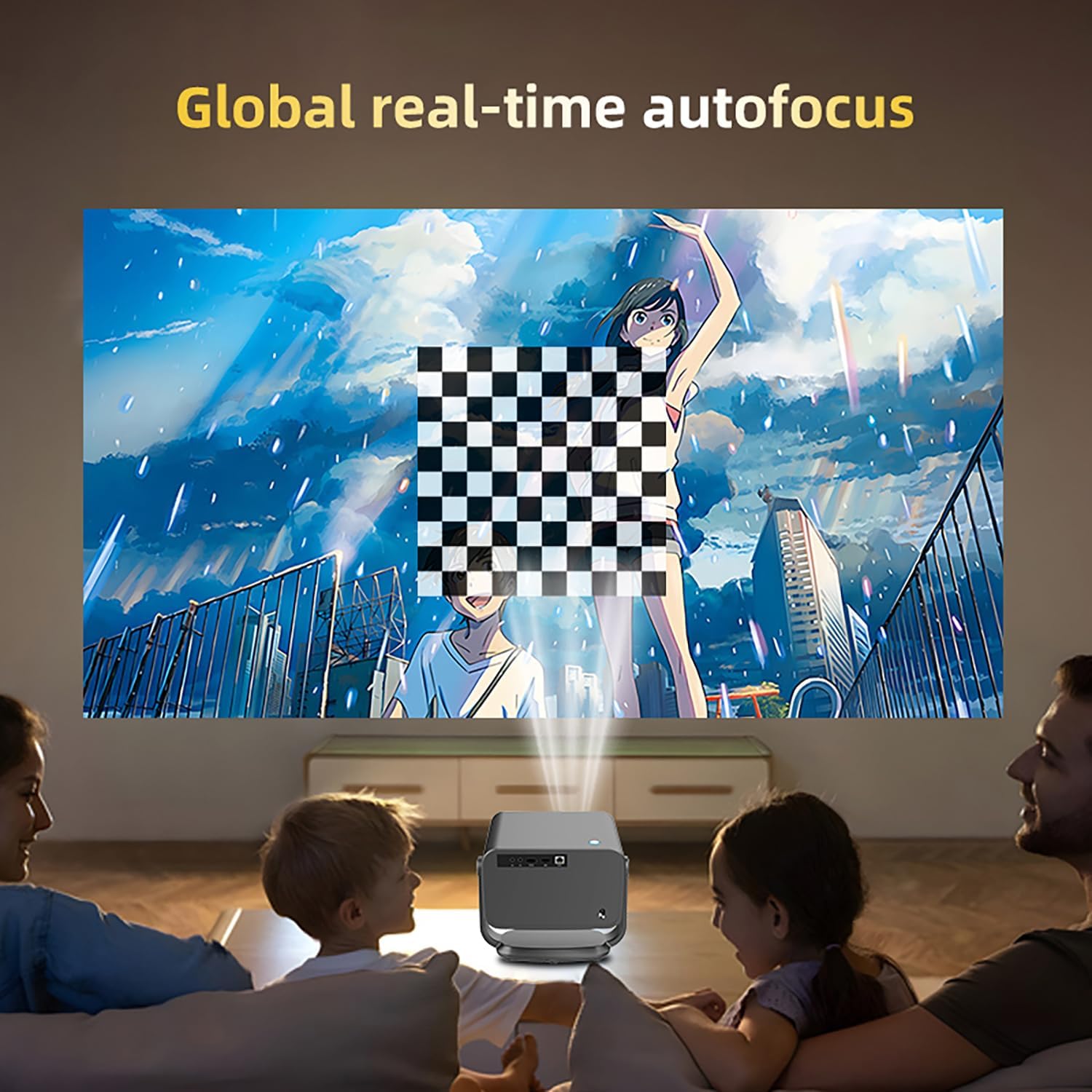
Figure 4.2: Global real-time autofocus in action.
4.3 Network Connection (WiFi & Bluetooth)
1. Navigate to the 'Settings' menu on the projector's home screen.
2. Select 'Network' to connect to your WiFi network. The projector supports WiFi 6 (2.4G/5G) for high-speed streaming.
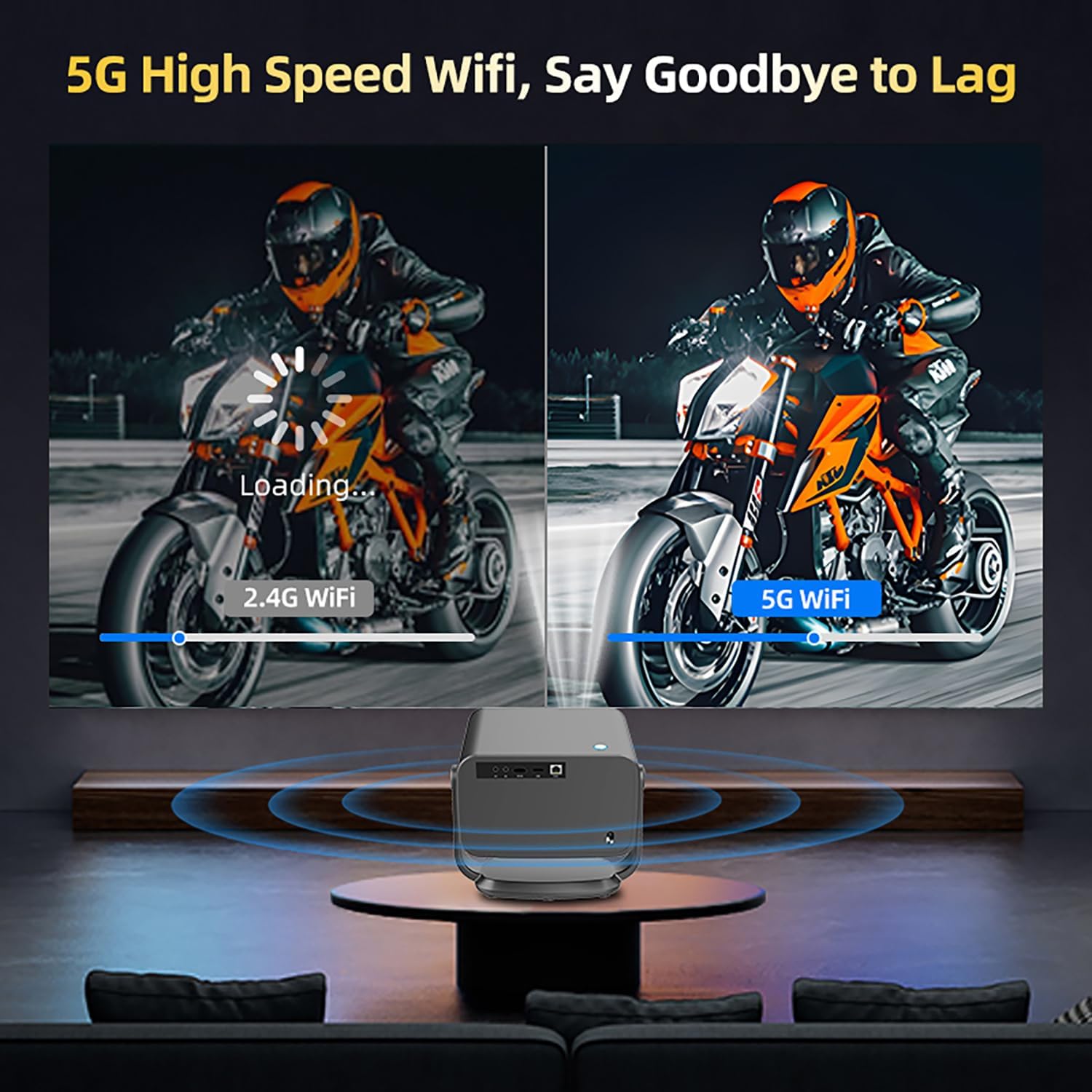
Figure 4.3: Comparison of 2.4G WiFi vs. 5G WiFi performance.
3. Select 'Bluetooth' to pair with external Bluetooth speakers or other audio devices for enhanced sound.
4.4 Input Sources (HDMI, USB)
The projector is equipped with HDMI and USB ports for connecting external devices such as laptops, gaming consoles, TV boxes, and USB drives.

Figure 4.4: Multi-device compatibility with the projector.
5. Operating Instructions
5.1 Remote Control Functions
Use the provided remote control to navigate the Android TV 13.0 interface. The remote includes dedicated buttons for popular streaming services like Netflix, YouTube, and Prime Video, as well as Google Play for app downloads.
5.2 Navigating Android TV 13.0 OS
The projector runs on Android TV 13.0, providing a user-friendly interface for accessing content. You can browse apps, adjust settings, and manage files directly from the home screen.
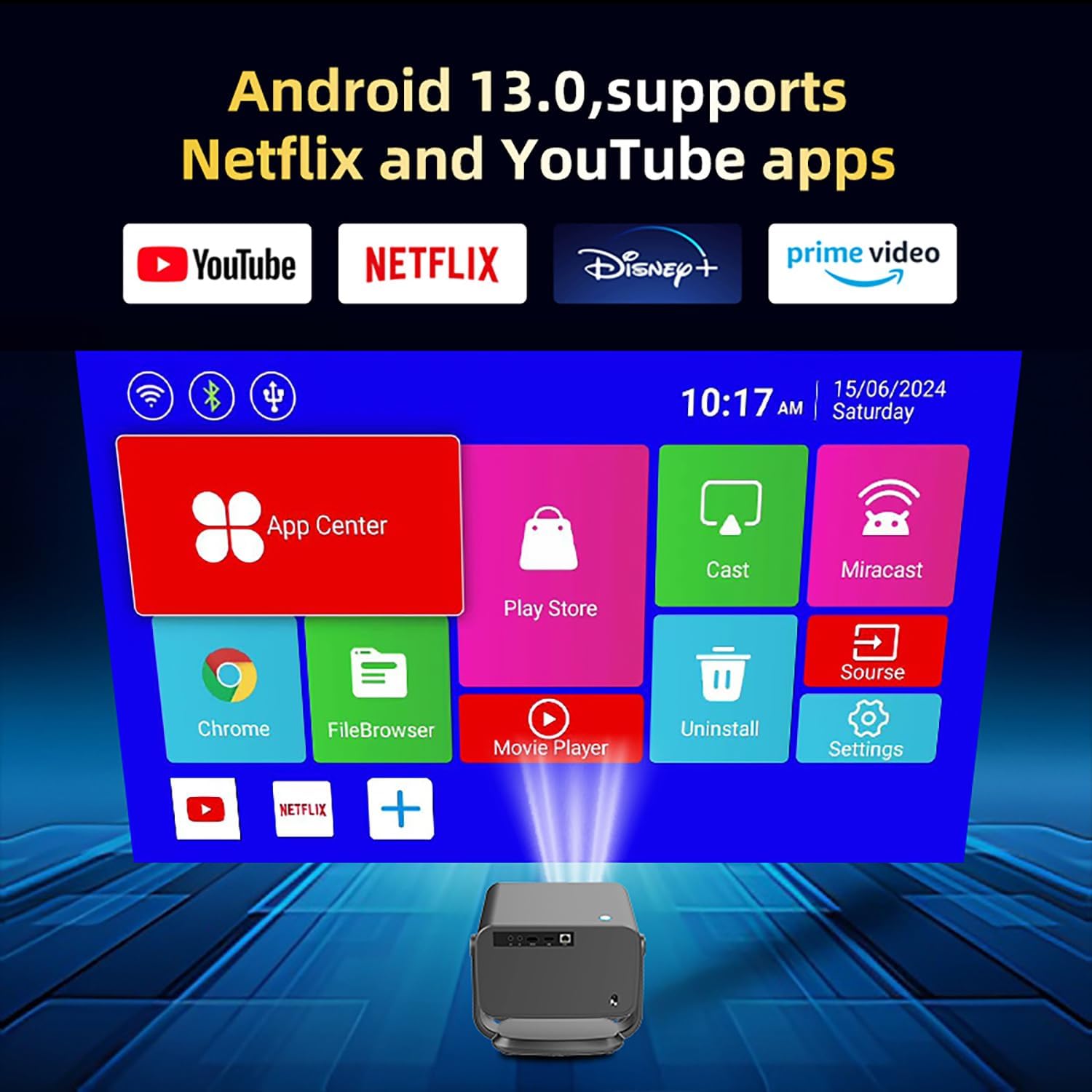
Figure 5.1: Android TV 13.0 OS home screen with app icons.
5.3 Streaming Content
Access pre-installed streaming applications or download new ones from the Google Play Store. Ensure a stable WiFi connection for optimal streaming performance.
5.4 Connecting External Devices
Use the HDMI port to connect gaming consoles, Blu-ray players, or computers. Use the USB ports for external storage devices to play media files directly.
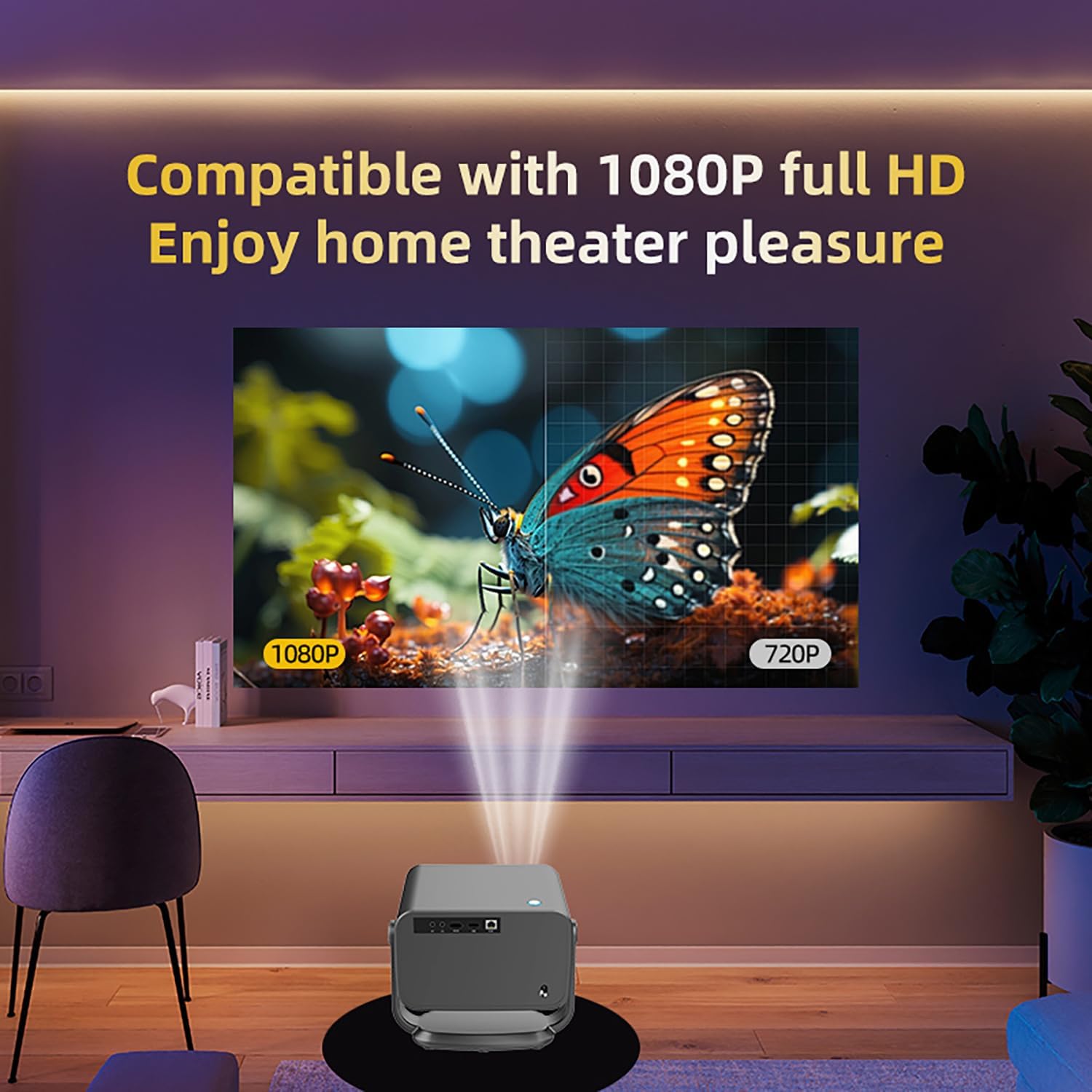
Figure 5.2: Enjoying 1080p Full HD content with the projector.
6. Maintenance
6.1 Cleaning the Lens
Use a soft, lint-free cloth or a lens cleaning kit to gently wipe the projector lens. Avoid using abrasive cleaners or excessive force, as this may damage the lens coating.
6.2 General Care
- Keep the projector in a cool, dry place away from direct sunlight and excessive heat.
- Ensure proper ventilation around the projector to prevent overheating. Do not block the ventilation grilles.
- Avoid dropping or subjecting the projector to strong impacts.
7. Troubleshooting
Common Issues and Solutions:
- No Power: Ensure the power adapter is securely connected to both the projector and a working power outlet.
- No Image: Check the input source selection. Ensure the connected device is powered on and sending a signal.
- Blurry Image: The projector has electric focus and auto keystone. If the image is still blurry, try moving the projector slightly or manually adjusting focus via settings if available.
- Image Distorted (Trapezoid): The projector has 4P auto keystone correction. If distortion persists, check the projector's placement relative to the screen.
- No Sound: Check the volume level on both the projector and the connected device. Ensure external speakers are properly connected via Bluetooth or audio jack.
- WiFi/Bluetooth Connectivity Issues: Ensure the projector is within range of your router/device. Restart the projector and your network devices.
8. Specifications
| Feature | Specification |
|---|---|
| Brand | CACACOL |
| Model Number | P20-Pro |
| Display Resolution | 1920 x 1080 (Native 1080p Full HD) |
| Brightness | 700 ANSI Lumens |
| Operating System | Android TV 13.0 |
| Processor | Amlogic T950S Quad-Core CPU |
| Memory (RAM) | 2GB |
| Storage (eMMC) | 16GB |
| Connectivity | Bluetooth, Ethernet, HDMI, USB, Wi-Fi (WiFi 6) |
| Special Features | Auto Focus, Built-In Speaker, Built-In Wi-Fi, Digital Keystone Correction |
| Speaker Type | Stereo, Surround |
| Item Weight | 4.73 pounds |
| Product Dimensions | 8.9 x 8.98 x 5.51 inches |
9. Warranty & Support
For warranty information and technical support, please refer to the documentation included in your product packaging or contact CACACOL customer service directly. Details can typically be found on the product box or a separate warranty card.
10. Official Product Video
Video 10.1: Official CACACOL P20 PRO 1080p Full HD Home LED Projector overview. This video demonstrates the projector's features and capabilities.
