
1. Introduction
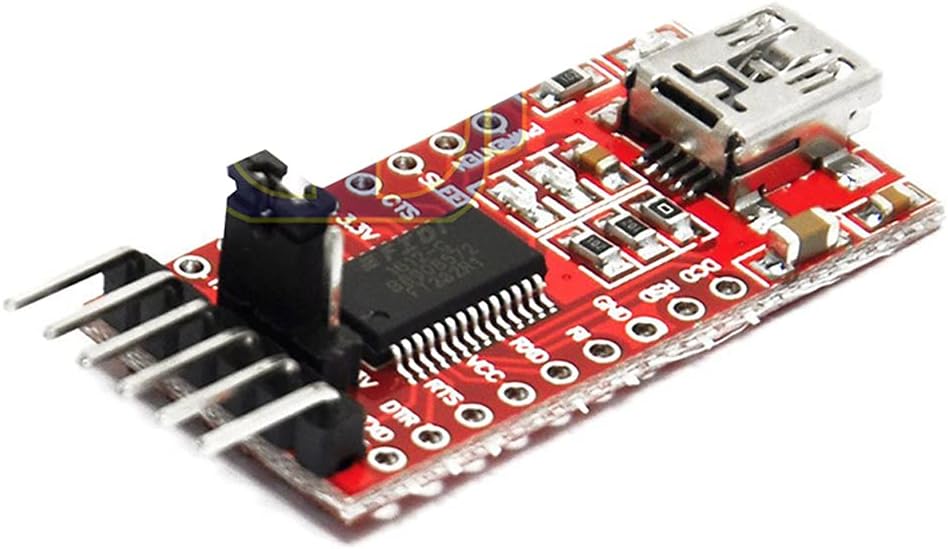
This manual provides detailed instructions for the DEVMO FT232RL USB to TTL Serial Converter Adapter Module. This module facilitates communication between a computer's USB port and devices requiring TTL-level serial communication, such as microcontrollers like the Arduino Pro Mini. It supports both 3.3V and 5.5V operation, making it versatile for various electronic projects.
2. Product Features
- Chipset: FT232RL (Note: This is not a genuine FTDI chip, but is compatible.)
- Working Voltage: Selectable 3.3V or 5.5V via jumper.
- Indicators: RXD/TXD transceiver communication LEDs.
- Protection: Equipped with a 500mA self-restore fuse for overcurrent protection.
- Pin Definition: DTR, RXD, TX, VCC, CTS, GND.
- Pin Pitch: 2.54mm.
- Dimensions: Approximately 36 x 18mm (L x W).
- Interface: Mini USB.
3. Package Contents
- 1 x DEVMO FT232RL USB to TTL Serial Converter Adapter Module
4. Setup Guide
4.1. Driver Installation
Before connecting the module to your computer, it is recommended to install the necessary drivers. While this module uses an FT232RL compatible chip, it typically utilizes FTDI drivers. You can usually find the latest drivers on the official FTDI website or by performing a web search for "FTDI drivers".
- Supported Operating Systems: Windows 95/98/98se/ME/2000/XP/Win7 (32-bit and 64-bit), and partial Vista support.
- Note: Windows 8 is generally not supported. However, some users have reported success with Windows 10 and 11 after manual driver installation.
- Installation Steps (Windows Example): Download the appropriate driver package. Extract the files. Right-click on the .inf files (usually two of them) and select 'Install' before plugging in the adapter.
4.2. Voltage Selection
The module supports both 3.3V and 5.5V (5V) operation. A jumper on the module allows you to select the desired voltage for the VCC pin. Ensure the jumper is correctly placed to match the operating voltage of your target device to prevent damage.
4.3. Physical Connection
- Connect to Computer: Use a Mini USB cable to connect the module to an available USB port on your computer.
- Connect to Target Device: Wire the module to your target device (e.g., Arduino Pro Mini) using the appropriate pins. Pay close attention to the pinout.
5. Operating Instructions
5.1. Pinout Description
The module features the following pins:
- DTR: Data Terminal Ready. Often used for automatic reset on microcontrollers like Arduino.
- RXD: Receive Data. Connects to the TX (Transmit) pin of your target device.
- TX: Transmit Data. Connects to the RX (Receive) pin of your target device.
- VCC: Power Supply Output. Provides either 3.3V or 5.5V, depending on jumper setting. Connect to the power input of your target device.
- CTS: Clear To Send. Used for hardware flow control (less common for simple serial communication).
- GND: Ground. Connects to the ground of your target device.
5.2. Using with Arduino Pro Mini
To upload sketches to an Arduino Pro Mini, connect the module as follows:
- Module DTR to Pro Mini DTR
- Module RXD to Pro Mini TXD
- Module TX to Pro Mini RXD
- Module VCC to Pro Mini VCC (ensure correct voltage selection)
- Module GND to Pro Mini GND
Once connected and drivers are installed, your computer should recognize the module as a virtual COM port. You can then select this COM port in your Arduino IDE and upload sketches.
5.3. Communication Indicators
The RXD and TXD LEDs on the module will flash during data transmission and reception, indicating active serial communication.
6. Product Images

7. Official Product Video
Video 1: An overview of the DEVMO FT232RL 3.3V 5.5V FTDI USB to TTL Serial Converter Module. This video provides a visual demonstration of the module's physical appearance and key components.
8. Specifications
| Feature | Detail |
|---|---|
| Brand | DEVMO |
| Model Number | 741722788738 |
| Hardware Interface | USB |
| Chipset | FT232RL (compatible) |
| Operating Voltage | 3.3V / 5.5V (selectable) |
| Compatible Devices | Arduino Mini, Arduino Pro Mini |
| Supported Operating Systems | Windows 95, 98, 98SE, ME, 2000, XP, Win7 (32bit/64bit), partial Vista support |
| Item Weight | 0.634 ounces (approx. 0.02 Kilograms) |
| Package Dimensions | 5.31 x 3.5 x 1.14 inches |
9. Troubleshooting
- Module Not Recognized: Ensure drivers are correctly installed. Try a different USB port or cable.
- Communication Errors:
- Verify RXD and TX pins are correctly cross-connected (RXD to TX, TX to RX).
- Check that the baud rates on both the computer and the target device match.
- Confirm the correct COM port is selected in your software.
- Target Device Not Powering On/Damaged: Double-check the voltage selection jumper (3.3V/5.5V) to ensure it matches your target device's requirements. Incorrect voltage can damage components.
- No LED Activity: Ensure the module is properly connected to the computer and receiving power. Check for any physical damage.
- Windows 8/10/11 Issues: While officially not supporting Windows 8, and not explicitly listing Windows 10/11, some users have found success by manually installing older FTDI drivers in compatibility mode or by using specific driver versions. Search online forums for solutions specific to your operating system.
10. Safety Information
- Always ensure the correct voltage is selected for your target device to prevent damage.
- Avoid short-circuiting pins.
- Handle the module with care to prevent electrostatic discharge (ESD) damage.
- Do not expose the module to moisture or extreme temperatures.
11. Warranty and Support
For any technical support, warranty inquiries, or further assistance, please contact the seller or manufacturer directly through your purchase platform. Keep your proof of purchase for warranty claims.