
1. Introduction
This manual provides essential information for the installation, operation, and maintenance of the Red Lion Controls N-Tron 517FX-A-SC Industrial Ethernet Switch. This device is designed for robust industrial networking applications, offering reliable data transmission in demanding environments.
The 517FX-A-SC is a 17-port industrial Ethernet switch featuring 16 x 10/100BaseTX ports and 1 x 100BaseFX fiber uplink port. It supports multimode fiber with an SC style connector and includes advanced firmware options for enhanced functionality.
2. Safety Information
Please read all safety instructions carefully before installing or operating the device. Failure to do so may result in equipment damage or personal injury.
- Ensure proper grounding to prevent electrical shock.
- Disconnect power before performing any maintenance or installation procedures.
- Operate the switch within the specified environmental conditions (temperature, humidity).
- Do not expose the device to moisture or extreme temperatures.
- Only qualified personnel should perform installation and servicing.
- Observe all local and national electrical codes.
3. Product Features
The Red Lion Controls N-Tron 517FX-A-SC offers the following key features:
- 17 Total Ports: 16 x 10/100BaseTX Fast Ethernet ports and 1 x 100BaseFX fiber uplink port.
- Industrial Grade Design: Built for harsh industrial environments.
- DIN-Rail Mountable: Easy installation in industrial control cabinets.
- Multimode Fiber: Supports multimode fiber optic connections.
- SC Style Connector: Standard SC connector for fiber optic uplink.
- Advanced Firmware Option: Enhanced management and diagnostic capabilities.
- Auto-Sensing Ports: Automatically detects network speed and duplex mode.
- Store-and-Forward Technology: Ensures reliable data packet transmission.
4. Package Contents
Verify that your package contains the following items:
- Red Lion Controls N-Tron 517FX-A-SC Industrial Ethernet Switch
- DIN-Rail Mounting Kit (pre-installed or separate)
- Quick Start Guide (if applicable)
Note: Power supply and network cables are typically sold separately.
5. Setup and Installation
5.1 Physical Installation
The 517FX-A-SC switch is designed for DIN-rail mounting. Follow these steps for secure installation:
- Ensure the DIN-rail is securely mounted within the enclosure.
- Hook the top edge of the switch's DIN-rail clip onto the top edge of the DIN-rail.
- Push the bottom of the switch firmly towards the DIN-rail until it clicks into place.
- Verify that the switch is securely fastened and does not wobble.
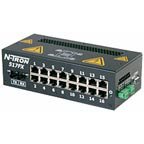
Figure 1: Red Lion Controls N-Tron 517FX-A-SC Industrial Ethernet Switch. This image shows the compact design suitable for DIN-rail mounting in industrial control panels.
5.2 Power Connection
Connect the switch to a suitable industrial power supply. The switch typically operates on a wide range of DC input voltages. Refer to the specifications section for exact voltage requirements.
- Connect the positive (+) terminal of the power supply to the appropriate terminal on the switch.
- Connect the negative (-) terminal of the power supply to the appropriate terminal on the switch.
- Ensure proper grounding by connecting the ground terminal to an earth ground.
- Verify all connections are secure before applying power.
5.3 Network Connections
Connect your network devices to the switch ports.
- Copper Ports (10/100BaseTX): Use standard RJ45 Ethernet cables to connect devices such as PLCs, HMIs, and industrial computers to the 16 copper ports. The ports are auto-sensing, so straight-through or crossover cables can be used.
- Fiber Uplink Port (100BaseFX): Use a multimode fiber optic cable with SC connectors to connect to other fiber-enabled network devices or a backbone switch. Ensure the transmit (TX) port on the switch connects to the receive (RX) port on the other device, and vice-versa.
6. Operating Instructions
The N-Tron 517FX-A-SC is an unmanaged industrial Ethernet switch, designed for plug-and-play operation. Once powered on and connected, it will automatically begin forwarding Ethernet frames.
6.1 Power On
After all physical and network connections are made, apply power to the switch. The power indicator LED (usually labeled PWR) should illuminate, indicating successful power-up.
6.2 LED Indicators
Monitor the LED indicators on the front panel to verify network status:
- PWR LED:
- On: Device is powered on.
- Off: Device is not powered on.
- Link/Activity LEDs (per port):
- On: A valid network link is established.
- Flashing: Data is being transmitted or received on the port.
- Off: No network link is established.
- Speed LEDs (per port, if available):
- On (e.g., Green): 100 Mbps link speed.
- Off (or Amber): 10 Mbps link speed.
Note: Specific LED behavior may vary slightly. Refer to the detailed product datasheet for precise descriptions.
7. Maintenance
The N-Tron 517FX-A-SC is designed for minimal maintenance. However, periodic checks can help ensure optimal performance and longevity.
- Cleaning: Periodically clean the exterior of the switch with a soft, dry cloth. Do not use liquid or aerosol cleaners. Ensure ventilation openings are free from dust and debris.
- Cable Inspection: Regularly inspect all network and power cables for damage or loose connections. Replace any damaged cables immediately.
- Environmental Check: Ensure the operating environment remains within the specified temperature and humidity ranges.
- Firmware Updates: If advanced firmware options are utilized, check the Red Lion Controls website periodically for available firmware updates. Follow the provided instructions carefully for any update procedures.
8. Troubleshooting
If you encounter issues with your N-Tron 517FX-A-SC switch, refer to the following troubleshooting tips:
8.1 No Power
- Check Power Supply: Ensure the power supply is connected correctly and providing the specified voltage.
- Verify Connections: Confirm that the power cables are securely connected to both the switch and the power source.
- Check Fuses/Breakers: Inspect any fuses or circuit breakers in the power circuit.
8.2 No Link on a Port
- Check Cable: Ensure the Ethernet or fiber optic cable is properly connected at both ends and is not damaged.
- Verify Device: Confirm the connected device (e.g., PC, PLC) is powered on and its network interface is active.
- Cable Type: For fiber connections, ensure the correct fiber type (multimode) and connector type (SC) are used, and that TX/RX are correctly aligned.
- Port Status: Try connecting to a different port on the switch to rule out a faulty port.
8.3 Slow Network Performance
- Cable Quality: Ensure high-quality Ethernet cables are used, especially for longer runs.
- Duplex Mismatch: While auto-negotiation usually handles this, a duplex mismatch can occur. Check the duplex settings on connected devices if performance is poor.
- Network Congestion: If many devices are active, network congestion might be the cause. Consider network segmentation or upgrading to higher-speed infrastructure if necessary.
9. Specifications
| Attribute | Value |
|---|---|
| Brand | Red Lion Controls |
| Model | 517FX-A-SC |
| Number of Ports | 17 (16 x 10/100BaseTX, 1 x 100BaseFX) |
| Fiber Type | Multimode |
| Fiber Connector | SC Style |
| Mounting Type | DIN-Rail |
| Compatible Devices | Desktop (and other industrial Ethernet devices) |
| Manufacturer | Red Lion Controls |
| UPC | 767870670558 |
| ASIN | B07R5ZMLGY |
Note: Detailed electrical and environmental specifications can be found in the official product datasheet available on the Red Lion Controls website.
10. Warranty and Support
For information regarding product warranty, technical support, or service, please contact Red Lion Controls directly or visit their official website.
- Red Lion Controls Official Website: www.redlion.net
- Technical Support: Refer to the support section on the Red Lion Controls website for contact information and resources.
When contacting support, please have your product model number (517FX-A-SC) and serial number (if applicable) ready.


