
1. Introduction
This manual provides detailed instructions for the installation, operation, and maintenance of your EPEVER TRIRON2210N 20A MPPT Solar Charge Controller. Please read this manual thoroughly before use to ensure optimal performance and safety. This controller is designed to manage power flow from solar panels to batteries and loads, ensuring efficient charging and protection for your solar system.
2. Product Features
- Advanced MPPT (Maximum Power Point Tracking) technology with tracking efficiency not less than 99.5% and maximum conversion efficiency of 98%.
- LCD display for viewing operational data and system status, with LED indicators for abnormal information.
- Automatic 12V/24VDC system voltage identification.
- Comprehensive electronic protection functions, including overload and over-discharge protection.
- RS485 communication module design for reading inverter/controller data and controlling inverter switch via relay interface.
- Dual 5V DC USB output interface for charging electronic devices.
- Suitable for various applications: communication base stations, home systems, street lighting, field monitoring, RV solar systems.
2.1 Controller Overview

This image illustrates the main components of the EPEVER TRIRON2210N controller, including the solar panel indicator, battery indicator, load indicator, RS485 slave port, two USB ports, insulating material, LCD screen, PV terminals, battery terminals, and load terminals.
2.2 Dimensions
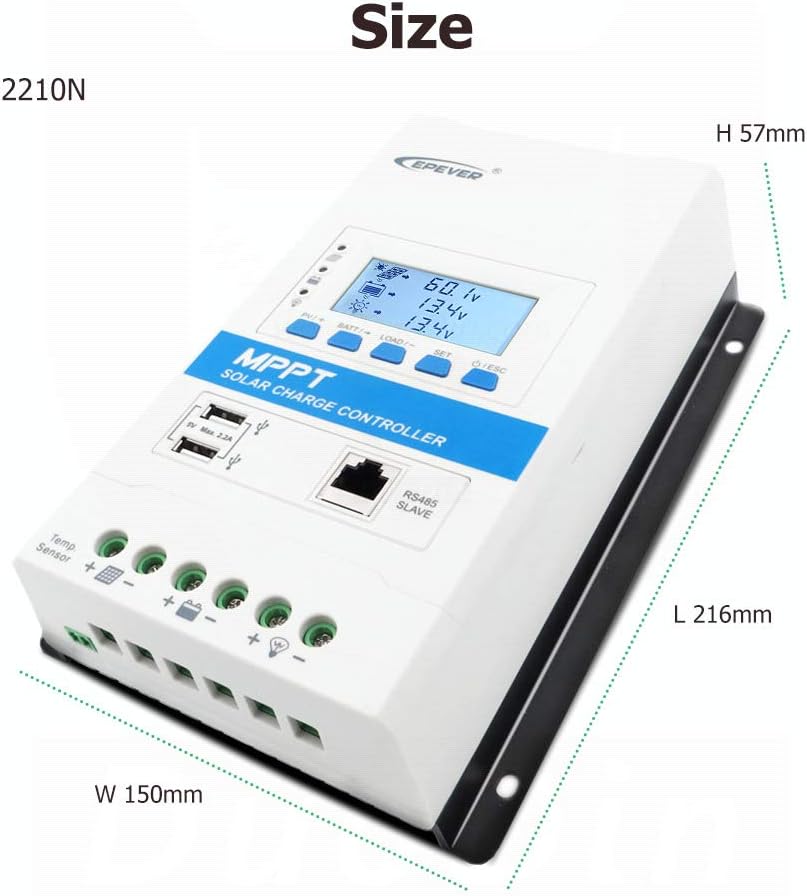
The controller measures 216mm in length, 150mm in width, and 57mm in height, designed for compact installation.
3. Specifications
| Feature | Value |
|---|---|
| Color | 20A |
| Brand | EPEVER |
| Item Weight | 1.16 Kilograms |
| Display Type | LCD |
| UPC | 680465249956 |
| Manufacturer | SolaMr |
| Country of Origin | China |
| ASIN | B07R5MGC3V |
| GTIN | 680465249956 |
3.1 Battery Voltage Control Parameters (12V System @ 25°C)
For a 24V system, double the voltage values. These parameters are crucial for proper battery management and longevity.

This table provides detailed voltage control parameters for different battery types: Sealed, Gel, Flooded, and User-defined (9-34V). It includes settings for over-discharge, charge limits, equalization, boost, float, low voltage reconnect, low voltage disconnect, and warning voltages.
4. Installation
4.1 Wiring Diagram
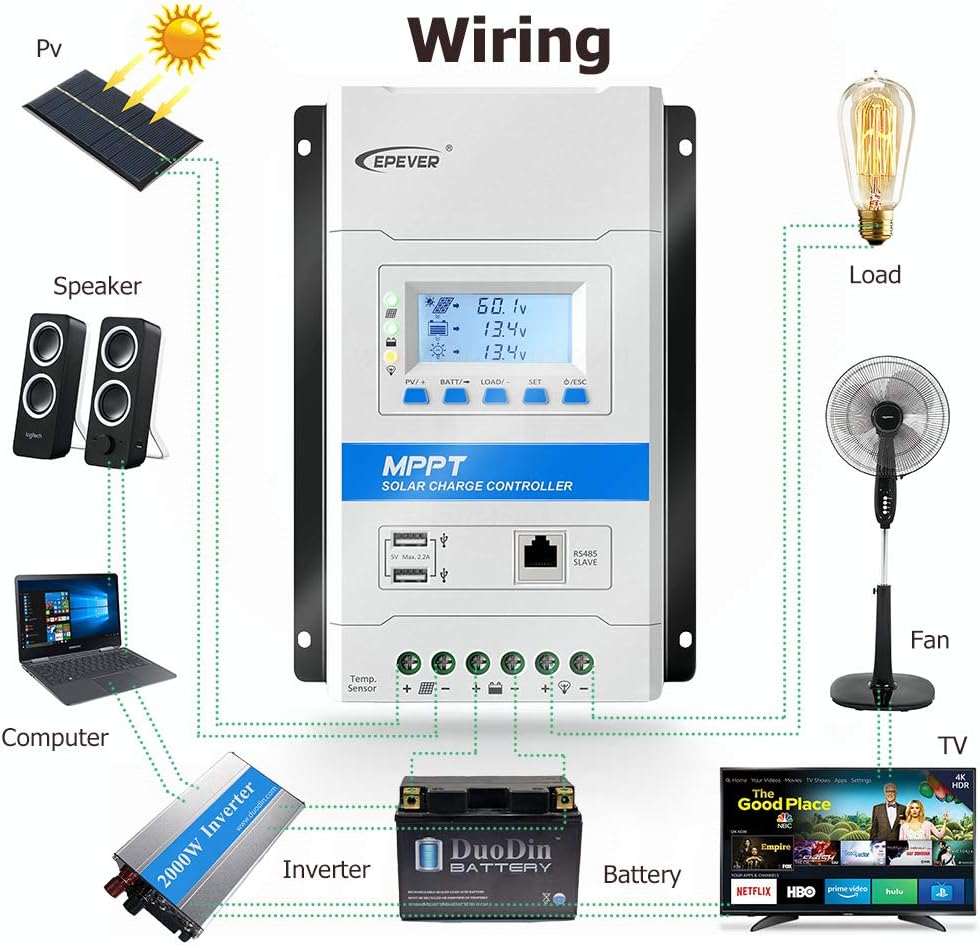
This diagram illustrates the correct wiring sequence for connecting the solar panel, battery, and various loads (e.g., computer, fan, TV) to the controller. Ensure all connections are secure and correctly polarized.
4.2 Connection Order
- Connect the battery to the controller.
- Connect the PV (solar panel) to the controller.
- Connect the load to the controller.
4.3 Disconnection Sequence
- Disconnect the load from the controller.
- Disconnect the PV (solar panel) from the controller.
- Disconnect the battery from the controller.
Important: Always follow the specified connection and disconnection order to prevent damage to the controller or other components.
4.4 Installation and Setup Video Guide
This video demonstrates the physical features of the controller and the correct connection order for the battery, solar panel, and load. It also shows how the display illuminates upon correct battery connection and guides through initial settings like battery type, capacity, temperature unit, and load working mode.
5. Operation
5.1 Button Functions
- ESC Button: Used to exit the current menu or cancel an operation.
- SET Button: Used to enter a menu, confirm settings, or navigate interfaces.
- LOAD/- Button: Used to decrease values or navigate backward through display interfaces.
- BATT/+ Button: Used to increase values or navigate forward through display interfaces.
- PV/+ Button: Used to increase values or navigate forward through display interfaces.
5.2 Display Navigation
The LCD screen displays various operational data such as voltage, current, power, and temperature. Use the PV/+, BATT/-, LOAD/-, SET, and ESC buttons to navigate through the interfaces and adjust settings as needed.
5.3 Setting Battery Type
To set the battery type for optimal charging:
- Press and hold the BATT/+ button for 5 seconds to enter the battery type setting interface.
- Use the PV/+ or LOAD/- buttons to select the desired battery type (e.g., Sealed, Gel, Flooded, LiFePO4, Li(NiCoMn)O2, or User).
- Press the SET button to confirm the selection.
Note: Refer to the "Battery Voltage Control Parameters" table in the Specifications section for specific voltage settings for each battery type.
5.4 Setting Battery Capacity
To set the battery's Amp-hour (Ah) capacity:
- Press the SET button to navigate to the battery capacity interface.
- Press and hold the BATT/+ button for 5 seconds to enter the battery capacity setting.
- Use the PV/+ or LOAD/- buttons to adjust the capacity value (e.g., 200 Ah).
- Press the SET button to confirm the setting.
5.5 Setting Temperature Unit
To set the temperature unit (°C or °F) for display:
- Press the SET button twice to navigate to the temperature unit interface.
- Use the PV/+ or LOAD/- buttons to switch between Celsius (°C) and Fahrenheit (°F).
- Press the SET button to confirm the setting.
5.6 Setting Load Working Mode
To configure how the load output operates:
- Press and hold the LOAD/- button for 5 seconds to enter the load working mode interface.
- Use the PV/+ or LOAD/- buttons to select the desired mode (e.g., 100 for ON/OFF, 101-115 for timer modes, 116 for test mode, 117 for manual mode).
- Press the SET button to confirm the setting.
Note: In manual mode (117), the ESC button controls the load ON/OFF.
5.7 Load Working Mode Table
The following table details the available load working modes and their corresponding settings:

This table provides a comprehensive list of load working modes, including light control (ON/OFF), various timer settings (e.g., 1 to 15 hours from dusk or before dawn), test mode, and manual mode. Each mode is assigned a specific code for selection.
6. Maintenance
Regular maintenance ensures the longevity and optimal performance of your solar charge controller.
- Regularly inspect all wiring connections to ensure they are tight and free from corrosion. Loose connections can cause power loss and overheating.
- Keep the controller clean and free from dust and debris. Use a dry, soft cloth for cleaning. Avoid using harsh chemicals or abrasive materials.
- Ensure adequate ventilation around the controller to prevent overheating. Do not block ventilation openings.
- Periodically check the battery terminals for any signs of corrosion and clean if necessary. Corrosion can impede current flow.
- Monitor the system's performance through the LCD display to identify any anomalies early. Pay attention to unusual voltage or current readings.
For detailed maintenance procedures, refer to the full product manual provided with your controller.
7. Troubleshooting
If you encounter issues with your EPEVER TRIRON2210N controller, refer to the following common troubleshooting tips:
- No Display: Check battery connections and ensure the battery voltage is within the operating range (12V/24V). Verify the battery fuse is intact.
- No Charging: Verify solar panel connections, ensure sufficient sunlight, and check for any shading on the panels. Confirm battery type settings are correct on the controller.
- Load Not Working: Check load connections, ensure the load current does not exceed the controller's rating, and verify the load working mode settings (e.g., not in manual OFF mode).
- Error Codes: If an error code appears on the display, consult the comprehensive manual for specific error definitions and detailed troubleshooting steps.
If issues persist after attempting these steps, contact EPEVER customer support for further assistance.
8. Warranty and Support
EPEVER products typically come with a standard manufacturer's warranty. For specific warranty terms, product registration, and technical support, please refer to the official EPEVER website or contact your local distributor. It is recommended to keep your purchase receipt as proof of purchase for warranty claims.
Manufacturer: SolaMr
Brand Store: EPEVER Store on Amazon.it