
1. Introduction
This manual provides essential information for the safe and efficient operation of your DJI Inspire 2 Series Part 89 CINESSD Station, UG2 Version. Please read this manual thoroughly before using the product and retain it for future reference.
The CINESSD Station is designed to facilitate high-speed data transfer from DJI CINESSD storage devices, primarily used with the DJI Inspire 2 drone, to a computer via a USB 3.0 interface.
2. Safety Information
- Do not expose the device to water or moisture.
- Avoid extreme temperatures. Operate and store the device within recommended environmental conditions.
- Do not attempt to disassemble or modify the device. Unauthorized modifications can void the warranty and pose safety risks.
- Use only approved accessories and cables.
- Keep out of reach of children.
3. Package Contents
Verify that all items are present in your package:
- DJI CINESSD Station (UG2 Version)
- USB 3.0 Cable

Figure 3.1: The DJI CINESSD Station (UG2 Version) shown alongside its included USB 3.0 cable. The station is a compact, dark gray rectangular device, and the cable is black with a blue USB 3.0 connector.
4. Product Overview
The DJI CINESSD Station UG2 is a dedicated device for transferring data from DJI CINESSD cards to a computer. It features a robust design and high-speed connectivity.
4.1 Front View
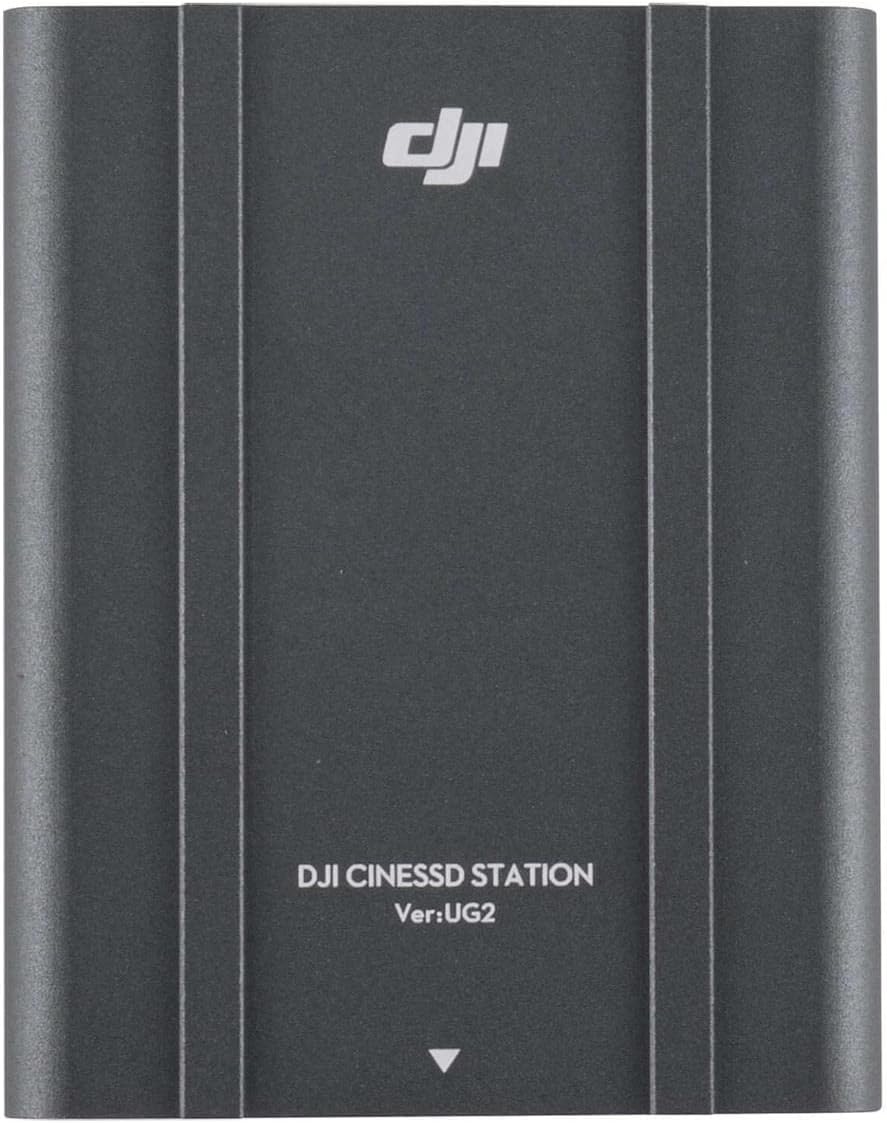
Figure 4.1: Front view of the DJI CINESSD Station UG2. The device is dark gray with the DJI logo and "DJI CINESSD STATION Ver:UG2" printed on its surface.
4.2 CINESSD Slot
The CINESSD slot is located on one end of the station, designed for secure insertion of DJI CINESSD cards.

Figure 4.2: Side view of the DJI CINESSD Station UG2, highlighting the rectangular slot for inserting a CINESSD card. The slot is surrounded by a textured, gridded surface.
4.3 USB Ports
The station is equipped with a USB 3.0 port for high-speed data transfer to your computer.

Figure 4.3: Side view of the DJI CINESSD Station UG2, displaying the USB 3.0 port (blue interior) and a smaller micro-USB port. These ports are used for connecting the station to a computer.
5. Setup
Follow these steps to set up your CINESSD Station:
- Insert CINESSD: Gently insert the DJI CINESSD card into the CINESSD slot on the station until it clicks into place. Ensure the card is oriented correctly.
- Connect to Computer: Connect one end of the provided USB 3.0 cable to the USB 3.0 port on the CINESSD Station and the other end to an available USB 3.0 port on your computer.
- Power On: The station typically draws power directly from the USB connection. No external power adapter is usually required.
- Driver Installation (if necessary): Your operating system should automatically recognize the device. If prompted, follow the on-screen instructions to install any necessary drivers.
6. Operating the CINESSD Station
Once connected, the CINESSD Station will appear as an external drive on your computer, allowing you to access the data stored on the CINESSD card.
- Access Data: Navigate to 'My Computer' (Windows) or 'Finder' (macOS) and locate the newly mounted drive.
- Transfer Files: You can now copy, paste, or move files from the CINESSD card to your computer's storage. For optimal performance, use drag-and-drop or copy-paste functions.
- Eject Safely: Before disconnecting the CINESSD Station, always safely eject the drive from your operating system to prevent data corruption.
- Remove CINESSD: After safely ejecting the drive, gently press the CINESSD card to release it from the slot, then pull it out.
Note: Data transfer speeds may vary depending on your computer's specifications and the type of USB port used.
7. Maintenance
- Cleaning: Use a soft, dry cloth to clean the exterior of the station. Do not use liquid cleaners or solvents.
- Storage: Store the CINESSD Station in a cool, dry place away from direct sunlight and extreme temperatures when not in use.
- Handling: Handle the device with care to avoid physical damage.
8. Troubleshooting
| Problem | Possible Cause | Solution |
|---|---|---|
| Station not recognized by computer | Loose USB connection, faulty cable, CINESSD not inserted correctly, driver issue. |
|
| Slow data transfer speeds | Using a USB 2.0 port, background processes, fragmented CINESSD. |
|
| CINESSD card not reading | Improper insertion, damaged CINESSD card. |
|
9. Specifications
| Feature | Detail |
|---|---|
| Model | CINESSD Station (UG2 Version) |
| Brand | DJI |
| Compatible Devices | DJI CINESSD, DJI Inspire 2 drone |
| Hardware Interface | Internal with removable media (CINESSD slot), USB 3.0 |
| Product Dimensions | 6.5 x 5.1 x 2.6 inches |
| Item Weight | 1.35 pounds |
| Total USB Ports | 3 |
| ASIN | B07R54XW6Z |

Figure 9.1: Bottom view of the DJI CINESSD Station UG2, displaying regulatory markings, model number (PRIOGU3), and "MADE IN CHINA". This side also features heat dissipation fins.
10. Warranty and Support
For warranty information and technical support, please refer to the official DJI website or contact DJI customer service directly. Keep your proof of purchase for warranty claims.
Online Support: Visit www.dji.com/support for FAQs, downloads, and contact information.


