1. Introduction
Thank you for choosing the Diyeeni USB Wired Mini Speaker. This manual provides essential information for the proper setup, operation, and maintenance of your speaker. Please read it thoroughly before use to ensure optimal performance and longevity of the product.
2. Safety Information
- Do not expose the speaker to water or excessive moisture.
- Avoid dropping or subjecting the speaker to strong impacts.
- Do not attempt to disassemble or repair the speaker yourself. Refer all servicing to qualified personnel.
- Keep the speaker away from heat sources and direct sunlight.
- Ensure proper ventilation around the speaker during use.
3. Package Contents
Verify that all items are present in the package:
- 1 x Diyeeni USB Wired Mini Speaker
- 1 x Integrated USB Power & Audio Cable (attached to speaker)
4. Product Overview
The Diyeeni USB Wired Mini Speaker is designed for use with desktop and notebook computers, offering a compact and portable audio solution. It features dual speakers for clear sound output and an integrated USB cable for both power and audio transmission.

Image 1: Front view of the Diyeeni USB Wired Mini Speaker, highlighting its compact design.

Image 2: Diagram illustrating the internal dual speaker components of the Diyeeni USB Wired Mini Speaker.

Image 3: A hand holding the Diyeeni USB Wired Mini Speaker, demonstrating its portable and compact size.
5. Setup
Follow these steps to connect your Diyeeni USB Wired Mini Speaker to your computer:
- Connect the USB Cable: Locate an available USB port on your desktop or notebook computer. Insert the integrated USB cable from the speaker into the USB port. This single cable provides both power to the speaker and transmits audio signals.
- Automatic Driver Installation: Your computer should automatically detect the new audio device and install the necessary drivers. This process may take a few moments.
- Select as Audio Output: Once installed, you may need to manually select the Diyeeni USB Wired Mini Speaker as your default audio output device in your computer's sound settings.
- Windows: Right-click the speaker icon in the taskbar, select 'Sound settings' or 'Playback devices', and choose the USB speaker from the list.
- macOS: Go to 'System Preferences' > 'Sound' > 'Output' and select the USB speaker.
- Placement: Place the speaker on a stable, flat surface near your computer for optimal sound projection.
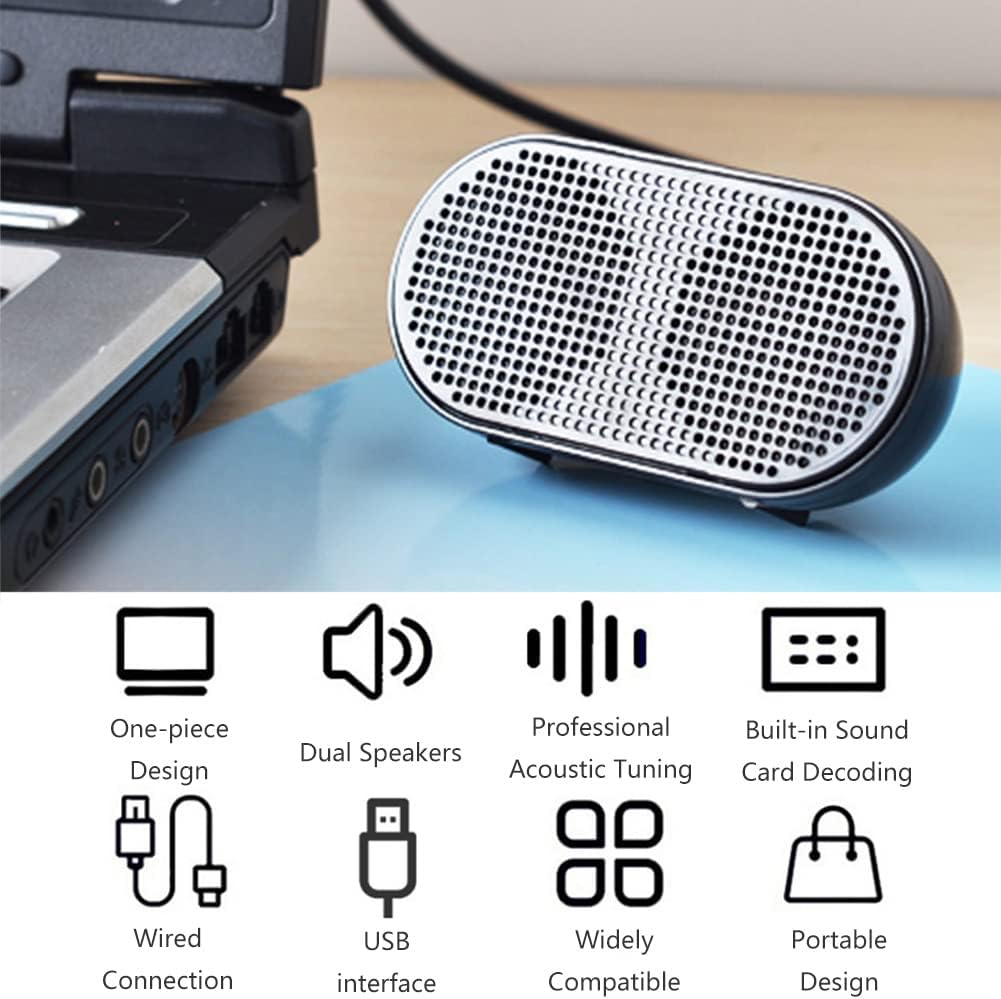
Image 4: The Diyeeni USB Wired Mini Speaker connected to a laptop via its integrated USB cable, ready for use.

Image 5: The Diyeeni USB Wired Mini Speaker positioned next to a desktop monitor, illustrating its compact size and simple USB connection.
6. Operation
Once connected and selected as the audio output device, the Diyeeni USB Wired Mini Speaker operates automatically with your computer's audio. There are no physical controls on the speaker itself.
- Volume Control: Adjust the volume directly from your computer's operating system or the media player application you are using.
- Power On/Off: The speaker powers on automatically when connected to a powered USB port and powers off when disconnected or when the computer is shut down.
- Compatibility: The speaker is compatible with various devices, including desktop computers, notebook computers, and other devices that support USB audio output.

Image 6: A collage demonstrating the wide application of the Diyeeni USB Wired Mini Speaker with various devices such as laptops and desktop computers.
7. Maintenance
To ensure the longevity and proper functioning of your speaker, follow these maintenance guidelines:
- Cleaning: Use a soft, dry cloth to wipe the exterior of the speaker. Do not use liquid cleaners or abrasive materials.
- Storage: When not in use, store the speaker in a cool, dry place away from direct sunlight and extreme temperatures.
- Cable Care: Avoid bending or twisting the integrated USB cable excessively to prevent internal damage.
8. Troubleshooting
If you encounter issues with your Diyeeni USB Wired Mini Speaker, refer to the following common problems and solutions:
- No Sound:
- Ensure the USB cable is securely plugged into a working USB port on your computer.
- Check your computer's volume settings and ensure it is not muted or set too low.
- Verify that the Diyeeni USB Wired Mini Speaker is selected as the default audio output device in your computer's sound settings (refer to Section 5, Step 3).
- Try connecting the speaker to a different USB port or another computer to rule out a port or computer-specific issue.
- Distorted Sound:
- Reduce the volume on your computer. High volume levels can sometimes cause distortion.
- Ensure the audio source (e.g., music file, video) is of good quality.
- Speaker Not Recognized by Computer:
- Disconnect and reconnect the USB cable.
- Restart your computer.
- Check your computer's Device Manager (Windows) or System Information (macOS) to see if the USB audio device is listed without errors.
9. Specifications
| Feature | Detail |
|---|---|
| Product Type | Mini Wire Speaker |
| Speaker Type | Multimedia |
| Speaker Configuration | Dual Speakers (2.0 Channel) |
| Speaker Size | 6 Centimeters |
| Speaker Maximum Output Power | 1.5 Watts (each) |
| Connectivity Technology | USB (Integrated Power Supply & Audio Cable) |
| Compatible Devices | Desktop, Laptop |
| Power Source | Corded Electric (via USB) |
| Item Weight | 3.17 ounces (0.09 Kilograms) |
| Product Dimensions | 3.35 x 1.18 x 1.65 inches |
| UPC | 754959887068 |
10. Warranty and Support
For warranty information or technical support, please refer to the documentation provided at the time of purchase or contact Diyeeni customer service through their official channels. Keep your purchase receipt as proof of purchase.


