
Razer RZ09-03006E92-R3U1
Razer Blade 15 Gaming Laptop 2019 User Manual
Model: RZ09-03006E92-R3U1
Brand: Razer
1. Introduction
This manual provides essential information for setting up, operating, maintaining, and troubleshooting your Razer Blade 15 Gaming Laptop 2019. Please read it thoroughly to ensure optimal performance and longevity of your device.
The Razer Blade 15 has the smallest footprint of any 15.6" Gaming Laptop while also being one of the thinnest in its class. Other similarly configured laptops are double the volume and over an inch bigger in both width and depth. The Razer Blade is free of bloatware, so you get a clean install with only critical software for maximizing resources and storage space right out of the box.
2. Setup
2.1. Unboxing and Initial Power On
Your Razer Blade 15 package includes the laptop unit and an AC adapter. Carefully remove all components from the packaging.
To power on your laptop for the first time, connect the AC adapter to the charging port on the laptop and then plug it into a functional power outlet. Press the power button, typically located on the top right of the keyboard deck, to initiate startup.
2.2. First Use and Windows Setup
Upon initial startup, you will be guided through the Windows 10 setup process. Follow the on-screen instructions to configure your operating system preferences, network connection, and user accounts. The system is designed to be bloatware-free, ensuring a clean and efficient experience from the start.
2.3. Connecting Peripherals
The Razer Blade 15 offers versatile connectivity options:
- USB Ports: Utilize the three USB 3.0 ports for connecting external devices such as mice, keyboards, or external storage.
- Thunderbolt 3: The Thunderbolt 3 port provides high-speed data transfer and display output capabilities, compatible with Razer Core X external GPU enclosures for additional graphics power.
- Wireless Connectivity: Connect to networks via 802.11a/b/g/n/ac Wi-Fi and pair wireless accessories using Bluetooth.
3. Operating Your Razer Blade 15
3.1. Display Features
The laptop features a 15.6-inch Full HD (1920 x 1080 pixels) matte screen with a 144Hz refresh rate. This display offers 100% sRGB color accuracy and is factory-calibrated, providing stunning visuals for both gaming and content creation.
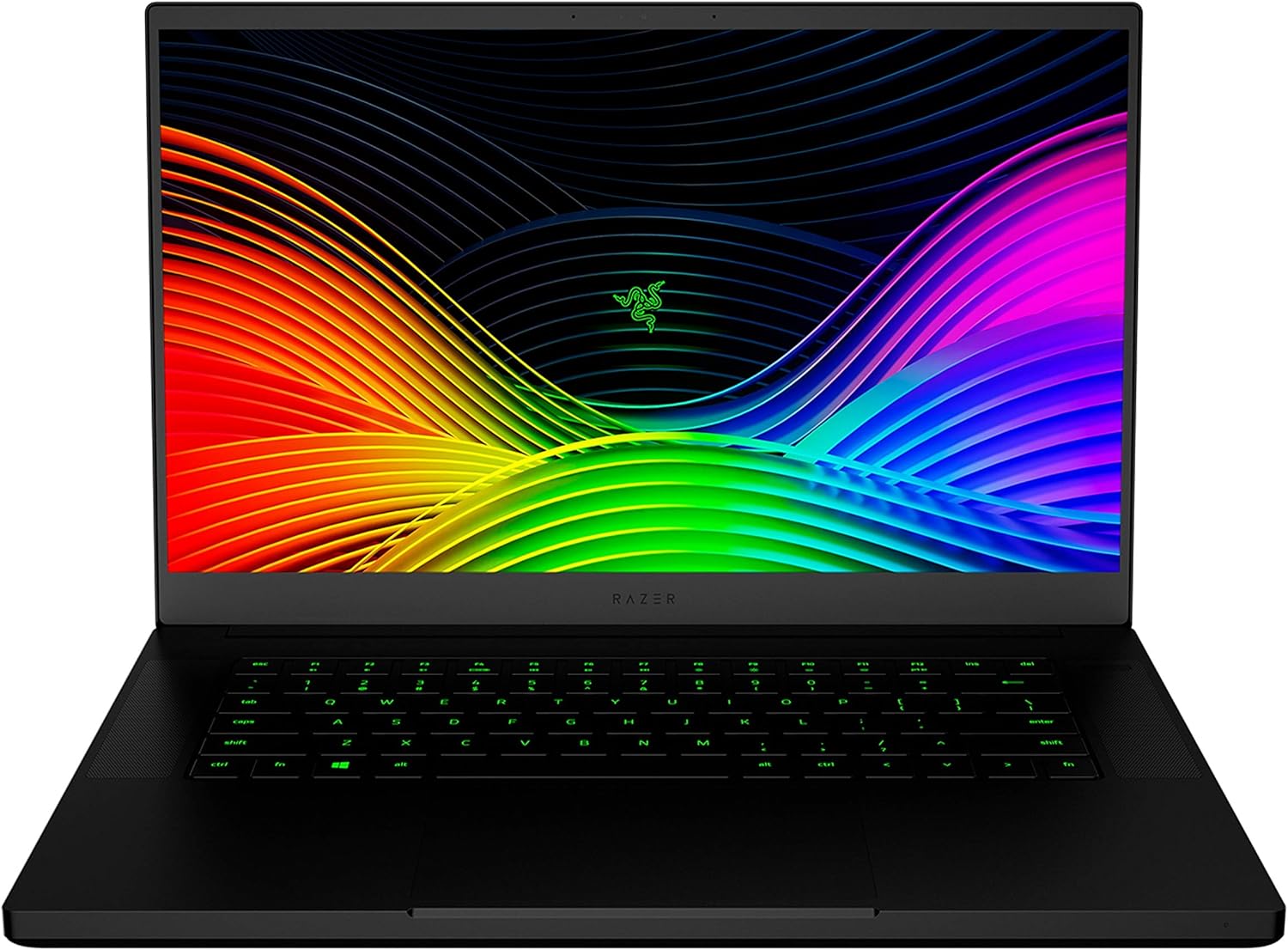
Front view of the Razer Blade 15 Gaming Laptop with its screen displaying vibrant colors.

Front view of the Razer Blade 15 displaying a game, emphasizing the 15.6-inch 144Hz Full HD screen with thin bezels.
3.2. Keyboard and Trackpad
The keyboard is equipped with customizable Chroma RGB Lighting, offering 16.8 million colors and various preset profiles that can be configured via Razer Synapse software. The extra-large trackpad provides precise and responsive navigation.
3.3. Performance and Graphics
The Razer Blade 15 is a powerful machine built for demanding tasks. It features a 9th Gen Intel Core i7-9750H 6-core processor with a base clock of 2.6GHz and a max turbo frequency of 4.5GHz. Graphics are handled by the NVIDIA GeForce RTX 2060, ensuring smooth performance for gaming and creative applications.

Razer Blade 15 showcasing its NVIDIA GeForce RTX 2060 graphics, with a game scene on the screen.
3.4. Storage and Expandability
The laptop comes with a 512GB SSD for fast boot times and application loading. It supports both SSD/HDD and dual-channel memory upgradeability, allowing for future storage and performance enhancements.

Razer Blade 15 highlighting its dual storage capability with a 512GB SSD and an upgradeable 2.5-inch SATA slot.
3.5. Security Features
For enhanced security and convenience, the Razer Blade 15 supports Windows Hello, enabling instant facial unlock and authentication through its integrated webcam and IR sensor.
4. Maintenance
4.1. Cleaning
- Screen: Use a soft, lint-free microfiber cloth specifically designed for electronics. Gently wipe the screen to remove dust and smudges. Avoid using abrasive materials or harsh chemical cleaners.
- Chassis: Wipe the aluminum unibody with a slightly damp, soft cloth. Ensure no liquid enters the ports or vents.
- Keyboard: Use compressed air to dislodge dust and debris from between the keys. For stubborn grime, a cotton swab lightly dampened with isopropyl alcohol can be used.
4.2. Software Updates
Regularly check for and install updates for Windows 10 and Razer Synapse software. These updates often include performance improvements, security patches, and new features that are crucial for maintaining optimal system health and functionality.
4.3. Battery Care
To maximize the lifespan of your laptop's battery, consider the following:
- Avoid exposing the laptop to extreme temperatures (very hot or very cold).
- Do not frequently allow the battery to fully discharge to 0%. It is generally recommended to keep the battery charge between 20% and 80% when possible.
- If storing the laptop for an extended period, ensure the battery is charged to around 50-60%.
5. Troubleshooting
5.1. Common Issues and Solutions
- No Power: Ensure the AC adapter is securely connected to both the laptop and a working power outlet. Try a different outlet if available.
- Display Issues (No Image/Flickering): Verify that the laptop is powered on. If the screen flickers at low brightness, be aware that some panels may use Pulse Width Modulation (PWM) which can cause this effect for sensitive eyes. Check display cable connections if using an external monitor.
- Overheating: Ensure the laptop's ventilation vents (located on the bottom and sides) are not obstructed. Use the laptop on a hard, flat surface. Consider adjusting power settings in Windows or using a cooling pad during prolonged intensive tasks.
- Keyboard Backlight Not Working/Incorrect Color: Open Razer Synapse software and verify that the Chroma RGB lighting is enabled and configured correctly. Ensure the software is up to date.
- Audio Problems (No Sound/Distorted Sound): Check the volume levels in Windows and ensure speakers are not muted. Verify that audio drivers are installed and up to date in Device Manager.
5.2. System Reset
If you encounter persistent issues that cannot be resolved through basic troubleshooting, you may consider performing a system restore or a factory reset. Before proceeding with any reset option, ensure all important data is backed up to an external drive or cloud storage, as these processes may erase your personal files. Refer to Windows 10 documentation for detailed steps on system recovery options.
6. Technical Specifications

Rear view of the Razer Blade 15 Gaming Laptop, showcasing its slim and compact CNC aluminum unibody design.
| Feature | Detail |
|---|---|
| Brand | Razer |
| Model Name | Blade 15 (RZ09-03006E92-R3U1) |
| Screen Size | 15.6 Inches |
| Screen Resolution | 1920 x 1080 pixels (Full HD) |
| Processor | 9th Gen Intel Core i7-9750H 6 Core (2.6GHz / 4.5GHz max turbo) |
| RAM | 16 GB DDR4 |
| Hard Drive | 512 GB SSD |
| Graphics Coprocessor | NVIDIA GeForce RTX 2060 |
| Operating System | Windows 10 |
| Item Weight | 4.63 pounds |
| Product Dimensions (LxWxH) | 13.98 x 0.78 x 9.25 inches |
| Color | Classic Black |
| Wireless Type | 802.11a/b/g/n/ac, Bluetooth |
| Number of USB 3.0 Ports | 3 |
7. Warranty and Support
7.1. Warranty Information
The Razer Blade 15 Gaming Laptop 2019 comes with a 1-year limited warranty from Razer. This warranty covers manufacturing defects and hardware malfunctions under normal use conditions.
For detailed terms, conditions, and exclusions of your warranty, please refer to the official warranty card included with your product or visit the official Razer website.
7.2. Customer Support
Should you require technical assistance, have questions about your product, or need to initiate a warranty claim, please contact Razer customer support through their official channels. You can find support resources, FAQs, and contact information on the official Razer support website.
An official User Manual in PDF format is also available for download for more in-depth information: Download User Manual (PDF)
Ask a question about this manual
Ask about setup, troubleshooting, compatibility, parts, safety, or missing instructions. Manuals+ will review the question and use this page’s manual context to help answer it.