
1. Setup
The Apple Mighty Mouse A1152 is a wired USB mouse designed for straightforward connection and immediate use. Follow these steps to connect your mouse to your computer:
- Locate an available USB port on your computer.
- Insert the USB connector of the Mighty Mouse into the USB port.
- Your computer should automatically detect and configure the mouse. No additional drivers are typically required for basic functionality on compatible operating systems.

Figure 1: Top view of the Apple Mighty Mouse A1152, showing its smooth white surface and the scroll ball.

Figure 2: Front view of the Apple Mighty Mouse A1152, highlighting the USB cable connection.
2. Operating Your Apple Mighty Mouse A1152
The Apple Mighty Mouse A1152 features a unique design that integrates multiple functions into its seamless shell. Here’s how to use its primary features:
- Left-Click: Press the left side of the mouse's top shell.
- Right-Click: Press the right side of the mouse's top shell. The touch-sensitive technology allows for a four-button mouse experience within a single-button design.
- Scroll Ball: The revolutionary 360-degree Scroll Ball located on the top of the mouse allows for scrolling in any direction (up, down, left, right, and diagonally) within documents, web pages, and applications.
- Side Buttons: The force-sensing side buttons can be programmed for various functions, such as launching applications or Exposé (on Mac OS X). Customization options are available through your computer's system preferences.
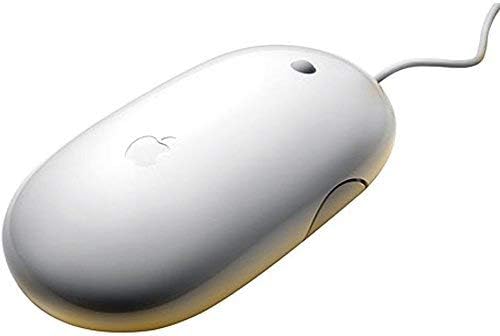
Figure 3: Side view of the Apple Mighty Mouse A1152, showing the force-sensing side buttons.
3. Maintenance
To ensure optimal performance and longevity of your Apple Mighty Mouse A1152, regular cleaning is recommended:
- Cleaning the Exterior: Use a soft, lint-free cloth slightly dampened with water to wipe the exterior of the mouse. Avoid using harsh chemicals or abrasive materials.
- Cleaning the Scroll Ball: Over time, dust and debris can accumulate around the scroll ball, affecting its smooth operation. To clean it, turn the mouse upside down and firmly roll the scroll ball across a clean, lint-free cloth. This action helps dislodge any trapped particles. Repeat this process in different directions if necessary.
- USB Cable: Inspect the USB cable periodically for any signs of wear or damage. If the cable is damaged, discontinue use and seek a replacement.
4. Troubleshooting
If you encounter issues with your Apple Mighty Mouse A1152, try the following troubleshooting steps:
- Mouse Not Responding:
- Ensure the USB cable is securely plugged into a working USB port on your computer.
- Try plugging the mouse into a different USB port.
- Restart your computer.
- Scroll Ball Not Working Smoothly:
- Perform the scroll ball cleaning procedure described in the Maintenance section.
- Ensure there is no excessive dirt or debris obstructing the scroll ball's movement.
- Buttons Not Responding:
- Check your computer's mouse settings or system preferences to ensure the buttons are configured correctly.
- Ensure the mouse surface is clean and free from obstructions that might interfere with the touch-sensitive top shell.
- Compatibility Issues:
- The Mighty Mouse A1152 is compatible with Mac OS X (programmability requires v10.4.2 Tiger or later), Windows 2000, and Windows XP. Ensure your operating system meets these requirements.
If these steps do not resolve the issue, please refer to the Warranty and Support section for further assistance.
5. Specifications
| Feature | Description |
|---|---|
| Brand | Apple |
| Model Number | A1152 (MB112LL/B) |
| Connectivity Technology | Wired USB 2.0 (compatible with USB 1.1) |
| Movement Detection Technology | Optical |
| Button Quantity | 4 (programmable via touch-sensitive top shell and force-sensing side buttons) |
| Scrolling | Revolutionary 360-degree Scroll Ball |
| Hand Orientation | Right |
| Compatible Operating Systems | Mac OS X v10.4.2 Tiger or later, Windows 2000, Windows XP |
| Item Weight | 0.12 Kilograms |
| Color | White |
6. Warranty and Support
Warranty Information: This Apple Mighty Mouse A1152 comes with a 90-day limited warranty. Please retain your proof of purchase for any warranty claims.
Customer Support: For further assistance, technical support, or warranty inquiries, please contact the seller or refer to Apple's official support resources. Ensure you have your product model number (A1152) and any relevant purchase details ready when contacting support.


