
WisFox LX-CE0147_09
WisFox 2.4G USB Wireless Mouse User Manual
Model: LX-CE0147_09 | Brand: WisFox
1. Introduction
Thank you for choosing the WisFox 2.4G USB Wireless Mouse. This ergonomic mouse is designed for comfort and efficiency, featuring a stable 2.4GHz wireless connection, adjustable DPI settings, and a durable build. This manual provides detailed instructions on how to set up, operate, maintain, and troubleshoot your new wireless mouse.
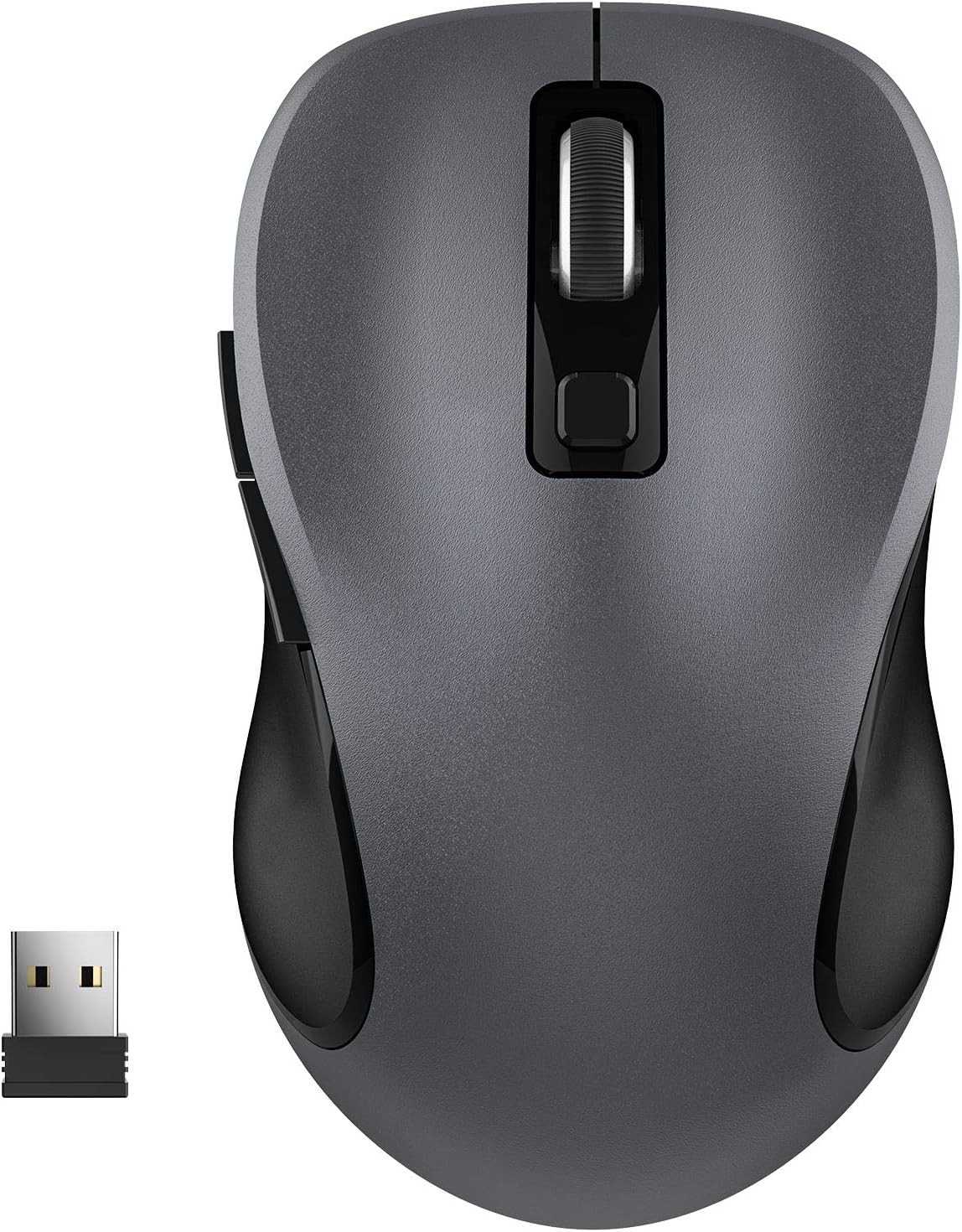
Figure 1.1: WisFox 2.4G USB Wireless Mouse with its USB receiver.

Figure 1.2: The WisFox wireless mouse is widely compatible with various operating systems and devices.
2. Package Contents
Please check the package for the following items:
- 1 x WisFox 2.4G USB Wireless Mouse
- 1 x USB Nano Receiver (stored in the battery compartment of the mouse)
- 1 x User Manual (this document)
- Note: AA battery is not included.
3. Setup Guide
3.1 Installing the Battery
- Locate the battery compartment on the underside of the mouse.
- Open the battery compartment cover.
- Insert one (1) AA battery, ensuring the polarity (+/-) matches the diagram inside the compartment.
- Close the battery compartment cover.
3.2 Connecting the USB Nano Receiver
- Remove the USB Nano Receiver from its storage slot in the battery compartment of the mouse.
- Plug the USB Nano Receiver into an available USB port on your computer (PC, laptop, MacBook, etc.).
- Turn on the mouse using the On/Off switch located on the underside of the mouse.
- The mouse will automatically connect to your computer. No drivers are required.

Figure 3.1: The USB Nano Receiver provides a stable 2.4G wireless connection up to 33 feet (10 meters).

Figure 3.2: Underside view of the mouse, indicating the battery slot, On/Off switch, and USB receiver storage.
4. Operating Instructions
4.1 Button Functions
The WisFox wireless mouse features a 6-button design for enhanced functionality:

Figure 4.1: Six-button design of the WisFox wireless mouse.
- Left Button: Standard click function.
- Right Button: Standard right-click function.
- Scroll Wheel: Scroll up/down, middle click.
- DPI Switch Button: Adjusts mouse sensitivity (DPI).
- Page Up Button: Navigates to the previous page in web browsers or file explorers.
- Page Down Button: Navigates to the next page in web browsers or file explorers.
4.2 Adjusting DPI Sensitivity
The mouse offers three adjustable DPI (Dots Per Inch) levels to control cursor speed and precision. Press the DPI Switch Button (located behind the scroll wheel) to cycle through the settings:
- 800 DPI: Slower cursor movement, ideal for precise tasks.
- 1200 DPI: Default setting, balanced speed for general use.
- 1600 DPI: Faster cursor movement, suitable for quick navigation or gaming.

Figure 4.2: Adjusting DPI levels (800, 1200, 1600) for customized cursor speed.
4.3 Ergonomic Design and Comfort
The WisFox mouse is designed with an ergonomic shape to provide maximum hand comfort and reduce strain during extended use. Its durable construction ensures long-lasting performance, tested for up to 5 million keystrokes.

Figure 4.3: The ergonomic design ensures comfortable and stress-free use.
4.4 Power Saving Mode
To conserve battery life, the mouse features an automatic power-saving function:
- The mouse will enter sleep mode after 1 minute of inactivity.
- It will enter deep sleep mode after 8 minutes of inactivity.
- To wake the mouse, simply double-click any button.
5. Maintenance
5.1 Cleaning the Mouse
To ensure optimal performance and longevity, clean your mouse regularly:
- Turn off the mouse and unplug the USB receiver from your computer.
- Use a soft, dry cloth to wipe the surface of the mouse.
- For stubborn dirt, slightly dampen the cloth with water or a mild, non-abrasive cleaner. Avoid excessive moisture.
- Do not use harsh chemicals or abrasive materials, as they may damage the mouse's surface.
5.2 Battery Replacement
When the mouse's performance degrades or it stops responding, it's likely time to replace the AA battery. Follow the steps in Section 3.1 to replace the battery.
6. Troubleshooting
If you encounter any issues with your WisFox wireless mouse, please refer to the following table for common problems and solutions:
| Problem | Possible Cause | Solution |
|---|---|---|
| Mouse not responding. | Low battery or no battery. | Replace the AA battery. |
| Mouse not responding. | Mouse is turned off. | Ensure the On/Off switch on the underside of the mouse is in the "On" position. |
| Mouse not responding. | USB receiver not properly connected. | Plug the USB receiver firmly into a different USB port on your computer. |
| Lagging or intermittent connection. | Interference from other wireless devices or distance. | Move the mouse closer to the USB receiver (within 10 meters). Avoid using the mouse near strong electromagnetic interference sources. |
| Cursor movement is too fast or too slow. | DPI setting is not optimal. | Press the DPI Switch Button to cycle through 800/1200/1600 DPI settings until you find your preferred speed. |
| Mouse does not wake from sleep. | Incorrect wake-up method. | Double-click any button on the mouse to wake it from sleep mode. |
7. Specifications
| Feature | Detail |
|---|---|
| Brand | WisFox |
| Model Number | LX-CE0147_09 |
| Color | Grey |
| Connectivity Technology | 2.4G Wireless (USB Nano Receiver) |
| Movement Detection Technology | Optical |
| Number of Buttons | 6 |
| DPI Settings | 800 / 1200 / 1600 (Adjustable) |
| Hand Orientation | Right |
| Compatible Devices | PC, Laptop, MacBook, Gaming Console |
| Operating Systems | Windows XP/Vista/7/8/8.1/10, Linux, Mac OS (V10.4 or higher) |
| Wireless Range | Up to 10 meters (33 feet) |
| Power Source | 1 x AA Battery (not included) |
| Item Weight | 60 Grams |
| Special Features | Ergonomic Design, Automatic Power Saving Mode |
8. Warranty and Support
8.1 Product Warranty
Every WisFox product comes with a 12-month warranty from the date of purchase. This warranty covers manufacturing defects and ensures the product performs as described under normal use.
8.2 Customer Support
For any questions, concerns, or technical assistance, please do not hesitate to contact WisFox professional 24-hour customer service. We are committed to providing a satisfactory solution for all our customers.
For support, please visit the official WisFox website or contact us via the platform where you purchased the product.
Related documentsLX-CE0147_09


Ask a question about this manual
Ask about setup, troubleshooting, compatibility, parts, safety, or missing instructions. Manuals+ will review the question and use this page’s manual context to help answer it.