
Aigital EDUPUP
Contents
Aigital 600Mbps Mini Wireless Network Adapter
Instruction Manual
1. Introduction
Thank you for choosing the Aigital 600Mbps Mini Wireless Network Adapter. This compact and powerful USB WiFi dongle is designed to provide high-speed, stable wireless connectivity for your desktop computer, laptop, or game console. Featuring 802.11ac dual-band technology, it supports speeds of up to 433Mbps on the 5GHz band and 150Mbps on the 2.4GHz band, significantly reducing interference and enhancing your online experience.
This manual will guide you through the setup, operation, and maintenance of your new wireless adapter, ensuring you get the most out of its capabilities.
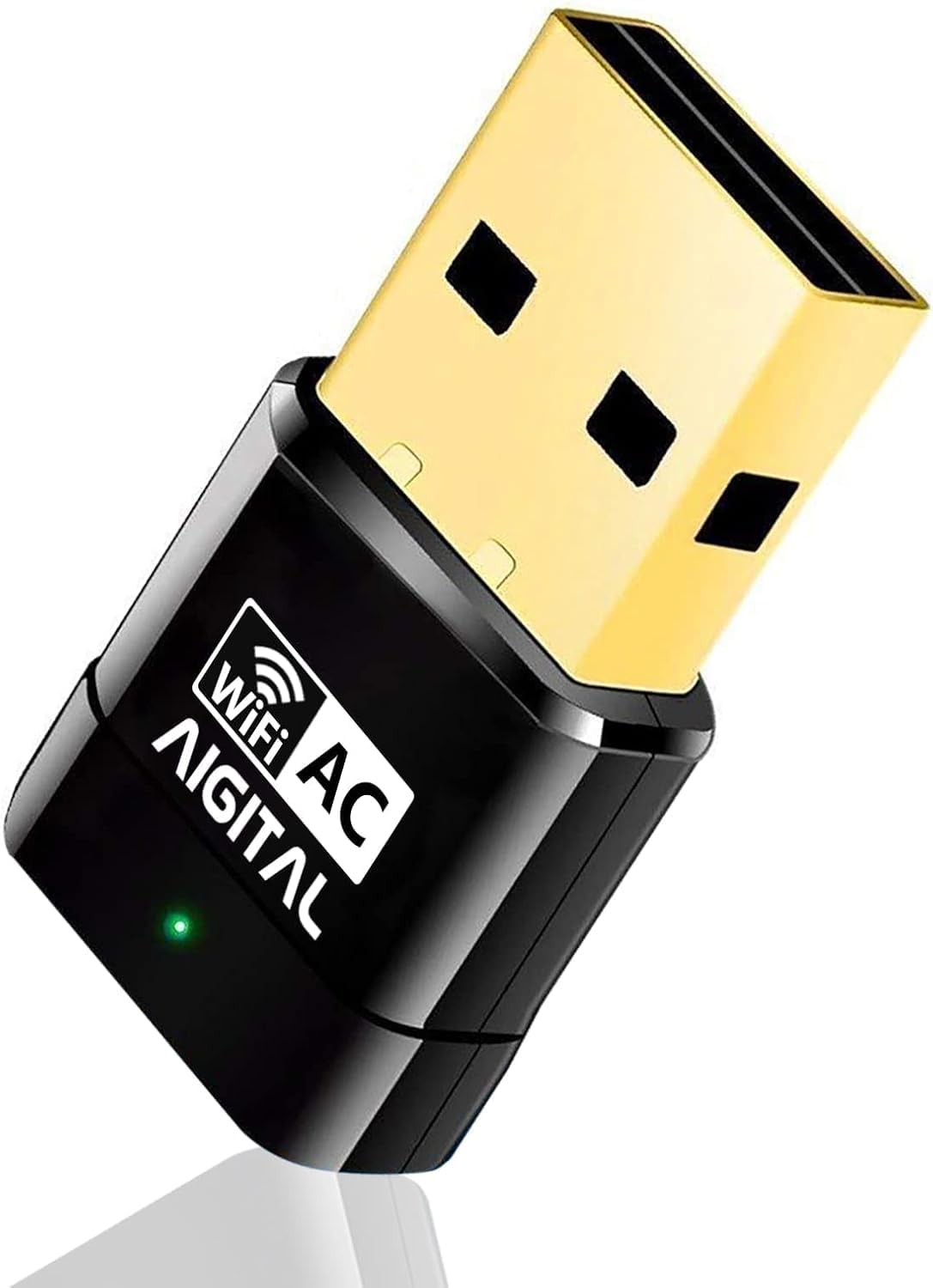
Image 1: The Aigital 600Mbps Mini Wireless Network Adapter, a compact black USB dongle with a gold-colored USB connector and a green LED indicator. The device is labeled "WiFi AC AIGITAL".
2. Setup and Installation
2.1 System Requirements
- Operating System: Windows 11/10/8/7/Vista/XP, Mac OS X 10.0~ OS 12.1
- Available USB Port
2.2 Installation Steps
- Insert the Adapter: Plug the Aigital USB WiFi Adapter into an available USB port on your desktop computer or laptop.
- Driver Installation:
- For Windows 10 and Windows 11: The adapter is typically plug-and-play. Your system should automatically detect and install the necessary drivers.
- For Windows 7/8/Vista/XP and Mac OS: You may need to install the driver manually from the included mini CD or by downloading it from the official Aigital support website. Follow the on-screen instructions during installation.
- Connect to WiFi: Once the drivers are installed, navigate to your computer's network settings. Select the desired WiFi network from the list of available networks and enter the password to connect.

Image 2: A close-up view of the Aigital USB WiFi Adapter plugged into the side USB port of a silver laptop, indicating easy integration for wireless connectivity.
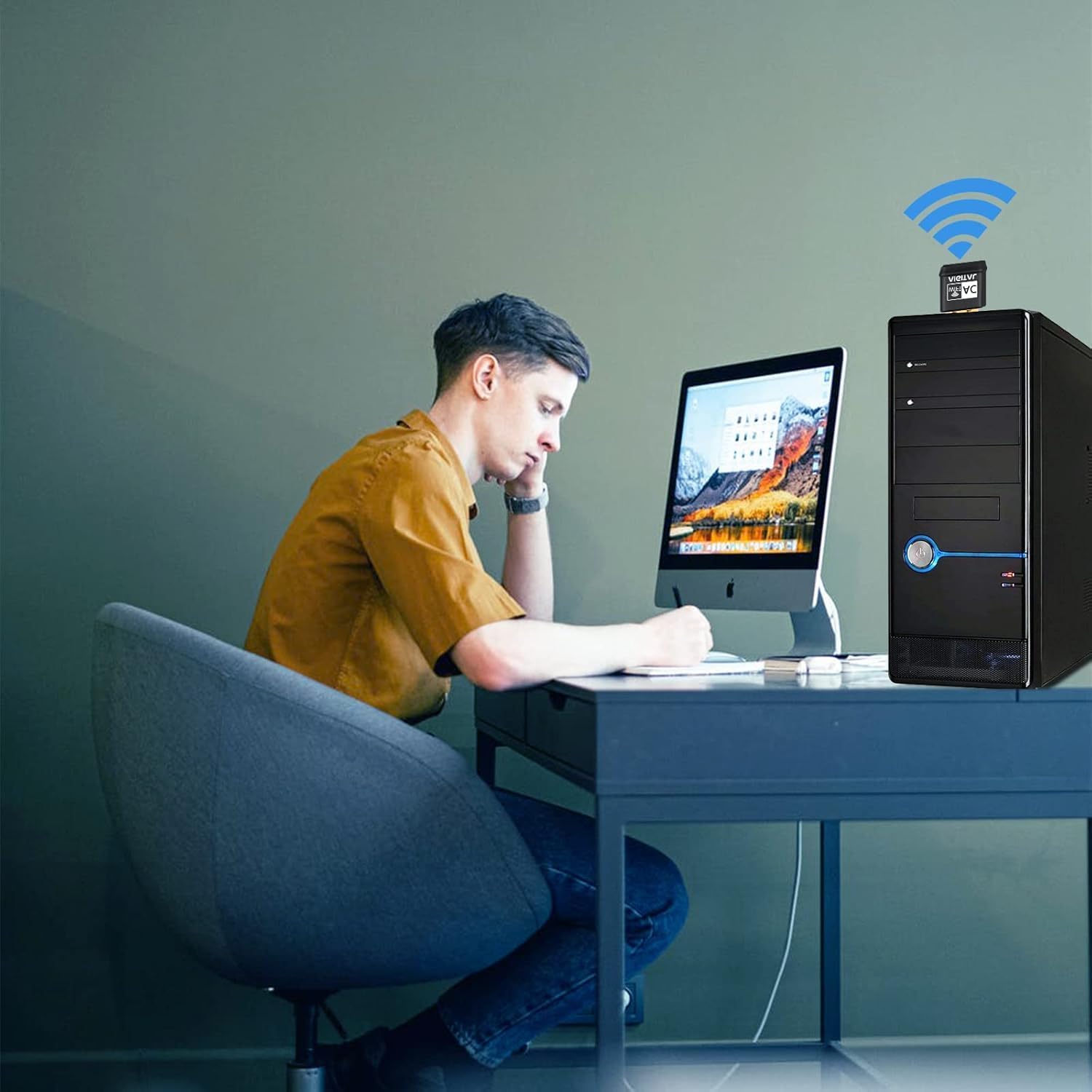
Image 3: The Aigital USB WiFi Adapter plugged into the top USB port of a black desktop computer tower, with a user sitting at the desk, illustrating its use for desktop PCs.

Image 4: A visual representation showing the Aigital USB WiFi Adapter compatible with various operating systems including Windows XP/Vista, Windows 7, Windows 8/8.1, Windows 10, Windows 11, and Mac OS X, displayed with different laptop and desktop screens.
3. Operating Modes
The Aigital USB WiFi Adapter supports two primary operating modes:
3.1 Station Mode (Signal Receiver)
In Station Mode, the adapter acts as a receiver, allowing your desktop computer or laptop to connect to an existing WiFi network provided by a router or access point. This is the most common use case for the adapter, enabling wireless internet access for devices that lack built-in WiFi or have outdated wireless capabilities.
3.2 AP Mode (Signal Transmitter / Hotspot)
The adapter also supports AP (Access Point) Mode. In this mode, you can create a WiFi hotspot from your computer, allowing other wireless devices (like smartphones, tablets, or other laptops) to connect to your computer's internet connection. This feature is particularly useful for sharing a wired internet connection wirelessly or for creating a temporary network.
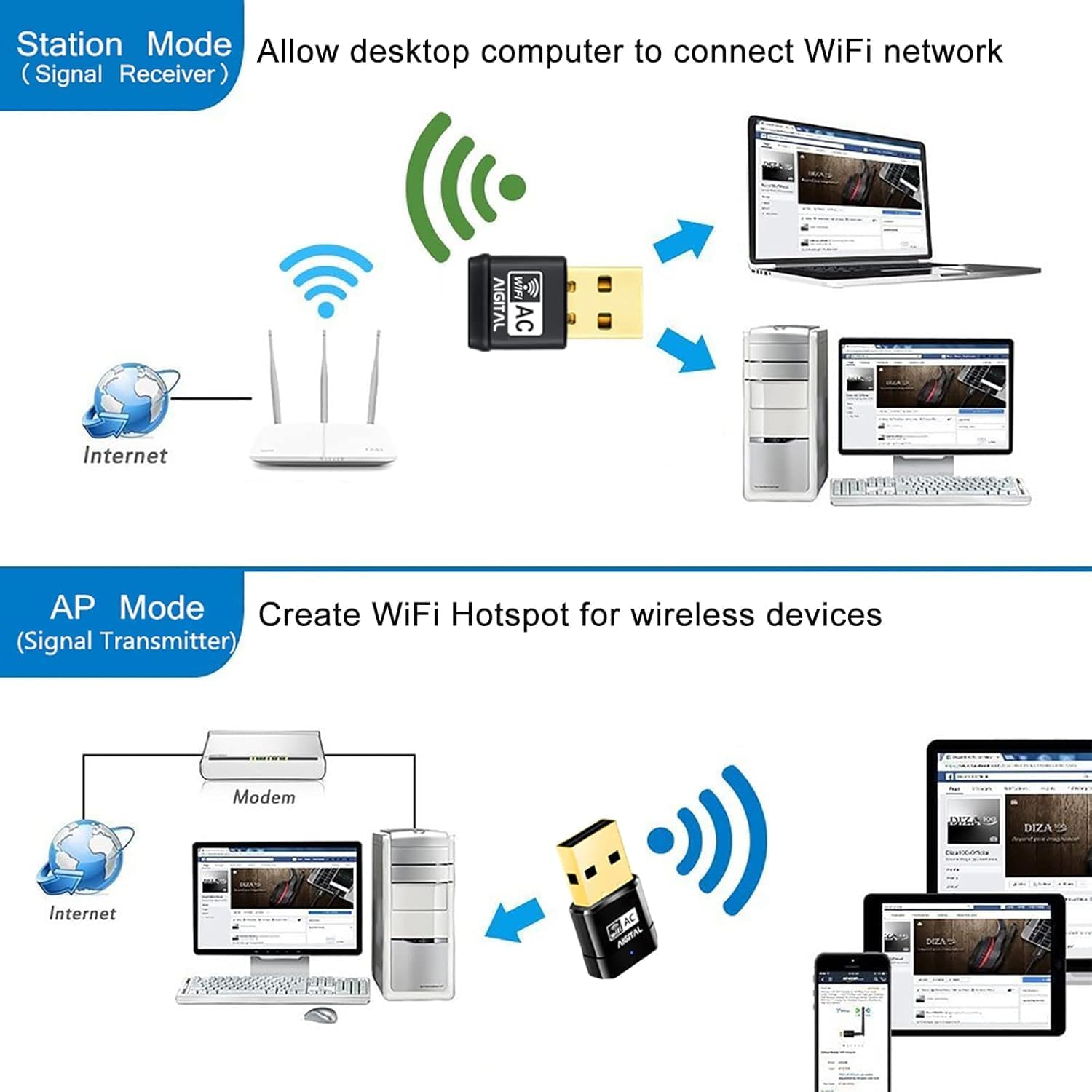
Image 5: A diagram illustrating two operating modes: Station Mode, where the adapter connects a desktop to a WiFi network from a router, and AP Mode, where the adapter creates a WiFi hotspot from a computer for other wireless devices.
3.3 Dual-Band Technology
The adapter utilizes dual-band technology, supporting both 2.4GHz and 5GHz frequency bands. The 2.4GHz band is suitable for general internet use like browsing and email, offering wider coverage. The 5GHz band provides faster speeds and less interference, ideal for online gaming, HD video streaming, and large file transfers.
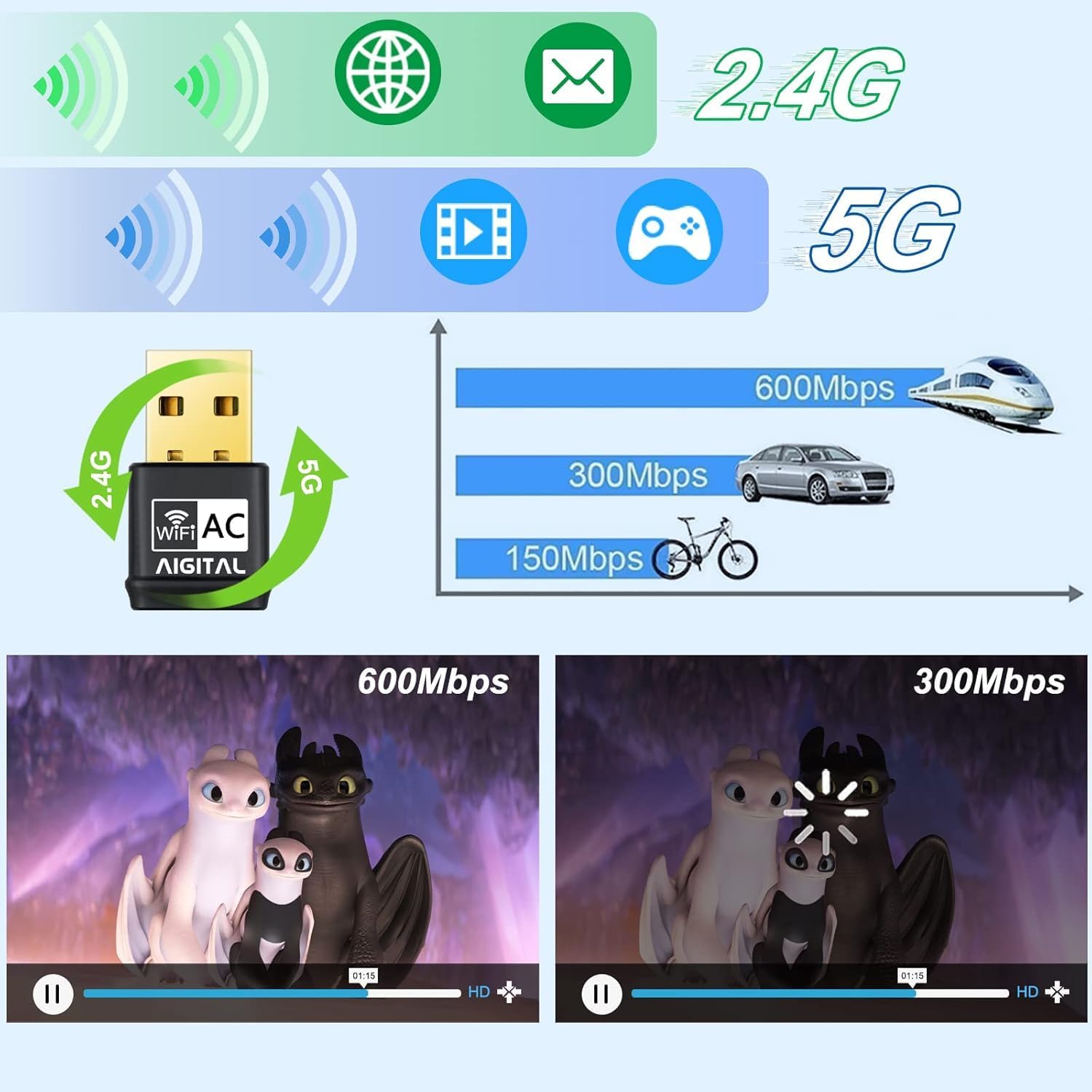
Image 6: A graphic illustrating the dual-band capabilities of the adapter, showing 2.4G and 5G frequencies. It compares typical speeds for different activities: 150Mbps for basic use, 300Mbps for moderate use, and 600Mbps for high-speed activities like streaming and gaming.
4. Maintenance and Care
To ensure the longevity and optimal performance of your Aigital USB WiFi Adapter, please follow these maintenance guidelines:
- Keep it Clean: Periodically clean the adapter with a soft, dry cloth to remove dust and debris. Avoid using liquid cleaners.
- Protect the USB Connector: When not in use, consider storing the adapter in a protective case or a safe place to prevent damage to the USB connector.
- Avoid Extreme Conditions: Do not expose the adapter to extreme temperatures, humidity, or direct sunlight.
- Handle Gently: Avoid dropping or subjecting the adapter to strong impacts.
4.1 Mini Size and Portability
The adapter's mini size (approximately 3cm x 1.5cm x 0.5cm) makes it highly portable and convenient. You can leave it plugged into your laptop even when traveling, or easily carry it in a small pouch for use in various locations like offices or public areas.

Image 7: A visual representation highlighting the mini size of the Aigital USB WiFi Adapter, showing its dimensions (3cm length, 1.5cm width, 0.5cm thickness) and illustrating its portability for travel, office, and public network use.
5. Troubleshooting
If you encounter issues with your Aigital USB WiFi Adapter, please refer to the following common solutions:
- No Detection/Driver Issues:
- Ensure the adapter is fully inserted into the USB port.
- Try a different USB port.
- If using Windows 7/8/Vista/XP or Mac OS, verify that the drivers are correctly installed. Reinstall them if necessary from the provided mini CD or Aigital's official website.
- For Windows 10/11, if plug-and-play fails, check Device Manager for any unknown devices and try updating drivers manually.
- Slow Connection/Frequent Disconnections:
- Ensure you are connected to the appropriate band (5GHz for faster speeds, 2.4GHz for wider range).
- Move closer to your wireless router or access point.
- Check for interference from other electronic devices.
- Update your router's firmware.
- Cannot Connect to Network:
- Double-check your WiFi password.
- Restart your computer and router.
- Ensure your network is broadcasting its SSID (network name).
Video 1: An official product video demonstrating the Aigital 600Mbps Mini Wireless WiFi Adapter. It highlights its mini size, dual-band capabilities, and how it can solve issues like loading and buffering, providing a stable connection. The video also shows the adapter eliminating the need for cumbersome network cables.
6. Specifications
| Feature | Specification |
|---|---|
| Brand | Aigital |
| Model Number | EDUPUP |
| Data Transfer Rate | 600 Megabits Per Second (433Mbps on 5GHz, 150Mbps on 2.4GHz) |
| Wireless Standard | 802.11a/b/g/n/ac |
| Data Link Protocol | IEEE 802.11ac, USB, IEEE 802.11n |
| Hardware Interface | USB |
| Compatible Operating Systems | Windows 11/10/8/7/Vista/XP, Mac OS X 10.0~ OS 12.1 |
| Compatible Devices | Laptop, Desktop |
| Item Weight | 0.03 Kilograms |
| Parcel Dimensions | 12.2 x 9.1 x 1.3 cm |

Image 8: A close-up view of the Aigital USB WiFi Adapter's back, showing regulatory information including Certification Number: 20902-VU020, HVIN: VU-020, PMN: WiFi Adapter, and Equipment Description: WiFi Adapter.
7. Warranty and Support
Aigital is committed to providing high-quality products and excellent customer service. While specific warranty details may vary, generally, Aigital products come with a standard manufacturer's warranty covering defects in materials and workmanship under normal use.
For technical support, troubleshooting assistance, or warranty claims, please contact Aigital customer service through their official website or the platform where you purchased the product. Please have your product model number and purchase details ready when contacting support.

Image 9: The Aigital brand logo, featuring a stylized WiFi signal icon integrated with the brand name "AIGITAL" and the contact email "aigitalbt@163.com" below it.
Documents and downloads
Ask a question about this manual
Ask about setup, troubleshooting, compatibility, parts, safety, or missing instructions. Manuals+ will review the question and use this page’s manual context to help answer it.