
Logitech G 945-000067
Logitech G PRO Flight Yoke System User Manual
Model: 945-000067
Product Overview
The Logitech G PRO Flight Yoke System is a professional simulation yoke and throttle quadrant designed for flight simulation enthusiasts. It provides realistic and precise control, enhancing muscle memory for an immersive flying experience. The system features a durable steel shaft, multiple programmable controls, and a configurable throttle quadrant.

Figure 1: The Logitech G PRO Flight Yoke System, including the yoke and the separate throttle quadrant.
The system is modular and interchangeable, allowing for a comprehensive flight simulation setup. It is compatible with various flight simulator software, including Microsoft Flight Simulator, FSX, X-Plane 10, and Prepar3D, requiring optional software downloads for full functionality.
What's Included
- Flight Yoke with 5.9 ft (1.8m) USB Connector Cable
- Flight Throttle Quadrant with 4.92 ft (1.5m) PS/2 Connector Cable
- 2 Desk Clamps
Setup Instructions
1. Attaching the Yoke to Your Desk
The Flight Yoke system comes with two desk clamps for secure mounting. These clamps provide robust and secure clamping force to ensure the controls remain stable during use.

Figure 2: Side view illustrating the desk clamp mechanism for the Flight Yoke.
- Position the yoke on your desk where you intend to use it.
- Slide the desk clamps onto the yoke's mounting points and tighten the screws until the yoke is firmly secured to the desk. Ensure the yoke is stable and does not wobble.
- Verify the steel shaft is properly aligned and moves smoothly.

Figure 3: Close-up view of the stainless steel yoke shaft and its connection point to the desk clamp.
2. Connecting the Throttle Quadrant
The throttle quadrant connects to the yoke via a PS/2 connector cable.
- Connect the PS/2 cable from the throttle quadrant to the corresponding port on the Flight Yoke.
- The throttle quadrant can be positioned independently or attached to the yoke using its own clamping mechanism.
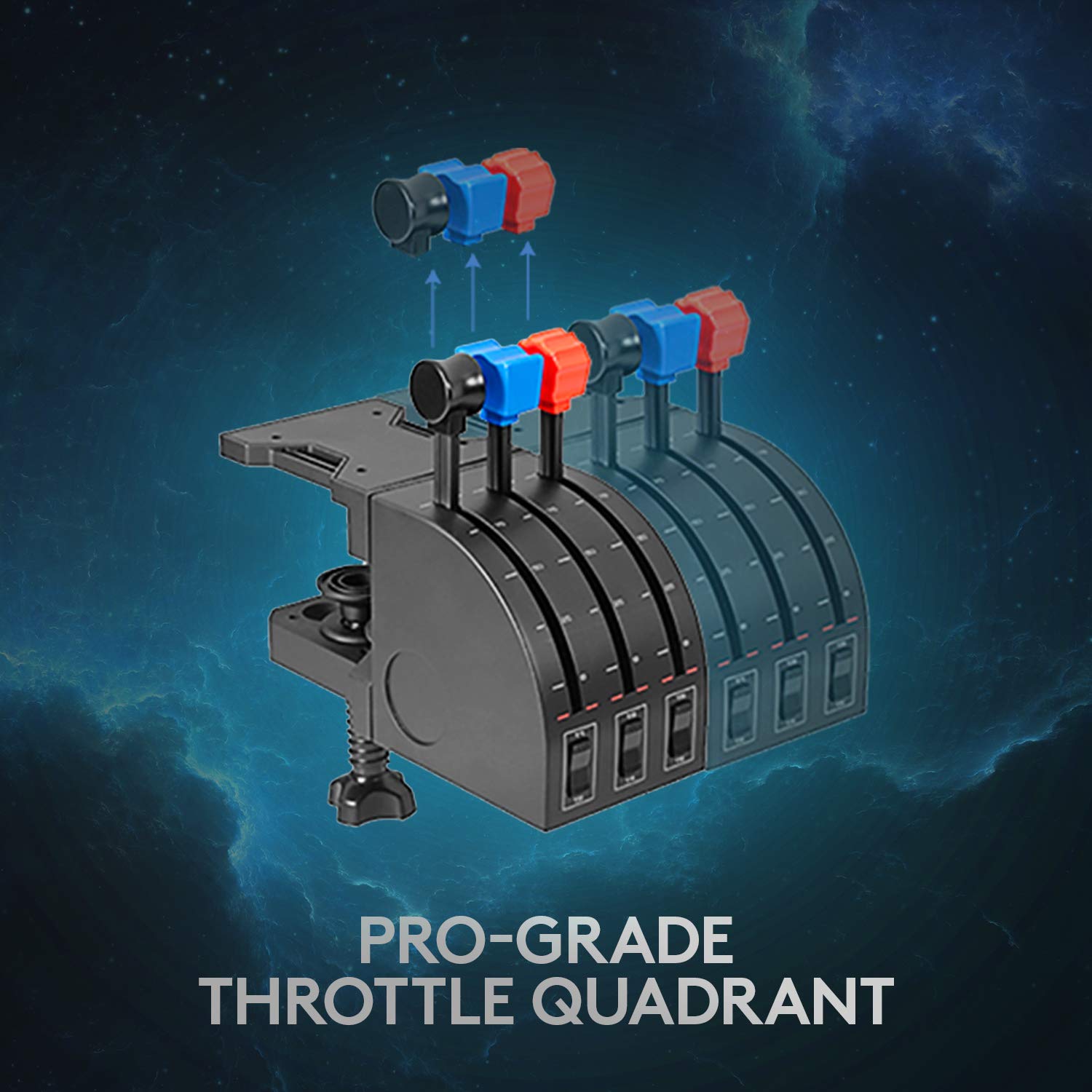
Figure 4: The Pro-Grade Throttle Quadrant with its configurable and removable knobs.
3. Connecting to Your PC
The Flight Yoke connects to your PC via a USB cable.
- Plug the USB connector cable from the Flight Yoke into an available USB port on your computer.
- Your operating system (Windows 11/10/8.1/7) should automatically detect the device.
- For full functionality and customization, download the optional software from the Logitech G website. This software is required for use with Microsoft Flight Simulator, FSX, X-Plane 10, and Prepar3D.
Operating Instructions
Yoke Controls
The yoke provides realistic pitch and roll control. The stainless steel shaft ensures smooth and accurate movement.
- Pitch Control: Push the yoke forward to decrease pitch (nose down), pull back to increase pitch (nose up).
- Roll Control: Rotate the yoke clockwise to roll right, counter-clockwise to roll left.
- POV Hat Switch: Use the POV (Point of View) hat switch for quick camera adjustments within your flight simulator.
- Programmable Buttons: The yoke features 14 button controls and a 3-position mode switch, offering at least 54 programmable controls. These can be configured using the Logitech G software to assign various aircraft functions.

Figure 5: The software interface for configuring the 75 programmable options on the Flight Yoke System.
Throttle Quadrant Operation
The throttle quadrant provides precise control over engine power, flaps, and other aircraft systems.
- Throttle Levers: Move the levers forward to increase power, pull back to decrease power. The knobs are configurable and can be removed or swapped.
- Additional Levers: Use the additional levers for controlling flaps, mixture, or propeller pitch, depending on your aircraft and software configuration.
Software and Compatibility
The Logitech G PRO Flight Yoke System is designed for use with PC flight simulators. It is compatible with Windows 11, 10, 8.1, and 7. For optimal performance and to unlock all programmable features, it is recommended to download and install the latest drivers and software from the official Logitech G support website.

Figure 6: The Logitech G PRO Flight Yoke System is ready for use with Microsoft Flight Simulator and other major flight simulation titles.
The software allows for extensive customization of button assignments, axis sensitivities, and mode profiles, enabling users to tailor the controls to their specific preferences and aircraft types.
Maintenance
To ensure the longevity and optimal performance of your Logitech G PRO Flight Yoke System, follow these simple maintenance guidelines:
- Cleaning: Use a soft, dry cloth to wipe down the surfaces of the yoke and throttle quadrant. Avoid using abrasive cleaners, solvents, or aerosol sprays, as these can damage the finish and internal components.
- Storage: When not in use, store the system in a clean, dry environment away from direct sunlight and extreme temperatures.
- Cable Management: Ensure cables are not kinked or pinched, which can lead to damage over time.
- Shaft Lubrication: The stainless steel shaft is designed for smooth operation. If you notice any stiffness or friction over extended use, a small amount of silicone-based lubricant can be applied to the shaft, but consult Logitech G support for specific recommendations.
Troubleshooting
If you encounter issues with your Flight Yoke System, try the following troubleshooting steps:
| Problem | Possible Cause | Solution |
|---|---|---|
| Device not recognized by PC. | Loose USB connection, outdated drivers, USB port issue. |
|
| Controls are unresponsive or erratic in-game. | Incorrect software settings, calibration issues, conflicting devices. |
|
| Throttle quadrant not working. | Loose PS/2 connection, damaged cable. |
|
For further assistance, refer to the official Logitech G support resources or the comprehensive user manual available online.
Specifications
| Feature | Detail |
|---|---|
| Model Number | 945-000067 |
| Product Dimensions | 18.9 x 15.8 x 9.1 inches |
| Item Weight | 6.17 pounds |
| Connectivity | USB (Yoke), PS/2 (Throttle Quadrant to Yoke) |
| Compatibility | Windows 11/10/8.1/7 |
| Programmable Controls | 75 (via POV Hat, 14 buttons, 3-position mode switch) |
| Shaft Material | Stainless Steel |
| Manufacturer | Logitech |
| Country of Origin | China |
| Date First Available | March 2, 2020 |
Official Product Videos
No official seller-created product videos were found for this item that are suitable for inclusion in this instruction manual.
Warranty and Support
For detailed warranty information, please refer to the official Logitech G website or the documentation included with your product. Logitech G provides support resources, including FAQs, troubleshooting guides, and driver downloads.
An electronic version of the user manual is available for download:
For direct support, visit the Logitech G support page: www.logitechg.com/support
Related documents945-000067


Ask a question about this manual
Ask about setup, troubleshooting, compatibility, parts, safety, or missing instructions. Manuals+ will review the question and use this page’s manual context to help answer it.