
1. Product Overview
The Acer Predator Helios 300 PH315-52-78VL is a high-performance gaming laptop designed for demanding applications and gaming. It features a 15.6-inch Full HD display, an Intel Core i7-9750H processor, NVIDIA GeForce GTX 1660 Ti graphics, and a fast NVMe SSD for storage.

Image: Top-down view of the Acer Predator Helios 300 laptop with its lid closed, showcasing the Predator logo.
Key Features:
- Processor: 9th Generation Intel Core i7-9750H 6-Core Processor (up to 4.5GHz).
- Graphics: NVIDIA GeForce GTX 1660 Ti with 6GB GDDR6 VRAM.
- Display: 15.6-inch Full HD (1920 x 1080) Widescreen LED-backlit IPS Display with 144Hz Refresh Rate and 3ms Overdrive Response Time.
- Memory: 16GB DDR4 2666MHz RAM.
- Storage: 256GB PCIe NVMe SSD (with 2 x PCIe M.2 Slots and 1 available hard drive bay for upgrades).
- Operating System: Windows 10 Home 64-Bit.
- Networking: Killer DoubleShot Pro Wireless AC 1550 (802.11ac) and Killer Ethernet E2500 (10/100/1000 Gigabit Ethernet LAN).
- Cooling: 4th Gen All-Metal AeroBlade 3D Fan.
- Keyboard: Backlit Keyboard.
2. Setup
2.1 Unboxing and Initial Inspection
Carefully remove all components from the packaging. Ensure the following items are present:
- Acer Predator Helios 300 Laptop
- AC Adapter
- Power Cord
Inspect the laptop and accessories for any signs of damage. If any damage is found, contact your retailer or Acer support immediately.
2.2 Connecting the Power Adapter
- Connect the AC adapter to the power jack on the side of the laptop.
- Plug the power cord into the AC adapter.
- Plug the other end of the power cord into a grounded electrical outlet.
It is recommended to fully charge the battery before initial use.
2.3 Initial Power On and Windows Setup
- Open the laptop lid.
- Press the power button, typically located on the keyboard or side of the laptop.
- Follow the on-screen instructions to complete the Windows 10 Home setup. This includes selecting your region, language, connecting to a network, and creating a user account.
Ensure you have an active internet connection during the setup process for updates and account synchronization.
3. Operating the Laptop
3.1 Keyboard Features
The laptop features a backlit keyboard for improved visibility in low-light conditions. Specific keys are designed for gaming and system control.

Image: Detailed view of the keyboard, highlighting concave-shaped WASD keys, arrow keys, the dedicated Turbo button, and the PredatorSense key.
- Backlighting: Adjust keyboard backlighting intensity or patterns through the PredatorSense software or dedicated function keys.
- WASD & Arrow Keys: These keys feature a distinct design for enhanced gaming control.
- Turbo Button: Activates maximum fan speed and potentially boosts CPU/GPU performance for demanding tasks. Use with caution as it increases fan noise.
- PredatorSense Key: Launches the PredatorSense utility for system monitoring, fan control, and other performance settings.
3.2 Display and Graphics
The 15.6-inch Full HD IPS display offers a 144Hz refresh rate and 3ms overdrive response time, providing smooth visuals for gaming and fast-paced content.

Image: The laptop display illustrating the visual difference between a 144Hz refresh rate and a 60Hz refresh rate, emphasizing smoother motion.
The NVIDIA GeForce GTX 1660 Ti graphics card handles visual processing, supporting high frame rates and detailed graphics in modern games.
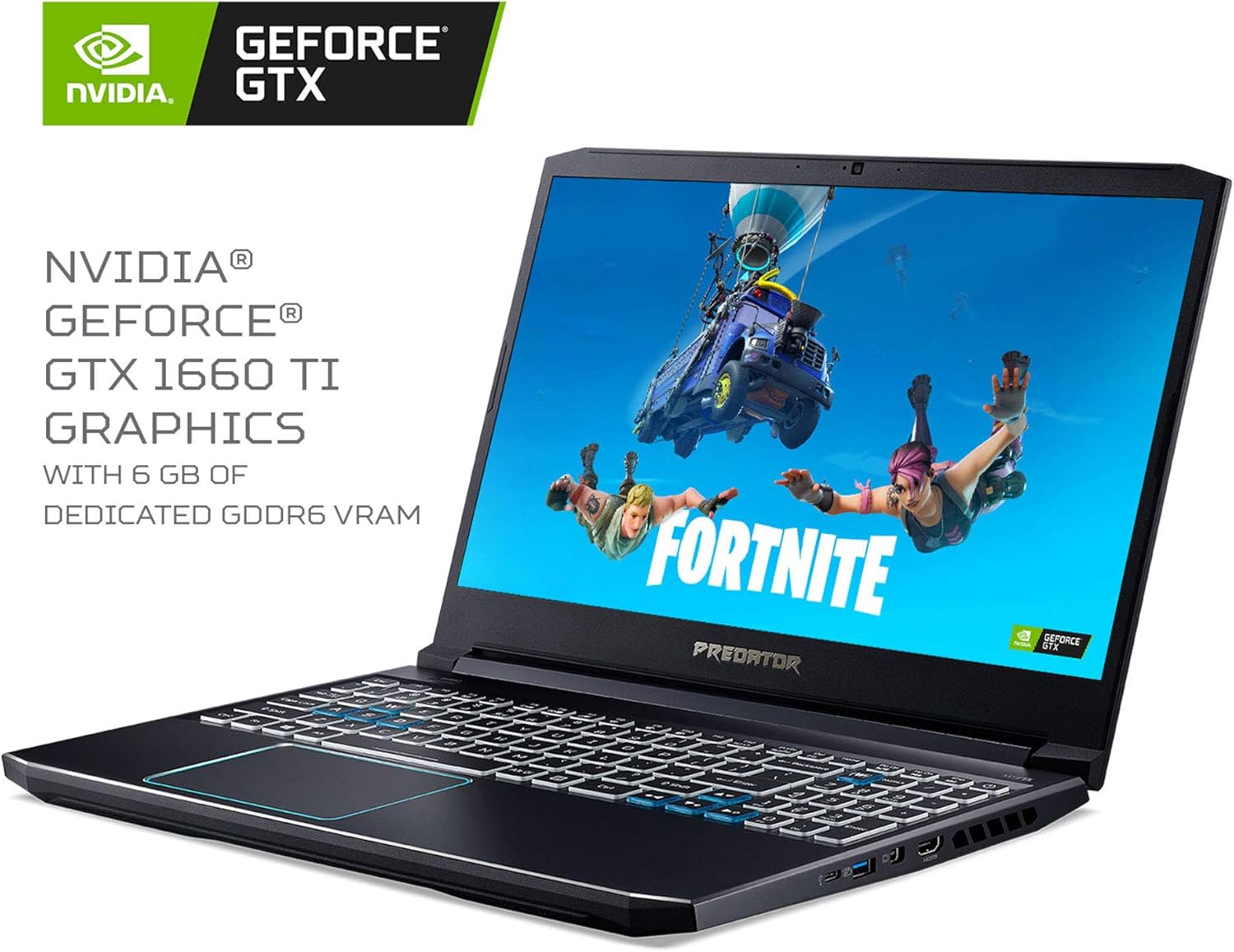
Image: The Acer Predator Helios 300 laptop open, displaying a game on its screen, with prominent NVIDIA GeForce GTX 1660 Ti graphics branding.
3.3 Audio System
The laptop incorporates Waves MaxxAudio sound technology, featuring MaxxBass, MaxxVolume, MaxxDialog, and hyper-realistic 3D Audio using Waves Nx. Acer TrueHarmony Technology and Purified.Voice technology with two built-in microphones enhance the audio experience for both listening and communication.
For optimal audio quality, especially during gaming or critical listening, using external headphones or speakers is recommended.
3.4 Connectivity Ports
The Predator Helios 300 offers a variety of ports for connecting peripherals and external displays.

Image: A side view of the laptop clearly labeling its various connectivity ports, including Ethernet (RJ-45), USB 3.1 Type-C Gen 2, USB 3.1 Gen 1 (x3), HDMI 2.0, and Mini DisplayPort 1.4.
- USB 3.1 Type-C Gen 2: 1 port (up to 10 Gbps).
- USB 3.1 Gen 1: 3 ports (one with power-off charging).
- HDMI 2.0: 1 port with HDCP Support.
- Mini DisplayPort 1.4: 1 port, supports up to 240Hz refresh rate and NVIDIA G-SYNC.
- Ethernet (RJ-45): For wired network connections.
3.5 Network Connectivity
The laptop features Killer DoubleShot Pro technology for optimized network performance.

Image: The laptop displaying information about Killer DoubleShot Pro technology, highlighting the Killer Ethernet E2500 and Killer Wireless-AC 1550 components for network optimization.
- Killer DoubleShot Pro Wireless AC 1550: 802.11ac WiFi with 2x2 MU-MIMO technology (Dual Band 2.4GHz and 5GHz) for high-speed wireless connections.
- Killer Ethernet E2500: 10/100/1000 Gigabit Ethernet LAN for stable wired connections.
4. Maintenance
4.1 Cooling System
The laptop is equipped with a 4th Gen All-Metal AeroBlade 3D Fan system designed to provide efficient cooling with less noise and improved airflow.

Image: A diagram illustrating the design and airflow path of the 4th Gen AeroBlade 3D Fan, indicating improved cooling efficiency.
- Regularly clean the fan vents to prevent dust buildup, which can impede airflow and reduce cooling efficiency.
- Ensure the laptop is placed on a hard, flat surface to allow proper ventilation. Avoid using it on soft surfaces like beds or carpets.
- Utilize the PredatorSense software to monitor temperatures and adjust fan speeds as needed.
4.2 Storage Upgrades
The laptop offers options for storage expansion:
- It includes two PCIe M.2 slots, with one slot available for easy upgrades.
- There is one available hard drive bay for adding a 2.5-inch SATA HDD or SSD.
For storage upgrades, it is recommended to consult a qualified technician or refer to the detailed service manual to avoid damaging components.
4.3 General Cleaning
- Screen: Use a soft, lint-free cloth slightly dampened with water or a screen cleaner. Do not spray liquid directly onto the screen.
- Keyboard and Chassis: Use a soft cloth to wipe surfaces. Compressed air can be used to remove debris from between keys.
- Always power off the laptop and disconnect the power adapter before cleaning.
5. Troubleshooting
This section addresses common issues you might encounter with your Acer Predator Helios 300 laptop.
5.1 Performance and Overheating
- Issue: Laptop feels hot or performance drops during intensive tasks.
- Solution:
- Ensure fan vents are clear of obstructions.
- Use the PredatorSense software to monitor CPU/GPU temperatures and adjust fan speeds.
- Consider using a cooling pad for extended gaming sessions.
- Update graphics drivers to the latest version.
5.2 Battery Life
- Issue: Shorter than expected battery life.
- Solution:
- Reduce screen brightness.
- Close unnecessary background applications.
- Adjust power settings in Windows to a more power-efficient mode.
- Disconnect external peripherals when not in use.
- Note that intensive tasks like gaming significantly reduce battery duration.
5.3 Audio Problems
- Issue: Poor sound quality or low volume from built-in speakers.
- Solution:
- Check volume levels in Windows and any application-specific volume controls.
- Ensure audio drivers are up to date.
- In Windows sound settings, disable "Enable audio enhancements" if it is active, as this can sometimes degrade sound quality.
- For critical audio, use external headphones or speakers.
5.4 Network Connectivity Issues
- Issue: Unstable Wi-Fi or slow wired internet.
- Solution:
- Restart your router and modem.
- Update Killer network drivers.
- Use the Killer Control Center software to prioritize network traffic for games or specific applications.
- For Wi-Fi, ensure you are within range of your access point and there are no major obstructions.
6. Specifications
Detailed technical specifications for the Acer Predator Helios 300 PH315-52-78VL.
| Feature | Specification |
|---|---|
| Brand | Acer |
| Model Name | PH315-52-78VL |
| Operating System | Windows 10 Home |
| Screen Size | 15.6 Inches |
| Screen Resolution | 1920 x 1080 pixels (Full HD) |
| Max Screen Resolution | 1920x1080 Pixels |
| Processor | Intel Core i7-9750H (6 Cores, up to 4.5 GHz) |
| RAM | 16 GB DDR4 |
| Memory Speed | 2666MHz |
| Hard Drive | 256 GB SSD (PCIe NVMe) |
| Graphics Coprocessor | NVIDIA GeForce GTX 1660 Ti |
| Graphics Card Ram Size | 6 GB GDDR6 |
| Wireless Type | 802.11ac (Killer DoubleShot Pro Wireless AC 1550) |
| USB Ports | 3x USB 3.1 Gen 1, 1x USB 3.1 Type-C Gen 2 |
| Average Battery Life | 6 Hours |
| Item Weight | 5.07 pounds (2.3 kg) |
| Product Dimensions | 14.23 x 10.01 x 0.9 inches |
| Color | Black |
| Power Source | Battery Powered |
| Batteries | 1 Lithium Polymer battery (included) |
7. Warranty and Support
7.1 Product Warranty
Your Acer Predator Helios 300 laptop is covered by a standard manufacturer's warranty. The specific terms and duration of the warranty may vary by region and retailer. Please refer to the warranty card included with your product or visit the official Acer website for detailed warranty information.
7.2 Technical Support
For technical assistance, driver downloads, or further support, please visit the official Acer support website. You will typically need your product's serial number, which can be found on a label on the bottom of the laptop or in the system information within Windows.
Acer Support Website: www.acer.com/support