
MERCUSYS RE300
TP-Link RE300 AC1200 Mesh Wi-Fi Range Extender User Manual
Model: RE300
1. Introduction
The TP-Link RE300 AC1200 Mesh Wi-Fi Range Extender is designed to expand your existing Wi-Fi coverage, eliminating dead zones and providing stable, high-speed internet access throughout your home or office. It operates over both 2.4 GHz and 5 GHz bands, offering a combined speed of up to 1200 Mbps. With OneMesh™ technology, it creates a unified network with compatible TP-Link routers, ensuring seamless roaming as you move around.
2. Package Contents
Verify that your package contains the following items:
- AC1200 OneMesh Wi-Fi Range Extender RE300
- Quick Installation Guide
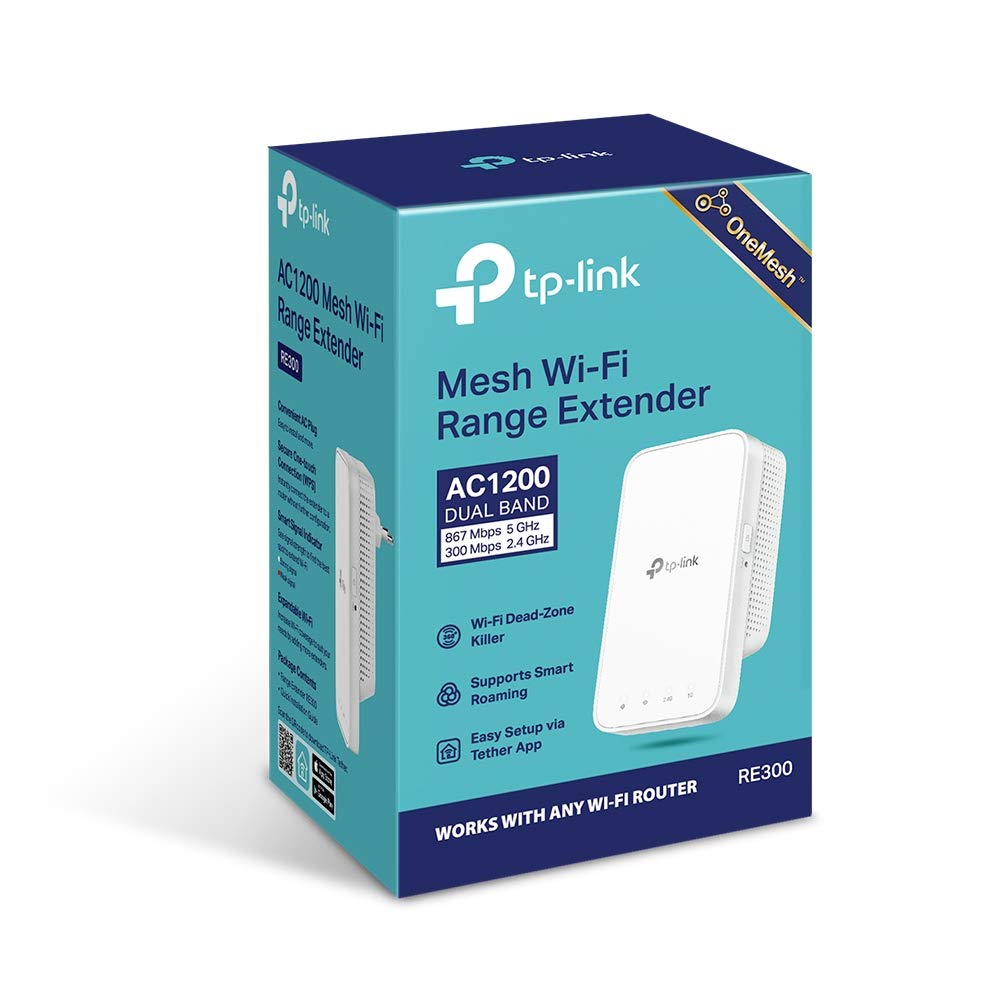
Figure 2.1: The retail box of the TP-Link RE300 AC1200 Mesh Wi-Fi Range Extender, showing product features and branding.
3. Product Overview
The RE300 is a compact, wall-plug design range extender. It features LED indicators on the front panel to show its status and signal strength, and a WPS/Reset button on the side.

Figure 3.1: Front view of the RE300, displaying the TP-Link logo and LED indicators for Power, Wi-Fi, 2.4G, and 5G bands.

Figure 3.2: Side view of the RE300, showing the power plug and the WPS/Reset button.
LED Indicators
- Power LED: Indicates the power status of the extender.
- Wi-Fi LED: Indicates the connection status to the main router.
- 2.4G LED: Indicates the status of the 2.4 GHz Wi-Fi band.
- 5G LED: Indicates the status of the 5 GHz Wi-Fi band.
- Signal Light: A smart signal indicator helps find the best location for optimal Wi-Fi coverage by showing the signal strength (Strong Signal, Weak Signal, Too far away from the router).
4. Setup Guide
The RE300 can be set up using the WPS button or the TP-Link Tether app.
Method 1: Using the WPS Button (Recommended)
- Plug the RE300 into an electrical outlet near your router.
- Wait for the Power LED to turn solid.
- Press the WPS button on your router.
- Within two minutes, press the WPS button on the RE300.
- The Wi-Fi LED on the RE300 should turn solid, indicating a successful connection.
- Relocate the extender to an optimal location between your router and the Wi-Fi dead zone. Use the Signal Light indicator to find the best spot (solid white indicates a strong signal).
Method 2: Using the TP-Link Tether App
- Download the TP-Link Tether app from the App Store or Google Play.
- Plug the RE300 into an electrical outlet near your router.
- Connect your smartphone to the RE300's Wi-Fi network (e.g., 'TP-Link_Extender').
- Open the Tether app and follow the on-screen instructions to set up the extender.
- Relocate the extender to an optimal location between your router and the Wi-Fi dead zone.

Figure 4.1: Visual guide for setting up the RE300 using the WPS button and finding the optimal location with the signal indicator.
5. Operating Instructions
Dual-Band Wi-Fi Extension
The RE300 extends both 2.4 GHz and 5 GHz Wi-Fi bands simultaneously. The 2.4 GHz band provides wider coverage, while the 5 GHz band offers faster speeds, ideal for streaming and gaming. Your devices will automatically connect to the stronger signal.

Figure 5.1: Illustration of the RE300's dual-band capabilities (2.4 GHz at 300 Mbps, 5 GHz at 867 Mbps) and its capacity to support up to 32 devices.
OneMesh™ Functionality
When paired with a TP-Link OneMesh™ compatible router, the RE300 creates a seamless mesh network. This means your devices will automatically switch to the strongest Wi-Fi signal as you move around your home, without experiencing drops or interruptions. This unified network uses a single Wi-Fi name (SSID).

Figure 5.2: Diagram showing how a OneMesh™ router combined with a OneMesh™ range extender creates a whole-home Wi-Fi network with smart roaming and unified management.
6. Maintenance
- Keep the device in a well-ventilated area to prevent overheating.
- Avoid placing the extender near sources of interference such as microwaves, cordless phones, or large metal objects.
- Clean the device with a soft, dry cloth. Do not use liquid cleaners or aerosols.
- Periodically check for firmware updates via the Tether app or TP-Link's official website to ensure optimal performance and security.
7. Troubleshooting
- Extender cannot connect to the router:
- Ensure the extender is within the router's Wi-Fi range.
- Verify that the router's Wi-Fi is enabled.
- If using WPS, ensure you press the WPS button on both devices within the two-minute window.
- Try setting up using the TP-Link Tether app or web interface if WPS fails.
- For JioFiber routers, if the 5GHz band is not detected, log in to your JioFiber router (e.g., 192.168.29.1) and set the 5GHz band broadcast channel (in Basic 5GHz settings) to a value between 36 and 42 (default 149 might not be visible).
- Weak signal or frequent disconnections:
- Relocate the extender closer to your router. Use the Signal Light on the extender to find an optimal position (solid white indicates a strong connection).
- Ensure there are no major obstructions (thick walls, metal objects) between the extender and the router.
- Check for interference from other electronic devices.
- 5GHz band disappears or stops working:
- Perform a factory reset on the extender by pressing and holding the Reset button for 5-10 seconds.
- Check for and install the latest firmware updates for the RE300.
- Ensure your router's 5GHz band is operating correctly and on a compatible channel.
- Reduced bandwidth when connected to extender:
- While extenders amplify signal, they can sometimes halve bandwidth. This is typical for range extenders.
- Ensure the extender is placed in a location where it receives a strong signal from the main router to maximize throughput.
8. Specifications
| Feature | Detail |
|---|---|
| Brand | MERCUSYS |
| Model Number | RE300 |
| Wireless Type | 802.11a, 802.11ac, 802.11b, 802.11g, 802.11n |
| Data Transfer Rate | 867 Megabits Per Second (5GHz), 300 Megabits Per Second (2.4GHz) |
| Frequency Band Class | Dual-Band |
| Special Feature | WPS, OneMesh™ Support |
| Product Dimensions | 6.95 x 7.23 x 12.41 cm |
| Item Weight | 200 g |
| Voltage | 220 Volts |
| Wattage | 7.3 Watts |
9. Warranty and Support
The TP-Link RE300 AC1200 Mesh Wi-Fi Range Extender comes with a 3-year warranty.
For installation-related queries, compatibility issues, warranty service, or any other general inquiries, please contact TP-Link customer support. Refer to the Quick Installation Guide for specific contact details or visit the official TP-Link support website.
Toll-Free Number: 1800 2094 168
Email Support: support.in@tp-link.com
10. Important Notes
No official product videos were provided in the available data. For visual guides and further assistance, please refer to the TP-Link official website or their YouTube channel.
Related documentsRE300


Ask a question about this manual
Ask about setup, troubleshooting, compatibility, parts, safety, or missing instructions. Manuals+ will review the question and use this page’s manual context to help answer it.