
Introduction
Thank you for choosing the Tosuny 8GB Digital Voice Recorder. This portable device is designed for high-quality audio recording and playback, featuring an 8GB internal memory, multiple recording modes, and a Voice Operated Recording (VOR) system. This manual provides detailed instructions to help you set up, operate, and maintain your device effectively.
Product Overview
The Tosuny Digital Voice Recorder is a compact and versatile audio recording device. It features a clear LCD screen, intuitive controls, and a built-in microphone for capturing sound.

Figure 1: Front view of the Tosuny 8GB Digital Voice Recorder, showing the screen and control buttons.
Key Features:
- 8GB Internal Memory: Stores up to 5000 audio files.
- High-Quality Recording: Condenser microphone with two sensitivities and multiple recording formats (MP3, WMA, ASF, WAV).
- Voice Operated Recording (VOR): Automatically starts recording when sound is detected and pauses when silent, saving storage space.
- Long Battery Life: Up to 30 hours of recording or 15 hours of music playback on a full charge.
- Multi-Language Support: Configures to specific modes for higher quality language file recording.
Device Components:

Figure 2: Detailed front view showing the LCD screen, microphone, and control buttons.
- MIC: Built-in microphone.
- REC: Record button.
- STOP: Stop button.
- VOL+/VOL-: Volume up/down buttons.
- UP/DOWN (|<>|): Navigation/track selection buttons.
- MODE: Mode selection button.
- PLAY/PAUSE: Play/Pause button.
- HOLD: Hold switch to lock buttons.
- LCD Screen: Displays recording status, time, battery, and menu options.

Figure 3: Side view showing the battery compartment for AAA batteries and the USB port.
- Battery Compartment: Located on the back, requires 1.5V LR03 (AAA) battery.
- USB Port: For connecting to a computer to transfer files or for power.
- Headphone Jack (3.5mm): For private listening.
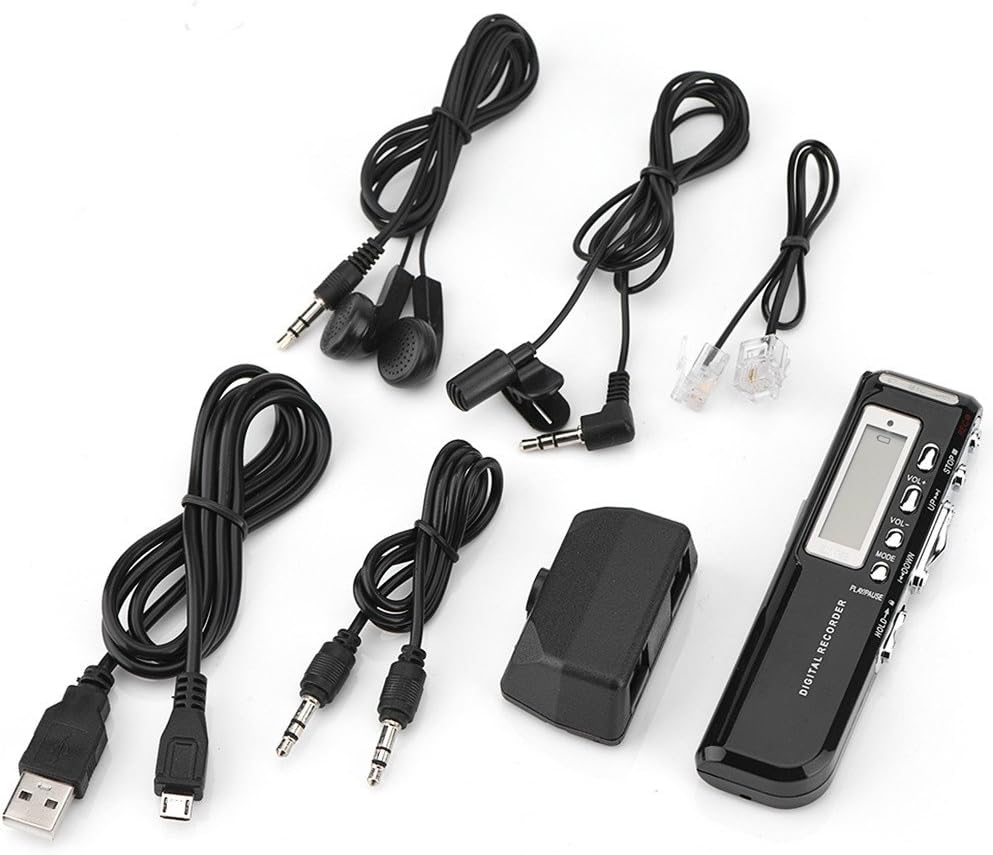
Figure 4: Included accessories: USB cable, headphones, and audio cables.
Setup
1. Battery Installation:
- Locate the battery compartment on the back of the device.
- Slide the battery cover open.
- Insert one 1.5V LR03 (AAA) battery, ensuring correct polarity (+/-).
- Close the battery cover securely.
2. Powering On/Off:
- To power on, slide the HOLD switch to the unlocked position (if locked), then press and hold the PLAY/PAUSE button.
- To power off, press and hold the PLAY/PAUSE button until the screen turns off.
3. Initial Settings (Language):
Upon first use or after a reset, you may need to set the language. Navigate through the menu using the UP/DOWN buttons and select your preferred language (e.g., English) by pressing the PLAY/PAUSE button.
Operating Instructions
1. Recording Audio:
The device offers four recording modes to suit different needs:

Figure 5: Screen displaying different recording modes and their descriptions.
- SP (Standard Play) Mode: Records high-quality voice without distortion. Ideal for clear recordings.
- LP (Long Play) Mode: Allows for extended recording durations, suitable when file size is a concern over absolute fidelity.
- SP VOICE Mode: High-quality voice recording activated under sound control (VOR).
- LP VOICE Mode: Long-duration recording activated under sound control (VOR).
- To select a recording mode, press the MODE button and use the UP/DOWN buttons to navigate. Confirm with PLAY/PAUSE.
- To start recording, press the REC button. The screen will indicate recording is in progress.
- To stop recording, press the STOP button. The recording will be saved automatically.
2. Voice Operated Recording (VOR):
The VOR system automatically detects sound and begins recording, pausing when there is no sound. This feature helps conserve memory and battery life by avoiding silent periods in recordings.

Figure 6: Device highlighting the automatic recording feature with VOR system.
- To activate VOR, select either "SP VOICE" or "LP VOICE" mode as described above.
- When VOR is active, the device will automatically start recording when sound is detected and pause when silence occurs.
3. Playback:
- In stop mode, use the UP/DOWN buttons to navigate through your saved files.
- Press the PLAY/PAUSE button to start playback of the selected file.
- During playback, press PLAY/PAUSE to pause, and again to resume.
- Adjust volume using the VOL+/VOL- buttons.
- To skip to the next/previous track, press the UP/DOWN buttons briefly.
- To fast forward/rewind, press and hold the UP/DOWN buttons.
- To stop playback, press the STOP button.
4. Connecting to a Computer:
You can connect the voice recorder to a computer to transfer recorded files or use it as a portable storage device.
- Ensure the device is powered on.
- Connect the recorder to your computer using the provided USB cable.
- The device will appear as a removable disk drive on your computer.
- You can now drag and drop files to and from the recorder.
- Safely eject the device from your computer before disconnecting the USB cable.
Maintenance
- Keep the device dry. Avoid exposure to moisture or liquids.
- Do not expose the device to extreme temperatures.
- Clean the device with a soft, dry cloth. Do not use harsh chemicals or solvents.
- When not in use for extended periods, remove the battery to prevent leakage.
- Avoid dropping or subjecting the device to strong impacts.
Troubleshooting
| Problem | Possible Cause | Solution |
|---|---|---|
| Device does not power on. |
|
|
| Cannot record. |
|
|
| Poor recording quality. |
|
|
| Device not recognized by computer. |
|
|
Specifications
| Model Number | Tosunyxcz8ewmo3b |
| Memory Capacity | 8 GB |
| Compatible Devices | MP3 Player |
| Hardware Interface | USB |
| Microphone Form Factor | Built-in |
| Headphone Connector | 3.5 millimeters |
| Screen Size | 1.97 Inches |
| Microphone Operation Mode | Mono |
| Power Source | 1.5V LR03 (AAA) Battery |
| Country of Origin | China |
| GTIN / UPC | 748018345217, 748018096140 |
Warranty and Support
Warranty Information:
This Tosuny Digital Voice Recorder comes with a one-year warranty from the date of purchase. This warranty covers manufacturing defects and malfunctions under normal use. It does not cover damage caused by misuse, accidents, unauthorized modifications, or improper maintenance.
Customer Support:
For technical assistance, troubleshooting, or warranty claims, please contact your retailer or the Tosuny customer support channel where you purchased the product. Please have your model number (Tosunyxcz8ewmo3b) and proof of purchase ready when contacting support.