
Introduction
This manual provides detailed instructions for the installation, setup, and operation of your VOCOlinc SmartGlow L3 A21/E26 Smart Light Bulb. This smart bulb offers a wide range of colors and white temperatures, voice control capabilities, and smart automation features, integrating seamlessly with popular smart home platforms.

Image: The VOCOlinc SmartGlow L3 A21/E26 Smart Light Bulb.
What's in the Box
Upon unboxing your VOCOlinc SmartGlow L3 A21/E26 Smart Light Bulb, you will find the following items:
- VOCOlinc SmartGlow L3 A21/E26 Smart Light Bulb
- Quick Start Guide / Instruction Manual

Image: Contents of the VOCOlinc SmartGlow L3 package, including the bulb and documentation.
Setup
1. Physical Installation
- Ensure the power to the light fixture is turned off at the switch.
- Carefully screw the VOCOlinc SmartGlow L3 bulb into a standard E26 light socket.
- Turn on the power to the light fixture. The bulb should illuminate with a soft white light.
2. App Download and Network Connection
The VOCOlinc SmartGlow L3 requires the LinkWise app for initial setup and advanced features. It operates on a 2.4GHz Wi-Fi network.
- Download the LinkWise App from the Apple App Store (for iOS devices) or Google Play Store (for Android devices).
- Ensure your mobile device is connected to a 2.4GHz Wi-Fi network. The product ONLY supports 2.4GHz networks.
- For Apple HomeKit users, an Apple HomeKit hub (such as an Apple TV, HomePod, or iPad) is required for remote access and advanced automations.
3. Pairing and Reset Procedure
To pair the bulb with your smart home system or to factory reset it, follow these steps:
- Ensure the bulb is placed in a socket and powered on.
- Turn the power to the bulb off and on three times in succession using the physical light switch.
- The bulb will then blink to indicate it has been reset and is ready for pairing.
- Open the LinkWise App or your preferred smart home app (Apple Home, Alexa, Google Home) and follow the on-screen instructions to add a new device. You will need to scan the HomeKit setup code (QR code) located on the bulb itself or on the included manual. Keep this QR code safe for future use.
Image: Visual guide for easy installation and pairing process.
Operating the Smart Light Bulb
1. Voice Control
The VOCOlinc SmartGlow L3 is compatible with Apple HomeKit (Siri), Amazon Alexa, and Google Assistant, allowing for convenient voice control.
- Apple HomeKit (Siri): "Hey Siri, turn on the floor lamp."
- Amazon Alexa: "Alexa, dim floor lamp to 10%."
- Google Assistant: "Ok Google, change floor lamp to purple."

Image: Illustrates voice control with Siri, Alexa, and Google Assistant.
2. App Control (LinkWise App)
The LinkWise app provides comprehensive control over your smart bulb's features:
- Color Selection: Choose from 16 million colors to set the perfect ambiance.
- White Ambiance: Adjust white light from cool (7000K) to warm (2200K) to suit your needs throughout the day.
- Brightness Adjustment: Dim or brighten the light up to 850 lumens.
- Preset Effects: Utilize customizable preset effects such as Blink, Breathe, Flicker, Flow, Candle, and Scene modes (e.g., Daylight/Wakeup).
- Group Control: Control multiple bulbs individually or as a group.
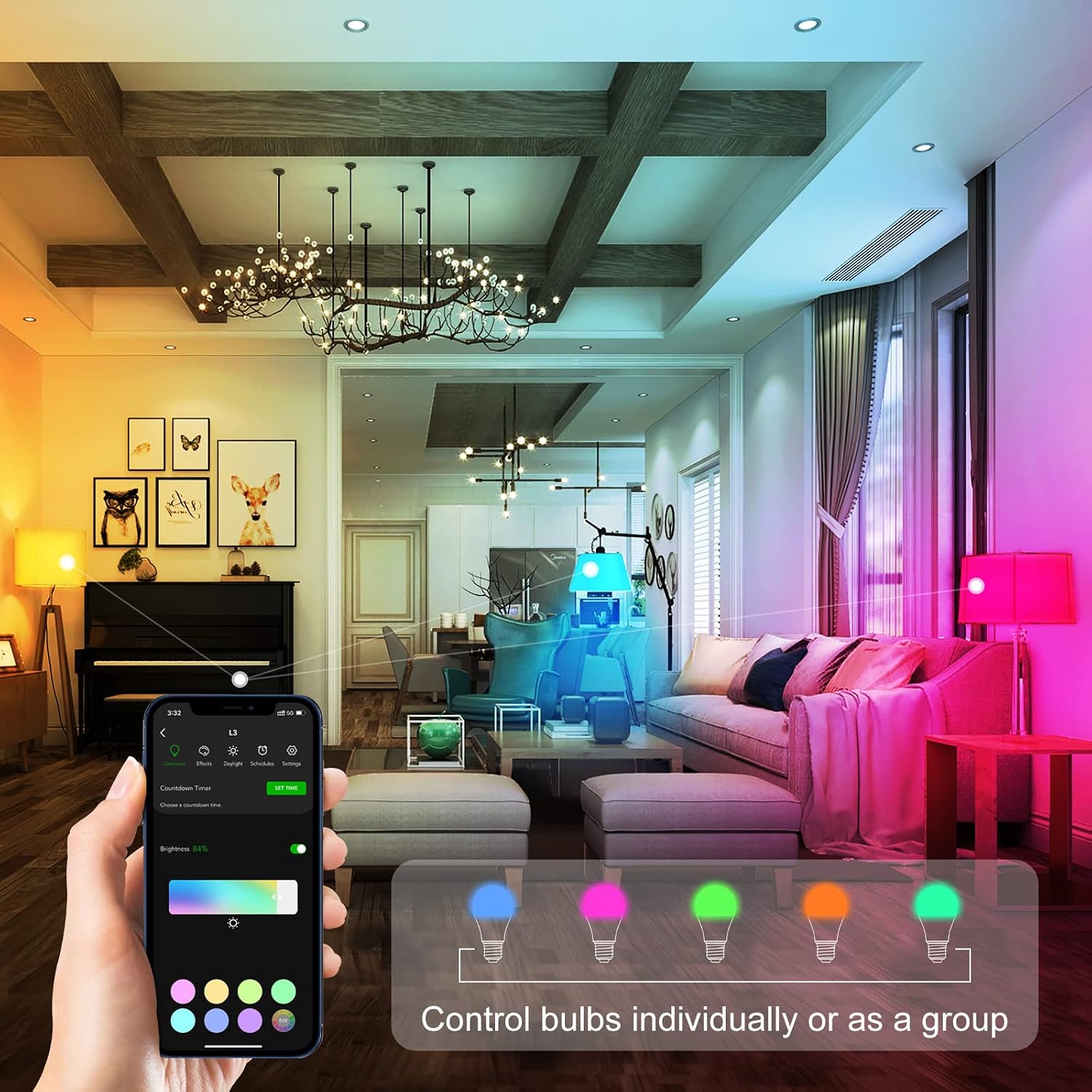
Image: Demonstrates controlling multiple bulbs via the LinkWise app.

Image: Adjusting white light temperature for different times of day.
3. Automations and Schedules
Set schedules and automations to manage your lighting automatically:
- Set timers to turn lights on/off at specific times.
- Create custom scenes for different activities or moods.

Image: Setting schedules and countdown timers for the smart bulb.
4. Remote Access
Control your smart bulb from nearly anywhere:
- iOS: Via an Apple TV, HomePod, or iPad acting as a home hub.
- Android: Via VOCOlinc Cloud services.

Image: Remote control of smart lights via a mobile app.
5. Official Product Videos
Video: 'Extradinary Features with VOCOlinc LinkWise App' - This video demonstrates the various advanced features and functionalities available through the VOCOlinc LinkWise application, including color customization, scene settings, and smart automations.
Video: 'VOCOlinc Smart Wi-Fi LED Light Bulb A21 9.5W Multicolor' - This video provides an overview of the VOCOlinc Smart Wi-Fi LED Light Bulb, highlighting its multicolor capabilities, A21 form factor, and 9.5W power consumption.
Maintenance
To ensure the longevity and optimal performance of your VOCOlinc SmartGlow L3 bulb, follow these simple maintenance guidelines:
- Cleaning: Ensure the bulb is off and cool before cleaning. Wipe the bulb with a soft, dry cloth. Do not use liquid cleaners or abrasive materials.
- Environment: Use the bulb in dry, indoor environments only. Avoid exposure to water or high humidity.
- Handling: Handle the bulb carefully to avoid damage.
Troubleshooting
If you encounter issues with your VOCOlinc SmartGlow L3 bulb, refer to the following common solutions:
- Connectivity Issues: Ensure your mobile device and the smart bulb are connected to a 2.4GHz Wi-Fi network. This product does not support 5GHz networks. If using Apple Home, ensure your iPhone is connected to the 2.4GHz network when setting up or controlling the lights to avoid network conflicts.
- Bulb Unresponsive: Perform a factory reset by turning the bulb off and on three times in quick succession using the physical light switch. The bulb will blink to confirm the reset. Then attempt to re-pair it with your app.
- QR Code: Always keep the HomeKit setup code (QR code) from the bulb or manual in a safe place. This code is essential for initial setup and re-pairing the device.
- Firmware Updates: Regularly check the LinkWise app for available firmware updates to ensure optimal performance and resolve known issues.
Specifications
| Feature | Specification |
|---|---|
| Brand | VOCOlinc |
| Model Number | LB2101 |
| Light Type | LED |
| Bulb Shape Size | A21 |
| Bulb Base | E26 |
| Wattage | 9.5 watts |
| Incandescent Equivalent | 60 Watts |
| White Brightness | 850 Lumens |
| Color Temperature | 2200K-7000K |
| Special Feature | Color Changing (RGBW) |
| Control Method | App, Voice |
| Connectivity Technology | Wi-Fi (2.4 GHz Only) |
| Controller Type | Amazon Alexa, Apple HomeKit, Google Assistant |
| Voltage | 120 Volts (100 to 120 Volts and 60 Hertz) |
| Light Source Operating Life | 25000 Hours |
| Indoor/Outdoor Usage | Indoor |
| Item Weight | 0.12 Kilograms |
| Item Dimensions (W x H) | 2.56"W x 5.04"H |
| Certifications | ETL, FCC, RoHS |
Warranty and Support
For warranty information and technical support, please refer to the official VOCOlinc website or contact their customer service directly. Details can typically be found in the product packaging or on the manufacturer's support pages.