Introduction
The GoXtreme GX1 Dual Gimbal is a versatile 3-axis stabilizer designed to capture smooth, professional-quality video footage using either a smartphone or an action camera. This manual provides essential information for setting up, operating, and maintaining your GX1 Dual Gimbal to ensure optimal performance and longevity.
Product Overview
Key Features
- 3-Axis Stabilization: Provides smooth, shake-free video recording.
- Dual Compatibility: Supports both smartphones and action cameras with an included adapter.
- Ergonomic Design: Comfortable grip for extended use.
- Integrated Controls: Easy access to gimbal modes and zoom functions.
Components
Familiarize yourself with the main components of your GoXtreme GX1 Dual Gimbal:
- Gimbal Handle with Control Panel
- Smartphone Clamp
- Action Camera Adapter Plate
- Rechargeable Lithium-ion Battery
- USB Charging Cable (not explicitly listed but implied)

Figure 1: The GoXtreme GX1 Dual Gimbal with a smartphone securely mounted, ready for use. The image shows the overall design and the smartphone clamp.

Figure 2: A detailed view of the gimbal's control panel, showing the joystick, mode buttons (M, L, H), and zoom controls (W-T). A smartphone is mounted in the clamp.
Setup
1. Charging the Battery
- Ensure the gimbal is powered off.
- Connect the USB charging cable to the gimbal's charging port.
- Connect the other end of the cable to a USB power source (e.g., wall adapter, computer USB port).
- The charging indicator light will illuminate. Once fully charged, the light will change or turn off (refer to specific indicator behavior in the quick start guide if available).
Note: For first-time use, fully charge the battery before operation.
2. Mounting a Smartphone
- Gently extend the smartphone clamp.
- Carefully place your smartphone into the clamp, ensuring it is centered and securely held.
- Adjust the clamp to balance the smartphone as evenly as possible. Proper balancing is crucial for optimal gimbal performance and battery life.

Figure 3: The GoXtreme GX1 Dual Gimbal's universal mounting clamp, designed to securely hold smartphones. The image shows the clamp in an open position.
3. Mounting an Action Camera
- Attach your action camera to the provided action camera adapter plate. Ensure it is securely fastened.
- Insert the action camera adapter plate (with the camera attached) into the gimbal's smartphone clamp.
- Adjust the position of the adapter plate within the clamp to achieve optimal balance for your action camera.

Figure 4: The dedicated adapter plate for mounting an action camera onto the gimbal's smartphone clamp.

Figure 5: An action camera securely attached to the adapter plate, demonstrating how it prepares for gimbal mounting.
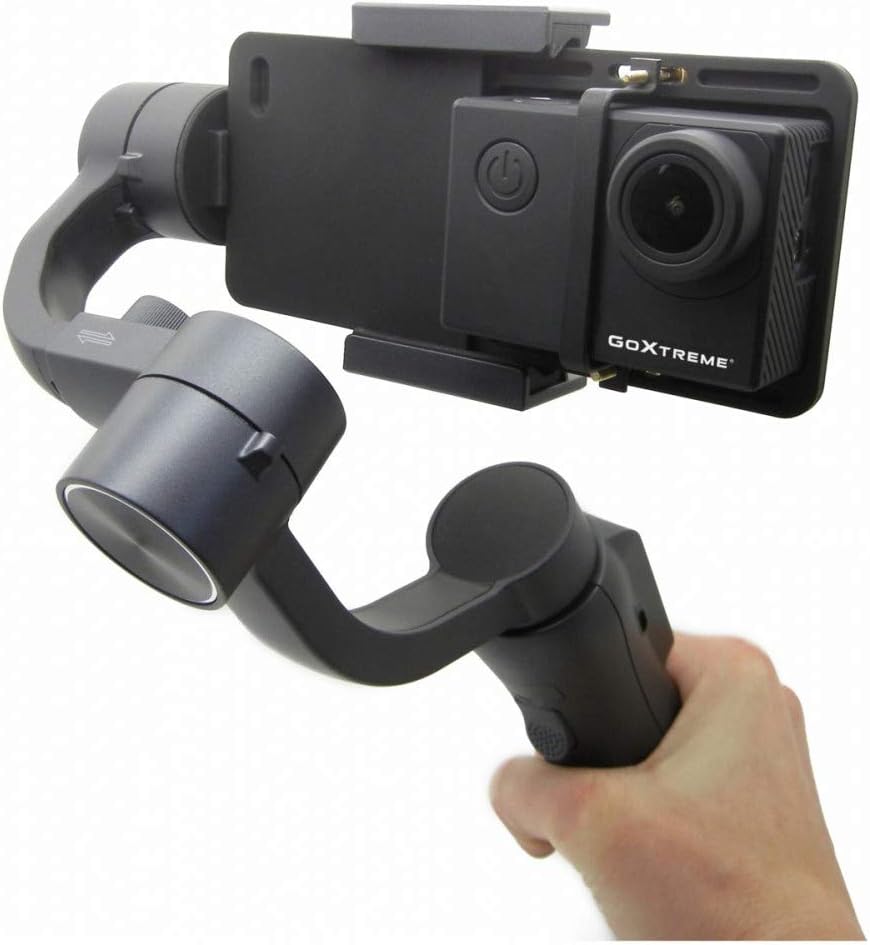
Figure 6: The GoXtreme GX1 Dual Gimbal in use with an action camera, held by a hand, illustrating its compact and portable nature.
Operating Instructions
1. Power On/Off
- Power On: Press and hold the power button (usually located on the handle) for a few seconds until the indicator lights illuminate and the gimbal initializes.
- Power Off: Press and hold the power button again until the indicator lights turn off.
2. Gimbal Modes
The GX1 Dual Gimbal typically offers various stabilization modes, accessible via the mode buttons (M, L, H) on the control panel:
- Pan Follow Mode (M): The camera pans left and right following your hand movements, while the tilt and roll axes remain locked.
- Lock Mode (L): All three axes (pan, tilt, roll) are locked, keeping the camera pointed in a fixed direction regardless of your hand movements.
- Full Follow Mode (H): The camera follows both your pan and tilt movements, while the roll axis remains locked.
Note: Specific mode names and functionalities may vary slightly. Refer to the quick start guide for precise details.
3. Control Panel Functions
- Joystick: Used to manually control the pan and tilt direction of the camera.
- Mode Buttons (M, L, H): Cycle through different gimbal stabilization modes.
- Zoom Slider (W-T): Controls the digital zoom function of your connected smartphone or action camera (if supported).
- Record Button: Initiates and stops video recording on the connected device (requires Bluetooth pairing for smartphones).
Maintenance
- Cleaning: Use a soft, dry cloth to clean the gimbal. Avoid using harsh chemicals or abrasive materials.
- Storage: Store the gimbal in a cool, dry place, away from direct sunlight and extreme temperatures.
- Battery Care: For long-term storage, charge the battery to approximately 50-60% every three months to maintain battery health.
- Avoid Impact: Protect the gimbal from drops or impacts, as this can damage the motors and internal components.
Troubleshooting
Common Issues and Solutions
- Gimbal not powering on: Ensure the battery is fully charged.
- Gimbal vibrating or unstable: Check if the smartphone or action camera is properly balanced in the clamp. Recalibrate the gimbal if necessary (refer to the quick start guide for calibration steps).
- Controls not responding: Ensure the gimbal is powered on and properly connected (if using Bluetooth for smartphone control).
- Poor stabilization: Verify that the device is securely mounted and balanced. Avoid overloading the gimbal with excessively heavy devices.
If problems persist, contact customer support for further assistance.
Specifications
| Feature | Specification |
|---|---|
| Brand | Easypix |
| Model | 55238 (GX1) |
| Color | Black |
| Compatible Devices | Mobile Phone, Action Camera |
| Product Dimensions (L x W x H) | 10.8 x 7 x 29 cm |
| Item Weight | 1.1 kg |
| Battery Type | 1 Lithium-ion (included) |
| Model Year | 2019 |
Warranty and Support
For warranty information, technical support, or service inquiries, please refer to the documentation included with your purchase or visit the official Easypix website. Keep your proof of purchase for warranty claims.


