
Introduction
This manual provides comprehensive instructions for the setup, operation, and maintenance of your Uciefy Q5 Slim Rechargeable Wireless Mouse. Please read this manual carefully to ensure proper use and to maximize the performance and lifespan of your device.

Image: The Uciefy Q5 Slim Rechargeable Wireless Mouse in silver, showcasing its sleek, ergonomic design.
Package Contents
Verify that all items are present in the package:
- 1 x Wireless Mouse
- 1 x USB Receiver (stored at the mouse bottom)
- 1 x Type C Adapter
- 1 x Charging Cable
- 1 x User Manual
Product Overview
The Uciefy Q5 is a slim, portable, and rechargeable wireless optical mouse designed for comfort and efficiency. It features silent click buttons and adjustable DPI settings for precise control.

Image: The underside of the mouse, highlighting the storage compartment for the USB receiver and the battery indicator lights.
Key Features:
- Rechargeable Battery: Built-in battery with included charging cable.
- Silent Click: Reduces click noise for a quiet working environment.
- Slim & Portable Design: Compact dimensions (4.4 x 2.25 x 0.79 inches) for easy transport.
- Plug and Play: No drivers required for most operating systems.
- Wide Compatibility: Works with Windows 2000/XP/7/8/10/Vista and Mac.
- Dual Connectivity Option: Includes both a standard USB receiver and a Type-C adapter for versatile connection.
Setup Instructions
- Retrieve the USB Receiver: Locate the USB Nano receiver stored in the compartment on the bottom of the mouse. Gently pull it out.
- Connect to Your Device:
- For standard USB-A ports: Plug the USB receiver directly into an available USB port on your computer or laptop.
- For USB-C ports: First, plug the USB receiver into the provided Type-C adapter. Then, plug the Type-C adapter into an available USB-C port on your device.
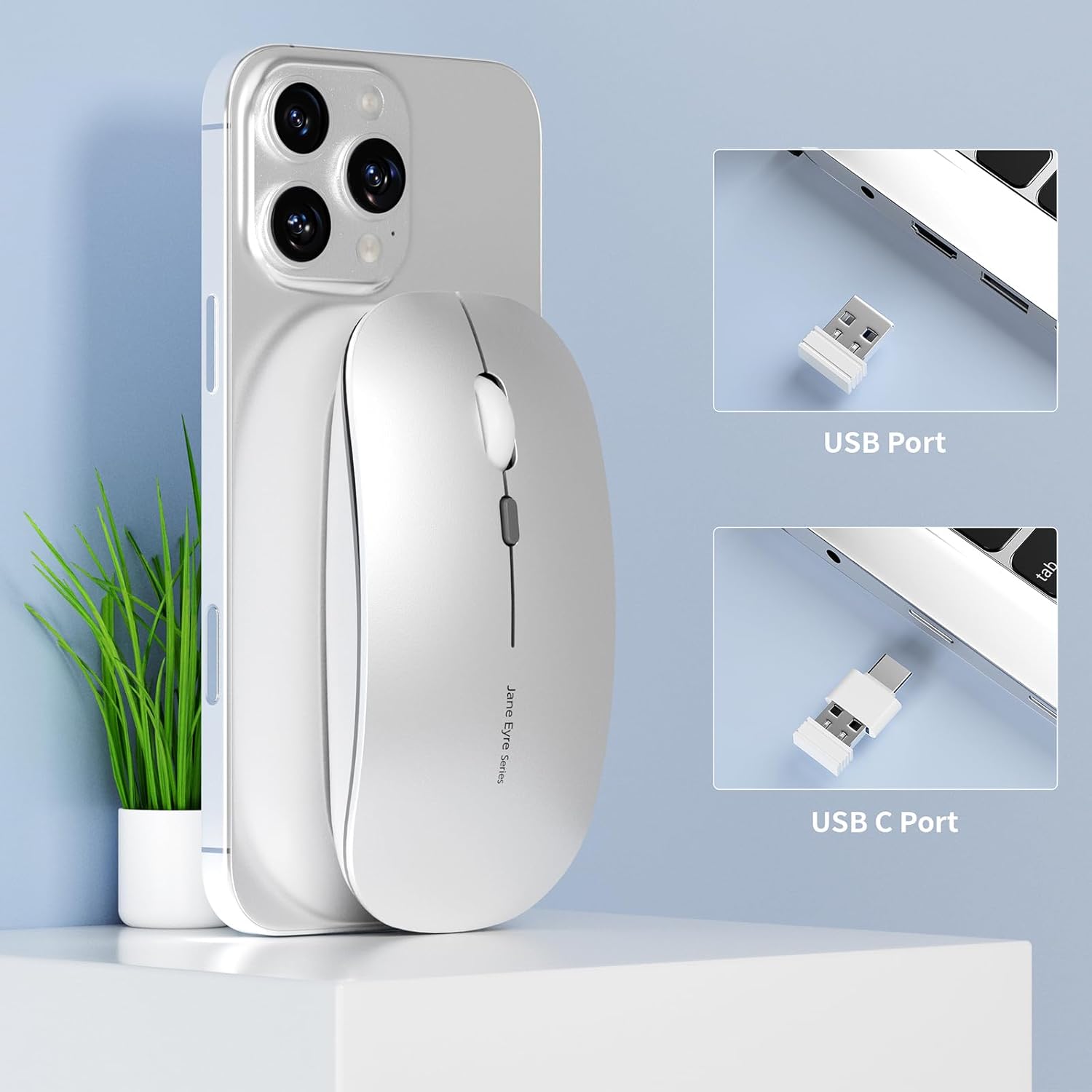
Image: The USB receiver and the Type-C adapter, demonstrating how to connect the mouse to different port types.
- Power On the Mouse: Flip the power switch located on the bottom of the mouse to the "ON" position.
- Automatic Connection: The mouse should automatically connect to your device. No additional drivers are typically required.
Operating Instructions
Basic Operation:
- Left Click: Primary selection and activation.
- Right Click: Accesses contextual menus.
- Scroll Wheel: Scrolls content vertically. Can also be clicked for middle-click functionality (application dependent).
- Silent Click Feature: The left and right buttons are designed to produce minimal sound, ensuring a quiet user experience.
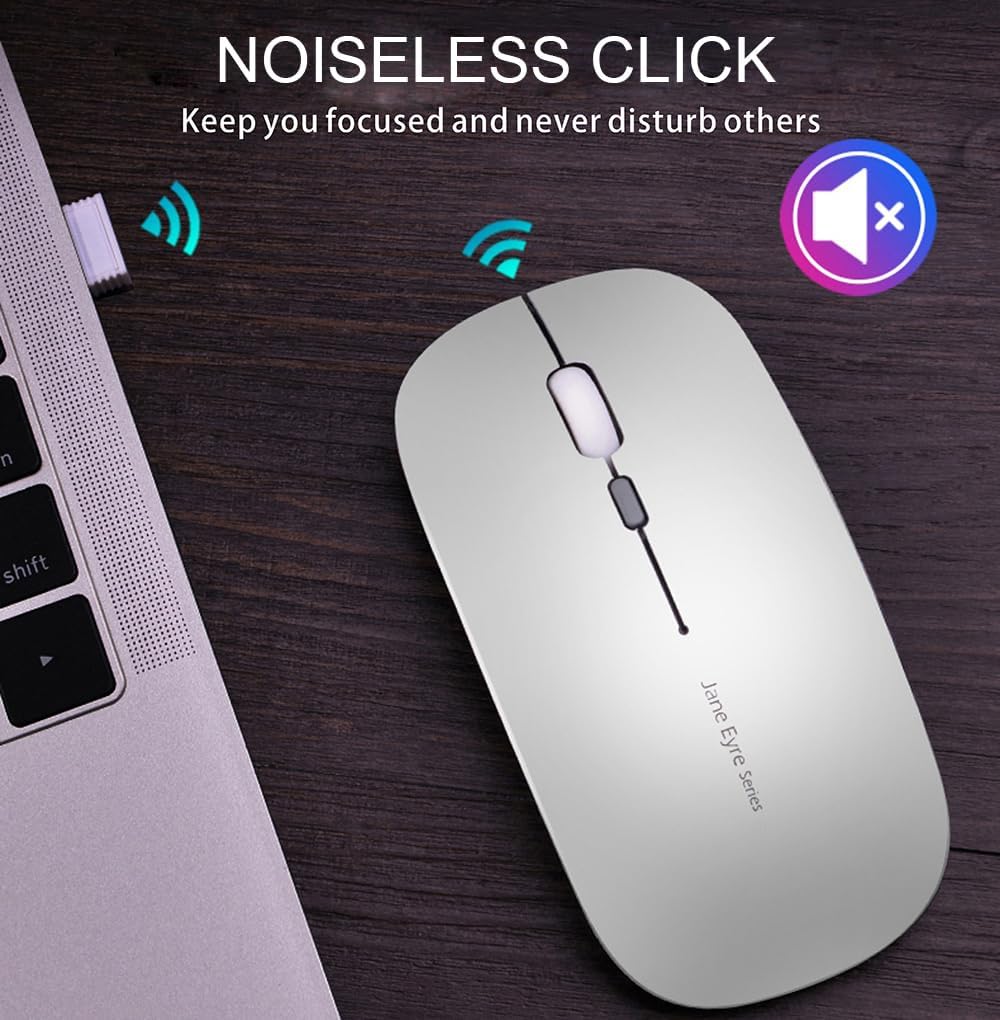
Image: The Uciefy Q5 mouse in use, emphasizing its noiseless click functionality for an undisturbed environment.
DPI Adjustment:
The mouse features adjustable DPI (Dots Per Inch) settings, allowing you to change cursor sensitivity to suit your preferences or task requirements. To adjust the DPI:
- Locate the DPI button, usually positioned near the scroll wheel.
- Press the DPI button to cycle through the available sensitivity settings (e.g., 1000 DPI, 1200 DPI, 1600 DPI).
- The cursor speed will change with each press, indicating the new DPI setting.

Image: The Uciefy Q5 mouse with an overlay indicating its three adjustable DPI settings: 1000, 1200, and 1600.
Charging Instructions
The Uciefy Q5 mouse features a built-in rechargeable battery. To charge the mouse:
- Connect the provided charging cable to the charging port on the front of the mouse.
- Plug the other end of the charging cable into a USB power source, such as a computer's USB interface or a USB wall adapter (not included).
- The battery indicator lights on the bottom of the mouse will illuminate during charging. Once fully charged, the lights may change color or turn off, depending on the model.
- Note: It is recommended to use a computer's USB interface for charging the wireless mouse.

Image: The Uciefy Q5 mouse being charged via its USB cable, connected to a laptop.
Maintenance
To ensure the longevity and optimal performance of your Uciefy Q5 mouse, follow these maintenance guidelines:
- Cleaning: Use a soft, dry cloth to clean the exterior of the mouse. For stubborn dirt, slightly dampen the cloth with water. Avoid using harsh chemicals or abrasive cleaners.
- Storage: When not in use, especially during travel, store the USB receiver inside its designated compartment on the bottom of the mouse to prevent loss.
- Battery Care: Avoid fully discharging the battery frequently. Charge the mouse when the battery indicator suggests low power.
- Environmental Conditions: Keep the mouse away from extreme temperatures, direct sunlight, and excessive moisture.
Troubleshooting
| Problem | Solution |
|---|---|
| Mouse not responding. |
|
| Cursor movement is erratic or slow. |
|
| Mouse not charging. |
|
Specifications
| Feature | Detail |
|---|---|
| Brand | Uciefy |
| Model Number | GameXtrem-Q5004-G |
| Connectivity Technology | 2.4G Wireless (via USB Receiver) |
| Movement Detection | Optical |
| DPI Settings | Adjustable (e.g., 1000, 1200, 1600 DPI) |
| Special Features | Portable, Rechargeable, Soundless (Silent Click), Wireless |
| Product Dimensions | 4.4 x 2.2 x 0.8 inches (11.18 x 5.59 x 2.03 cm) |
| Item Weight | 1.76 ounces (50 grams) |
| Battery | 1 Product Specific rechargeable battery (included) |
| Compatibility | Windows 2000/XP/7/8/10/Vista, Mac OS |
Warranty and Support
Specific warranty details and direct customer support contact information are not available in the provided product data. For warranty claims or technical assistance, please refer to the documentation included with your purchase or contact the retailer where the product was acquired.