
1. Introduction
The FSP iFP800 is a line-interactive Uninterruptible Power Supply (UPS) designed to provide reliable power protection for your electronic devices. It safeguards against power outages, surges, sags, and other electrical disturbances, ensuring continuous operation and protecting sensitive equipment. This manual provides essential information for the safe and efficient installation, operation, and maintenance of your iFP800 UPS.
2. Safety Instructions
Please read and follow all safety instructions carefully before installing or operating the UPS. Keep this manual for future reference.
- This UPS is designed for indoor use only.
- Do not open the UPS casing. There are no user-serviceable parts inside. Refer all servicing to qualified service personnel.
- Ensure the UPS is connected to a properly grounded AC power outlet.
- Do not block the ventilation openings of the UPS. Maintain adequate space around the unit for proper airflow.
- Avoid placing the UPS in direct sunlight, near heat sources, or in environments with excessive dust, humidity, or corrosive substances.
- Do not connect non-computer-related loads such as medical equipment, life support equipment, or household appliances to the UPS.
- In case of fire, use a dry chemical fire extinguisher. Do not use water.
3. Package Contents
Carefully unpack the UPS and inspect its contents. The package should contain the following items:
- FSP iFP800 UPS Unit
- User Manual
- USB Communication Cable (if applicable)
If any items are missing or damaged, please contact your dealer immediately.
4. Product Overview
Rear Panel Connections

This image illustrates the rear panel connections of the FSP iFP 600 and iFP 800 UPS models. It highlights the Schuko outlets (A), AC input (B), Fuse/Breaker (C), USB communication port (D), and Combo RJ11/RJ45 surge protection ports (E).
LCD Display and Controls

This image shows the LCD display of the FSP iFP800 UPS, which provides digital information and features a touch screen for interaction. The display shows real-time status, input/output voltage, battery level, and other operational parameters.
5. Setup
- Unpacking and Inspection: Remove the UPS from its packaging. Inspect the unit for any shipping damage. If damage is found, do not operate the unit and contact your dealer.
- Placement: Place the UPS in a well-ventilated area, away from direct sunlight, heat sources, and excessive moisture. Ensure there is sufficient space around the unit for proper airflow.
- Initial Charging: Connect the UPS to a standard grounded AC power outlet using the provided power cord. Allow the UPS to charge for at least 4-6 hours before initial use to ensure optimal battery performance. The UPS will charge whether it is turned on or off.
- Connecting Equipment: Plug your computer, monitor, and other critical electronic devices into the UPS's Schuko outlets on the rear panel. Do not overload the UPS beyond its rated capacity (480W).
- USB Communication (Optional): If desired, connect the USB communication cable from the UPS to your computer. Install the monitoring software (available from FSP's website) to enable advanced power management features and automatic shutdown capabilities.
6. Operating Instructions
Turning the UPS On/Off
- To Turn On: After connecting the UPS to AC power and allowing initial charging, press and hold the power button on the front panel for approximately 3 seconds until you hear a beep and the LCD display illuminates.
- To Turn Off: Press and hold the power button for approximately 3 seconds until the display turns off and the unit powers down.
LCD Display Information
The touch-sensitive LCD display provides real-time status and operational data. You can cycle through different information screens by touching the display. Typical information includes:
- Input Voltage (VAC)
- Output Voltage (VAC)
- Battery Charge Level (%)
- Load Level (%)
- Operating Mode (AC Mode, Battery Mode, Bypass Mode)
- Alarm Indicators
Cold Start Function
The UPS supports a cold start function, allowing you to power on the connected equipment using battery power even when there is no AC input. To perform a cold start, ensure the UPS is off and disconnected from AC power, then press and hold the power button for approximately 5 seconds. The UPS will power on and provide battery backup.
7. Maintenance
Battery Care
- To maintain optimal battery life, ensure the UPS is connected to AC power and fully charged for at least 24 hours every three months, especially if it has been stored or unused for an extended period.
- The battery is not user-replaceable. Battery replacement should only be performed by qualified service personnel.
Cleaning
Use a soft, dry cloth to clean the exterior of the UPS. Do not use liquid or aerosol cleaners, as they may damage the unit.
Storage
If storing the UPS for an extended period, ensure it is fully charged before storage. Store it in a cool, dry place. Recharge the battery every three months to prevent battery degradation.
8. Troubleshooting
Refer to the following table for common issues and their solutions. If the problem persists, contact customer support.
| Problem | Possible Cause | Solution |
|---|---|---|
| UPS does not turn on | No AC input; Low battery; Power button not pressed correctly. | Ensure AC cord is securely plugged in; Allow UPS to charge for several hours; Press and hold power button for 3 seconds. |
| Continuous Beeping (Fault Alarm) | Internal fault. | Turn off the UPS, disconnect all loads, and restart. If the alarm persists, contact service. |
| Beeps every 0.5 second (Overload Alarm) | Connected equipment exceeds UPS capacity. | Disconnect non-essential equipment until the overload alarm stops. |
| Beeps every second (Low Battery Alarm) | UPS operating on battery power, battery charge is low. | Save your work and shut down connected equipment immediately. The UPS will soon shut down. |
| Beeps every 10 seconds (Battery Mode) | UPS is operating on battery power due to AC power failure. | This is normal operation during a power outage. |
| No power to connected devices | UPS is off; Overload; Battery depleted. | Turn on UPS; Reduce load; Allow UPS to recharge. |
9. Specifications
The following table details the technical specifications for the FSP iFP800 UPS:
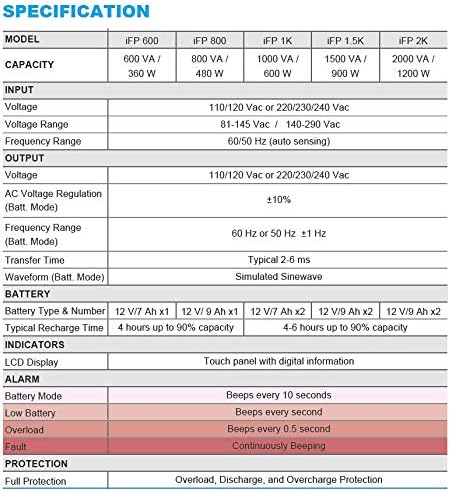
This table provides comprehensive technical specifications for various FSP iFP series UPS models. For the iFP 800, it details capacity (800 VA / 480 W), input/output voltage, frequency ranges, AC voltage regulation, transfer time, battery type (12V / 9Ah x1), typical recharge time (4 hours up to 90% capacity), LCD display indicators, alarm conditions (battery mode, low battery, overload, fault), and full protection features.
| Feature | Specification (iFP 800) |
|---|---|
| Model | iFP 800 |
| Capacity | 800 VA / 480 W |
| Input Voltage Range | 162-290 VAC |
| Output Voltage | 230V (Simulated Sine Wave) |
| Frequency Range | 60/50 Hz (auto sensing) |
| AC Voltage Regulation (Batt. Mode) | ±10% |
| Transfer Time | Typical 2-6 ms |
| Battery Type & Number | 12V / 9Ah x1 |
| Typical Recharge Time | 4 hours up to 90% capacity |
| Indicators | LCD Display (Touch panel with digital information) |
| Protection | Overload, Discharge, and Overcharge Protection |
| Item Weight | 10.8 pounds (4.9 kg) |
| Product Dimensions (LxWxH) | 11.81 x 3.98 x 5.59 inches |
10. Warranty and Support
For warranty information, please refer to the warranty card included with your product or visit the official FSP website. For technical support or service inquiries, please contact your local dealer or FSP customer service.
Online Resources:
- FSP Official Website: www.fsp-group.com