1. Product Overview
The esunhz CK100 is an advanced OBD2 car key programmer designed to assist in vehicle key matching and programming. It offers broad compatibility and a user-friendly interface, making it an essential tool for automotive professionals and enthusiasts.
Key Features:
- Updated Auto Key Pro Tool, a new generation key programmer.
- Multilingual support: English, Italian, German, French, Spanish, Portuguese, Turkish.
- Powerful compatibility for gasoline/diesel vehicles: Acura, Jeep, Infiniti, Audi, Buick, Chevrolet, Dodge, Nissan, Toyota, and more.
- Features SBB V33.02 and updates for over 34 vehicle brands.
- Saves money and time for issues that can be fixed or require more advanced assistance.
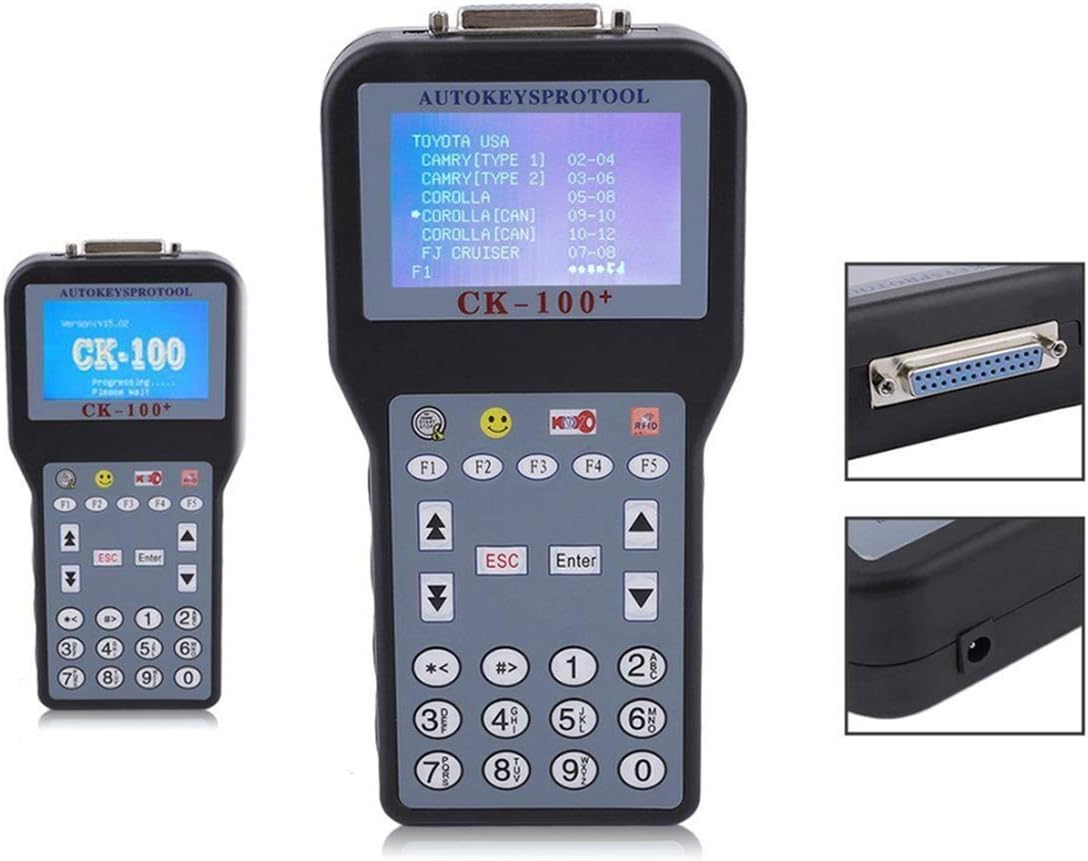
Image: The CK100 Multilingual OBD2 Car Key Programmer, showing its compact design and display screen.
2. Setup Guide
Follow these steps to set up your CK100 device for operation:
- Unpack the Device: Carefully remove the CK100 unit, OBD2 cable, and power adapter from the packaging.
- Connect Power: Connect the power adapter to the CK100 device and plug it into a suitable power outlet. Alternatively, the device can draw power directly from the vehicle's OBD2 port.
- Connect to Vehicle: Locate the OBD2 port in your vehicle (usually under the dashboard on the driver's side). Connect the OBD2 cable to the CK100 device and then to the vehicle's OBD2 port.
- Power On: The device should power on automatically once connected to the vehicle's OBD2 port or external power. If not, press the power button (if available).

Image: The CK100 device shown with its included power adapter and OBD2 diagnostic cable, ready for connection.
3. Operating Instructions
The CK100 is designed for intuitive operation. Here are general steps for key programming:
- Select Language: Upon powering on, the device may prompt you to select your preferred language. Use the navigation buttons to choose from English, Italian, German, French, Spanish, Portuguese, or Turkish.
- Choose Vehicle Make: From the main menu, select the make of the vehicle you are working on. The device supports a wide range of manufacturers.
- Select Model and Year: Navigate through the menus to select the specific model and year of the vehicle.
- Choose Function: Select the desired function, such as 'Key Programming', 'Add Key', 'Delete Key', or 'Read Immobilizer Data'.
- Follow On-Screen Prompts: The CK100 will guide you through the programming process with clear on-screen instructions. This may involve inserting keys, turning the ignition on/off, or entering security codes.
- Confirm and Test: After the programming process is complete, confirm the operation on the device and test the newly programmed key to ensure it functions correctly.

Image: The CK100 device display showing language options, highlighting its multilingual capability.
Vehicle Compatibility Lists:
The CK100 supports a wide range of vehicles for immobilizer and remote control programming. Refer to the following images for detailed compatibility lists:

Image: Part 1 of the Immobilizer compatibility list, detailing supported car makes and models with their respective years.

Image: Part 2 of the Immobilizer compatibility list, continuing the detailed breakdown of supported vehicles.

Image: The Remote Controls compatibility list, showing vehicle makes and models supported for remote programming.
4. Maintenance
Proper maintenance ensures the longevity and optimal performance of your CK100 device:
- Cleaning: Use a soft, dry cloth to clean the device's exterior. Avoid using abrasive cleaners or solvents that could damage the casing or screen.
- Storage: Store the device in a cool, dry place away from direct sunlight and extreme temperatures. Keep it in its original packaging or a protective case when not in use.
- Cable Care: Handle the OBD2 cable and power adapter carefully. Avoid bending or twisting the cables excessively, which can damage internal wires.
- Software Updates: Periodically check the manufacturer's website or contact support for available software updates. Keeping the software updated ensures compatibility with newer vehicle models and improved functionality.
5. Troubleshooting
If you encounter issues with your CK100, refer to the following common troubleshooting tips:
- Device Not Powering On:
- Ensure the OBD2 cable is securely connected to both the device and the vehicle's OBD2 port.
- If using the external power adapter, ensure it is properly connected and the power outlet is functional.
- Check the vehicle's fuse for the OBD2 port if no power is detected. - Connection Issues with Vehicle:
- Verify that the vehicle's ignition is in the 'ON' position (or 'ACC' for some functions).
- Ensure the OBD2 cable is not damaged.
- Try connecting to a different compatible vehicle to rule out a vehicle-specific issue. - Key Programming Failed:
- Double-check that you have selected the correct vehicle make, model, and year.
- Ensure all on-screen prompts are followed precisely.
- Verify that the key you are trying to program is compatible with the vehicle.
- Some vehicles require a security code (PIN) for key programming; ensure you have the correct code. - Screen Display Issues:
- If the screen is blank or flickering, try restarting the device by disconnecting and reconnecting power.
- Ensure the device is not exposed to extreme temperatures.
If the problem persists after trying these steps, please contact customer support for further assistance.
6. Specifications
Detailed specifications for the esunhz CK100 Car Key Programmer:
| Feature | Detail |
|---|---|
| Manufacturer | esunhz |
| Model | CK100 |
| Power Source | Electric Cord (OBD2 port or external adapter) |
| Device Dimensions (L x W x H) | 21.5 x 10.5 x 4 cm (approx. 8.5 x 4.1 x 1.6 inches) |
| Package Dimensions (L x W x H) | 32 x 14 x 7.5 cm (approx. 12.6 x 5.5 x 3 inches) |
| Color | Black |
| Supported Languages | English, Italian, German, French, Spanish, Portuguese, Turkish |
| ASIN | B07QPD1NJT |
| First Available Date | April 19, 2019 |

Image: The CK100 device with its key dimensions (length, width, height) clearly indicated.
7. Warranty and Support
For warranty information and customer support, please refer to the following:
- Warranty: Specific warranty terms may vary. Please refer to the warranty card included with your product or contact the seller directly for detailed warranty information.
- Returns: This product is eligible for a 30-day free return policy from the date of purchase. Please ensure the product is in its original condition and packaging for returns.
- Technical Support: For technical assistance, troubleshooting beyond this manual, or inquiries about software updates, please contact the esunhz customer support team or the seller from whom you purchased the device.


