
1. Introduction
The Govee WiFi Water Sensor system provides real-time water leak detection and alerts to help protect your home from potential water damage. This system includes a WiFi Gateway (H5040) and one or more Water Sensors (H5054). When a sensor detects water, it triggers a local alarm and sends notifications to your smartphone via the Govee Home app, ensuring you are informed even when away from home.

Image: The Govee WiFi Water Sensor system providing real-time alerts to a smartphone, indicating a leak in the basement.
2. Product Features
- Real-time Alerts & Various Notifications: Connect the gateway to WiFi, and the water detector will instantly send emails, app notifications & alerts to your phone when water leakage occurs. (Note: the gateway is only paired with the Govee H5054 sensors)
- Connects to Multiple Sensors: This water leak detector is equipped with a powerful WiFi connection gateway, allowing you to connect up to 20 sensors simultaneously, easily weaving a water protection net.
- Drip and Leak Detection: The water sensor alarm with 2 groups of backwater detector probes & 1 group of front probes for dripping and leaking detection. Use the App to name each sensor with its location, quickly identifying the source of water leaks.
- Adjustable Volume: Our water leak detector provides three volume levels, allowing you to choose the appropriate volume for different scenarios.
- Loud Alarm with Mute: Our water alarm can be applied to basements, with a 100dB alarm loud enough to be heard. Press the Mute button to silence the alarm when you find the leak. (Supports 2.4G WiFi only, does not support 5G WiFi)

Image: The Govee Home app displaying multiple water sensors assigned to different locations like Kitchen, Bathroom, and Basement.

Image: A visual representation of the Govee water sensor detecting both dripping and leaking water.
3. Package Contents
- Govee WiFi Gateway (H5040)
- Govee Water Sensor(s) (H5054)
- AAA Batteries (included)
- User Manual

Image: The Govee WiFi Gateway and a single water sensor, components of the system.
4. Setup Instructions
4.1. Download the Govee Home App
Search for "Govee Home" in the Apple App Store or Google Play Store and download the application. Create an account or log in if you already have one.
4.2. Power On the Gateway
Plug the Govee WiFi Gateway (H5040) into a power outlet. The indicator light on the gateway will begin to flash.

Image: The Govee Gateway unit, designed to be plugged into a standard wall outlet.
4.3. Connect Gateway to Wi-Fi
- Open the Govee Home app and tap the '+' icon in the top right corner to add a new device.
- Search for "5040" or "H5040" and select the Govee WiFi Smart Gateway.
- Follow the in-app instructions to connect the gateway to your 2.4GHz Wi-Fi network. Note: The gateway only supports 2.4G Wi-Fi and does not support 5G Wi-Fi.
- During the process, you may be prompted to temporarily connect your phone to the gateway's Wi-Fi network (e.g., "Govee_Gateway_xxxx").

Image: Screenshot of the Govee Home app with '5040' entered in the search bar to find the gateway.

Image: A finger pressing the button on the Govee Gateway, likely for pairing or reset.
4.4. Install Sensor Batteries
Each Govee Water Sensor (H5054) requires 2 AAA batteries. Open the battery compartment on the back of the sensor and insert the batteries, ensuring correct polarity. Close the compartment securely.
4.5. Pair Sensors with Gateway
- Once the gateway is connected to Wi-Fi, the app will guide you to add sensors.
- Press the button on the Govee Water Sensor (H5054) to activate it. The sensor will automatically attempt to pair with the connected gateway.
- Confirm the sensor appears in the Govee Home app. You can rename each sensor to its specific location (e.g., "Kitchen Sink," "Basement Floor") for easy identification.

Image: A Govee water sensor, ready for placement or pairing.
4.6. Place Sensors
Place the water sensors in areas prone to leaks, such as under sinks, near water heaters, washing machines, dishwashers, toilets, or in basements. Ensure the sensor probes on the bottom are in direct contact with the surface where water might accumulate.

Image: Govee water sensors strategically placed in different rooms of a house, including kitchens, laundry rooms, and bathrooms.
5. Operating Instructions
5.1. Real-time Alerts
When a Govee Water Sensor detects water, it will immediately trigger a loud 100dB local alarm. Simultaneously, the Govee Home app will send push notifications to your smartphone, and an email alert will be sent to your registered email address. These alerts provide the location of the detected leak (if you have named your sensors).

Image: A Govee water sensor emitting a 100dB alarm sound upon detecting water.
5.2. Adjustable Alarm Volume
The water leak detector offers three adjustable volume levels. You can change the volume settings through the Govee Home app to suit your environment and preferences.
5.3. Mute Function
To silence the local alarm after a leak has been detected and addressed, press the Mute button located on the water sensor unit.
5.4. Naming Sensors
Within the Govee Home app, you can assign custom names to each connected sensor. This allows for quick identification of the exact location of a water leak when an alert is received.
6. Maintenance
6.1. Battery Replacement
The Govee Water Sensors (H5054) are powered by 2 AAA batteries. The Govee Home app will display the battery level for each sensor. When the battery level is low, replace the batteries promptly to ensure continuous protection. To replace, open the battery compartment on the back of the sensor, remove old batteries, insert new AAA batteries with correct polarity, and close the compartment.
6.2. Cleaning
Periodically inspect the sensor probes for any dirt or debris. Clean the probes with a soft, dry cloth to ensure optimal sensitivity and performance. Do not submerge the entire sensor unit in water.
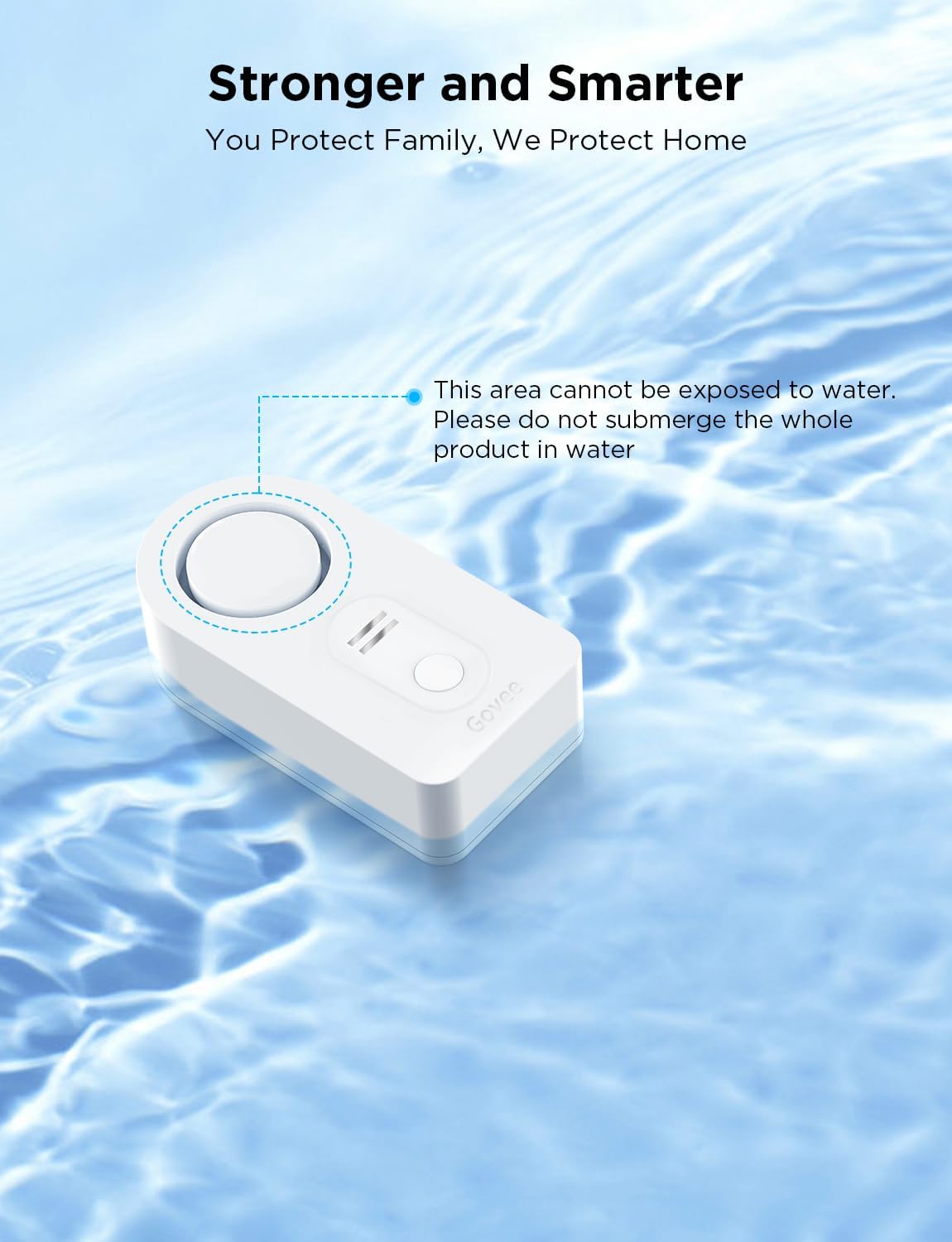
Image: A Govee water sensor with a clear warning indicating that the entire product should not be submerged in water, only the detection probes.
7. Troubleshooting
7.1. Gateway Cannot Connect to Wi-Fi
- Ensure your wireless network is a 2.4G Wi-Fi network. The Govee Gateway (H5040) does not support 5G Wi-Fi.
- Verify that the Wi-Fi signal strength is adequate at the gateway's location.
- Restart your Wi-Fi router and the Govee Gateway, then attempt the connection process again.
7.2. Sensors Cannot Connect to the Gateway
- Confirm that the sensor model is H5054. This gateway is only paired with Govee H5054 sensors and is not compatible with other sensor models.
- Ensure the distance between the gateway and the sensor is within the specified range (typically up to 196ft/60m in open areas). Obstacles like walls can reduce this range.
- Check if the sensor batteries are correctly installed and have sufficient charge.
- Try re-pairing the sensor with the gateway by following the setup instructions.
7.3. No Alerts Received
- Verify that the Govee Home app has notification permissions enabled on your smartphone.
- Check your email's spam or junk folder for alerts.
- Ensure the gateway has a stable internet connection. If the gateway loses Wi-Fi, you will see an error message in the app.
- Confirm that the sensor batteries are not depleted.
7.4. Sensor Not Detecting Small Water Films
Some users have reported that for very thin films of water, the sensor probes might not make sufficient contact. A potential user-suggested modification involves carefully sanding down the plastic feet of the sensor to be flush with the metal probes. This allows the probes to contact even minimal water on a flat surface. Perform this modification at your own discretion, as it is not an official Govee recommendation and may void your warranty.
8. Specifications
| Brand | Govee |
| Model Number | H5040+H5054 |
| Color | White |
| Power Source | Battery Powered (Sensors), AC Powered (Gateway) |
| Compatible Devices | Smartphone |
| Product Dimensions | 4.88"L x 3.66"W x 2.87"H |
| Number of Batteries | 2 AAA batteries required (included) per sensor |
| Control Method | App |
| Audible Noise | 100 dB |
| Mounting Type | Tabletop Mount |
| Sensor Technology | Contact Sensor |
| Wi-Fi Support | 2.4G Wi-Fi Only |
9. Warranty and Support
Govee products typically come with a limited warranty. For specific warranty details, please refer to the documentation included with your product or visit the official Govee website. If you encounter any issues or require technical assistance, please contact Govee customer support through the Govee Home app or their official website.


