
Sidiwen SDW-US-I8
User Manual
Sidiwen 2.4GHz Backlit Mini Keyboard Touchpad Mouse
1. Product Overview
This manual provides detailed instructions for the Sidiwen 2.4GHz Backlit Mini Keyboard Touchpad Mouse, model SDW-US-I8. This compact wireless device integrates a QWERTY keyboard, a multi-touch touchpad, and LED backlighting, designed for versatile use across various operating systems and devices.

Image: The Sidiwen 2.4GHz Backlit Mini Keyboard, showcasing its compact design and various backlight color options. The USB receiver is also visible.
2. Package Contents
- 1 x Mini Wireless Keyboard
- 1 x USB Dongle (Wireless receiver, located in the back of the remote inside the battery compartment)
- 1 x USB Charging Cable
- 1 x User Manual (This document)
- 1 x Rechargeable Battery
3. Features
- 3-in-1 Multifunction: Integrates a 2.4GHz wireless QWERTY keyboard, touchpad, and LED backlit functions.
- Multi-Touch Touchpad: Supports various gestures:
- Single finger click: Left mouse function.
- Double finger click: Right mouse function.
- Double finger drag: Scrolling screen.
- Changeable Backlight: Features 7 different backlight colors. Hold "Fn" and press "F2" to cycle through colors or turn on/off. Long press "Fn" and move two fingers up/down on the touchpad to switch colors.
- Multimedia Shortcut Keys: Includes 8 dedicated multimedia function keys for quick access to functions like on/off switch, mail, mute, search, my computer, and browser home page.
- Auto Sleep and Wake Mode: Designed for power conservation.
- Adjustable DPI: Touchpad DPI can be adjusted using "Fn" and "Space" keys.
- Ergonomic Design: Handheld design for comfortable operation.
- Rechargeable Battery: Removable rechargeable battery for extended standby time.
- Wide Compatibility: Compatible with PC, Tablets, Windows, Mac OS, Android, Linux systems, TV Box, Smart TV, HTPC, PS3, Smart Phone, Raspberry Pi, etc. (Note: For Amazon Fire TV 4K and Fire Stick, a Micro USB host OTG cable is required).
- Wireless Range: Operational range up to 10 meters.

Image: Detailed view of the Sidiwen Mini Keyboard, highlighting the layout of keys, touchpad, and multimedia function buttons, along with a diagram explaining various shortcut combinations.
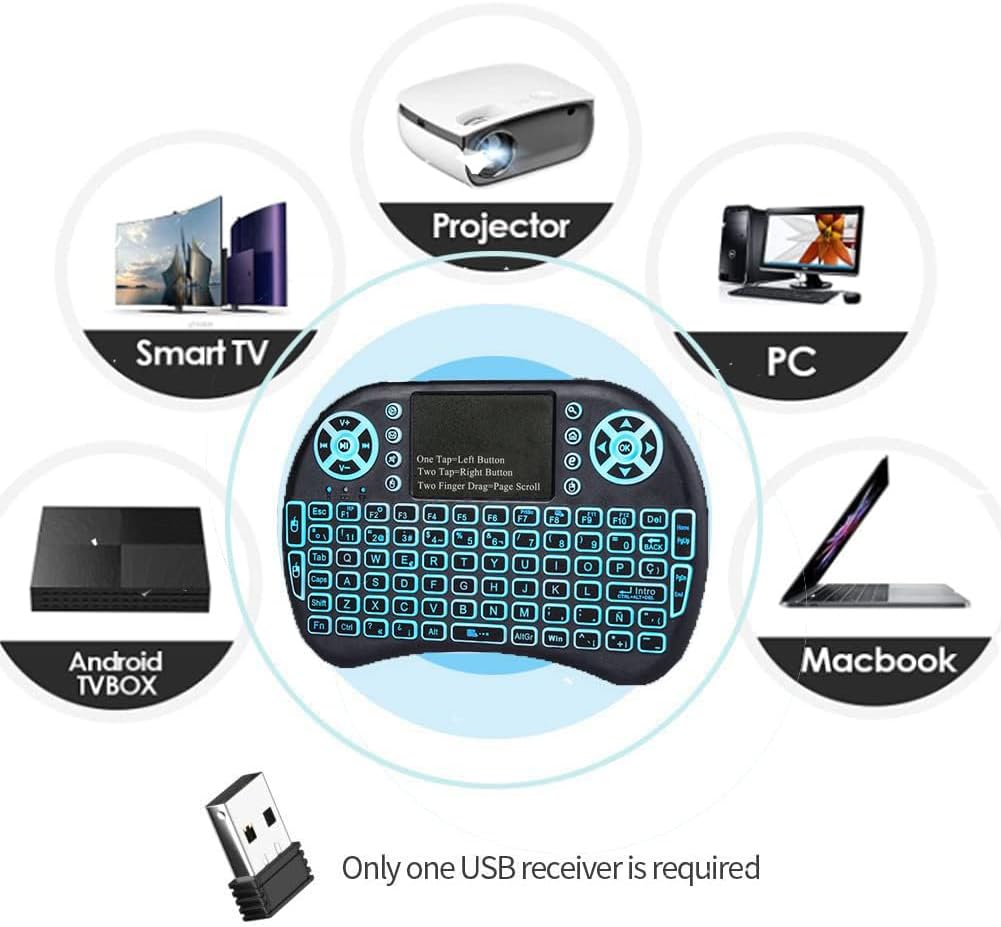
Image: Illustration showing the broad compatibility of the Sidiwen Mini Keyboard with devices such as Smart TVs, Projectors, PCs, Macbooks, and Android TV Boxes.
4. Setup Guide
4.1 Charging the Battery
- Locate the Mini USB Port on the keyboard.
- Connect the provided USB Charging Cable to the keyboard and a USB power source (e.g., computer USB port, USB wall adapter).
- The charging indicator light will illuminate. Once fully charged, the light may change color or turn off.
- A full charge is recommended before first use.
4.2 Connecting the Wireless Receiver
- Open the battery compartment on the back of the mini keyboard.
- Remove the USB wireless receiver (dongle) stored inside.
- Insert the USB wireless receiver into an available USB port on your target device (e.g., Smart TV, PC, Android TV Box).
- The device should automatically recognize the receiver and install necessary drivers.
4.3 Powering On/Off
- Locate the ON/OFF switch on the side of the keyboard.
- Slide the switch to the "ON" position to power on the keyboard.
- Slide the switch to the "OFF" position to power off the keyboard when not in use to conserve battery.

Image: A view of the Sidiwen Mini Keyboard illustrating its compact dimensions and the location of the ON/OFF switch, Mini USB port, and the internal storage for the wireless receiver.
5. Operating Instructions
5.1 Keyboard Usage
The keyboard functions like a standard QWERTY keyboard. Press keys to input characters. Use the "Shift", "Fn", and "AltGr" keys for special characters and functions.
5.2 Touchpad Usage
- Left Click: Tap the touchpad once with a single finger.
- Right Click: Tap the touchpad once with three fingers.
- Scrolling: Drag two fingers up or down on the touchpad.
- Mouse Sensitivity (DPI) Adjustment: Press and hold the "Fn" key, then press the "Space" key repeatedly to cycle through DPI settings.
5.3 Backlight Control
- Turn On/Off Backlight: Hold "Fn" and press "F2".
- Change Backlight Color: While the backlight is on, long press the "Fn" button, then move two fingers up or down on the touchpad to switch between the 7 available colors.
5.4 Multimedia Keys
The keyboard features dedicated multimedia keys for quick access:
- Email Icon: Opens default email client.
- Magnifying Glass Icon: Opens search function.
- Home Icon: Returns to browser home page.
- Speaker Icon (Mute): Mutes/unmutes audio.
- Play/Pause, Next, Previous Track: Standard media controls.
- Volume Up/Down: Adjusts system volume.
6. Maintenance
- Cleaning: Use a soft, dry cloth to clean the keyboard surface. For stubborn dirt, a slightly damp cloth can be used, ensuring no liquid enters the device.
- Storage: Store the keyboard in a cool, dry place away from direct sunlight and extreme temperatures.
- Battery Care:
- Charge the battery regularly, even if not in frequent use, to maintain battery health.
- Avoid fully discharging the battery frequently.
- If storing for an extended period, charge the battery to about 50% before storage.
- USB Receiver: When not in use, store the USB receiver in its designated slot within the battery compartment to prevent loss.
7. Troubleshooting
| Problem | Possible Cause | Solution |
|---|---|---|
| Keyboard not responding. | Low battery; Keyboard is off; USB receiver not connected or recognized; Out of range. | Charge the keyboard; Turn on the keyboard; Ensure USB receiver is properly inserted and recognized by the device; Move closer to the receiver (within 10m). |
| Touchpad erratic or unresponsive. | Dirty touchpad surface; Interference; Incorrect DPI setting. | Clean the touchpad surface; Move away from other wireless devices; Adjust DPI setting (Fn + Space). |
| Backlight not working or changing colors. | Backlight off; Low battery; Incorrect key combination. | Press Fn + F2 to turn on/off; Charge the keyboard fully; Ensure correct key combination (Fn + F2 for on/off, long press Fn + two-finger swipe on touchpad for color change). |
| Keys not typing correctly or repeating. | Low battery; Interference; Software issue on host device. | Charge the keyboard; Reduce interference; Restart the host device; Try on another device to isolate the problem. |
| Cannot connect to Amazon Fire TV/Stick. | Requires OTG cable. | Ensure you are using a Micro USB host OTG cable for connection. |
8. Specifications
| Model: | SDW-US-I8 |
| Brand: | Sidiwen |
| Connectivity: | 2.4 GHz Wireless (USB Receiver) |
| Operational Voltage: | 3.3V |
| Operating Current: | 50mA (on), 1mA (sleep mode) |
| Control Distance: | Up to 10 meters |
| Dimensions: | Approx. 14.7 x 9.8 x 1.9 cm (5.8 x 3.8 x 0.75 inch) |
| Weight: | Approx. 116 g |
| Material: | Plastic and Silicone (Acrylonitrile Butadiene Styrene) |
| Battery Type: | Rechargeable Lithium-ion (included) |
| Backlight Colors: | 7 Colors (RGB) |
| Compatible OS: | Android, Linux, Mac OS, Windows |
9. Warranty and Support
For warranty information and technical support, please refer to the seller's policy on the platform where the product was purchased or contact Sidiwen customer service directly. Keep your purchase receipt as proof of purchase.
Contact Information: Please refer to the official Sidiwen store page on Amazon or the contact details provided with your purchase for the most up-to-date support information.
Link to Sidiwen Store: Sidiwen Official Store
Related documentsSDW-US-I8

Ask a question about this manual
Ask about setup, troubleshooting, compatibility, parts, safety, or missing instructions. Manuals+ will review the question and use this page’s manual context to help answer it.