
1. Introduction
The ASUS TUF Gaming FX505 is a Windows 10 gaming laptop designed for performance and durability. It features an IPS-type panel with narrow bezels and an Anti-Dust Cooling (ADC) system for extended lifespan. Equipped with NVIDIA GeForce GTX graphics and an AMD Ryzen 7 processor, the FX505 handles modern games and multitasking efficiently. It includes Intel Wave 2 Wi-Fi 5 (802.11ac) for high data transfer rates and a red-backlit gaming keyboard rated for 20-million keystroke durability.
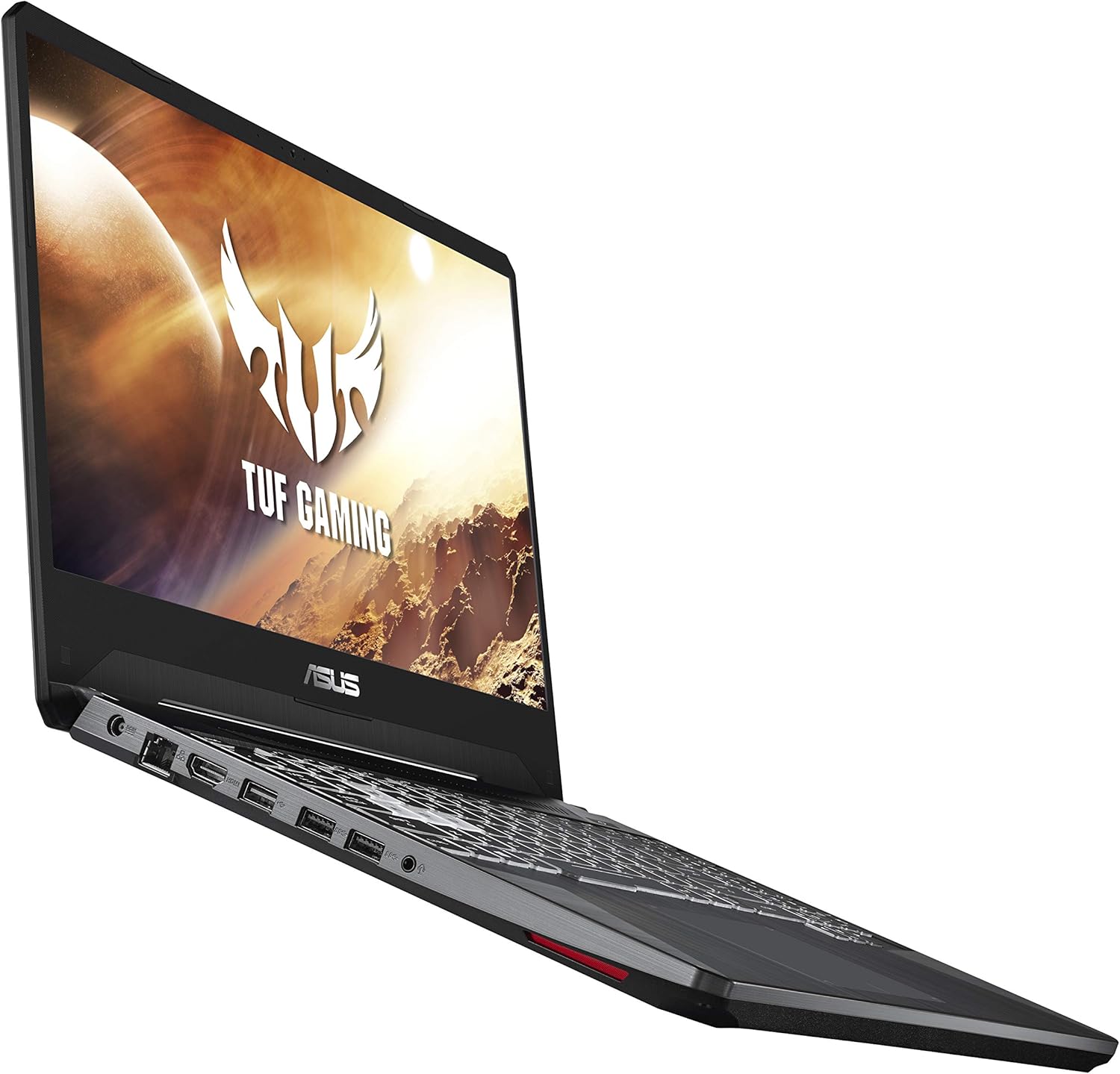
Figure 1.1: Front view of the ASUS TUF Gaming Laptop FX505DT-EB73.
2. Initial Setup
2.1 Unboxing and Contents
Carefully remove the laptop and all accessories from the packaging. Ensure the following items are present:
- ASUS TUF Gaming Laptop FX505DT-EB73
- Power Adapter & Cord
- User Guide
- Warranty Card
2.2 Power Connection
Connect the power adapter to the laptop's power input port and then plug the power cord into a wall outlet. It is recommended to fully charge the laptop before initial use.
2.3 First Boot and Windows Setup
Press the power button to turn on the laptop. Follow the on-screen instructions to complete the Windows 10 Home setup process. This includes selecting your region, language, creating a user account, and connecting to a Wi-Fi network.
2.4 Driver Updates
After completing the initial Windows setup, it is crucial to ensure all drivers are up to date for optimal performance. You can use the pre-installed MyASUS application for driver management or manually download the latest drivers from the official ASUS support website. Regularly checking for updates helps maintain system stability and performance.
3. Operating Instructions
3.1 Keyboard Features
The laptop features a desktop-inspired RGB-backlit keyboard with highlighted WASD key group for gaming. The keyboard is rated for 20-million keystroke durability. You can customize the RGB lighting effects using the ASUS Aura Core software.

Figure 3.1: Hyperstrike Keyboard with RGB backlighting.
3.2 Display
The 15.6-inch Full HD (1920x1080) IPS-Type display offers a 120Hz refresh rate for smooth visuals, particularly beneficial in fast-paced gaming. The NanoEdge design features narrow bezels for an immersive viewing experience.
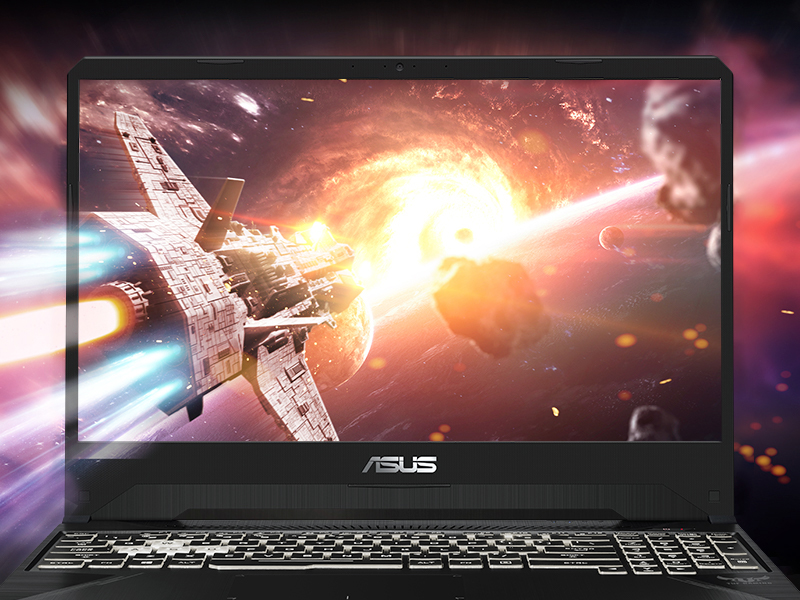
Figure 3.2: IPS-Type NanoEdge Display for immersive visuals.
3.3 Audio
Experience immersive 7.1-channel virtual surround sound through DTS Headphone:X technology, enhancing audio clarity and positional awareness in games and multimedia.

Figure 3.3: Immersive Audio with DTS Headphone:X.
3.4 Cooling System
The laptop incorporates HyperCool Technology for improved durability and an Anti-Dust Cooling (ADC) system to extend system longevity and reliability by preventing dust buildup. The HyperFan feature automatically adjusts fan speeds based on CPU and GPU temperatures, offering modes like Silent, Balanced, and Turbo.

Figure 3.4: Rear cooling vents for efficient heat dissipation.
3.5 Connectivity
The FX505DT-EB73 supports Gigabit Wave 2 Wi-Fi 5 (802.11ac) for fast wireless internet. It includes multiple USB ports for connecting peripherals: one USB 2.0 port and two USB 3.0 ports.

Figure 3.5: Available ports for connectivity.
4. Maintenance
4.1 Cleaning
- Screen: Use a soft, lint-free cloth slightly dampened with water or a screen cleaner. Avoid harsh chemicals.
- Keyboard: Use compressed air to remove dust and debris from between keys. Wipe keycaps with a soft, damp cloth.
- Vents: Regularly clean the cooling vents with compressed air to prevent dust buildup, which can impede airflow and lead to overheating.
4.2 Battery Care
To prolong battery life, avoid consistently discharging the battery completely or keeping it at 100% charge for extended periods. Periodically allow the battery to discharge to around 20-30% before recharging.
4.3 Storage Management
The laptop comes with a 512GB NVMe SSD. Regularly manage your storage by deleting unnecessary files and uninstalling unused applications to maintain optimal performance. Consider external storage or an additional internal SSD for expanded capacity if needed.
4.4 RAM Upgrade
The laptop is equipped with 8GB DDR4 RAM. For enhanced multitasking and gaming performance, consider upgrading the RAM to 16GB or more. Consult the official ASUS support resources or a qualified technician for proper upgrade procedures.

Figure 4.1: Internal components showing RAM and SSD.
5. Troubleshooting
5.1 Common Issues and Solutions
- System Slowdown or Freezes:
Solution: Ensure all drivers are updated. Check for background applications consuming excessive resources. Consider adding more RAM if frequently running demanding applications. A clean reinstallation of Windows can resolve persistent OS-related issues. - Wi-Fi Connectivity Problems:
Solution: Restart your router and modem. Update your Wi-Fi adapter drivers. If issues persist, try reinstalling the Wi-Fi card drivers or checking for hardware faults. - Fan Noise or Overheating:
Solution: Clean the cooling vents to remove dust. Ensure the laptop is on a hard, flat surface to allow proper airflow. Adjust HyperFan settings to 'Balanced' or 'Turbo' mode for increased cooling during intensive tasks. - Screen Flickering:
Solution: Update graphics drivers. If flickering occurs only at certain brightness levels on battery, ensure power settings are optimized or contact support if it persists. - Trackpad Unresponsive or Inaccurate:
Solution: Ensure trackpad drivers are updated. Clean the trackpad surface. If issues persist, an external mouse can be used as an alternative. - Keyboard Backlight Issues:
Solution: Ensure ASUS Aura Core software is installed and updated. Check keyboard settings within the software for customization and troubleshooting.
6. Specifications
| Feature | Detail |
|---|---|
| Model Name | TUF Gaming FX505DT-EB73 |
| Processor | AMD Ryzen 7 3750H (4 GHz) |
| Graphics Coprocessor | NVIDIA GeForce GTX 1650 4GB |
| RAM | 8 GB DDR4 (2666 MHz) |
| Storage | 512 GB NVMe SSD |
| Display | 15.6 Inches, Full HD (1920x1080), 120Hz IPS-Type |
| Operating System | Windows 10 Home |
| Wireless Connectivity | Gigabit Wave 2 Wi-Fi 5 (802.11ac), Bluetooth |
| USB Ports | 1 x USB 2.0, 2 x USB 3.0 |
| Item Weight | 4.85 pounds |
| Product Dimensions | 14.2 x 10.3 x 1 inches |
| Color | Black |
7. Warranty Information
Your ASUS TUF Gaming Laptop FX505DT-EB73 comes with a limited warranty. Please refer to the included Warranty Card for detailed terms, conditions, and duration of coverage. Keep your proof of purchase for warranty claims.
8. Customer Support
For further assistance, technical support, or service inquiries, please refer to the included User Guide for contact information or visit the official ASUS support website. You can also find updated drivers, FAQs, and troubleshooting guides online.
Video 8.1: Official product overview of the ASUS TUF Gaming FX505 laptop, highlighting key features and design.