
MARVO KM409
MARVO Scorpion KM409 Gaming Keyboard & Mouse Bundle User Manual
Model: KM409
Introduction
Thank you for purchasing the MARVO Scorpion KM409 Gaming Keyboard & Mouse Bundle. This bundle is designed to enhance your gaming experience with its responsive keyboard and precise optical mouse, both featuring vibrant LED backlighting. This manual provides essential information for setup, operation, maintenance, and troubleshooting to ensure optimal performance of your new gaming peripherals.

Image: The MARVO Scorpion KM409 Gaming Keyboard and Mouse Bundle, showcasing the keyboard with multi-color LED backlighting and the matching optical mouse.
Package Contents
- MARVO Scorpion KM409 Gaming Keyboard
- MARVO Scorpion KM409 Gaming Mouse
- User Manual (this document)

Image: Front view of the retail packaging for the MARVO Scorpion KM409 Gaming Combo, displaying the keyboard and mouse.
Setup
Unpack the Devices: Carefully remove the keyboard and mouse from their packaging.
Connect the Keyboard: Locate an available USB 2.0 port on your computer. Insert the USB connector of the keyboard into the USB port. The operating system will automatically detect and install the necessary drivers.
Connect the Mouse: Locate another available USB 2.0 port on your computer. Insert the USB connector of the mouse into the USB port. The operating system will automatically detect and install the necessary drivers.
Verify Installation: Once connected, the LED backlighting on both the keyboard and mouse should illuminate, indicating successful connection. Test basic functionality by typing on the keyboard and moving/clicking the mouse.
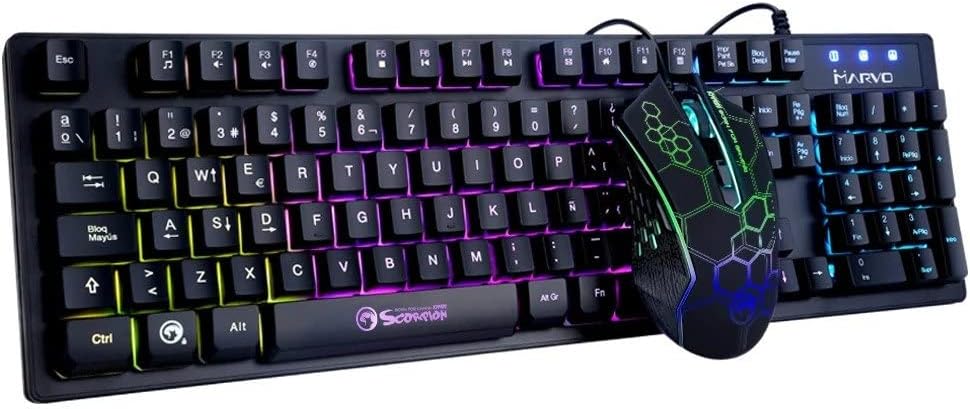
Image: An angled view of the MARVO Scorpion KM409 Gaming Keyboard and Mouse, highlighting their compact design and LED lighting.
Operating Instructions
Keyboard (Model K409)
LED Backlighting: The keyboard features 7-color rainbow LED backlighting. The lighting is always on when connected. Specific controls for brightness or modes are typically managed via function key combinations (e.g., Fn + Scroll Lock for lighting effects, if available, or Fn + Page Up/Down for brightness, refer to keyboard legends).
Anti-Ghosting: The keyboard supports anti-ghosting for up to 19 simultaneous key presses, ensuring accurate input during intense gaming sessions.
Multimedia Functions: Utilize the Fn key in combination with the F-keys (F1-F12) for various multimedia controls such as volume adjustment, media playback, and more. Refer to the icons printed on the F-keys for specific functions.
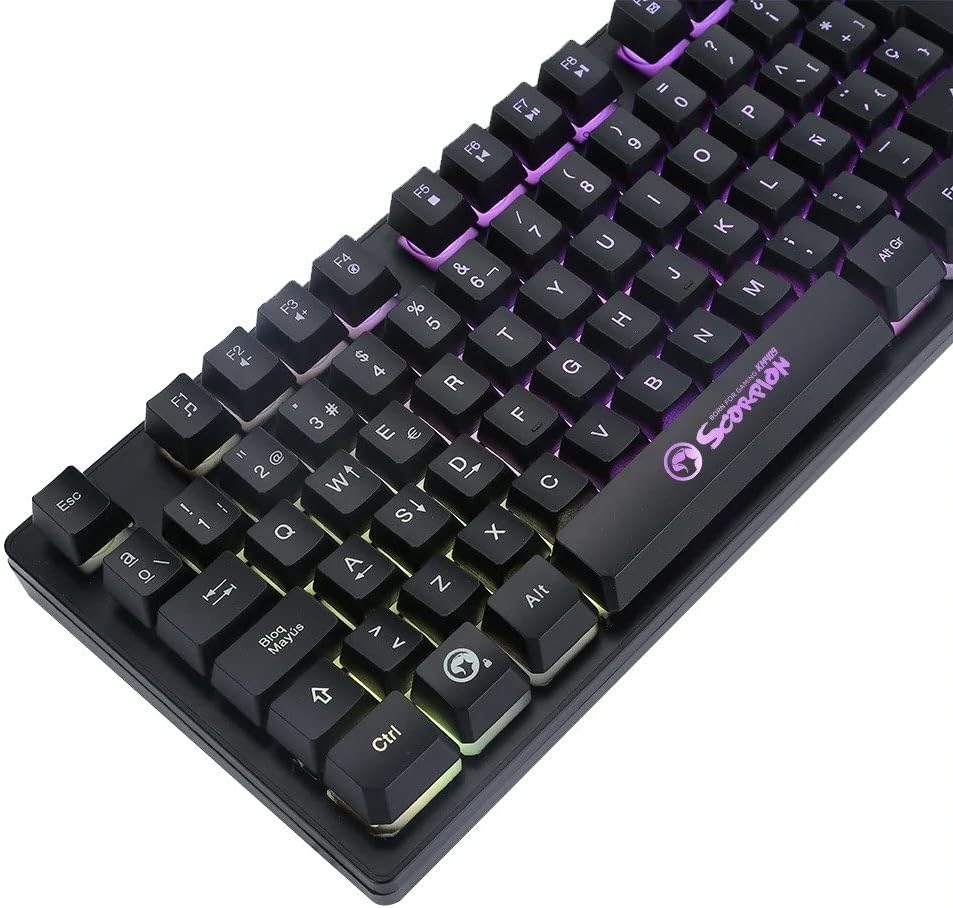
Image: A close-up view of the MARVO Scorpion KM409 Gaming Keyboard, showing the UK English layout and the vibrant rainbow LED backlighting.
Mouse (Model M409)
DPI Adjustment: The mouse features an optical sensor with adjustable sensitivity. Press the DPI button (usually located behind the scroll wheel) to cycle through the available DPI settings: 800, 1200, 1600, and 2400 DPI. This allows for quick sensitivity changes to suit different gaming scenarios.
LED Lighting: The mouse also features 7 recurring LED colors that cycle automatically, providing a dynamic visual effect that complements the keyboard.
Ergonomics: The sculpted shape of the mouse is designed for comfort, particularly for right-handed users.

Image: A top-down view of the MARVO Scorpion KM409 Gaming Mouse, highlighting its ergonomic design and illuminated honeycomb pattern.
Maintenance
Cleaning: Use a soft, dry cloth to wipe down the surfaces of the keyboard and mouse. For stubborn dirt, a slightly damp cloth with mild soap can be used, ensuring no liquid enters the device. Do not use harsh chemicals or abrasive cleaners.
Keyboard Keycaps: For deeper cleaning, keycaps can be carefully removed using a keycap puller (not included) to clean underneath. Reinstall them firmly.
Mouse Sensor: Periodically clean the optical sensor on the underside of the mouse with a cotton swab to ensure accurate tracking.
Storage: When not in use for extended periods, store the devices in a cool, dry place away from direct sunlight and extreme temperatures.
Troubleshooting
- Keyboard or Mouse Not Responding:
- Ensure the USB cables are securely plugged into the computer's USB ports.
- Try plugging the devices into different USB ports on your computer.
- Restart your computer.
- Check Device Manager (Windows) or System Information (macOS) to see if the devices are recognized.
- LED Backlighting Not Working:
- Verify the USB connection.
- Ensure your computer's USB ports are providing sufficient power.
- For the keyboard, check if any function key combinations (e.g., Fn + Scroll Lock) are used to toggle lighting.
- Mouse Tracking Issues:
- Clean the optical sensor on the underside of the mouse.
- Ensure you are using the mouse on a clean, non-reflective surface. A mouse pad is recommended.
- Adjust the DPI settings using the DPI button on the mouse.
Specifications
| Feature | Detail |
|---|---|
| Number of Keys | 104 (UK Layout) |
| Contact Type | Membrane |
| Key Reliability | 10 million clicks |
| Multimedia Functions | Yes (via Fn key) |
| Gaming Function | Anti-ghosting (max 19 keys) |
| LED Lighting | 7-color rainbow backlight |
| Connection | USB 2.0 |
| Cable Length | 1.6m |
| Compatibility | Windows XP or newer |
| Feature | Detail |
|---|---|
| Sensor Type | Optical |
| Sensitivity (DPI) | Adjustable (800 / 1200 / 1600 / 2400) |
| Buttons | 6 |
| Button Reliability | 3 million clicks |
| LED Lighting | 7 recurring colors |
| Connection | USB 2.0 |
| Cable Length | 1.5m |
| Compatibility | Windows 7 and above |

Image: Back view of the retail packaging for the MARVO Scorpion KM409 Gaming Combo, displaying detailed specifications and features.
Warranty and Support
MARVO products are designed for reliability and performance. For warranty information and technical support, please refer to the official MARVO website or contact your local retailer. Keep your purchase receipt as proof of purchase for any warranty claims.
For further assistance, you may visit the MARVO Store on Amazon.
Related documentsKM409


Ask a question about this manual
Ask about setup, troubleshooting, compatibility, parts, safety, or missing instructions. Manuals+ will review the question and use this page’s manual context to help answer it.