
1. Introduction
The FreedConn T-COM SC is a motorcycle helmet intercom system designed for clear communication and entertainment while riding. It supports real-time intercom for two riders, offering a maximum speed of 120 km/h and an intercom distance of up to 800 meters. Featuring Bluetooth 5.0 technology, it allows for universal pairing with other Bluetooth helmet headsets. The device integrates DSP echo cancellation and CVC noise suppression for clear audio, along with A2DP for high-fidelity stereo music. Its multitasking audio capability enables simultaneous listening to music, FM radio, or GPS voice prompts while managing calls or intercom conversations. The T-COM SC includes an LCD screen for easy status monitoring and offers hands-free operation with voice dialing and automatic call answering (which can be disabled). It is designed for compatibility with various helmet types, providing both hard and soft microphone options.

Image: FreedConn T-COM SC Product Features Overview. This image highlights key features such as 2-rider duplex intercom, 800m range, Bluetooth 5.0, music sharing, FM radio, advanced noise control, stereo music, phone connectivity, individual volume control, universal pairing, and waterproof/sunproof/dustproof design, along with hard and soft microphone options.
2. Package Contents
Verify that all items listed below are included in your package:
- FreedConn T-COM SC Bluetooth Host Unit
- Microphone & Ear Speaker (2-in-1: Boom Type Microphone, Button Type Microphone)
- Velcro Clip
- Hook Clip
- Headphone Velcro Pads
- USB Charging Cable
- Instruction Manual
- Small Screwdriver

Image: FreedConn T-COM SC Package List. This image displays all components included in the product package, such as the main unit, microphone and speakers, mounting clips, Velcro pads, USB cable, manual, and screwdriver.
3. Setup and Installation
3.1. Device Installation on Helmet
Follow these steps to properly install the T-COM SC unit onto your helmet:
- Step 1: Select a suitable location on your helmet to fix the bracket. You can use either the adhesive sticker bracket or the binder clip bracket.
- Step 2: Slide the main T-COM SC unit into the fixed bracket until it clicks securely into place.
- Step 3: Fix the speakers and microphone inside your helmet. Ensure the speakers are positioned over your ears for optimal sound. Connect the speaker and microphone cables to the main unit.
- Step 4: Verify all connections are secure and the unit is firmly attached. Installation is now complete.

Image: FreedConn T-COM SC Installation Steps. This visual guide shows the four steps for mounting the intercom unit and connecting the headset components to a motorcycle helmet.
3.2. Headset and Microphone Connection
The T-COM SC comes with a 2-in-1 microphone system, offering both hard (boom) and soft (button) microphone options. Choose the appropriate microphone based on your helmet type:
- Use the hard microphone for 3/4 or half helmets.
- Use the soft microphone for full-face helmets.
Ensure the microphone is positioned close to your mouth for clear voice transmission. Connect the headset cable securely to the designated port on the main unit.

Image: FreedConn T-COM SC New Headset Connection Diagram. This image illustrates the connection of the hard and soft cable microphones to the earphone, showing how they integrate with the main unit and helmet.
3.3. Helmet Compatibility
The FreedConn T-COM SC is designed to be compatible with various helmet types, including:
- Full-face helmets
- Harley helmets
- Off-road helmets
- Half helmets

Image: FreedConn T-COM SC Helmet Compatibility. This image displays the T-COM SC unit installed on various helmet types, including full-face, Harley, off-road, and half helmets, demonstrating its versatile fit.
4. Operating Instructions
4.1. Device Controls
The T-COM SC features intuitive controls for easy operation:
- Multi-functional Button: Used for various functions depending on context (e.g., answering calls, playing/pausing music).
- LCD Screen: Displays important information such as FM frequency, connection status, and battery level.
- Power/Intercom Button: Used to power the device on/off and initiate/end intercom conversations.
- Wheel Control Button: Rotates to adjust volume (turn up/down volume). Can also be pressed for other functions.
- Charge Jack/Headphone Jack: USB port for charging and connecting the headset.
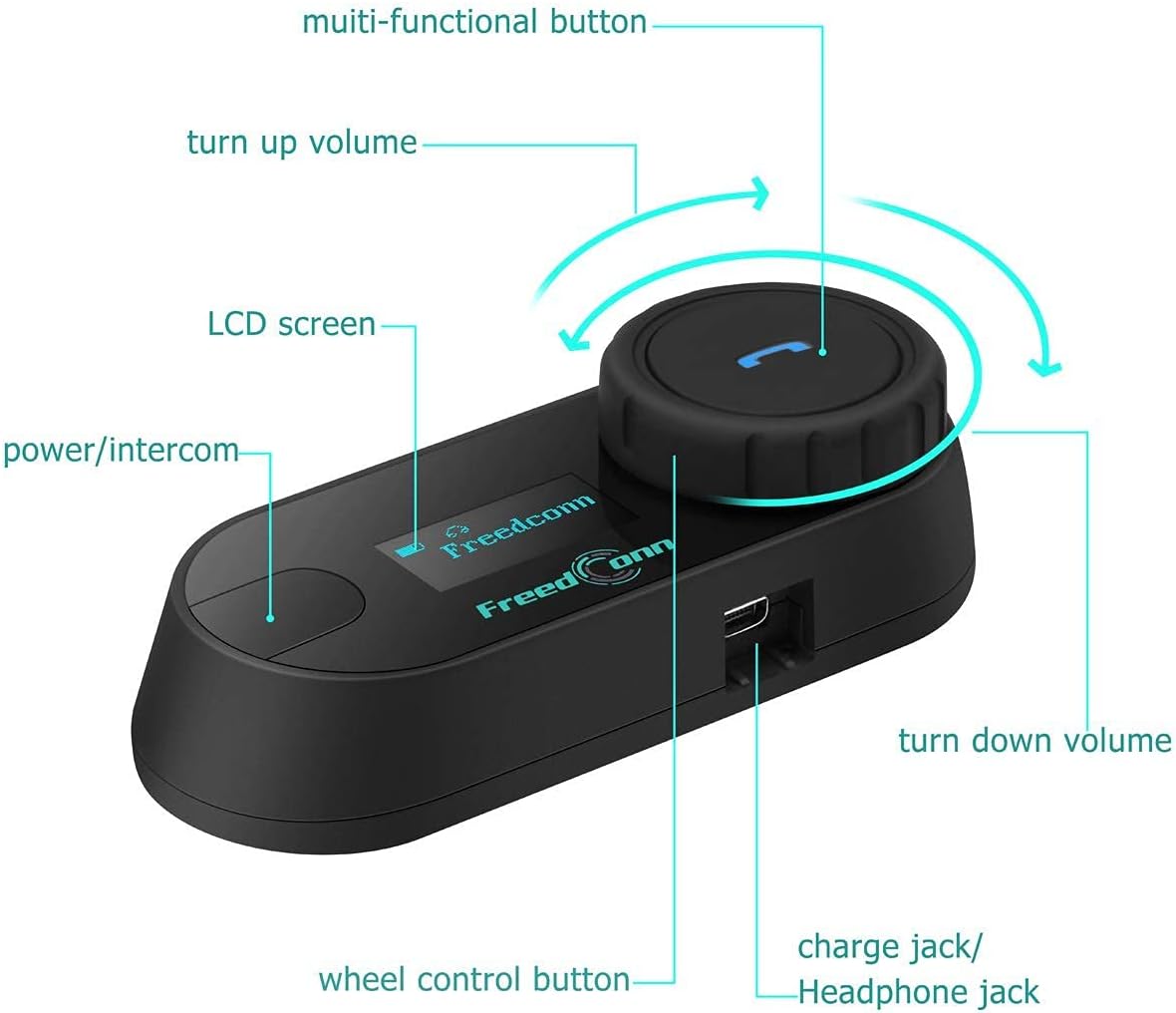
Image: FreedConn T-COM SC Controls Diagram. This diagram labels the various buttons and ports on the T-COM SC unit, including the multi-functional button, LCD screen, power/intercom button, wheel control button, and charge/headphone jack.
4.2. Pairing and Intercom Functions
The T-COM SC supports universal Bluetooth 5.0 pairing with other brands of helmet Bluetooth headsets. For optimal performance, follow the specific pairing methods:
Distinguishing Old vs. New T-COM Versions:
- Old Version T-COM: The boot voice prompt is "Beep".
- New Version T-COM (Bluetooth 5.0): The boot voice prompt is "Welcome to FreedConn Product".
Pairing Steps:
- Old Version Pairing: Press and hold the old version TCOM power button for 8 seconds until you see the red and blue lights flashing (for T-COM SC, the pairing state will appear on the screen), and enter the pairing status. (Note: You will hear the voice reminder "beep".)
- New Version Pairing: To turn on the new version T-COM, press the power button for 2 seconds. Then, long press the multi-function button for 8 seconds to enter the "enhanced" pairing status. (Note: To turn on the enhanced pairing mode, you need to first press the power button for 2s to turn on the device, and then long press the multi-function button for 8s to enter the enhanced pairing mode. You will hear the "pairing" voice prompt.)
- Searching and Connecting: Once both devices are in pairing mode, the new T-COM will search and connect to the old T-COM. When the connection is successful, you will hear the "Connected" voice prompt. For T-COM VB, the Red/Blue lights will change to Blue light flashing. For T-COM SC, the LCD screen will change from "PAIRING" to "INTERCOM".
- Disconnecting: To disconnect the Bluetooth intercom between the new and old T-COMs, short press the power button of the New T-COM.

Image: FreedConn T-COM SC Pairing Methods. This image provides a detailed visual guide on how to distinguish between old and new T-COM versions and outlines the specific pairing steps for each, including connecting and disconnecting devices.
For a visual demonstration of pairing, you may refer to this external video: FreedConn T-COMSC How to Use
4.3. Music Sharing
The T-COM SC allows you and your riding partner to listen to the same music from a smartphone through the intercom function. This feature is compatible only between two T-COM SC/VB Bluetooth 5.0 version headsets.

Image: FreedConn T-COM SC Music Sharing. This image depicts two riders sharing music through their intercoms, illustrating the music sharing feature between two T-COM SC units.
4.4. Multitasking Audio and Hands-Free Functions
The wireless helmet headset enables you to listen to music, FM radio, and GPS voice prompts simultaneously while riding. You can seamlessly switch between phone calls, intercom conversations, and music. The hands-free function enhances riding safety by allowing voice dialing and automatic answering of calls. The automatic call answering feature can be disabled if preferred.
5. Maintenance
To ensure the longevity and optimal performance of your FreedConn T-COM SC, follow these maintenance guidelines:
- Water Resistance: The device is waterproof, sunproof, and dustproof. However, avoid prolonged submersion in water.
- Cleaning: Use a soft, damp cloth to clean the unit. Do not use harsh chemicals or abrasive cleaners.
- Battery Care: Charge the battery fully before first use. The average battery life is 10 hours for talk time and 7 hours for intercom. A full charge takes approximately 12 hours. Avoid completely draining the battery frequently to prolong its lifespan.
- Storage: Store the device in a cool, dry place when not in use.
6. Troubleshooting
If you encounter issues with your FreedConn T-COM SC, refer to the following common solutions:
- Device Not Turning On: Ensure the battery is charged. Connect the device to a power source using the USB cable.
- Pairing Issues: Review the "Pairing and Intercom Functions" section (4.2) for correct pairing procedures for both old and new versions. Ensure both devices are in pairing mode.
- No Sound or Low Volume: Check that the headset is securely connected to the main unit. Adjust the volume using the wheel control button. Ensure the speakers are correctly positioned in your helmet.
- Poor Sound Quality/Noise: The device features DSP echo cancellation and CVC noise suppression. Ensure the microphone is positioned correctly and not obstructed. Check for any external interference.
- Intercom Disconnects: Ensure devices are within the 800-meter range. Obstacles or extreme distances can cause disconnections. Re-initiate the intercom connection.
- Automatic Call Answering Not Working/Always On: Check the device settings to enable or disable the automatic call answering feature as desired.
7. Specifications
| Feature | Specification |
|---|---|
| Model Name | TCOM SC |
| Brand | FreedConn |
| Connectivity Technology | Wireless (Bluetooth) |
| Bluetooth Version | 5.0 |
| Bluetooth Range | 30 Meters |
| Intercom Range | Up to 800 Meters |
| Max Speed for Intercom | 120 km/h |
| Battery Type | 1 Lithium Polymer (included) |
| Average Battery Life (Talk) | 10 Hours |
| Average Battery Life (Intercom) | 7 Hours |
| Battery Charge Time | 12 Hours |
| Noise Control | Active Noise Cancellation (DSP & CVC) |
| Headphone Jack | USB |
| Control Method | Push Button |
| Water Resistance Level | Waterproof |
| Color | Black |
| Dimensions | 16.8 x 11.8 x 4.4 cm |
| Weight | 300 g |
| Country of Origin | China |
8. Warranty and Support
8.1. Warranty Information
The FreedConn T-COM SC comes with a 1-year warranty from the date of purchase. This warranty covers manufacturing defects and malfunctions under normal use. Please retain your proof of purchase for warranty claims.
8.2. Customer Support
For any technical assistance, troubleshooting not covered in this manual, or warranty inquiries, please contact FreedConn customer support through the retailer where you purchased the product or visit the official FreedConn website for contact information.
9. Official Product Videos
Below are official product videos from the seller that may provide additional guidance:
FreedConn T-COMSC: How to Use It?
Video: FreedConn T-COMSC, How to Use It? This video provides a comprehensive guide on the usage of the FreedConn T-COM SC intercom system, demonstrating its various functions and operations.