Introduction
This manual provides comprehensive instructions for the Samsung Galaxy Tab E 8.0 (model SM-T377A) tablet. This device features an 8-inch HD touchscreen, a Quad-Core CPU, 1.5GB of RAM, 16GB of internal storage, Bluetooth, and 4G LTE AT&T connectivity, running on Android 5.1 Lollipop. Please read this manual carefully to ensure proper use and maintenance of your device.

Figure 1: Front view of the Samsung Galaxy Tab E 8.0 tablet displaying the home screen.
1. Setup
1.1 Package Contents
Ensure your package contains the following items:
- Samsung Galaxy Tab E 8.0 (SM-T377A) Tablet
- USB Charging Cable
- Power Adapter
- Quick Start Guide (if included)
1.2 Charging the Battery
Before initial use, fully charge the tablet's battery. Connect the USB charging cable to the tablet's charging port and the other end to the power adapter. Plug the adapter into a wall outlet. The charging indicator will appear on the screen. A full charge typically takes several hours.
1.3 Powering On/Off
- To Power On: Press and hold the Power button (located on the side) until the Samsung logo appears.
- To Power Off: Press and hold the Power button, then select 'Power off' from the options on the screen.
1.4 Initial Setup Wizard
Upon first power-on, the tablet will guide you through an initial setup process. This includes:
- Language Selection: Choose your preferred language.
- Wi-Fi Connection: Select an available Wi-Fi network and enter the password to connect to the internet.
- Google Account: Sign in with an existing Google account or create a new one. This is essential for downloading apps from the Google Play Store.
- Date and Time: Set the correct date and time.
- Security: Set up a screen lock (PIN, pattern, or password) for device security.
1.5 SIM Card Installation (for 4G LTE models)
If your model supports 4G LTE, you may need to install a SIM card to access mobile data and cellular services. Refer to the diagram below for SIM card tray location.

Figure 2: Rear view of the tablet, indicating the camera and AT&T branding.
- Locate the SIM card tray on the side of the tablet.
- Use the provided SIM ejector tool (or a small paperclip) to gently press into the small hole on the tray.
- Pull out the SIM card tray.
- Place the SIM card into the tray with the gold contacts facing down, ensuring it fits correctly.
- Carefully reinsert the tray into the tablet.
2. Operating Instructions
2.1 Basic Navigation
The Samsung Galaxy Tab E 8.0 uses a capacitive multi-touch display for interaction.
- Touch: Tap an icon to open an app or select an item.
- Touch and Hold: Press and hold an item for more options or to move it.
- Swipe: Drag your finger across the screen to scroll through pages or lists.
- Pinch: Use two fingers to zoom in or out on images and web pages.
Physical buttons:
- Home Button: Returns to the home screen.
- Back Button: Returns to the previous screen.
- Recent Apps Button: Displays a list of recently used applications.

Figure 3: Tablet in landscape mode showing the home screen.
2.2 Connecting to Networks
- Wi-Fi: Go to Settings > Wi-Fi, turn Wi-Fi on, select your network, and enter the password.
- Bluetooth: Go to Settings > Bluetooth, turn Bluetooth on, and pair with available devices.
- Mobile Data (4G LTE): Go to Settings > Data usage to enable or disable mobile data. Ensure a valid SIM card is installed.
2.3 Using the Camera
The tablet features a 5 MP rear camera with autofocus. To use the camera:
- Tap the Camera icon on the home screen or app drawer.
- Frame your shot using the screen as a viewfinder.
- Tap the Shutter button to take a photo.
- Switch between photo and video modes as needed.
2.4 Managing Applications
You can download and manage applications through the Google Play Store or Samsung's Galaxy Apps.

Figure 4: The Galaxy Apps store interface on the tablet.
- Downloading Apps: Open the Play Store or Galaxy Apps, search for the desired app, and tap 'Install'.
- Uninstalling Apps: Go to Settings > Applications > Application manager, select the app, and tap 'Uninstall'.
2.5 Kids Mode
The tablet supports Kids Mode, providing a child-friendly interface with parental controls.
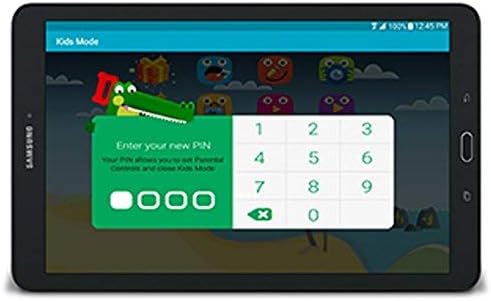
Figure 5: Kids Mode interface with PIN entry for parental controls.
- Locate and tap the Kids Mode icon.
- Follow the on-screen instructions to set up a PIN and configure allowed apps and usage limits.
- To exit Kids Mode, tap the exit icon and enter your PIN.
3. Maintenance
3.1 Battery Care
To maximize battery life (average 12 hours) and longevity:
- Avoid extreme temperatures.
- Do not let the battery drain completely before recharging frequently.
- Close unused applications running in the background.
- Reduce screen brightness when possible.
3.2 Cleaning the Device
Use a soft, lint-free cloth to clean the screen and body of the tablet. Avoid abrasive materials or harsh chemicals that could damage the display or finish.
3.3 Software Updates
Periodically check for software updates to ensure optimal performance and security. Go to Settings > About device > Software update.
3.4 Storage Management
The tablet has 16GB of internal storage. To manage storage:
- Regularly delete unnecessary files, photos, and videos.
- Uninstall unused applications.
- Consider using cloud storage services for backups.
- The tablet supports expandable storage via a microSD card (sold separately).
4. Troubleshooting
4.1 Common Issues and Solutions
- Device not powering on:
- Ensure the battery is charged. Connect the charger and wait a few minutes before attempting to power on.
- Press and hold the Power button for at least 10-15 seconds to perform a forced restart. - Screen unresponsive or frozen:
- Perform a forced restart by pressing and holding the Power button for 10-15 seconds.
- If the issue persists, consider a factory reset (see 4.2). - Charging issues:
- Ensure the charging cable and adapter are securely connected and are not damaged.
- Try a different wall outlet or USB port.
- Use only Samsung-approved charging accessories. - SIM card not detected:
- Ensure the SIM card is correctly inserted into the tray (refer to 1.5).
- Restart the tablet.
- Verify that the SIM card is active with your service provider. - Poor battery life:
- Review battery care tips in section 3.1.
- Close background apps and reduce screen brightness.
- Check for apps consuming excessive battery in Settings > Battery.
4.2 Factory Reset
A factory reset will erase all data from your tablet and restore it to its original factory settings. Back up important data before proceeding.
- Go to Settings > Backup and reset > Factory data reset.
- Tap Reset device, then Delete all.
- The tablet will restart and begin the reset process.
5. Specifications
| Feature | Specification |
|---|---|
| Model Name | Galaxy Tab E 8.0 (SM-T377A) |
| Operating System | Android 5.1 Lollipop |
| Display Size | 8 Inches |
| Screen Resolution | 1280 x 800 pixels |
| Processor | Qualcomm Snapdragon 410 (1.2 GHz Quad-Core) |
| RAM | 1.5 GB |
| Internal Storage | 16 GB SSD |
| Expandable Storage | MicroSD (up to 128GB, not included) |
| Rear Camera | 5 MP (Autofocus) |
| Front Camera | Not specified (typically lower resolution) |
| Wireless Connectivity | 802.11abg, 802.11bgn Wi-Fi, Bluetooth |
| Cellular Connectivity | 4G LTE (AT&T) |
| Ports | 1x USB 2.0 |
| Battery Life | Up to 12 Hours (average) |
| Item Weight | 12.6 ounces |
| Product Dimensions | 10 x 10 x 10 inches |
6. Warranty and Support
6.1 Amazon Renewed Guarantee
This product is covered by the Amazon Renewed Guarantee. If you are not satisfied with your purchase, renewed products are eligible for replacement or refund within 90 days of receipt.
6.2 Further Support
For additional assistance, please refer to the official Samsung support website or contact your retailer. Keep your purchase receipt and product information handy when seeking support.


