
1. Introduction
The Thermaltake Riing Duo 140mm RGB Radiator Fan 3-Pack with Controller (Model: CL-F078-PL14SW-A) is designed to provide efficient cooling and dynamic lighting for your PC system. Each fan features two individually addressable 16.8 million RGB LED rings with 18 patented LEDs, offering extensive customization options. This product supports TT RGB Plus software, Alexa Voice Service, and Razer Chroma software for integrated control. The 140mm high-static pressure fan is PWM controlled and incorporates a long-life hydraulic bearing and a compression fan blade design to ensure both effective cooling and quiet operation.
2. Package Contents
Please verify that all components listed below are included in your package:
- 3 x Thermaltake Riing Duo 140mm RGB Fans
- 1 x Digital Lighting Controller
- 1 x Bridge Cable
- 1 x Controller Cable
- 1 x Power Cable (Molex)
- 12 x Long Screws
- 12 x Short Screws
- 1 x Velcro (for controller mounting)

Figure 2.1: Included cables, screws, and velcro for installation.
3. Setup and Installation
Follow these steps to install your Thermaltake Riing Duo fans and controller:
- Prepare Your System: Power off your computer and disconnect it from the power source. Open your PC case to access the fan mounting locations.
- Mount the Fans: Securely attach the Riing Duo fans to your PC case or radiator using the provided long or short screws. Ensure the fan's airflow direction is appropriate for your cooling setup (typically intake or exhaust).
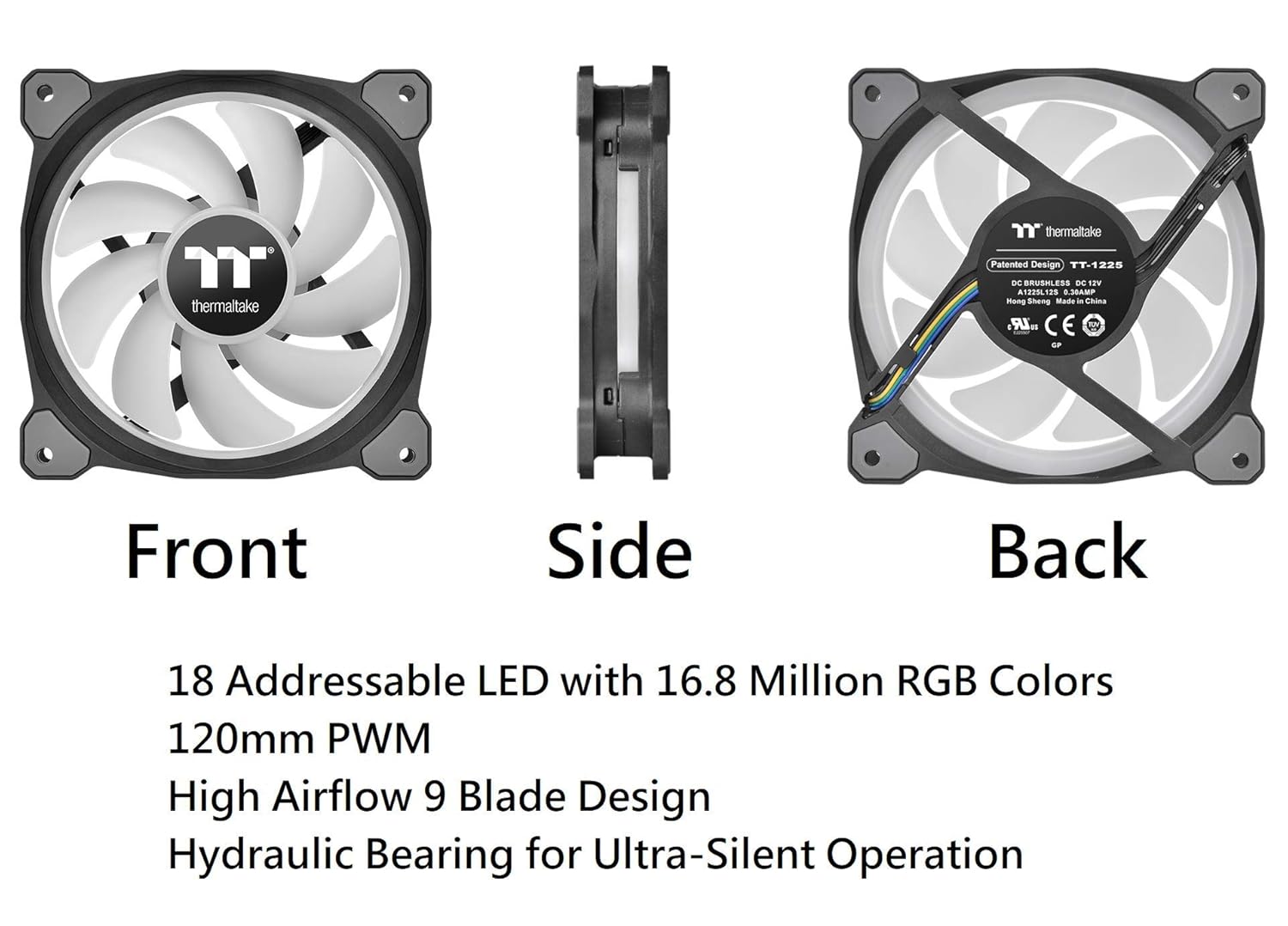
Figure 3.1: Fan orientation and key features.
- Connect Fans to Controller: Connect each Riing Duo fan's 9-pin cable to an available port on the Digital Lighting Controller. The controller can support up to 5 devices.
- Install the Digital Lighting Controller: Mount the controller inside your PC case using the provided Velcro. Ensure it is placed in a location that allows for cable management and access to the motherboard USB header and power supply.

Figure 3.2: Digital Lighting Controller.
The controller allows connection of up to 5 devices and up to 16 controllers can be managed by the software. Connect only one controller and up to 5 Riing Trio fans per peripheral (Molex) cable. Do not connect Riing Trio fans to other TT RGB PLUS controllers.
- Connect Controller to Motherboard: Use the Controller Cable to connect the Digital Lighting Controller to an available USB 2.0 header (9-pin) on your motherboard.
- Connect Controller to Power Supply: Use the Power Cable (Molex) to connect the Digital Lighting Controller to your PC's power supply.
- Software Installation: Download and install the latest version of the Thermaltake TT RGB Plus software from the official Thermaltake website. This software is required for full control over fan speed and lighting effects.
- Power On: Close your PC case, reconnect the power, and power on your computer.
4. Operating Instructions
The Thermaltake Riing Duo fans offer versatile control options:
- TT RGB Plus Software: This software provides comprehensive control over fan speed (PWM) and lighting effects. You can customize individual LED colors, choose from various lighting modes, and create profiles. The software also allows monitoring of fan RPM.

Figure 4.1: TT RGB Plus Software Interface.
- Alexa Voice Service: Integrate your Riing Duo fans with Alexa-enabled devices to control lighting effects or fan speed using voice commands. Refer to the TT RGB Plus software documentation for specific Alexa commands and setup.
- Razer Chroma: Synchronize your fan lighting with other Razer Chroma-supported products for a unified gaming aesthetic. Enable this feature within the TT RGB Plus software settings.

Figure 4.2: Sync lighting effects with Amazon Alexa and Razer Chroma.
- Motherboard Sync (Optional): With a compatible TT Sync controller (sold separately, CL-O015-PL00BL-A), lighting effects and fan speed can be controlled by select 5V addressable RGB enabled motherboards from brands like ASUS, Gigabyte, MSI, and ASRock.
5. Maintenance
Proper maintenance ensures the longevity and optimal performance of your fans:
- Cleaning: Periodically clean the fan blades and housing to prevent dust buildup, which can impede airflow and increase noise. Use a soft brush or compressed air. Ensure the system is powered off before cleaning.
- Connection Check: Regularly inspect all cable connections (fan to controller, controller to motherboard, controller to PSU) to ensure they are secure. Loose connections can lead to intermittent operation or lighting issues.
- Hydraulic Bearing: The fans feature a hydraulic bearing designed for long life and quiet operation. It is self-lubricating and generally does not require user maintenance.
6. Troubleshooting
If you encounter issues with your Thermaltake Riing Duo fans, refer to the following common problems and solutions:
| Problem | Possible Cause | Solution |
|---|---|---|
| Fans not spinning | Loose power connection to controller; Controller not connected to motherboard USB; Faulty fan or controller. | Check Molex power cable connection to PSU. Ensure USB 2.0 header cable is securely connected to motherboard. Test individual fans if possible. |
| LEDs not lighting up or incorrect colors | Loose fan-to-controller connection; Software not running or incorrect settings; Controller issue. | Verify all 9-pin fan cables are fully seated in the controller. Ensure TT RGB Plus software is running and lighting profiles are active. Restart software or computer. |
| Fans are excessively noisy | Dust buildup on blades; Fan speed set too high; Improper mounting. | Clean fan blades. Adjust fan speed settings in TT RGB Plus software. Ensure fans are securely mounted and not vibrating against the case. |
| Software issues (e.g., profiles not saving) | Software bug; Corrupted installation; Conflicting software. | Ensure you have the latest TT RGB Plus software version. Try reinstalling the software. Check for other RGB control software that might conflict. |
7. Specifications
| Feature | Specification |
|---|---|
| Model Number | CL-F078-PL14SW-A |
| Fan Dimensions | 140 x 140 x 25 mm (5.51 x 5.51 x 0.98 inches) |
| LED Type | Addressable RGB, 18 LEDs (2 rings), 16.8 Million Colors |
| Fan Speed | 500 ~ 1400 RPM |
| Max. Air Pressure | 1.74 mm-H2O |
| Noise Level | 26.2 dB-A |
| Bearing Type | Hydraulic Bearing |
| Life Expectation | 40,000 hrs at 25℃ |
| Rated Voltage | 12V & 5V |
| Power Input (3 Fans) | 12V – 6.12 W, 5V – 10.5 W |
| Interface | USB 2.0 connector (9 Pin) |
| System Compatibility | Windows 7 / 8 / 8.1 / 10 |
| Weight (one fan) | 195 g (6.9 ounces) |
| Material | Rubber (Anti-vibration pads) |
8. Warranty and Support
Warranty: This product is covered by a 3-year limited warranty from the date of purchase. The warranty covers defects in materials and workmanship under normal use. Please retain your proof of purchase for warranty claims.
Technical Support: For further assistance, troubleshooting not covered in this manual, or warranty inquiries, please visit the official Thermaltake website at www.thermaltake.com and navigate to the support section. You may also find updated drivers, software, and FAQs there.


