Introduction
Welcome to the Canon XA50 Professional Camcorder user manual. This guide provides essential information for setting up, operating, maintaining, and troubleshooting your camcorder. The Canon XA50 is designed for professional video production, offering 4K UHD recording, advanced optical features, and versatile audio input capabilities.
What's in the Box
Verify that all items are present in the packaging:
- XA50 Body
- Battery Pack BP-820
- AC Adapter CA-570
- Lens Hood
- Wireless Controller WL-D89
Product Overview
The Canon XA50 is a compact, professional camcorder featuring a 1.0-inch 4K UHD CMOS sensor, 15x optical zoom, and Dual Pixel CMOS AF. It is designed for high-quality video capture in various professional environments.

This image displays the Canon XA50 Professional Camcorder from a front-left angle, highlighting its compact body, integrated handle, and lens hood. The 4K UHD and XA50 branding are visible on the side.

A front view of the Canon XA50 camcorder with its LCD screen articulated outwards, showing the screen and the main lens assembly.

The rear of the Canon XA50 camcorder, showing the battery slot, viewfinder, and various control buttons for camera operation.

The left side of the Canon XA50 camcorder, displaying the hand strap, Canon logo, and some control buttons.

The right side of the Canon XA50 camcorder, featuring the detachable handle with XLR audio input ports.
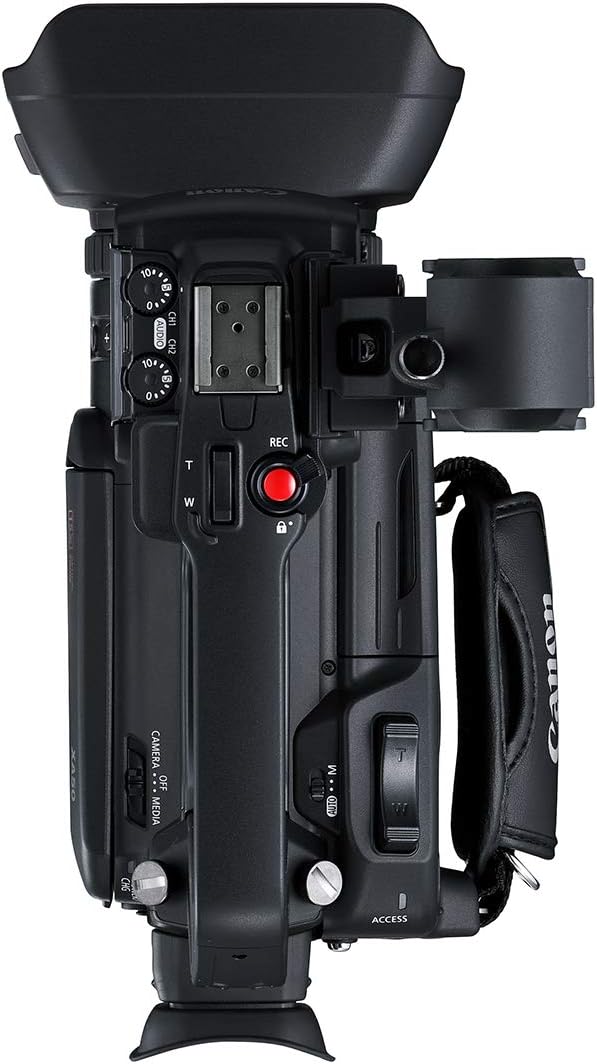
An overhead view of the Canon XA50 camcorder, showing the top handle, hot shoe mount, and the main recording button.
Setup
1. Attaching the Handle Unit
The handle unit provides additional control and XLR audio inputs.
- Align the handle unit with the accessory shoe on top of the camcorder body.
- Slide the handle unit forward until it clicks into place.
- Secure the handle unit by tightening the locking screw.
2. Attaching the Lens Hood
The lens hood helps to prevent glare and protect the lens.
- Align the lens hood with the front of the lens barrel.
- Rotate the lens hood clockwise until it locks securely.
3. Inserting the Battery Pack
Insert the charged battery pack into the battery slot at the rear of the camcorder until it locks.
4. Inserting an SD Card
Open the SD card slot cover and insert a compatible SDXC card into one of the available slots until it clicks. Close the cover.
5. Powering On
Set the POWER switch to the "CAMERA" position. The camcorder will power on.
Operating the Camcorder
Recording Video
To begin recording, press the REC button located on the handle or the camcorder body. Press it again to stop recording.
Zoom Control
Use the zoom rocker on the handle or the lens barrel to adjust the optical zoom. The XA50 features a 15x optical zoom.
Focus Adjustment
The camcorder supports Dual Pixel CMOS AF for fast and accurate autofocus. Manual focus can also be selected for precise control.
Audio Input
The handle unit includes two XLR input terminals for connecting external microphones or audio devices, providing professional audio recording capabilities.
LCD Monitor and Viewfinder
The camcorder features a 3-inch LCD monitor that can be articulated for flexible viewing angles. A built-in electronic viewfinder is also available for stable shooting.
Maintenance
Cleaning the Lens
Use a soft, lint-free cloth and lens cleaning solution to gently wipe the lens surface. Avoid touching the lens with bare fingers.
Battery Care
Store batteries in a cool, dry place. Fully charge batteries before extended use and discharge them periodically if not used for long periods.
Storage
When not in use, store the camcorder in a dry, dust-free environment, preferably in a padded case to prevent damage.
Troubleshooting
Power Issues
If the camcorder does not power on, ensure the battery is fully charged and correctly inserted, or connect the AC adapter.
Recording Problems
Check if an SD card is inserted and has sufficient free space. Ensure the recording format settings are correct.
Image Quality
If images appear blurry, check focus settings. Clean the lens if smudges are present. Adjust lighting conditions as needed.
Specifications
| Feature | Detail |
|---|---|
| Optical Sensor Resolution | 13.4 MP |
| Max Focal Length | 382.5 mm |
| Viewfinder Type | LCD |
| Lens Type | Fixed |
| Product Dimensions | 8.4 x 3.6 x 4.3 inches |
| Item Weight | 5.2 pounds |
| Item model number | 3669C002 |
| Batteries | 1 Lithium Ion batteries required. (included) |
| Photo Sensor Technology | CMOS |
| Video Capture Resolution | 1080p, 4K |
| Maximum Aperture | 2.8 Millimeters |
| Flash Memory Type | SDXC |
| Video Capture Format | H.264 |
| Supported Audio Format | LPCM, Dolby Digital 2.0 |
| Screen Size | 3 Inches |
| Connectivity Technology | USB |
| Manufacturer | Canon |
| Date First Available | April 11, 2019 |
Warranty and Support
For warranty information and technical support, please refer to the official Canon website or contact Canon customer service. Keep your proof of purchase for warranty claims.


