
Introduction
The ROCCAT Vulcan 121 AIMO is a full-size mechanical gaming keyboard featuring tactile Titan Switches, designed for speed and responsiveness. Its low-profile design enhances comfort and reduces fatigue during extended use. The keyboard incorporates durable materials and advanced lighting features to optimize your gaming and typing experience.
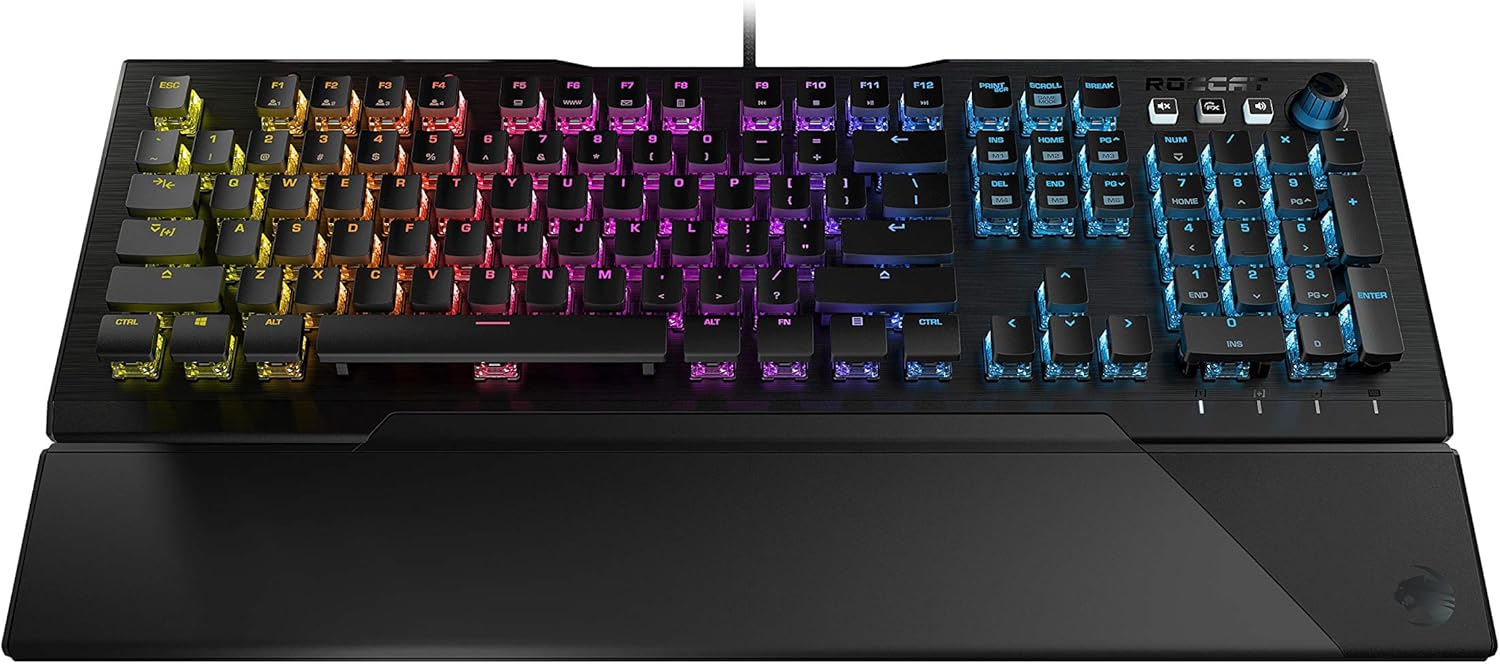
Figure 1: ROCCAT Vulcan 121 Tactile Mechanical Gaming Keyboard
Key Features
- Titan Switch Mechanical (Tactile): Engineered for a crisp, tactile bump and instant responsiveness.
- Advanced Anti-Ghosting: Ensures every keystroke of frequently used keys is registered accurately.
- AIMO Illumination: ROCCAT's proprietary lighting ecosystem provides vivid RGB lighting scenarios per key.
- Mixer-Style Media Controls: Dedicated volume dial and backlit media buttons for on-the-fly audio adjustments.
- Customized with Easy-Shift[+]: Adds a secondary function to compatible keys for double the command power.
- Detachable Palm Rest: Magnetic solution for adjustable comfort during typing or gaming.
- Long-Lasting Durability: Reinforced by an aircraft-grade aluminum top plate and dust/dirt-resistant Titan switches.
Setup
Package Contents
- ROCCAT Vulcan 121 Tactile Mechanical Gaming Keyboard
- Detachable Palm Rest
- USB Cable (attached)
- Quick Installation Guide

Figure 2: Keyboard with detachable palm rest
Connecting the Keyboard
- Locate the attached USB cable from the keyboard.
- Plug the USB-A connector of the cable into an available USB port on your computer.
- The keyboard will automatically be detected by your operating system (Windows 7, 8, 10).
Software Installation
- Ensure your computer is connected to the internet.
- Visit the official ROCCAT website.
- Navigate to the support section and download the latest version of the ROCCAT Swarm software.
- Follow the on-screen instructions to install the software. Swarm allows for advanced customization of lighting, macros, and key assignments.
Operating Instructions
Titan Switches
The ROCCAT Vulcan 121 features Titan Mechanical (Tactile) switches. These switches are designed to provide a noticeable tactile bump during actuation, offering precise feedback without excessive noise. The low-profile design of the switches and keycaps contributes to faster response times and reduced finger fatigue.

Figure 3: Titan Switch diagram
AIMO Illumination
The AIMO intelligent lighting system creates dynamic RGB lighting effects that react to your behavior and compatible devices. It offers full backlighting in 16.8 million colors. Customize lighting effects and brightness through the ROCCAT Swarm software.
Media Controls
The keyboard includes dedicated mixer-style audio controls located in the upper right corner. Use the volume dial to adjust audio levels and the backlit media buttons to play, pause, skip tracks, or mute/unmute audio. These controls can also be re-assigned via the Swarm software.

Figure 4: Media controls and volume dial
Customization with Easy-Shift[+]
ROCCAT's Easy-Shift[+] technology allows you to assign a secondary function to compatible keys. By holding down a designated modifier key, you can instantly access a second layer of commands, effectively doubling the functionality of your keyboard.
Advanced Anti-Ghosting
The keyboard features advanced anti-ghosting technology, optimized to ensure that every keystroke, especially during frantic gaming sessions, is registered accurately without conflicts.
Maintenance
Cleaning
To maintain optimal performance and appearance, regularly clean your keyboard. Use a soft, dry cloth to wipe down the surface. For deeper cleaning, you may carefully remove keycaps and use compressed air to clear debris from beneath the switches. Ensure the keyboard is disconnected from your computer before cleaning.
Durability
The Vulcan 121 is built with an aircraft-grade aluminum top plate for enhanced structural integrity and durability. The Titan switches are designed to resist dust and dirt build-up, contributing to the keyboard's longevity and consistent performance.
Troubleshooting
Common Issues
- Keyboard not responding: Ensure the USB cable is securely connected to both the keyboard and the computer. Try a different USB port.
- RGB lighting not working or stuck: Open the ROCCAT Swarm software and check the lighting settings. Try adjusting brightness or switching between different lighting profiles. Ensure the software is up to date.
- Keys not registering or double-typing: This could indicate dirt or debris under the keycap. Carefully remove the affected keycap and clean the switch area with compressed air. If the issue persists, ensure Swarm software is updated.
- Palm rest not attaching securely: Ensure both the keyboard and palm rest magnetic surfaces are clean and free of obstructions.
Specifications
| Feature | Detail |
|---|---|
| Brand | ROCCAT |
| Model Number | ROC-12-671-BN-AM |
| Style | Vulcan 121 |
| Switch Type | Titan Switch Mechanical (Tactile) |
| Backlighting | AIMO RGB (16.8 million colors, per-key) |
| Connectivity | Wired (USB) |
| Hardware Platform | PC |
| Operating System | Windows 7, Windows 8, Windows 10 |
| Item Weight | 2.53 pounds |
| Product Dimensions | 9.25 x 18.19 x 1.26 inches |
| Color | Black |
Warranty and Support
The ROCCAT Vulcan 121 AIMO comes with a 2-year limited manufacturer warranty. For warranty claims, technical assistance, or further support, please visit the official ROCCAT website or contact their customer service.
Official ROCCAT Website: www.roccat.com


