
1. Introduction
This manual provides essential information for the safe and effective use of your NEDIS WIFICBO10WT IP Camera. Please read these instructions carefully before operating the device and retain them for future reference. This camera is designed for outdoor surveillance, offering wireless connectivity, battery power, and PIR motion detection.
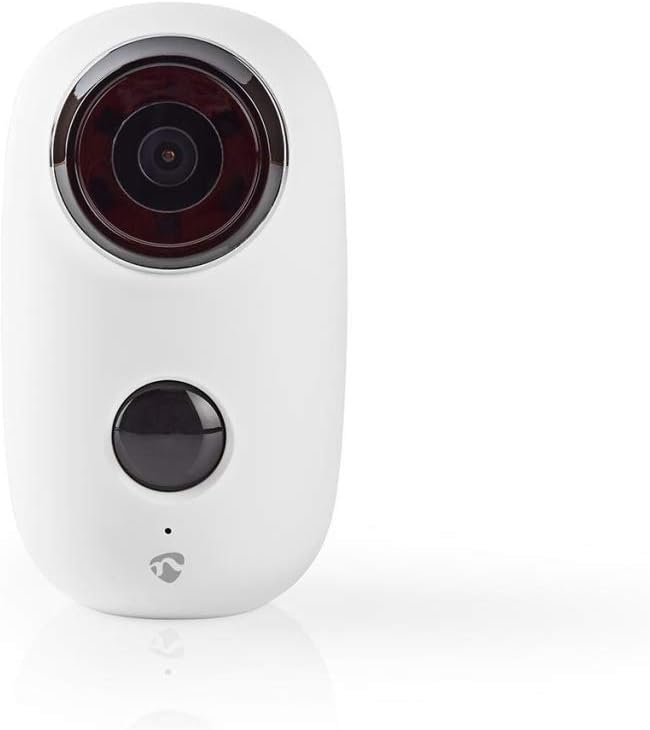
Figure 1: Front view of the NEDIS WIFICBO10WT IP Camera, showing the lens and a control button.
2. Safety Information
- Ensure the camera is installed in a location where it is protected from extreme temperatures and direct sunlight.
- Do not expose the camera to fire or heat sources.
- Use only the specified charging cable and power adapter.
- Keep the camera and its accessories out of reach of children.
- Do not attempt to disassemble or modify the camera. This will void the warranty.
- The camera is IP65 waterproof; however, avoid submerging it in water.
3. Package Contents
Verify that all items are present in the package:
- NEDIS WIFICBO10WT IP Camera
- Quick Guide
- USB Cable
- Camera Mount (Wall Mount)
4. Product Overview
The NEDIS WIFICBO10WT IP Camera features a robust design suitable for outdoor use. Key components include:
- Camera Lens: Captures 1080p video.
- PIR Motion Sensor: Detects movement for event-triggered recording.
- Microphone & Speaker: For two-way audio communication.
- Status Indicator Light: Provides operational feedback.
- USB Charging Port: For battery recharging.
- MicroSD Card Slot: For local storage of recordings.
- Reset Button: To restore factory settings.

Figure 2: Back view of the camera, showing the magnetic mount base and speaker grille.
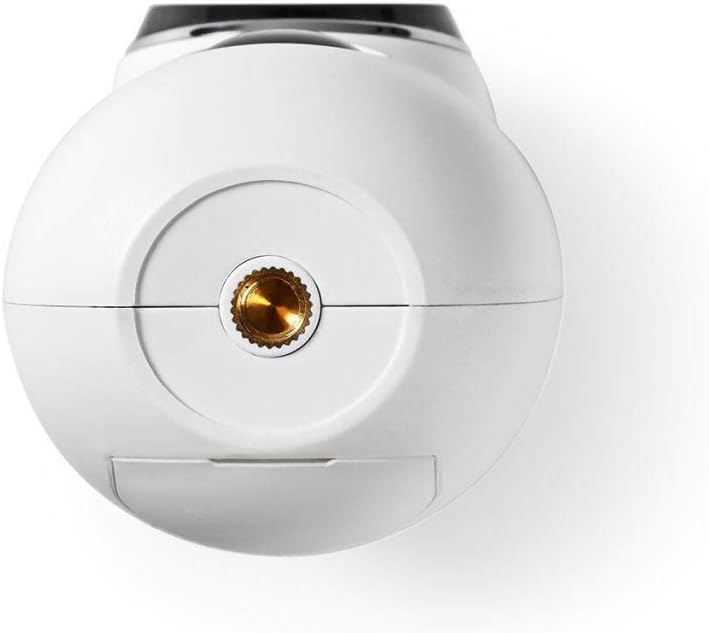
Figure 3: Bottom view of the camera, revealing the tripod screw mount and a protective cover, typically housing the USB charging port, MicroSD card slot, and reset button.
5. Setup
5.1. Charging the Battery
Before initial use, fully charge the camera's integrated 6000mAh Lithium Ion battery. Connect the provided USB cable to the camera's charging port and a compatible USB power adapter (not included). The status indicator light will show charging progress and completion. A full charge can last up to 10 months depending on usage.
5.2. Installing the MicroSD Card
The camera supports local storage via a MicroSD card (not included). Locate the MicroSD card slot, usually under a protective cover on the bottom of the camera. Insert the MicroSD card with the contacts facing the correct direction until it clicks into place. Ensure the cover is securely closed to maintain water resistance.
5.3. App Installation and Pairing
- Download the 'Nedis SmartLife' app from your smartphone's app store (iOS or Android).
- Register for a new account or log in if you already have one.
- Follow the in-app instructions to add a new device. Select 'Security Camera' or similar.
- Power on the camera. The status indicator light will flash, indicating it's ready for pairing.
- Scan the QR code displayed in the app with the camera lens, or follow alternative pairing methods if prompted.
- Once paired, you can configure camera settings, view live feed, and access recordings through the app.
5.4. Mounting the Camera
The camera comes with a wall mount for flexible installation. Choose a suitable outdoor location that provides the desired viewing angle and strong Wi-Fi signal. The camera's IP65 rating ensures protection against dust and water jets.
- Mark the drilling points on the wall using the mount as a template.
- Drill holes and insert wall plugs if necessary.
- Secure the mount to the wall using screws.
- Attach the camera to the mount. The magnetic base allows for easy adjustment of the camera's angle.
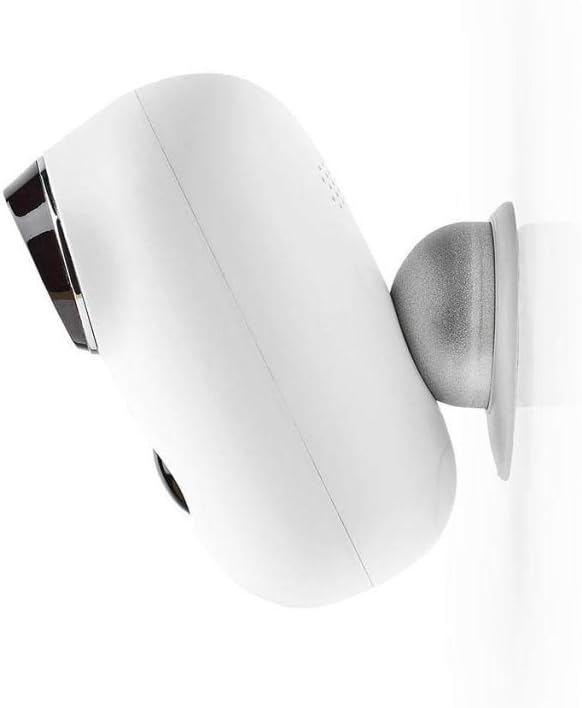
Figure 4: Side view of the camera demonstrating its attachment to the wall mount, allowing for angle adjustment.
6. Operating the Camera
6.1. Live View and Two-Way Audio
Open the Nedis SmartLife app on your smartphone. Select your camera from the device list to access the live video feed. From the live view interface, you can:
- View Live Video: Monitor your property in real-time.
- Two-Way Audio: Tap the microphone icon to speak through the camera's speaker, and listen to audio from the camera's microphone.
- Take Screenshots/Record Manually: Capture images or video clips directly to your phone.
6.2. Motion Detection and Notifications
The integrated PIR motion sensor detects movement and triggers recordings. When motion is detected:
- The camera automatically starts recording video to the installed MicroSD card.
- A push notification is sent to your smartphone via the Nedis SmartLife app.
- You can customize motion detection sensitivity and notification settings within the app.
6.3. Recording and Playback
Recordings are stored on the MicroSD card. To access and play back recorded footage:
- In the Nedis SmartLife app, navigate to the camera's settings or playback section.
- Browse through the timeline or event list to find specific recordings.
- You can download recordings to your smartphone if needed.

Figure 5: The camera installed in an outdoor environment, demonstrating its intended use for property surveillance.
7. Maintenance
- Cleaning: Use a soft, dry cloth to clean the camera lens and body. Do not use harsh chemicals or abrasive cleaners.
- Battery Care: Recharge the camera's battery approximately every 10 months, or as indicated by the app, to ensure continuous operation. Avoid completely draining the battery frequently to prolong its lifespan.
- Firmware Updates: Periodically check the Nedis SmartLife app for available firmware updates to ensure optimal performance and security.
- Water Resistance: Ensure all covers and seals are properly closed to maintain the IP65 water resistance rating.
8. Troubleshooting
| Problem | Possible Cause | Solution |
|---|---|---|
| Camera not powering on | Low battery | Charge the camera fully using the provided USB cable. |
| Unable to connect to Wi-Fi | Incorrect Wi-Fi password; Camera too far from router; Router issues | Verify Wi-Fi password. Move camera closer to router. Restart router. Ensure 2.4GHz Wi-Fi is used. |
| No motion detection notifications | Motion detection disabled; App notifications off; Low sensitivity | Enable motion detection in app. Check phone notification settings. Adjust sensitivity. |
| Recordings not saving | No MicroSD card; Full MicroSD card; Faulty MicroSD card | Insert a MicroSD card. Format or replace the MicroSD card. |
| Two-way audio not working | Microphone/speaker muted in app; Network latency | Ensure audio is enabled in the app. Check network connection stability. |
9. Technical Specifications
| Feature | Specification |
|---|---|
| Model Number | WIFICBO10WT |
| Video Capture Resolution | 1080p |
| Connectivity Technology | Wireless (Wi-Fi) |
| Power Source | Battery Powered |
| Battery Type | 1 Lithium Ion (included) |
| Battery Capacity | 6000mAh (approx. 10 months without charging) |
| Special Features | PIR Motion Sensor, Two-Way Audio |
| Indoor/Outdoor Usage | Outdoor |
| Water Resistance Level | IP65 |
| Storage | MicroSD (not included) |
| Controller Type | App Control |
| Compatible Devices | Smartphone |
| Material | Metal |
| Dimensions (L x W x H) | 6.5 x 12.5 x 14 cm |
| Weight | 1.2 kg |
10. Warranty and Support
For warranty information and technical support, please refer to the official NEDIS website or contact your local retailer. Keep your purchase receipt as proof of purchase. Do not attempt to repair the device yourself, as this may void the warranty.