
Hexgears K950
Hexgears K950 Ultra-Thin Multi-Device Wireless Mechanical Keyboard User Manual
1. Introduction
Welcome to the Hexgears K950 Ultra-Thin Multi-Device Wireless Mechanical Keyboard user manual. This document provides comprehensive instructions to help you set up, operate, maintain, and troubleshoot your new keyboard. The Hexgears K950 is designed for versatility, offering both wired and wireless (Bluetooth 4.0+) connectivity, multi-device support, and customizable RGB backlighting in a compact, ultra-thin form factor.

Hexgears K950 keyboard with RGB backlighting active, viewed from above.
2. Package Contents
Please verify that all items are present in your package:
- Hexgears K950 Ultra-Thin Mechanical Keyboard
- USB Type-C Charging/Data Cable
3. Product Overview
The Hexgears K950 features a sleek, ultra-thin design with a 96-key layout, including a numeric keypad. It utilizes high-quality Kailh Choc White mechanical switches for a tactile and responsive typing experience. The keyboard also boasts vibrant RGB backlighting with multiple customizable modes.
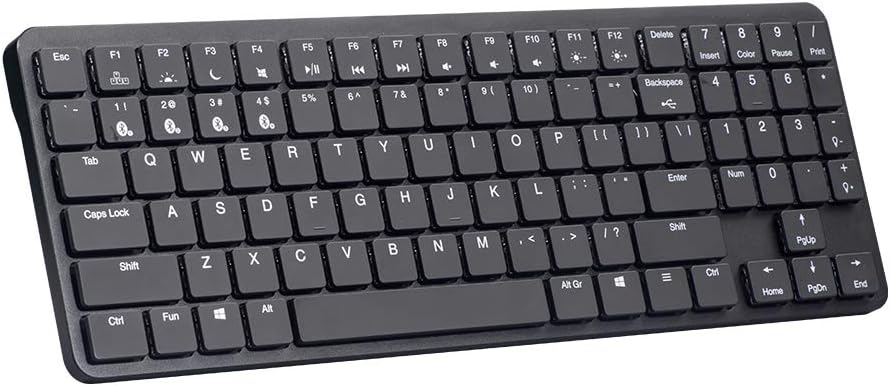
Angled view of the Hexgears K950 keyboard, showcasing its slim profile.

Top-down view of the Hexgears K950 keyboard, highlighting the integrated kickstand for ergonomic tilt.
4. Setup
4.1 Charging the Keyboard
The Hexgears K950 has a built-in 2400mAh rechargeable lithium-ion battery. To charge the keyboard, connect the provided USB Type-C cable to the keyboard's port and the other end to a USB power source (e.g., computer USB port, wall adapter). The keyboard can be used in wired mode while charging.
4.2 Wired Connection
For a wired connection, simply connect the USB Type-C cable from the keyboard to an available USB port on your computer. The keyboard will be automatically recognized and ready for use.
4.3 Wireless Connection (Bluetooth)
The Hexgears K950 supports Bluetooth 4.0 or higher and can connect to up to four devices simultaneously.
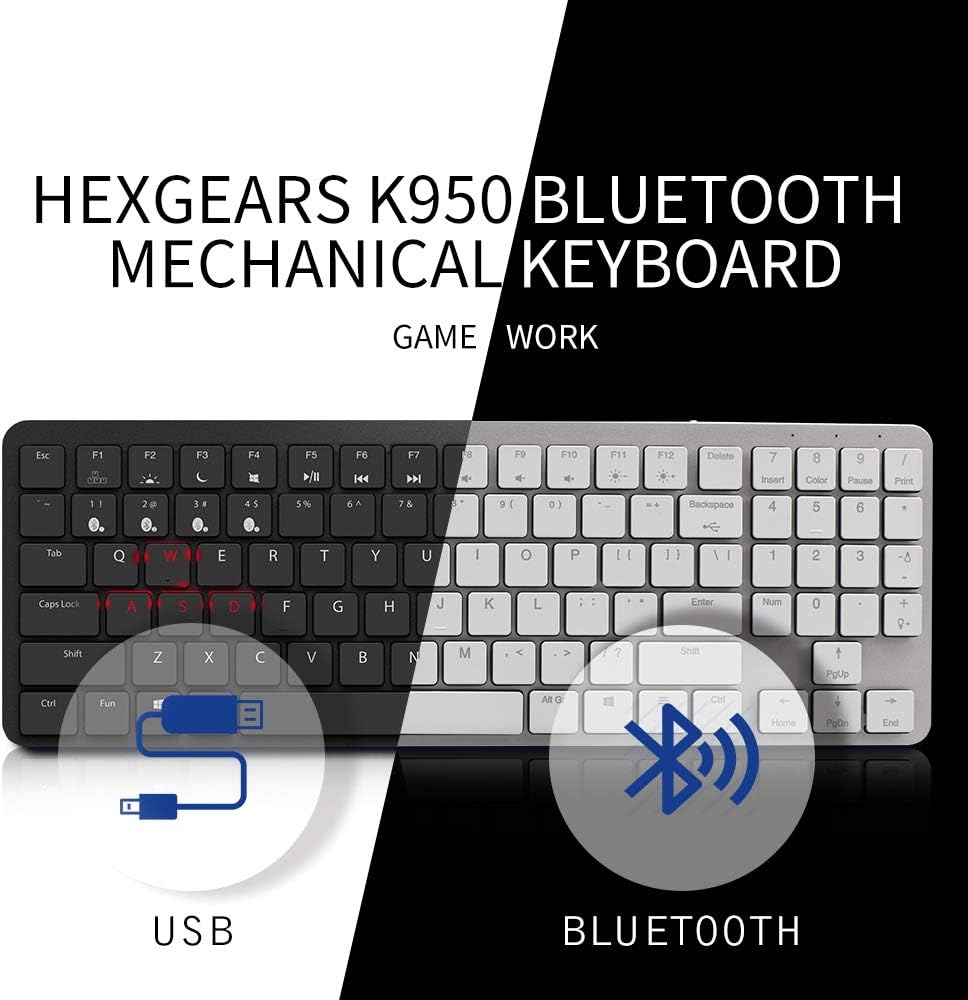
Diagram illustrating the dual connection modes of the Hexgears K950 keyboard: USB wired connection and Bluetooth wireless connection.
- Switch to Wireless Mode: Ensure the keyboard is in wireless mode. (Specific switch location not provided, typically a toggle on the back or side).
- Select a Bluetooth Channel: Press Fn + BT1, Fn + BT2, Fn + BT3, or Fn + BT4 to select an available Bluetooth channel. The corresponding indicator light will flash, indicating pairing mode.
- Enable Bluetooth on Your Device: On your computer, tablet, or smartphone, go to your Bluetooth settings and enable Bluetooth.
- Pair the Keyboard: Search for available Bluetooth devices. The keyboard should appear as "Hexgears K950" or similar. Select it to pair.
- Confirm Pairing: Follow any on-screen prompts to complete the pairing process. The indicator light on the keyboard will stop flashing once successfully paired.
4.4 Switching Between Devices
To switch between up to four paired Bluetooth devices, simply press Fn + BT1/BT2/BT3/BT4 corresponding to the desired device's channel.
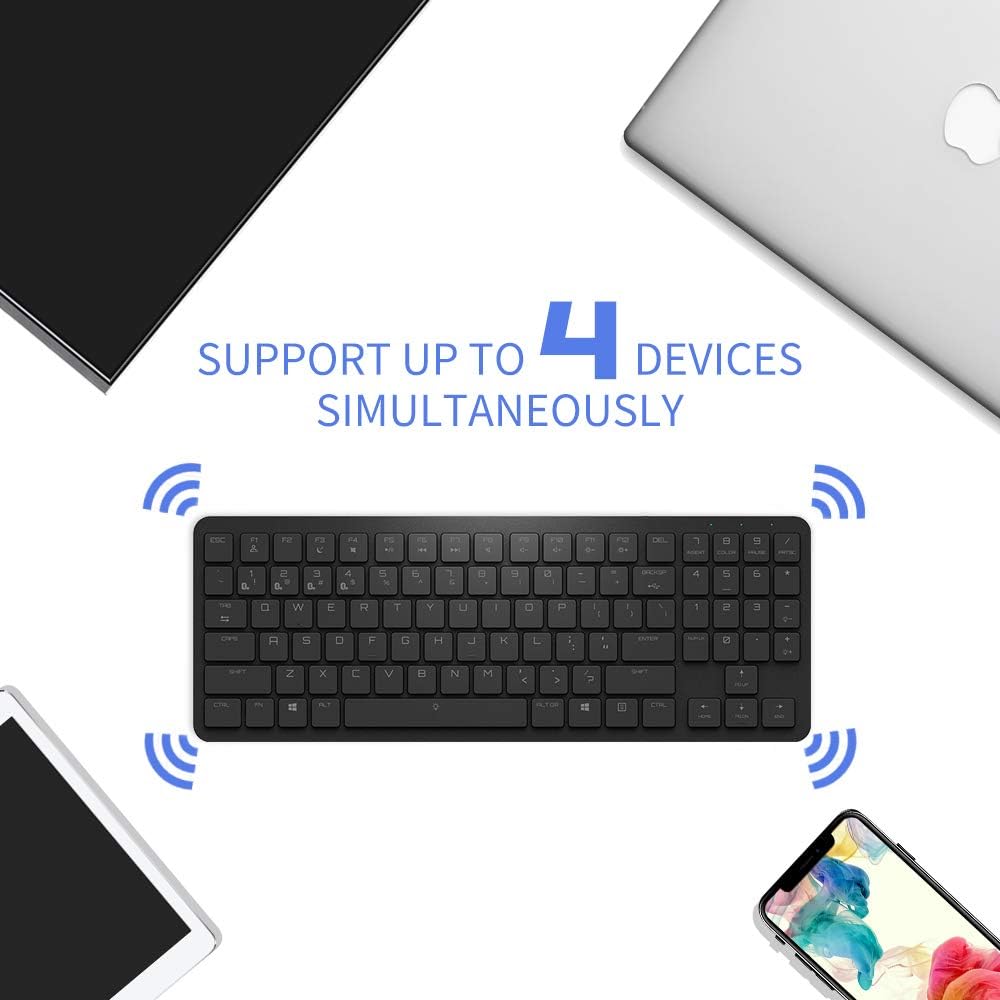
The Hexgears K950 keyboard supports simultaneous connection to up to four devices via Bluetooth.
5. Operating Modes
5.1 RGB Backlighting Control
The Hexgears K950 offers multiple RGB backlighting modes. You can cycle through up to 16 different lighting effects and customize them.
- Change Lighting Mode: Press Fn + F12 (or the key with the light bulb icon) to cycle through different RGB lighting modes.
- Adjust Brightness: Use Fn + Up Arrow to increase brightness and Fn + Down Arrow to decrease brightness.
- Adjust Speed/Direction: Specific keys for speed/direction adjustment may vary. Refer to the keyboard's keycaps for relevant icons.

Visual representation of various RGB lighting modes on the Hexgears K950 keyboard.
5.2 Function Key Combinations
The keyboard features dedicated function keys (F1-F12) that can be combined with the Fn key to access multimedia controls and other shortcuts.
- Fn + F1-F3: Bluetooth channel selection (BT1, BT2, BT3).
- Fn + F4: Bluetooth channel selection (BT4).
- Fn + F5: Media Play/Pause.
- Fn + F6: Previous Track.
- Fn + F7: Next Track.
- Fn + F8: Mute.
- Fn + F9: Volume Down.
- Fn + F10: Volume Up.
- Fn + F11: Brightness Down (if applicable).
- Fn + F12: Brightness Up / Cycle RGB Modes.
- Fn + Win: Lock/Unlock Windows key.
6. Maintenance
6.1 Cleaning
To maintain your keyboard's performance and appearance:
- Use a soft, dry cloth to wipe the surface of the keyboard.
- For dust between keycaps, use compressed air.
- Avoid using harsh chemicals or abrasive materials.
- The Kailh Choc switches are rated IP56 for dust and water resistance, offering protection against limited dust ingress and low-pressure water jets. However, avoid submerging the keyboard or exposing it to excessive liquids.
7. Troubleshooting
If you encounter issues with your Hexgears K950 keyboard, please refer to the following common solutions:
- Keyboard not responding:
- Ensure the keyboard is charged.
- Check if the keyboard is in the correct mode (wired or wireless).
- For wired mode, ensure the USB cable is securely connected.
- For wireless mode, ensure Bluetooth is enabled on your device and the keyboard is paired to the correct channel.
- Bluetooth connection issues:
- Ensure the keyboard is within the 10-meter Bluetooth range.
- Try re-pairing the keyboard with your device.
- Remove the keyboard from your device's Bluetooth list and pair it again.
- Restart both the keyboard and your device.
- RGB backlighting not working:
- Ensure the keyboard is powered on.
- Check if the brightness is turned down (use Fn + Up Arrow).
- Cycle through different RGB modes using Fn + F12.
8. Specifications
| Feature | Specification |
|---|---|
| Model Name | K950 |
| Brand | Hexgears |
| Connectivity Technology | Wireless (Bluetooth 4.0+), Wired (USB Type-C) |
| Compatible Devices | Laptop, PC, Mac, iOS, Android |
| System Compatibility | Windows 2000, ME, Vista, XP, 7, 8, 10, Android, Linux, Mac OS |
| Keyboard Description | Mechanical, 96-key layout |
| Switch Type | Kailh Choc White |
| Switch Life | Up to 50 million keystrokes |
| Tactile Force | 60 ± 10GF |
| Actuation Force | 50 ± 10GF |
| Actuation Travel | 1.5 ± 0.5MM |
| Total Travel | 3.0 + 0/-0.5MM |
| Mechanical Life | 70,000,000 cycles |
| Water/Dust Resistance | IP56 (for switches) |
| Backlight Color Management | RGB (up to 16 modes) |
| Battery | 2400mAh Lithium-ion (included) |
| Cable Length | 1.6M |
| Dimensions (Length) | 357.6 +/- 1MM |
| Dimensions (Width) | 130.8 +/- 1MM |
| Dimensions (Height) | 20 +/- 0.5MM |
| Weight | 510 +/- 20G |
| Color | Black |
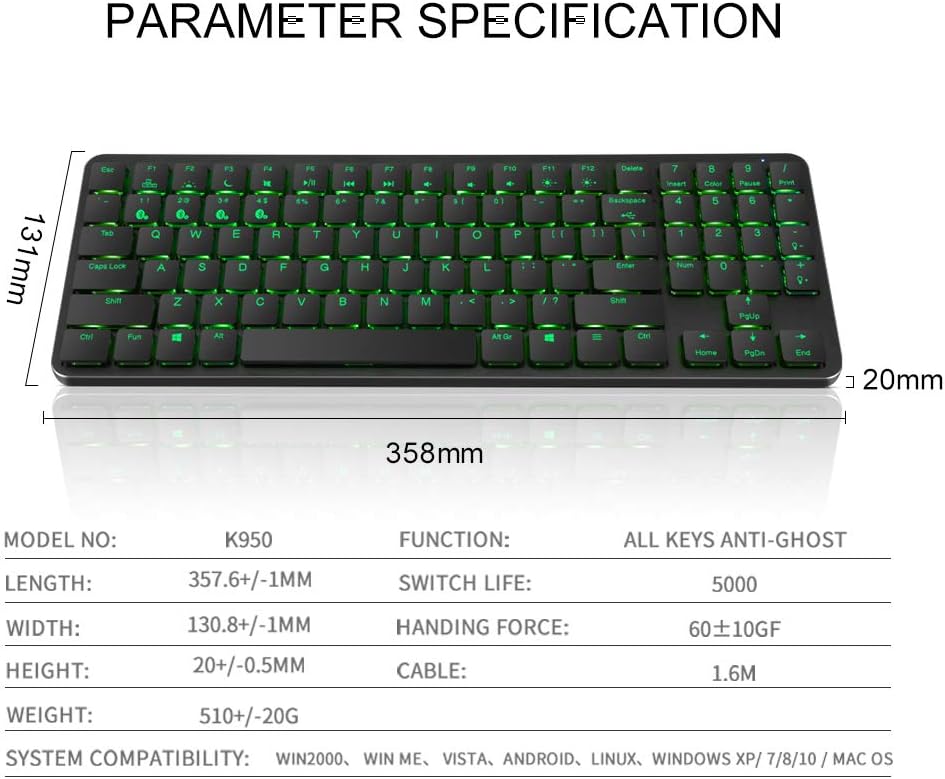
Detailed parameter specifications for the Hexgears K950 keyboard.

Diagram and specifications of the Kailh Choc mechanical switch used in the K950 keyboard.
9. Warranty and Support
For warranty information, technical support, or customer service inquiries, please refer to the documentation provided with your purchase or visit the official Hexgears website. Please note that specific warranty terms may vary by region and retailer.
Related documentsK950


Ask a question about this manual
Ask about setup, troubleshooting, compatibility, parts, safety, or missing instructions. Manuals+ will review the question and use this page’s manual context to help answer it.