
SOMIC G951S Purple
SOMIC G951S Purple Stereo Gaming Headset User Manual
Model: G951S Purple | Brand: SOMIC
Product Overview
The SOMIC G951S Purple Stereo Gaming Headset is designed to provide an immersive audio experience for gamers across multiple platforms. Featuring a comfortable, self-adjusting design and a high-sensitivity microphone, this headset is suitable for extended gaming sessions and clear communication.
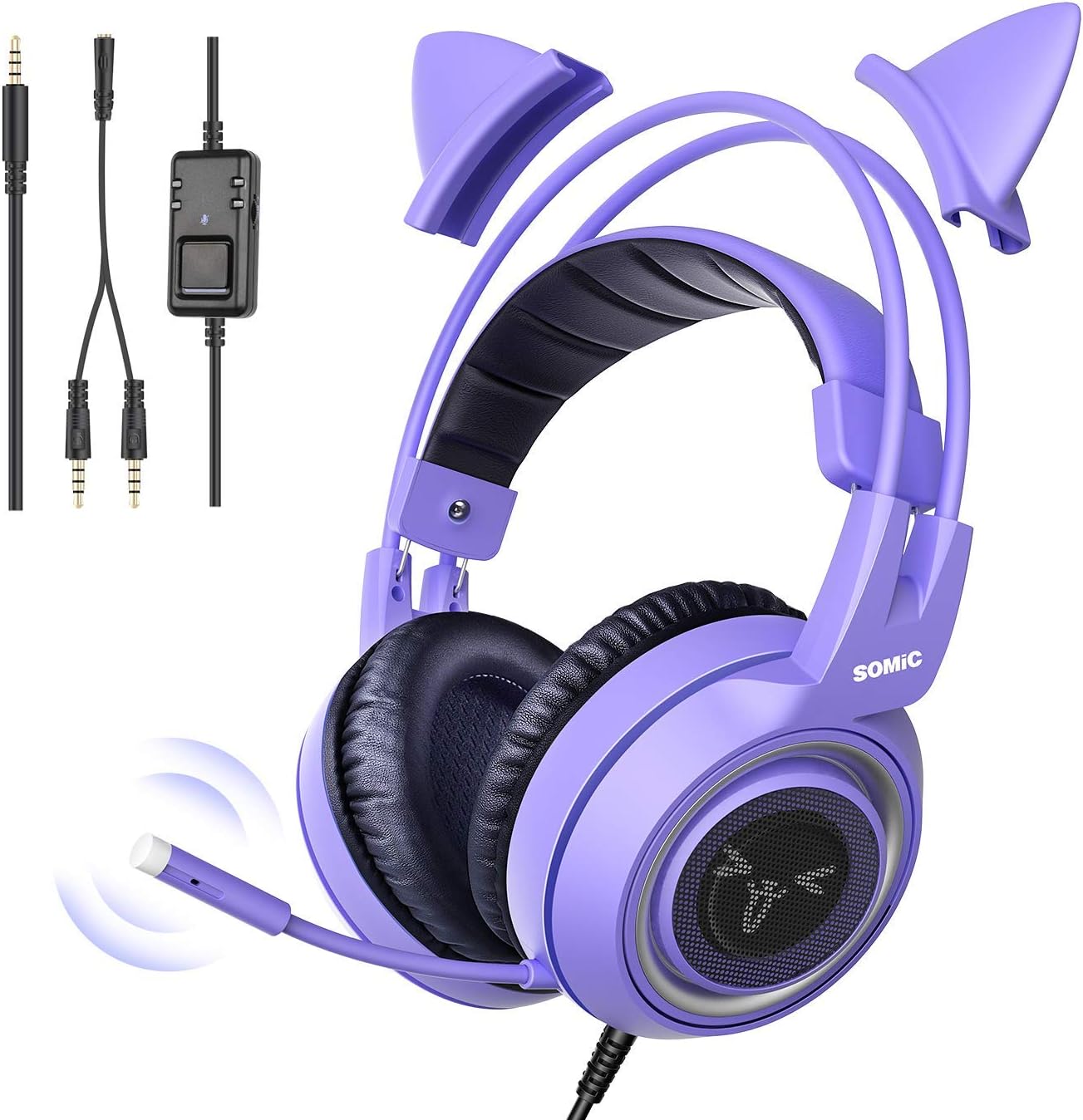
Image: SOMIC G951S Purple Stereo Gaming Headset, showcasing the headset itself, detachable cat ears, and the included 3.5mm audio splitter and inline control unit.
Key Features:
- High Quality Performance: Built-in 40mm high-fidelity speakers deliver rich sound quality, vivid sound field, and clear audio.
- Ambient Noise Canceling: Large earmuffs provide passive noise reduction for an immersive experience.
- Strong Compatibility: Compatible with Xbox One, Nintendo Switch, PlayStation 4, PlayStation 5, PC, laptops, iPads, and iPhones via a 3.5mm plug.
- Ergonomic Design: Features an omnidirectional, 360° flexible microphone, a self-adjusting headband, and soft, skin-friendly protein leather ear cushions for comfort during long wear.
- Special Appearance: Distinctive purple color with detachable cat ear accessories.
What's in the Box
- SOMIC G951S Purple Stereo Gaming Headset
- Detachable Cat Ears (pre-attached or separate, depending on packaging)
- 3.5mm Audio Splitter Cable (for PC with separate audio/mic jacks)
- User Manual (this document is a simplified guide)

Image: Contents of the SOMIC G951S headset packaging, including the headset, detachable cat ears, and cables.
Setup Instructions
Connecting to Devices:
The SOMIC G951S headset uses a standard 3.5mm audio jack for connectivity. Ensure your device has a compatible port.

Image: The SOMIC G951S headset demonstrating multi-platform compatibility with Xbox One, Nintendo Switch, PS4/PS5, Smartphone, and PC.
- For PS4/PS5, Xbox One (Newer Controllers), Nintendo Switch, Smartphones, Laptops (with combined audio/mic jack):
Simply plug the 3.5mm jack from the headset directly into the audio port of your device. Adjust volume using the inline controller or device settings.
- For PC (with separate audio and microphone jacks):
Use the included 3.5mm audio splitter cable. Plug the headset's 3.5mm jack into the female end of the splitter. Then, plug the green-tipped male end of the splitter into your PC's audio output jack (usually marked with a headphone icon) and the red-tipped male end into your PC's microphone input jack (usually marked with a microphone icon).
- Attaching/Detaching Cat Ears:
The cat ears are designed to be easily attached or detached from the top headband. Align the clips on the cat ears with the slots on the headband and gently push until they click into place. To remove, gently pull them off.

Image: Illustration showing the auto-adjusting headband and the detachable cat ears feature of the SOMIC G951S headset.
Operating Instructions
Audio Controls:
- Volume Control: The headset features an inline control unit on the cable. Use the scroll wheel or slider on this unit to adjust the audio volume up or down.
- Microphone Mute: The inline control unit also includes a switch to mute or unmute the microphone. Slide the switch to the appropriate position to control microphone input.

Image: Close-up of the SOMIC G951S headset's inline control unit, highlighting the 3.5mm plug, volume controller, and microphone mute switch.
Microphone Usage:
The omnidirectional microphone can be flexibly bent 360° to position it optimally for voice capture. Ensure it is positioned close to your mouth for the clearest audio transmission.

Image: The SOMIC G951S headset demonstrating the 360-degree flexibility of its high-sensitivity microphone.
Sound Experience:
The 40mm high-fidelity speakers are engineered to provide stereo surround sound, offering immersive audio with a wide range, powerful bass, and accurate sound reproduction for an enhanced gaming and multimedia experience.

Image: An exploded view diagram illustrating the internal components of the SOMIC G951S headset's speaker, emphasizing its stereo surround sound capabilities.
Official Product Video:
Video: An official product video from Somic Technology showcasing the G951S Cat Ear Gaming Headset. This video highlights various features and design aspects of the headset.
Maintenance and Care
- Cleaning: Use a soft, dry cloth to wipe down the headset. For ear cushions, a slightly damp cloth can be used, but ensure they are completely dry before use. Avoid harsh chemicals or abrasive cleaners.
- Storage: Store the headset in a cool, dry place away from direct sunlight and extreme temperatures. Avoid tangling the cable to prevent damage.
- Handling: Do not pull on the cable to unplug the headset; always grasp the plug itself. Avoid dropping the headset or subjecting it to strong impacts.
Troubleshooting
| Problem | Possible Solution |
|---|---|
| No sound from headset. |
|
| Microphone not working. |
|
| Sound quality is poor or distorted. |
|
| Headset is uncomfortable. |
|
Specifications
| Feature | Detail |
|---|---|
| Model Name | G951S Purple |
| Brand | SOMIC |
| Connectivity Technology | Wired |
| Headphones Jack | 3.5 mm Jack |
| Frequency Response | 20Hz-22kHz |
| Earpiece Shape | Over Ear |
| Material | Plastic |
| Item Weight | 1.1 pounds (0.5 Kilograms) |
| Product Dimensions | 10.39 x 8.5 x 4.41 inches |
| Included Components | Detachable cat ear |
| Control Type | Volume Control |
| Compatible Devices | Xbox One, Nintendo Switch, PlayStation 4, PlayStation 5, PC, Phone |

Image: The SOMIC G951S headset with its dimensions (10.8"x7.9"x4" inch) and weight (0.84 lbs) indicated.
Warranty and Support
For warranty information and customer support, please refer to the official SOMIC website or contact the seller directly. Keep your purchase receipt as proof of purchase for any warranty claims.
This product is verified by Transparency, ensuring each item has a unique code for verification before shipping.
A detailed User Manual (PDF) is available for download at: SOMIC G951S User Manual PDF
Related documentsG951S Purple

Ask a question about this manual
Ask about setup, troubleshooting, compatibility, parts, safety, or missing instructions. Manuals+ will review the question and use this page’s manual context to help answer it.