
1. Overview
The uni USB C Hub Multiport Adapter (Model 27-23) expands the connectivity of your USB-C/Thunderbolt 3 enabled devices. This 8-in-1 hub provides essential ports for enhanced productivity and versatility.
Key Features:
- 4K HDMI Output: Supports Ultra High Definition video resolution up to 4K@30Hz.
- 1Gbps Ethernet: Provides stable and fast wired network connectivity.
- 100W Power Delivery (PD): Delivers safe and rapid charging for compatible devices.
- 2x USB 3.0 Ports: Offers high-speed data transfer up to 5 Gbps.
- 1x USB 2.0 Port: For connecting standard peripherals.
- SD/MicroSD Card Reader: Supports high-speed data transfer up to 104 MB/s.
- Detachable Cable: Allows for flexible cable management and replacement.

Figure 1: uni USB C Hub Multiport Adapter.

Figure 2: Port layout of the uni USB C Hub.
2. Setup
Follow these steps to connect your uni USB C Hub to your device and peripherals.
- Connect the detachable USB-C cable from the hub to the USB-C/Thunderbolt 3 port on your laptop, tablet, or smartphone.
- For power delivery, connect a compatible USB-C power adapter (up to 100W) to the PD port on the hub.
- Connect your HDMI display to the HDMI port on the hub using an HDMI cable.
- For wired internet access, connect an Ethernet cable from your router to the Ethernet port on the hub.
- Connect USB peripherals (e.g., mouse, keyboard, external hard drive) to the USB 3.0 or USB 2.0 ports.
- Insert SD or MicroSD cards into the corresponding card reader slots for data access.

Figure 3: Hub connected to a laptop with multiple peripherals.
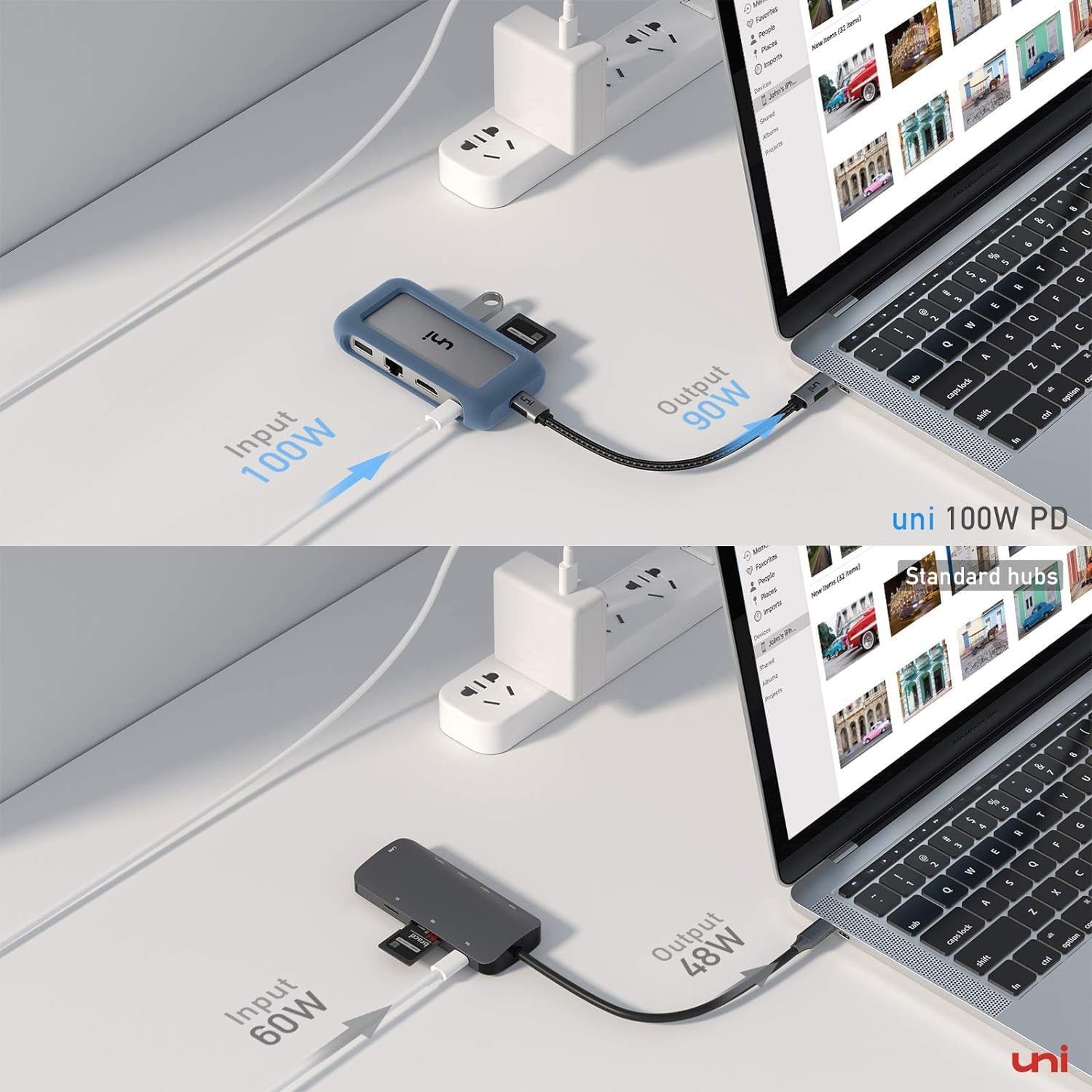
Figure 4: Laptop connected to an external monitor via the hub.
Setup Video:
Video 1: Overview of uni USB Type C 8-in-1 Hub features and connectivity.
3. Operating Instructions
3.1. 4K HDMI Video Output
Connect your monitor or projector to the HDMI port. The hub supports resolutions up to 4K@30Hz. Ensure your connected display and device also support this resolution for optimal performance. You can use Extended Desktop or Mirror modes depending on your operating system settings.

Figure 5: Utilizing 4K HDMI video output.
3.2. 1Gbps Ethernet Connection
For a stable and high-speed internet connection, plug an Ethernet cable into the hub's Ethernet port. This provides speeds up to 1Gbps, backward compatible with 100Mbps/10Mbps networks, ideal for large file transfers and online meetings.
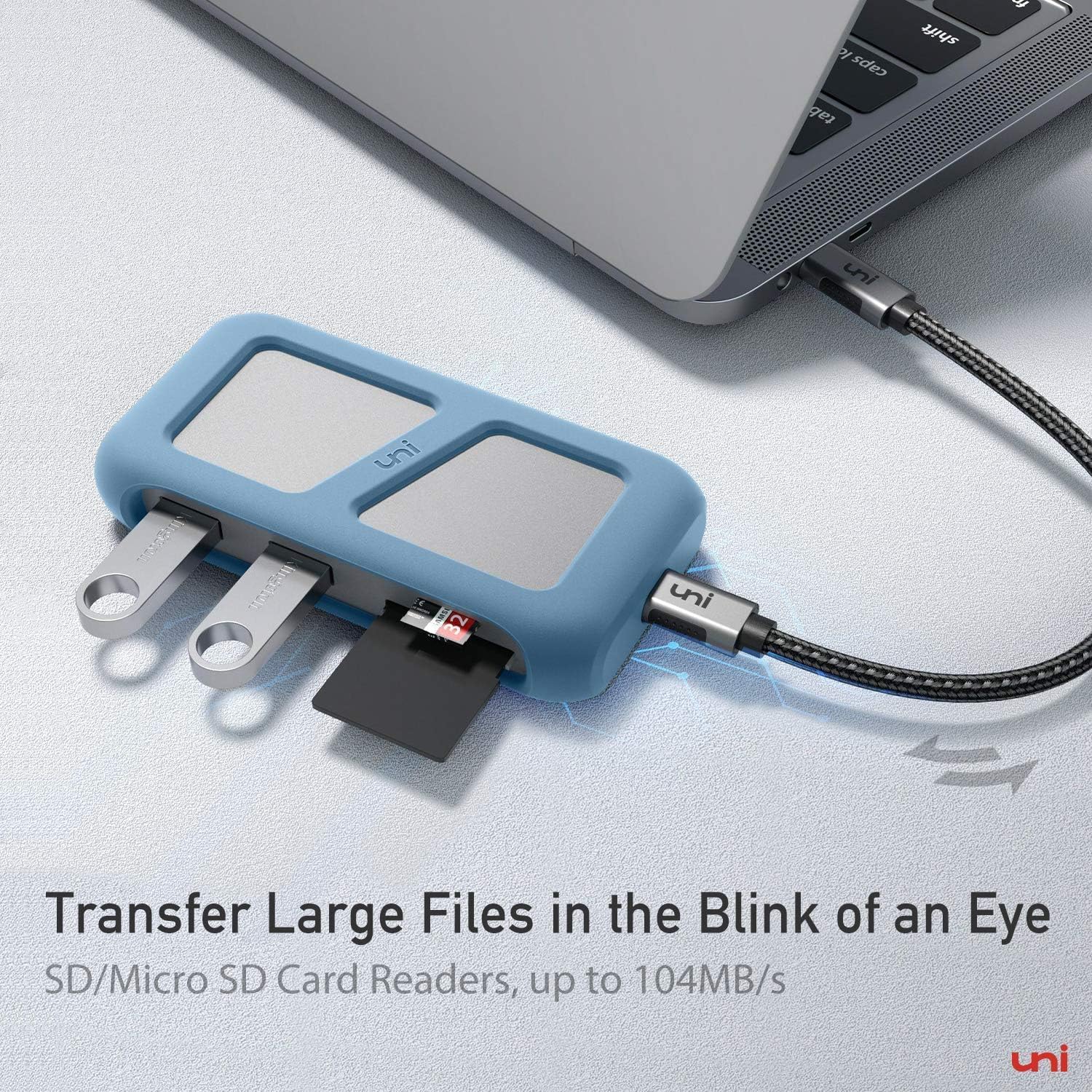
Figure 6: Stable 1Gbps Ethernet connection.
3.3. 100W Power Delivery
The dedicated USB-C PD port supports up to 100W power input to charge your connected laptop, smartphone, or tablet. This allows you to power your device while using the hub's other functions. Ensure your power adapter is capable of delivering sufficient wattage.
Figure 7: Efficient 100W Power Delivery.
3.4. USB 3.0 and USB 2.0 Ports
Use the two USB 3.0 ports for high-speed data transfer (up to 5 Gbps) with devices like external hard drives or flash drives. The USB 2.0 port is suitable for connecting standard peripherals such as a mouse, keyboard, or printer.
3.5. SD and MicroSD Card Readers
The integrated card readers support SD and MicroSD cards with UHS-I speeds up to 104 MB/s. This allows for quick transfer of photos and videos from cameras or other devices.
4. Maintenance
To ensure the longevity and optimal performance of your uni USB C Hub, follow these maintenance guidelines:
- Keep the hub clean by wiping it with a soft, dry cloth. Avoid liquid cleaners.
- Store the hub in a cool, dry place away from direct sunlight and extreme temperatures.
- Avoid bending or twisting the detachable cable excessively to prevent damage. The cable can be replaced with a USB 4 full-function cable if needed.
- Do not attempt to disassemble or repair the hub yourself. Refer to professional service if issues arise.
5. Troubleshooting
If you encounter issues with your uni USB C Hub, please refer to the following common solutions:
| Problem | Solution |
|---|---|
| No display on external monitor | Ensure the HDMI cable is securely connected. Verify your device and monitor support 4K@30Hz. Check display settings on your computer. |
| Slow or no internet connection | Check the Ethernet cable connection. Ensure your router is functioning correctly. Restart your device and the hub. |
| Device not charging via PD port | Confirm your USB-C power adapter is connected and functional. Ensure the power adapter provides sufficient wattage (up to 100W). |
| USB devices not recognized | Ensure USB devices are properly inserted. Try connecting them to different USB ports on the hub. Restart your host device. |
| SD/MicroSD card not detected | Reinsert the card firmly. Ensure the card is not damaged. Check if your device's operating system recognizes the card. |
6. Specifications
| Feature | Detail |
|---|---|
| Brand | uni |
| Model Number | 27-23 |
| HDMI Output | Up to 4K@30Hz |
| Ethernet Port | 1Gbps (backward compatible) |
| Power Delivery | Up to 100W |
| USB 3.0 Ports | 2 ports, 5 Gbps data transfer |
| USB 2.0 Port | 1 port, 480 Mbps data transfer |
| Card Readers | SD and MicroSD, up to 104 MB/s (UHS-I) |
| Operating System Compatibility | Linux, Mac OS X, Windows 7/8/10, iPadOS, Chrome OS |
| Item Weight | 5.6 ounces |
| Product Dimensions | 4.25 x 2.25 x 0.88 inches |
| Color | Silver/Gray |
7. Warranty and Support
Your uni USB C Hub Multiport Adapter comes with an 18-month warranty, ensuring long-term satisfaction with your purchase. For any questions, technical support, or warranty claims, please contact uni customer service. Refer to the product packaging or the official uni website for contact details.